> For the complete documentation index, see [llms.txt](https://doc.wearepatchworks.com/product-documentation/llms.txt). Markdown versions of documentation pages are available by appending `.md` to page URLs; this page is available as [Markdown](https://doc.wearepatchworks.com/product-documentation/api-reference/working-with-api-docs/testing-api-requests.md).
# Testing API requests
## Introduction
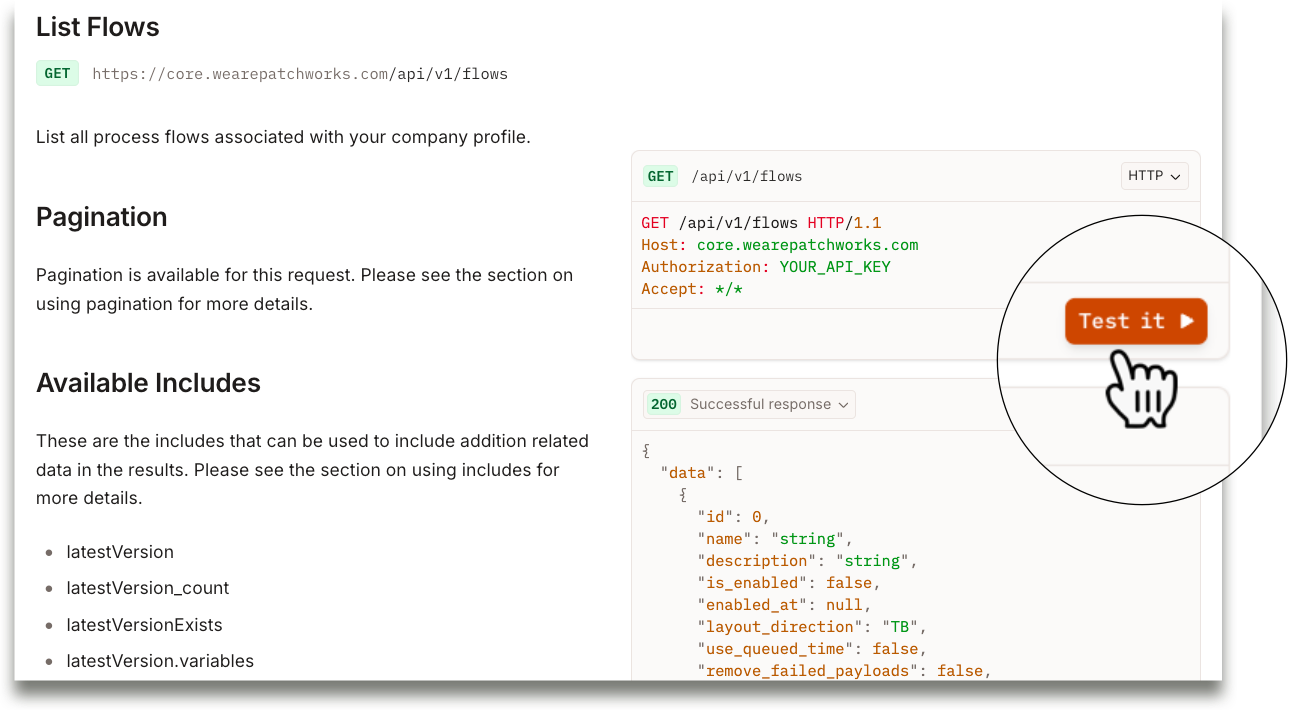
To test any request, click the associated `test it` button - for example:
This opens a [testing panel](#working-with-the-testing-panel), where you can enter your authentication credentials, run the request as needed, and navigate other requests for testing.
{% hint style="danger" %}
Although this option is labelled `test it`, be aware that any requests run here do so on your production system - NOT a sandbox. If you are updating data via API requests, make sure it's safe to do so.
{% endhint %}
## Working with the testing panel
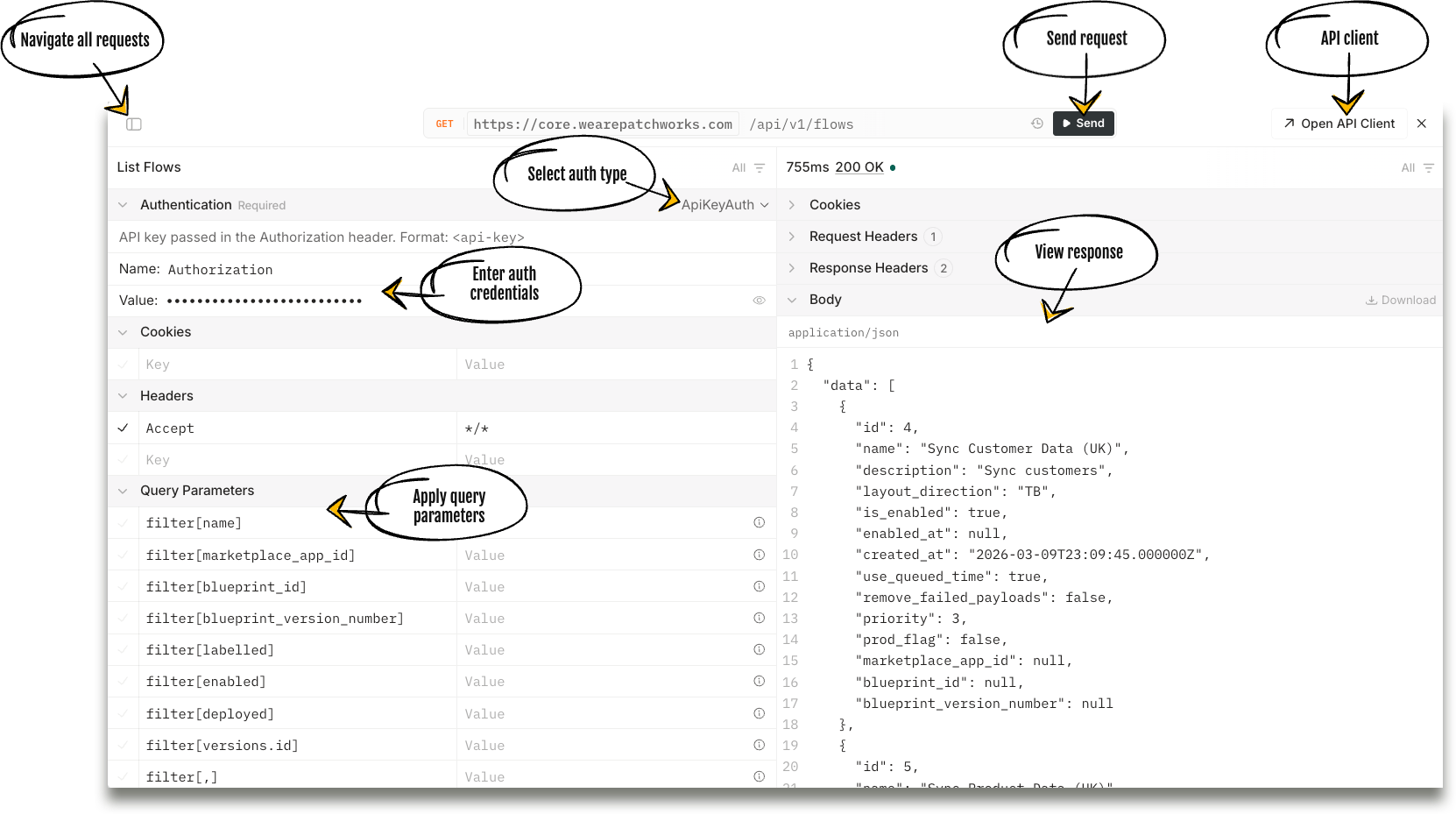
The test panel is intuitive, and you'll find your way around in no time. A few key details are called out below:
### Authenticating requests
You can authenticate API requests using an `API key`, or a `Bearer token`; use the switcher near the top of this window to make your selection. For more information, please see our [Authentication](/product-documentation/api-reference/getting-started/using-the-patchworks-core-api/authentication.md) section.
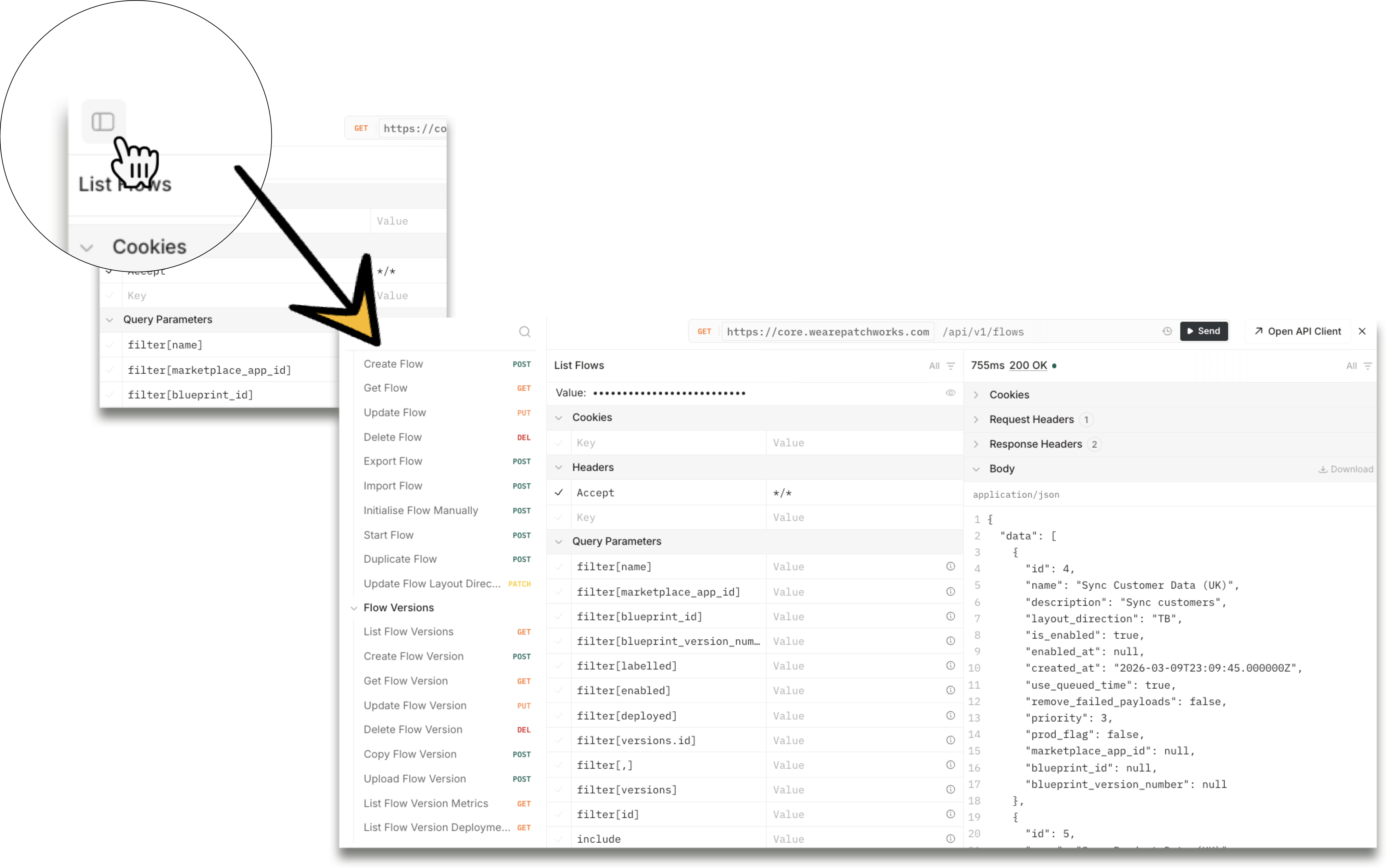
### Navigating all requests
Once you're in the test interface, click the 'sidebar' icon in the top-left corner to list all API requests. From here, you can select and test any request without needing to enter your authentication credentials each time (credentials persist until this window is closed):
### Applying query parameters
Update the `value` field for any query parameters that you want to include in requests. Check back on the documentation page to confirm the data type for these values.
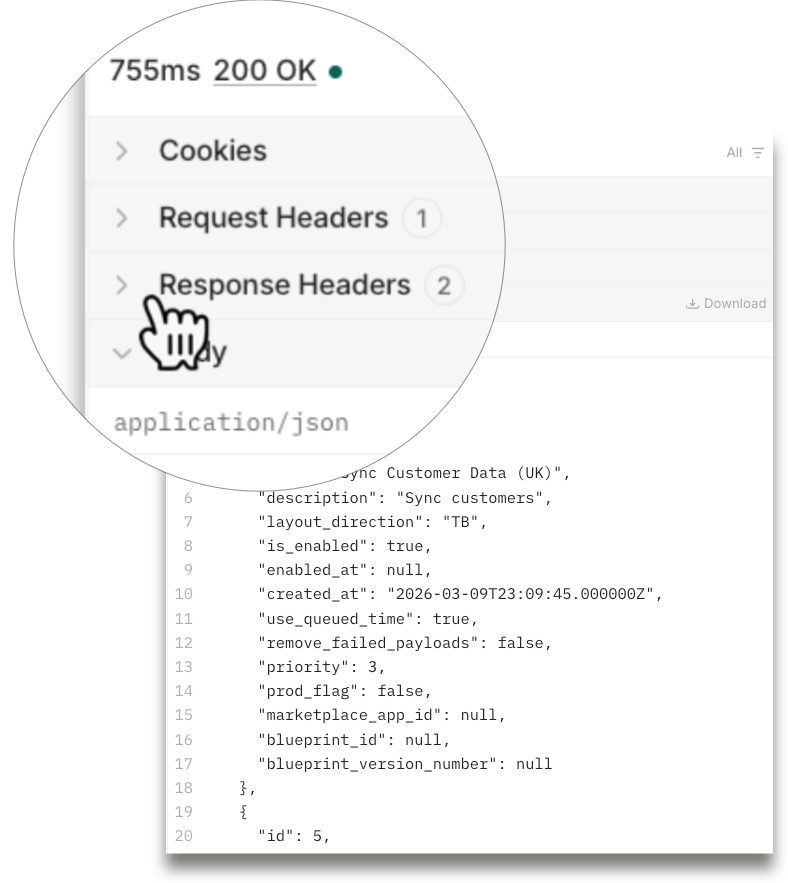
### Response details
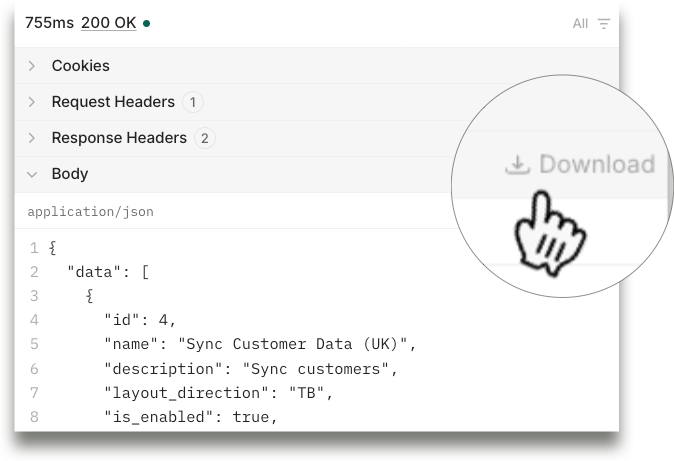
Response details are shown in the right panel. The response `body` is shown by default, but you can expand other response elements above this:
You can download the response using the `download` option:
### The Scalar API client
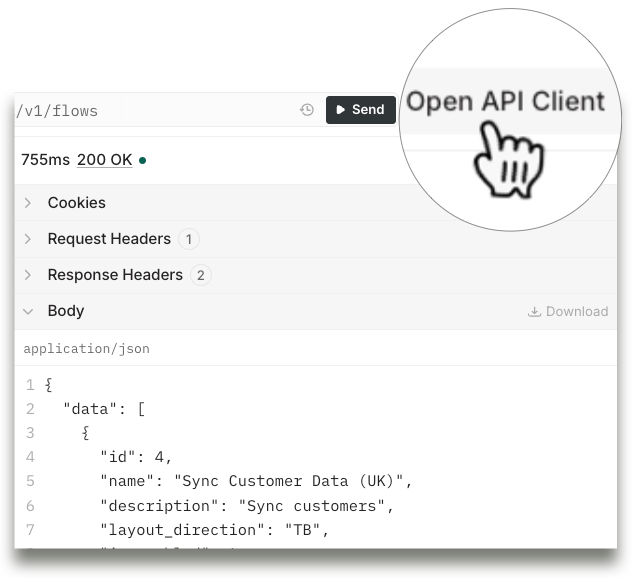
For quick tests while reading the documentation, staying in GitBook is fine. But for serious or repeated API testing, accessing the Scalar API client can be really useful:
Here, you have a full workspace that's designed for API testing - requests can be saved and organised into collections.