> For the complete documentation index, see [llms.txt](https://doc.wearepatchworks.com/product-documentation/llms.txt). Markdown versions of documentation pages are available by appending `.md` to page URLs; this page is available as [Markdown](https://doc.wearepatchworks.com/product-documentation/blueprints/working-with-private-blueprints/deleting-a-blueprint-version.md).
# Deleting a blueprint version
## Introduction
Each time a blueprint is updated and published, a new version is created. Over time, you may wish to remove older versions, particularly if the number of versions is approaching [the maximum of ten](/product-documentation/blueprints/working-with-private-blueprints/about-blueprint-versions.md).
## Need to know
* Deleting a blueprint version does not affect any existing installations of that version.
* When a blueprint version is deleted, existing version numbers are unchanged, and the deleted version number is never reused.
* You cannot delete the `active` version; in this scenario, you would need to [change the active version](/product-documentation/blueprints/working-with-private-blueprints/changing-the-active-version-for-a-private-blueprint.md) first.
## The steps
{% stepper %}
{% step %}
**Log in to your own company profile**
Log in to the dashboard and (if you're managing multiple company profiles) ensure that you've [switched to your own profile](/product-documentation/company-management/multi-company-profiles/switching-in-and-out-of-a-linked-company.md).
{% endstep %}
{% step %}
**Access private blueprints**
Select `marketplace` from the left-hand navigation menu, then select `blueprints` and `private` tabs. Here you will see any blueprints that have been built by users associated with your company profile.
{% endstep %}
{% step %}
**Access the manifest for the required blueprint**
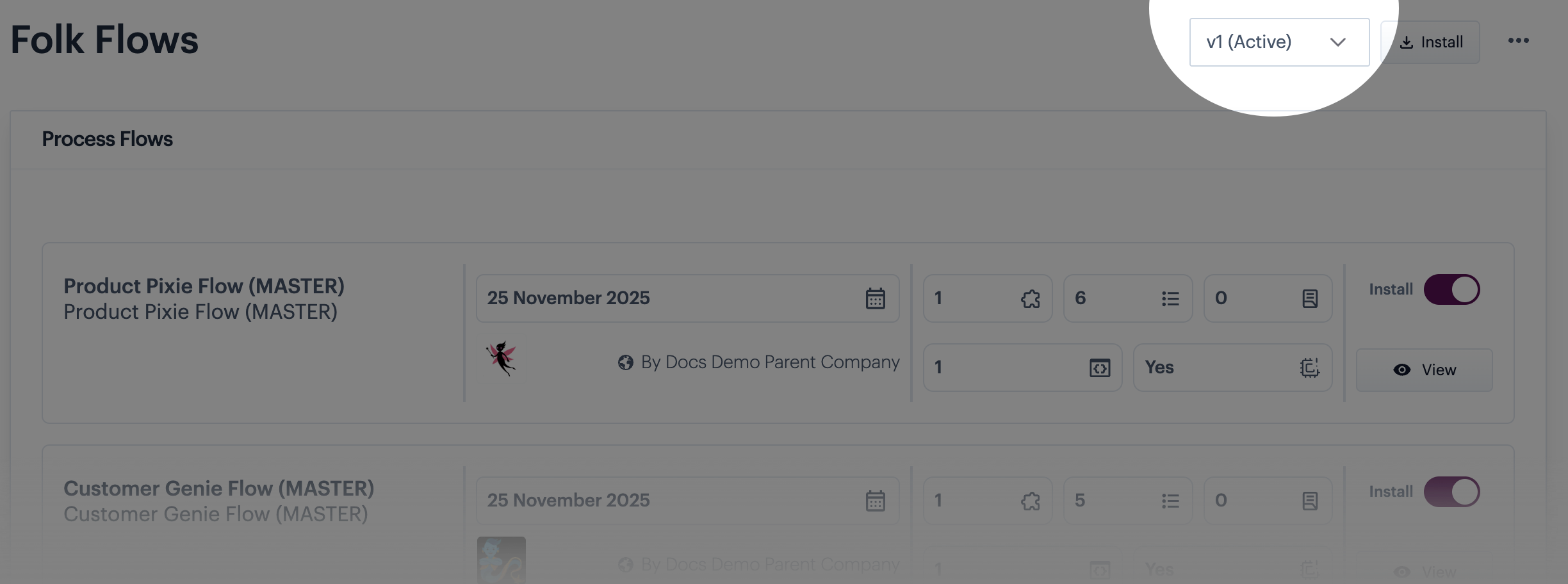
Click the blueprint tile that you want to manage. For example:
The [blueprint manifest](/product-documentation/blueprints/working-with-private-blueprints/building-a-private-blueprint.md) is displayed with the currently `active` version is displayed by default - for example:
{% endstep %}
{% step %}
**Switch to the version you want to delete**
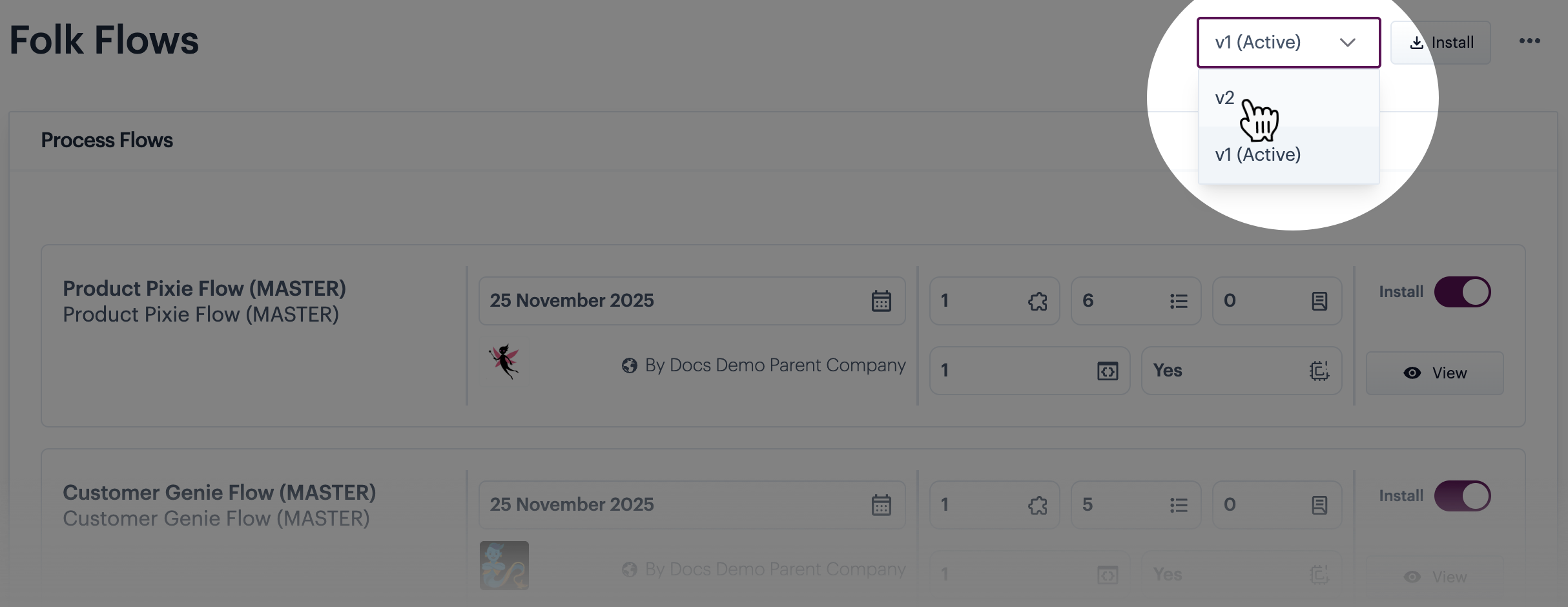
Click in the `version` field and select the version that you want to delete. For example:
{% endstep %}
{% step %}
**Select the delete option**
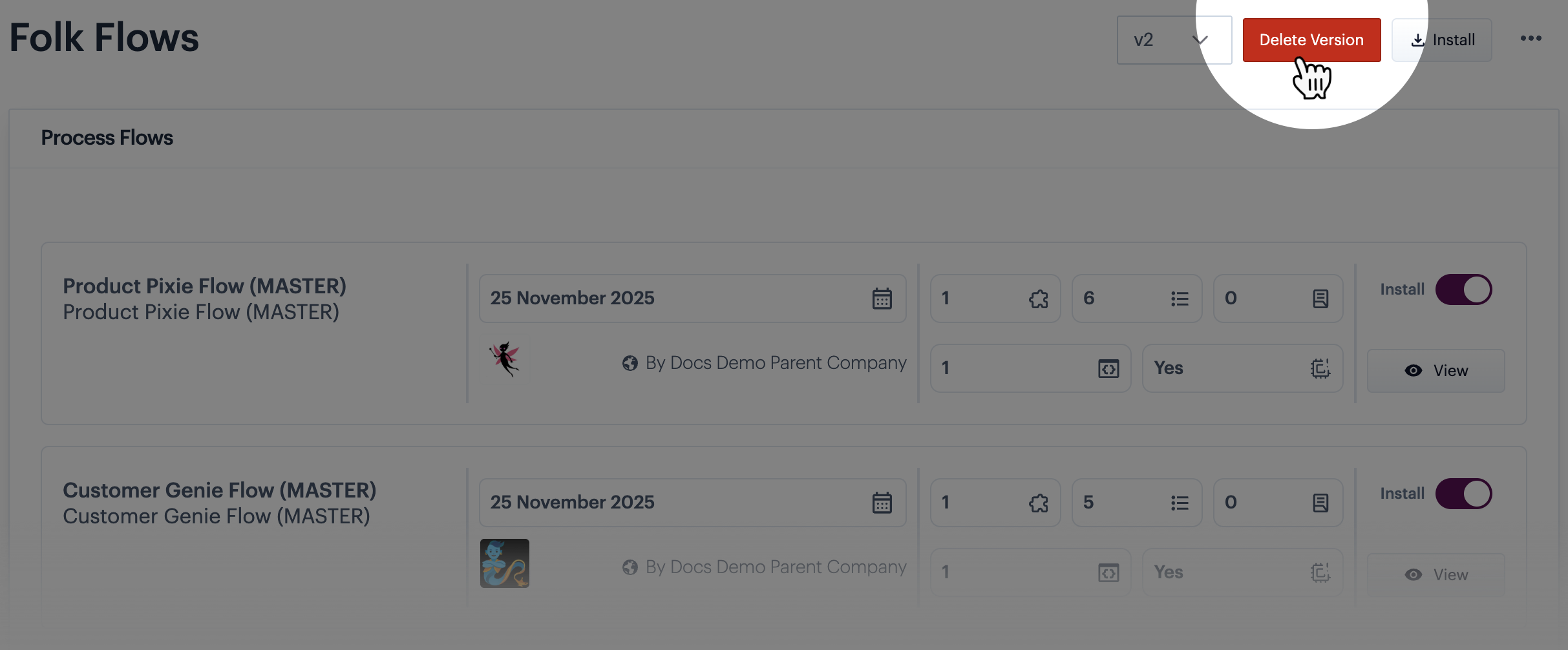
Click the `delete version` button to the right of the version number. For example:
{% hint style="info" %}
The `delete` option is not displayed when the `active` version is selected. For more information, please refer to [About blueprint versions](/product-documentation/blueprints/working-with-private-blueprints/about-blueprint-versions.md).
{% endhint %}
{% endstep %}
{% step %}
**Confirm this action**
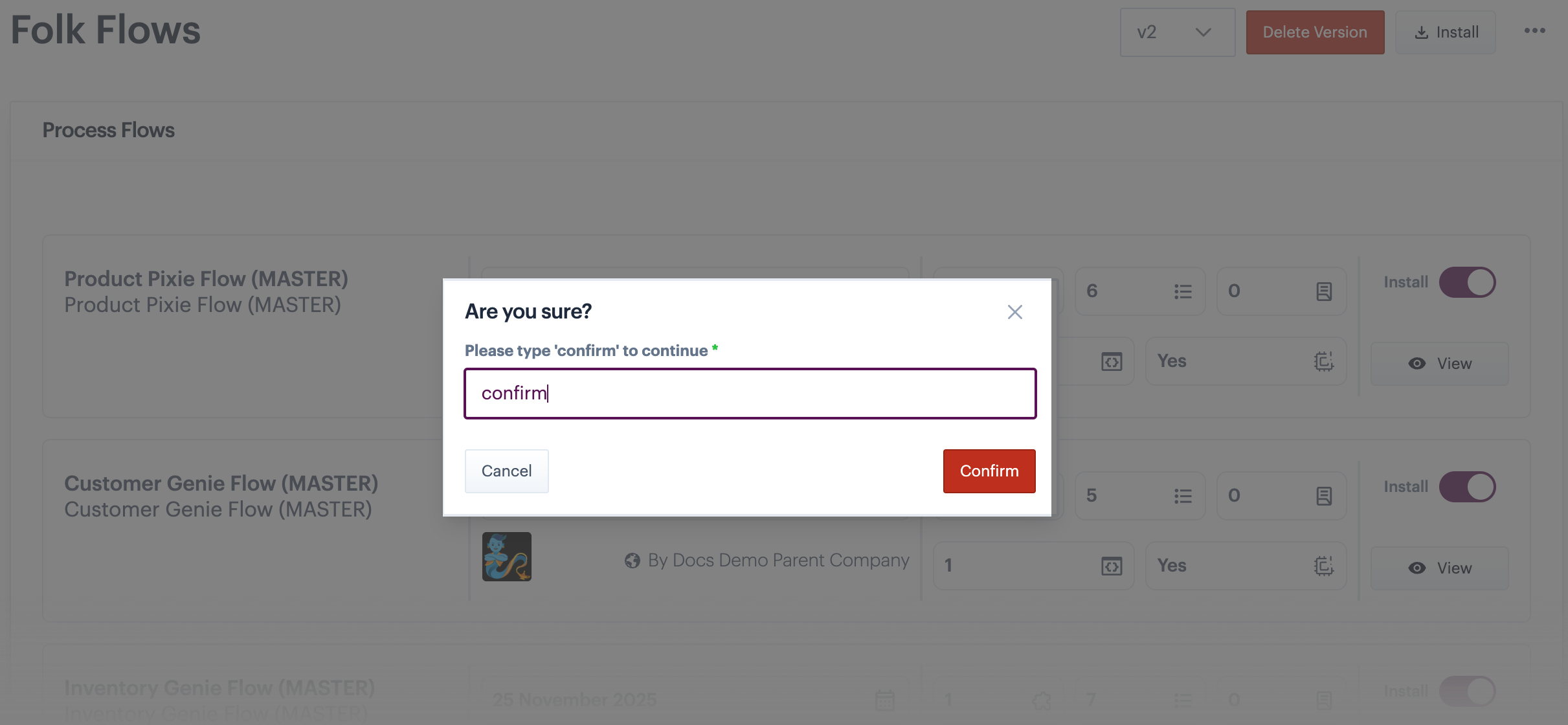
When prompted, confirm that you want to proceed with the delete action. For example: