> For the complete documentation index, see [llms.txt](https://doc.wearepatchworks.com/product-documentation/llms.txt). Markdown versions of documentation pages are available by appending `.md` to page URLs; this page is available as [Markdown](https://doc.wearepatchworks.com/product-documentation/blueprints/working-with-private-blueprints/updating-a-private-blueprint.md).
# Updating a private blueprint
## Introduction
As a user associated with the company profile that [built a blueprint](/product-documentation/blueprints/working-with-private-blueprints/building-a-private-blueprint.md), you can make changes to the blueprint and publish an updated version. This guide walks through the steps required to achieve this.
## Need to know
* Blueprints built and installed before 5th November 2025 cannot be updated. If you have older blueprints but want to utilise the update functionality, you should [build](/product-documentation/blueprints/working-with-private-blueprints/building-a-private-blueprint.md) and [install](/product-documentation/blueprints/working-with-private-blueprints/installing-a-private-blueprint.md) new versions.
* A blueprint can have up to ten versions. If you attempt to publish a new version that would exceed this limit, you are prompted to confirm the deletion of the oldest version (first in, first out). For more information, please refer to [About blueprint versions](/product-documentation/blueprints/working-with-private-blueprints/about-blueprint-versions.md).
* When updating a blueprint, you can add new and remove existing process flows. When an existing blueprint installation is updated to this version, all associated process flows are 'un-deployed' first. If you have removed a flow from the updated version, that flow remains in place, but it is not redeployed for the company.
* You can change the component parts of an existing process flow in a blueprint - for example, apply different connectors, cross-reference lookups, or scripts. When an existing blueprint installation is updated to this version, the new components are installed; the old components stay in place but are not referenced in the updated flows.
## Suggested workflow for updating blueprints
The suggested workflow for updating and then rolling out a private blueprint is as follows:
{% stepper %}
{% step %}
**Make changes to the blueprint and publish a new version**\
Make your required changes in a draft, then publish a new version (as detailed [below](#the-steps)).
{% hint style="info" %}
At this point, the updated version is not [active](/product-documentation/blueprints/working-with-private-blueprints/about-blueprint-versions.md#the-active-version), - i.e. it will NOT be installed if someone chooses to [install this blueprint from your private marketplace](/product-documentation/blueprints/working-with-private-blueprints/installing-a-private-blueprint.md). For more information about the `active` version of a blueprint, please refer to [About blueprint versions](/product-documentation/blueprints/working-with-private-blueprints/about-blueprint-versions.md#the-active-version).
{% endhint %}
{% endstep %}
{% step %}
**Promote this version for testing**\
[Promote this version to one 'child' company](/product-documentation/blueprints/working-with-private-blueprints/rolling-out-blueprint-updates/bulk-blueprint-updates-force.md) (or your own company) for testing.
{% hint style="info" %}
For testing purposes, you may choose to install a new blueprint in your own company or to have a dedicated 'child' company for testing.
{% endhint %}
{% endstep %}
{% step %}
**Test the blueprint**\
[Install](/product-documentation/blueprints/working-with-private-blueprints/installing-a-private-blueprint.md) and test the blueprint. If necessary, make and publish further updates (promoting each one to your test company for checks).
{% endstep %}
{% step %}
**Set the final version as active**\
When you're satisfied that a published version is ready for general use, [set it to be the active version](/product-documentation/blueprints/working-with-private-blueprints/changing-the-active-version-for-a-private-blueprint.md).
{% endstep %}
{% step %}
**Promote the update to existing installations**\
You can force a [bulk update](/product-documentation/blueprints/working-with-private-blueprints/rolling-out-blueprint-updates/bulk-blueprint-updates-force.md), or allow child companies to [accept the update manually](/product-documentation/blueprints/working-with-private-blueprints/rolling-out-blueprint-updates/accepting-a-blueprint-update-manually.md).
{% endstep %}
{% endstepper %}
## The steps
{% stepper %}
{% step %}
**Log in to your own company profile**
Log in to the dashboard and (if you're managing multiple company profiles) ensure that you've [switched to your own profile](/product-documentation/company-management/multi-company-profiles/switching-in-and-out-of-a-linked-company.md).
{% endstep %}
{% step %}
**Access private blueprints**
Select `marketplace` from the left-hand navigation menu, then select `blueprints` and `private` tabs. Here you will see any blueprints that have been built by users associated with your company profile.
{% endstep %}
{% step %}
**Access the manifest for the required blueprint**
Click the blueprint tile that you want to update. For example:
The [blueprint manifest](/product-documentation/blueprints/working-with-private-blueprints/building-a-private-blueprint.md) is displayed. For example:
{% endstep %}
{% step %}
**Open a new draft**
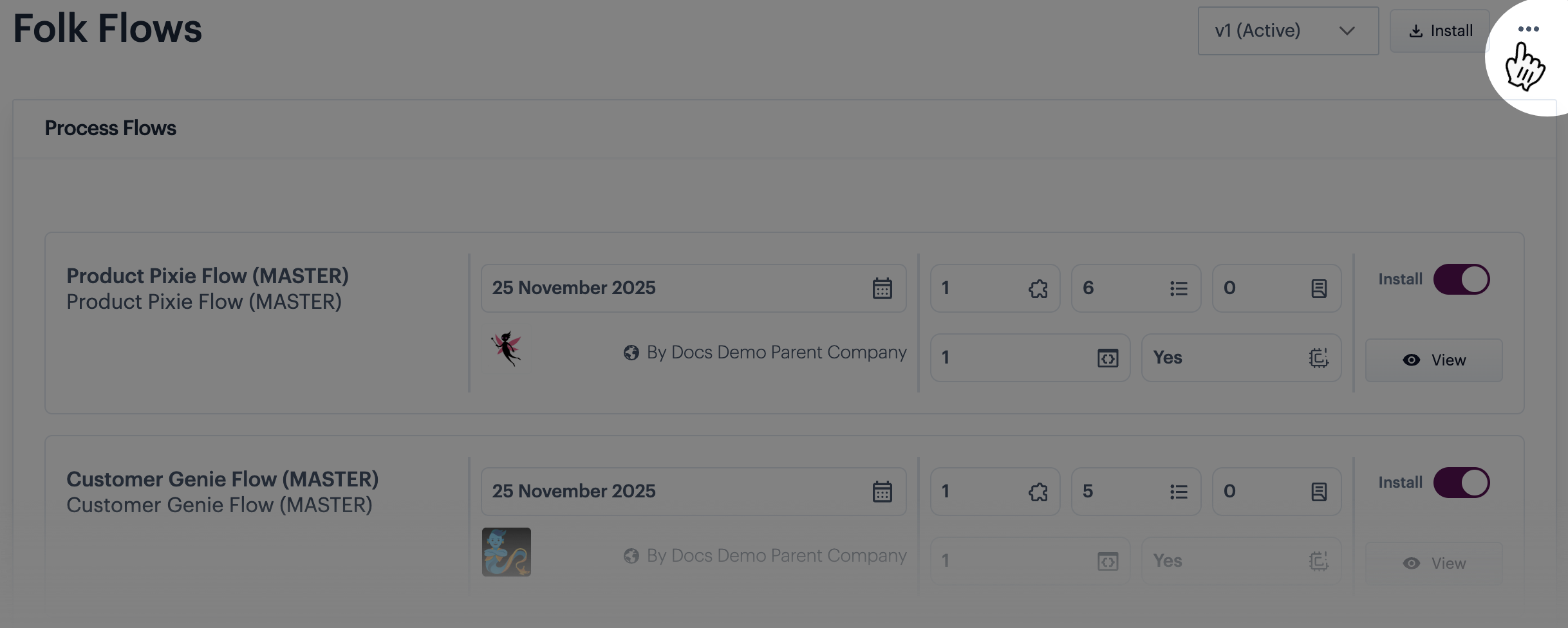
Click the ellipsis icon at the top of the page:
Then select the `open draft` option:
{% endstep %}
{% step %}
**Make your changes**
An empty blueprint manifest opens in `draft` mode so you can add the required flows and (if necessary) adjust components as needed:
{% hint style="warning" %}
Ensure that all process flows to be included in the blueprint are selected. If a process flow is not selected, it is not included.
{% endhint %}
{% hint style="info" %}
Remember that adding a process flow to a blueprint also adds its components (such as connectors, scripts, cross-reference lookups, etc.).
{% endhint %}
{% endstep %}
{% step %}
**Publish the updated version**
If you're ready to install/test this version, click the `publish` button at the top of the manifest. For example:
{% hint style="info" %}
A blueprint can have [up to ten versions](/product-documentation/blueprints/working-with-private-blueprints/about-blueprint-versions.md). If you reach this limit and attempt to publish another version, you are prompted to confirm that the oldest version can be removed. For example:
If you would prefer to remove a different version to make way for a new one, select `cancel` and then [delete the required version](/product-documentation/blueprints/working-with-private-blueprints/deleting-a-blueprint-version.md) before trying the `publish` operation again.
Also note that if the oldest version is also the `active` version, it can't be deleted automatically. In this case, you'll see an error message when attempting to publish a new version - for example:
In this case, you need to [change the active version](/product-documentation/blueprints/working-with-private-blueprints/changing-the-active-version-for-a-private-blueprint.md) before trying the `publish` operation again.
{% endhint %}
{% endstep %}
{% step %}
**Post-publish actions**
Next steps are detailed in our [suggested workflow](#suggested-workflow-for-updating-blueprints), above.
{% endstep %}
{% endstepper %}




 If you would prefer to remove a different version to make way for a new one, select `cancel` and then [delete the required version](/product-documentation/blueprints/working-with-private-blueprints/deleting-a-blueprint-version.md) before trying the `publish` operation again.
Also note that if the oldest version is also the `active` version, it can't be deleted automatically. In this case, you'll see an error message when attempting to publish a new version - for example:
If you would prefer to remove a different version to make way for a new one, select `cancel` and then [delete the required version](/product-documentation/blueprints/working-with-private-blueprints/deleting-a-blueprint-version.md) before trying the `publish` operation again.
Also note that if the oldest version is also the `active` version, it can't be deleted automatically. In this case, you'll see an error message when attempting to publish a new version - for example:
 In this case, you need to [change the active version](/product-documentation/blueprints/working-with-private-blueprints/changing-the-active-version-for-a-private-blueprint.md) before trying the `publish` operation again.
{% endhint %}
{% endstep %}
{% step %}
**Post-publish actions**
Next steps are detailed in our [suggested workflow](#suggested-workflow-for-updating-blueprints), above.
{% endstep %}
{% endstepper %}
In this case, you need to [change the active version](/product-documentation/blueprints/working-with-private-blueprints/changing-the-active-version-for-a-private-blueprint.md) before trying the `publish` operation again.
{% endhint %}
{% endstep %}
{% step %}
**Post-publish actions**
Next steps are detailed in our [suggested workflow](#suggested-workflow-for-updating-blueprints), above.
{% endstep %}
{% endstepper %}