> For the complete documentation index, see [llms.txt](https://doc.wearepatchworks.com/product-documentation/llms.txt). Markdown versions of documentation pages are available by appending `.md` to page URLs; this page is available as [Markdown](https://doc.wearepatchworks.com/product-documentation/general-settings/label-management.md).
# Label management
## Introduction
Labels can be applied to [process flows](/product-documentation/process-flows/managing-process-flows/process-flow-labels.md), [virtual environments](/product-documentation/virtual-environments/implementing-virtual-environments/creating-a-virtual-environment.md), and [blueprints](/product-documentation/blueprints/the-anatomy-of-a-blueprint.md). They are a useful way to tag/categorise these items into categories, particularly when you're managing lots of resources.
You can create and apply labels 'on the fly' whilst adding/updating a process flow, virtual environment, or blueprint - but if you have a significant amount of work to do on labels, it's simpler to do this from general settings.
All labels are added to the same 'pool', irrespective of origin. For example, labels created for a process flow via [process flow settings](/product-documentation/process-flows/building-process-flows/process-flow-settings.md) can also be applied to virtual environments, and vice versa.
## Need to know
* If you update the name and/or colour of a label, that change is immediately applied to any items where this label is already applied.
* If you delete a label from general settings, that label is immediately removed from any items where it was already applied.
* A label cannot exceed 20 characters.
## Accessing labels
To access existing labels for your company profile, follow the steps below.
{% stepper %}
{% step %}
**Access general settings**
Select `settings` from the bottom of the left-hand navigation menu:
All existing labels are displayed on the `manage labels` page. For example:
{% endstep %}
{% endstepper %}
## Adding a label
To add new labels for your company profile, follow the steps below.
{% stepper %}
{% step %}
**Access labels**
Follow the steps [above](#accessing-labels) to access the `manage labels` page.
{% endstep %}
{% step %}
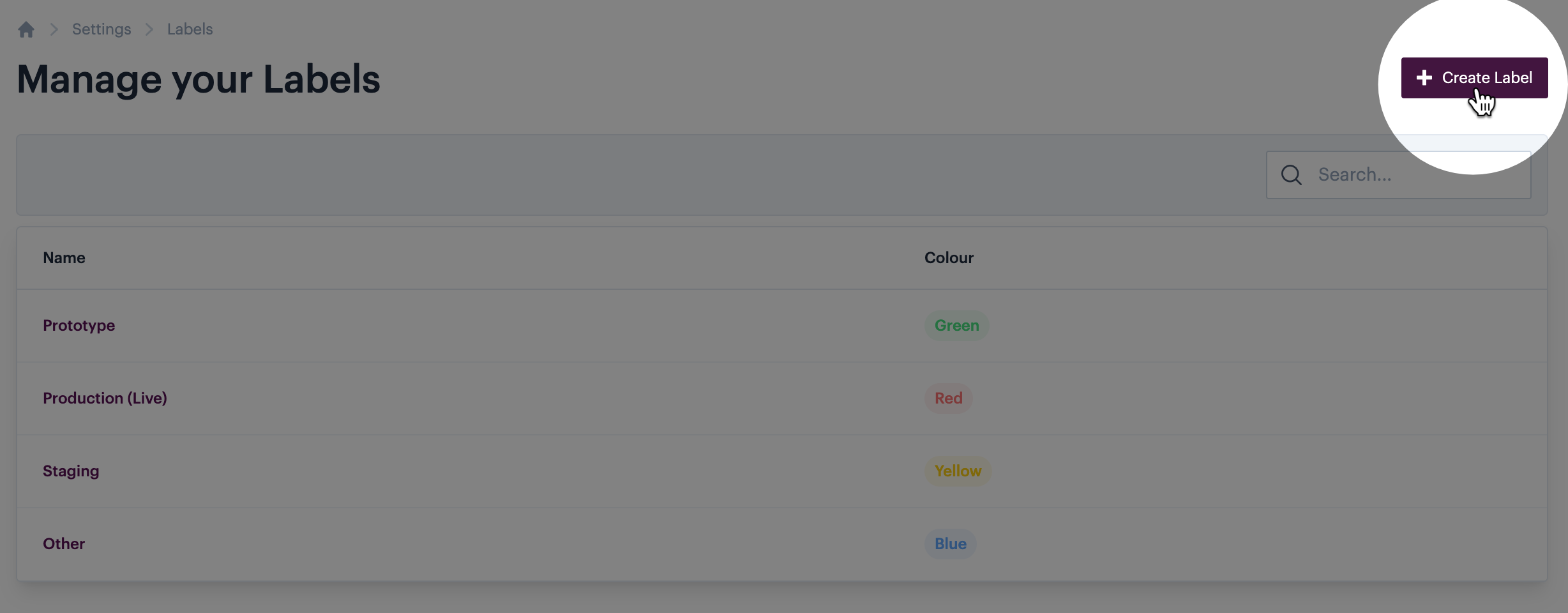
**Create a new label**
Click the `create label` button at the top of the page:
A new label form is displayed:
{% endstep %}
{% step %}
**Configure the label**
Enter a `name` for the label and select a `colour`; then click the create label button. For example:
{% hint style="info" %}
These selections determine how the label is displayed when it's applied to resources - the name will be shown exactly as defined here, with the selected colour.
{% endhint %}
{% hint style="warning" %}
Label names cannot exceed 20 characters.
{% endhint %}
{% endstep %}
{% step %}
**Apply labels as needed**
The label is ready for use - it can be applied to [process flows](/product-documentation/process-flows/managing-process-flows/process-flow-labels.md), [virtual environments](/product-documentation/virtual-environments/implementing-virtual-environments/creating-a-virtual-environment.md), and [blueprints](/product-documentation/blueprints/the-anatomy-of-a-blueprint.md).
{% endstep %}
{% endstepper %}
## Updating an existing label
To update the name or colour for an existing label, follow the steps below:
{% stepper %}
{% step %}
**Access labels**
Follow the steps [above](#accessing-labels) to access the `manage labels` page.
{% endstep %}
{% step %}
**Access label settings**
Click the name of the label that you want to update. For example:
Label details are displayed. For example:
{% endstep %}
{% step %}
**Update label settings**
Update the label `name` and/or `colour`; then click the `save` button. For example:
{% hint style="info" %}
Updates will be applied immediately, wherever this label is currently applied.
{% endhint %}
{% hint style="warning" %}
Label names cannot exceed 20 characters.
{% endhint %}
{% endstep %}
{% endstepper %}
## Remove an existing label
When a label is removed, it's no longer available for use. If you delete a label that's currently applied to [process flows](/product-documentation/process-flows/managing-process-flows/process-flow-labels.md), [virtual environments](/product-documentation/virtual-environments/implementing-virtual-environments/creating-a-virtual-environment.md), and [blueprints](/product-documentation/blueprints/the-anatomy-of-a-blueprint.md), it will be cleared from those resources immediately. To remove an existing label, follow the steps below:
{% stepper %}
{% step %}
**Access labels**
Follow the steps [above](#accessing-labels) to access the `manage labels` page.
{% endstep %}
{% step %}
**Access label settings**
Click the name of the label that you want to remove. For example:
Label details are displayed. For example:
{% endstep %}
{% step %}
**Delete the label**
Click the `delete` button. For example:
{% hint style="info" %}
Updates will be applied immediately, wherever this label is currently applied.
{% endhint %}
{% hint style="warning" %}
Label names cannot exceed 20 characters.
{% endhint %}
{% endstep %}
{% step %}
**Confirm this action**
When prompted, confirm that you want to remove this label. For example:
{% endstep %}
{% endstepper %}