# The drag & drop canvas

## Introduction

The process flow canvas has six main elements: [title bar](#process-flow-title-bar), [actions bar](#process-flow-actions), [layout options](#layout-options), [build area](#build-area), [shapes panel](#shapes-panel), and a [flow navigator (minimap)](#flow-navigator). For example:

<figure><img src="https://2440044887-files.gitbook.io/~/files/v0/b/gitbook-x-prod.appspot.com/o/spaces%2FLYNcUBVQwSkOMG6KjZfz%2Fuploads%2FSnZTj5hOhEZEK85rTyPQ%2Fdrag%20%26%20drop%20canvas%20-%20annotated.png?alt=media&#x26;token=5e2e5a0e-3053-4b21-9619-e4e4cc32268f" alt=""><figcaption></figcaption></figure>

Once you start adding [shapes](https://doc.wearepatchworks.com/product-documentation/process-flows/building-process-flows/process-flow-shapes) to a flow, you'll also encounter the [settings drawer](#settings-drawer). For example:

<figure><img src="https://2440044887-files.gitbook.io/~/files/v0/b/gitbook-x-prod.appspot.com/o/spaces%2FLYNcUBVQwSkOMG6KjZfz%2Fuploads%2F3f7R65XhvX1YeOfiuZww%2Fdrag%20%26%20drop%20canvas%20-%20settings%20drawer.png?alt=media&#x26;token=bd6fc231-2530-4e77-b044-274adc92ee89" alt=""><figcaption></figcaption></figure>

The following sections summarise these areas.

## Process flow title bar

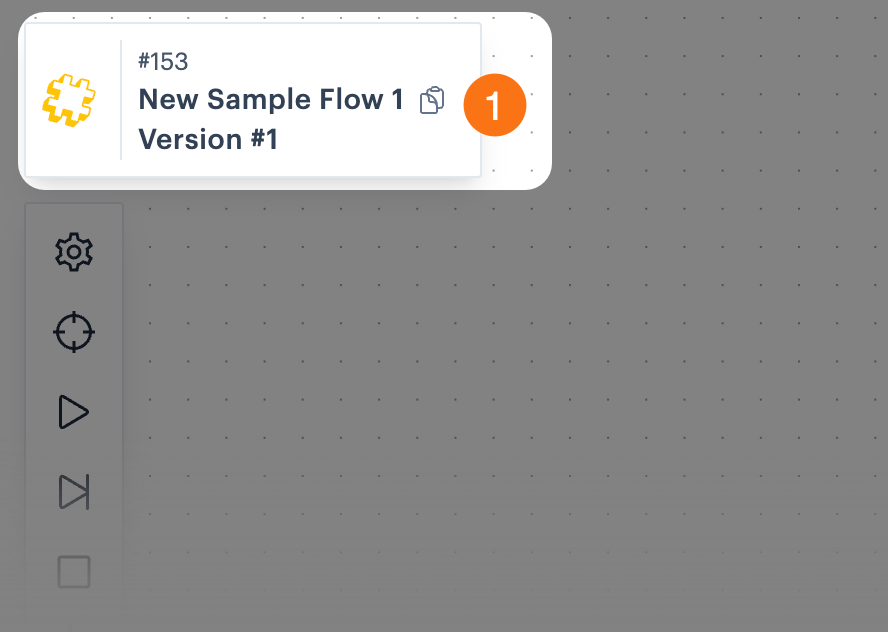
The process flow title bar shows the process flow name, as specified when it was created. The number above the title is the process `flow id` , and the number below is the `version` number. To change this title, use the [settings option from the actions bar](#settings).

The `copy link with current company id` icon to the right of the title can be used to copy a link to this process flow, which includes the `id` for your company profile:

<div align="left"><figure><img src="https://2440044887-files.gitbook.io/~/files/v0/b/gitbook-x-prod.appspot.com/o/spaces%2FLYNcUBVQwSkOMG6KjZfz%2Fuploads%2FLatJT3WXvSsat80dxqlu%2Fdrag%20%26%20drop%20canvas%20-%20title%20bar.png?alt=media&#x26;token=5709cefb-90d1-430f-aa21-1f8d75d302e9" alt="" width="375"><figcaption></figcaption></figure></div>

This is useful if:

* You manage multiple Patchworks profiles. Sharing this link with other team members (who have sufficient permissions) allows them to access the process flow directly - seamlessly switching to the relevant company profile.&#x20;
* You need to raise a support query regarding a process flow. Including this link in your support ticket means that a member of our Support team can access the flow more efficiently, seamlessly switching to the relevant company profile.&#x20;

## Process flow actions

Options in the actions bar are summarised below:

<table><thead><tr><th width="140.33333333333331">Option</th><th>Summary</th></tr></thead><tbody><tr><td><img src="https://2440044887-files.gitbook.io/~/files/v0/b/gitbook-x-prod.appspot.com/o/spaces%2FLYNcUBVQwSkOMG6KjZfz%2Fuploads%2FiiH3lTvAPxRGlI7d48Yb%2Faction%20-%20settings.png?alt=media&#x26;token=c10a51a6-e73e-447b-b269-275ab7ba4a4c" alt="" data-size="original"></td><td><p><strong>Process flow settings</strong></p><p>Use this option to access general settings for this process flow. For more information, please see <a href="../process-flow-settings">Process flow settings</a>. </p></td></tr><tr><td><img src="https://2440044887-files.gitbook.io/~/files/v0/b/gitbook-x-prod.appspot.com/o/spaces%2FLYNcUBVQwSkOMG6KjZfz%2Fuploads%2FXSmsvYOfdzmFVFchNK8C%2Faction%20-%20back%20to%20trigger.png?alt=media&#x26;token=1aaf71f9-c706-46ca-bd10-80e23ad4333c" alt=""></td><td><p><strong>Return to trigger</strong></p><p>If you're working on a longer process flow, use this option to quickly jump back to the start (i.e. back to the trigger shape).  </p></td></tr><tr><td><img src="https://2440044887-files.gitbook.io/~/files/v0/b/gitbook-x-prod.appspot.com/o/spaces%2FLYNcUBVQwSkOMG6KjZfz%2Fuploads%2FblicYVKALKqzw8SHc3R2%2Faction%20-%20run.png?alt=media&#x26;token=c04dd9e4-70e8-4e7f-8f47-6415bf41b484" alt=""></td><td><p><strong>Initialise flow now</strong></p><p>Use this option to run the process flow manually (rather than waiting for a trigger to be invoked). For more information, please see <a href="../../managing-process-flows/initialising-a-process-flow-manually">Running a process flow manually</a>. </p></td></tr><tr><td><img src="https://2440044887-files.gitbook.io/~/files/v0/b/gitbook-x-prod.appspot.com/o/spaces%2FLYNcUBVQwSkOMG6KjZfz%2Fuploads%2FZ1ceUdd2M6kfcBxpeA8c%2Faction%20-%20advanced%20run.png?alt=media&#x26;token=7e408e6d-8a71-47ab-ad6c-0e5314a5ef05" alt=""></td><td><p><strong>Initialise flow (advanced)</strong></p><p>Use this option to run the process flow manually with a given payload. This is particularly useful for testing - for example, if you want to test how a flow will run with expected data from a <a href="broken-reference">Patchworks API request</a>.<br><br>If the <a href="../../../virtual-environments">virtual environments</a> feature is enabled for your company profile, you can also use this option to <a href="../../../virtual-environments/implementing-virtual-environments/testing-a-process-flow-against-a-virtual-environment">test a process flow against a given virtual environment</a>.</p></td></tr><tr><td><img src="https://2440044887-files.gitbook.io/~/files/v0/b/gitbook-x-prod.appspot.com/o/spaces%2FLYNcUBVQwSkOMG6KjZfz%2Fuploads%2FQ25CHP8EswHBGKUaIi0y%2Faction%20-%20stop.png?alt=media&#x26;token=f58ae374-aced-4390-8a8e-d32ae035e693" alt=""></td><td><p><strong>Stop the current run</strong></p><p>If a process flow is running, you can use this option to stop the current run. Stopping a run in this way triggers the flow to stop at its next step. If an API call or script has already been triggered, the process flow will stop after these have completed. <br><br>With this in mind, it's important to check any target connections to clarify what (if any) updates have been made after a process flow has been stopped.</p></td></tr><tr><td><img src="https://2440044887-files.gitbook.io/~/files/v0/b/gitbook-x-prod.appspot.com/o/spaces%2FLYNcUBVQwSkOMG6KjZfz%2Fuploads%2FfjUilhKy90EMeFYu6fgR%2Faction%20-%20logs%20c.png?alt=media&#x26;token=d1762e5f-5809-4ea1-b9b2-eb92e08876c1" alt=""></td><td><p><strong>Logs &#x26; payloads</strong></p><p>Toggles the <code>details</code> panel off/on. As the process flow runs, you can <a href="../../../error-reporting-and-exception-handling/real-time-run-logs#real-time-monitoring">view progress in real time</a>; you can also <a href="../../../error-reporting-and-exception-handling/real-time-run-logs#logs-and-payloads">check logs and view payloads</a> at any stage.</p></td></tr><tr><td><img src="https://2440044887-files.gitbook.io/~/files/v0/b/gitbook-x-prod.appspot.com/o/spaces%2FLYNcUBVQwSkOMG6KjZfz%2Fuploads%2FTD718bHgOIXQ0OYsrWBk%2Faction%20-%20toggle%20classic%20f.png?alt=media&#x26;token=2023364f-398a-4bcf-9dea-b906e7a9a2e9" alt="" data-size="original"></td><td><p><strong>Toggle new canvas</strong></p><p>If you're currently working with the classic canvas, use this option to switch to the new canvas. You can switch back at any time. Note that if you switch from the new canvas back to classic, any <a href="drag-and-drop-canvas-interactions#disconnecting-shapes">disconnected shapes</a> are NOT displayed in classic flow.</p></td></tr></tbody></table>

## Layout options

Layout options are summarised below:

<table><thead><tr><th width="140.33333333333331">Option</th><th>Summary</th></tr></thead><tbody><tr><td><img src="https://2440044887-files.gitbook.io/~/files/v0/b/gitbook-x-prod.appspot.com/o/spaces%2FLYNcUBVQwSkOMG6KjZfz%2Fuploads%2FqCPO0QtwPSE2FXwt1BFr%2Flayout%20-%20snap%20to%20grid.png?alt=media&#x26;token=e9d28940-a2f4-4977-951d-8851d31e394b" alt=""></td><td><p><strong>Snap to grid</strong></p><p>Toggle this option on for precise shape placement (shapes align with the grid as they are added).</p></td></tr><tr><td><img src="https://2440044887-files.gitbook.io/~/files/v0/b/gitbook-x-prod.appspot.com/o/spaces%2FLYNcUBVQwSkOMG6KjZfz%2Fuploads%2FZVd5P6SLMtupJ2ynNSiu%2Flayout%20-%20auto%20layout.png?alt=media&#x26;token=828b2fbb-13e8-490e-b55e-cd0ae4a10087" alt=""></td><td><p><strong>Auto layout</strong></p><p>Arranges all shapes into a 'clean', readable layout, automatically.</p></td></tr><tr><td><img src="https://2440044887-files.gitbook.io/~/files/v0/b/gitbook-x-prod.appspot.com/o/spaces%2FLYNcUBVQwSkOMG6KjZfz%2Fuploads%2FEc5UzoripKcegpASNiUR%2Flayout%20-%20toggle%20direction.png?alt=media&#x26;token=0a2bbbe2-db25-4faf-953c-a38565dffb2b" alt=""></td><td><p><strong>Layout direction</strong></p><p>Toggle between vertical (top-to-bottom) and horizontal (left-to-right) layouts.</p></td></tr><tr><td><img src="https://2440044887-files.gitbook.io/~/files/v0/b/gitbook-x-prod.appspot.com/o/spaces%2FLYNcUBVQwSkOMG6KjZfz%2Fuploads%2FlQAjuiuso27iIbESNwas%2Flayout%20-%20fit%20to%20viewport.png?alt=media&#x26;token=807d7ee5-7186-4a22-8d54-cf09aedf2624" alt=""></td><td><p><strong>Fit to viewport</strong></p><p>Zoom out to see all steps in the flow.</p></td></tr></tbody></table>

## Build area

The main 'build area' is where you build your process flow. Start by clicking the `+` sign associated with the [trigger shape](https://doc.wearepatchworks.com/product-documentation/process-flows/building-process-flows/process-flow-shapes/standard-shapes/trigger-shape), then choose the required shape for your next step, and [start building](https://doc.wearepatchworks.com/product-documentation/process-flows/building-process-flows)!

<div align="left"><figure><img src="https://2440044887-files.gitbook.io/~/files/v0/b/gitbook-x-prod.appspot.com/o/spaces%2FLYNcUBVQwSkOMG6KjZfz%2Fuploads%2FT5BI2PWh0dl0z5WgBB4e%2Fbuild%20flow%201.png?alt=media&#x26;token=2b59d9be-c97c-4501-9074-6ced6bb920c8" alt="" width="563"><figcaption></figcaption></figure></div>

Alternatively, use the [shapes panel ](#shapes-panel)to drop shapes onto the canvas, ready to connect/configure later.

{% hint style="info" %}
For more information about techniques for working with the canvas as you build a flow, please see [Canvas interactions](https://doc.wearepatchworks.com/product-documentation/process-flows/building-process-flows/the-process-flow-canvas/the-drag-and-drop-canvas/drag-and-drop-canvas-interactions) and [General canvas features](https://doc.wearepatchworks.com/product-documentation/process-flows/building-process-flows/the-process-flow-canvas/broken-reference).
{% endhint %}

{% hint style="info" %}
We're adding new shapes all the time! For information about working with shapes, please see our [Process flow shapes](https://doc.wearepatchworks.com/product-documentation/process-flows/building-process-flows/process-flow-shapes) section.
{% endhint %}

## Adding shapes for a process flow

You can add shapes to the canvas in several ways:

* [Copy/paste existing shapes](https://doc.wearepatchworks.com/product-documentation/process-flows/building-process-flows/the-process-flow-canvas/drag-and-drop-canvas-interactions#copying-and-pasting-shapes)
* [Use the shapes panel to drag and drop shapes anywhere on the canvas](#the-shapes-panel)
* [Use the shapes palette to add a shape at a specific point in the flow](#the-shapes-palette)

### The shapes panel

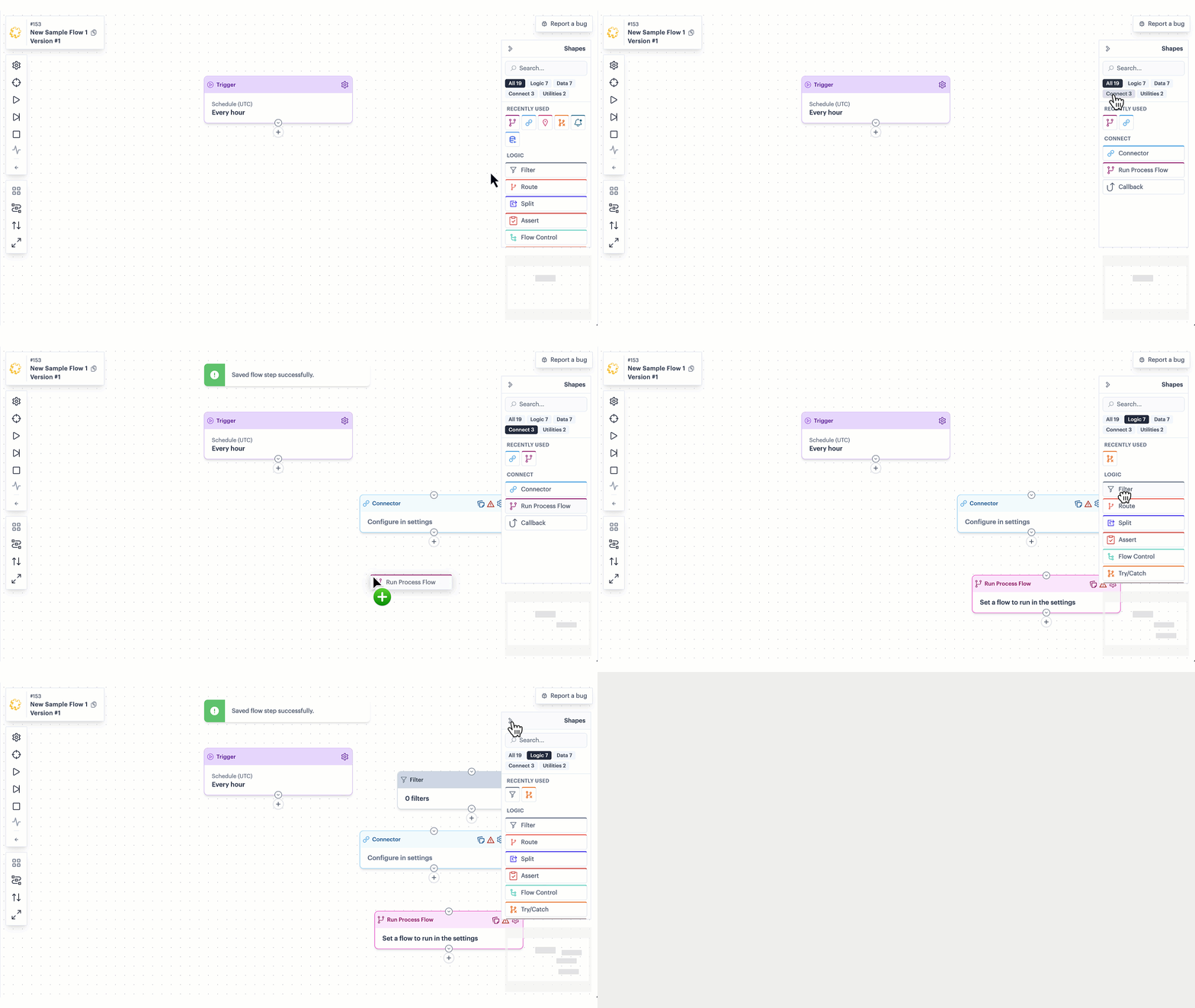
You can drag shapes from the shapes panel and drop them anywhere on the canvas, ready to configure/connect later.

<details>

<summary><img src="https://2440044887-files.gitbook.io/~/files/v0/b/gitbook-x-prod.appspot.com/o/spaces%2FLYNcUBVQwSkOMG6KjZfz%2Fuploads%2F3xgORwjKMvKpA0LF2GpW%2Ficon_demo.png?alt=media&#x26;token=d0553c74-ab0c-4711-8a0b-36276566676c" alt="" data-size="line"> <strong>Show me</strong></summary>

<figure><img src="https://2440044887-files.gitbook.io/~/files/v0/b/gitbook-x-prod.appspot.com/o/spaces%2FLYNcUBVQwSkOMG6KjZfz%2Fuploads%2FgbJZNrQmlNcCmOwfZs6H%2Fdrag%20%26%20drop%20-%20shapes%20panel%20demo.gif?alt=media&#x26;token=1bce3100-1c1b-4979-8fc8-9806aad118c2" alt=""><figcaption></figcaption></figure>

</details>

This is a great way to start building a flow if you don't want to commit the shapes to a structure just yet.&#x20;

{% hint style="info" %}
If you want to add a shape to a specific point in the flow, use the `+` icon at the required point and choose from the [shapes palette](#the-shapes-palette).
{% endhint %}

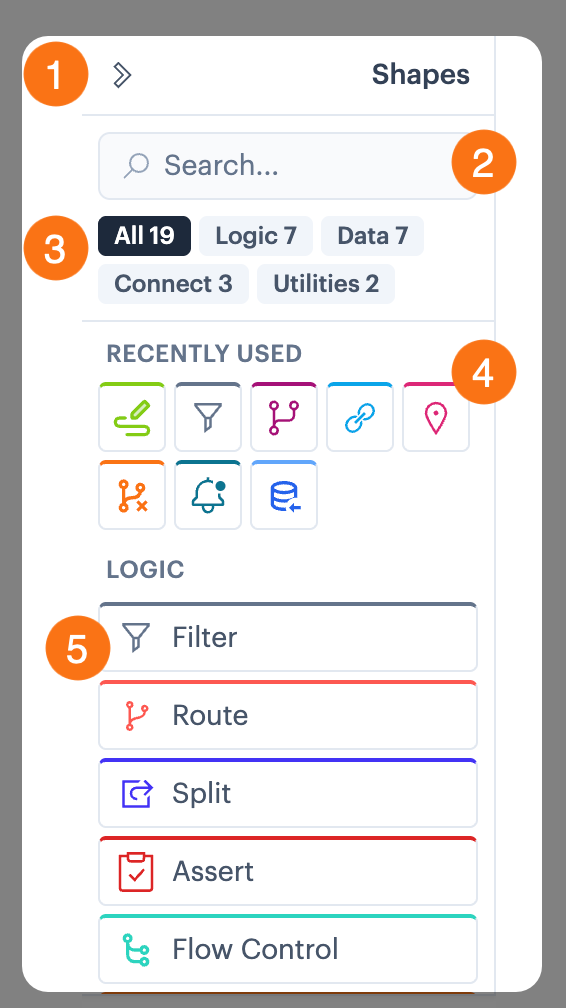
All [standard](https://doc.wearepatchworks.com/product-documentation/process-flows/building-process-flows/process-flow-shapes/standard-shapes) and [advanced](https://doc.wearepatchworks.com/product-documentation/process-flows/building-process-flows/process-flow-shapes/advanced-shapes) shapes are available from the shapes panel - scroll the list, click the shape you need, and drag it out to the canvas. Alternatively, you can use shape panel options find the shapes you need:

<div align="left"><figure><img src="https://2440044887-files.gitbook.io/~/files/v0/b/gitbook-x-prod.appspot.com/o/spaces%2FLYNcUBVQwSkOMG6KjZfz%2Fuploads%2F1aIGXPXW3Q1EktkJVEpZ%2Fdrag%20%26%20drop%20canvas%20-%20shapes%20panel%20options.png?alt=media&#x26;token=2bd67c9a-1bfa-4da1-b985-2cc419ba91d6" alt="" width="283"><figcaption></figcaption></figure></div>

Shape panel options are summarised below:&#x20;

<table><thead><tr><th width="88.55859375">#1</th><th>Summary</th></tr></thead><tbody><tr><td>1</td><td>Collapse the shapes panel.</td></tr><tr><td>2</td><td>Use the <code>search</code> field to search by shape name (the search is not case sensitive).</td></tr><tr><td>3</td><td>Shapes are categorised into <code>logic</code>, <code>data</code>, <code>connect</code>, and <code>utilities</code> groupings. Select a category to view applicable shapes.</td></tr><tr><td>4</td><td>Drag from your most recently used shapes.</td></tr><tr><td>5</td><td>Scroll listed shapes and drag to the canvas.</td></tr></tbody></table>

### The shapes palette

If you want to add a shape at a specific point in your flow, click the `+` icon at the point you want to place it, for example:

<div align="left"><figure><img src="https://2440044887-files.gitbook.io/~/files/v0/b/gitbook-x-prod.appspot.com/o/spaces%2FLYNcUBVQwSkOMG6KjZfz%2Fuploads%2Fhaj7vhYTXAr2QfKSgIrT%2Fdrag%20%26%20drop%20-%20add%20shape%20from%20palette.png?alt=media&#x26;token=3cf4dcee-a756-4527-8802-4bb40c8e8e70" alt="" width="361"><figcaption></figcaption></figure></div>

...then choose the type of shape to add:

<div align="left"><figure><img src="https://2440044887-files.gitbook.io/~/files/v0/b/gitbook-x-prod.appspot.com/o/spaces%2FLYNcUBVQwSkOMG6KjZfz%2Fuploads%2FxGmndGxDZgMmTJ3can2W%2Fdrag%20%26%20drop%20-%20shape%20palette.png?alt=media&#x26;token=688c09b5-a00c-4e7f-9a70-2edec03189d1" alt="" width="375"><figcaption></figcaption></figure></div>

Depending on the shape, the settings panel will either open immediately so you can provide details before the shape is added to the canvas, or the shape is added to the canvas and you can [update settings](#updating-shape-settings) when you're ready.

## Flow navigator (minimap)

A minimap is always displayed in the bottom, right-hand corner of the canvas. This is a small, zoomed-out thumbnail of your entire flow. It's particularly useful for quick navigation when working with longer, more complex process flows. For example:

<figure><img src="https://2440044887-files.gitbook.io/~/files/v0/b/gitbook-x-prod.appspot.com/o/spaces%2FLYNcUBVQwSkOMG6KjZfz%2Fuploads%2FTUeNaR4EAo0xAnyE0w5h%2Fflow%20navigator%20demo.gif?alt=media&#x26;token=c7d7df45-26b6-423e-a131-6efb732cc9e6" alt=""><figcaption></figcaption></figure>

A highlighted box within the minimap shows exactly where your current viewport is positioned relative to the full flow. Drag this box up/down/left/right to jump to different parts of the flow, without having to scroll or pan across the main canvas.&#x20;

## Settings drawer

When you access [process flow settings](#settings) or configure a shape in your flow, available settings are displayed in a panel on the right-hand side. For example, when we choose to access settings for a [trigger ](https://doc.wearepatchworks.com/product-documentation/process-flows/building-process-flows/process-flow-shapes/standard-shapes/trigger-shape)shape, available trigger options are displayed:

<figure><img src="https://2440044887-files.gitbook.io/~/files/v0/b/gitbook-x-prod.appspot.com/o/spaces%2FLYNcUBVQwSkOMG6KjZfz%2Fuploads%2FmbQUlHldN7skT5YOgcZk%2Foptions%20panel%202.png?alt=media&#x26;token=113199d6-3294-4458-b827-6df6c7789fa6" alt=""><figcaption></figcaption></figure>