# Drag & drop canvas interactions

## Introduction

The (new) process flow canvas includes interactive features that will be familiar if you've ever worked with design tools:

* [Zoom & pan](#zoom-and-pan)
* [Selecting multiple shapes](#selecting-multiple-shapes)
* [Using context menus](#using-context-menus)
* [Moving shapes](#moving-shapes)
* [Disconnecting shapes](#disconnecting-shapes)
* [Connecting shapes](#connecting-shapes)
* [Copying & pasting shapes](#copying-and-pasting-shapes)
* [Deleting shapes](#deleting-shapes)
* [Canvas notes](#canvas-notes)

### Zoom & pan

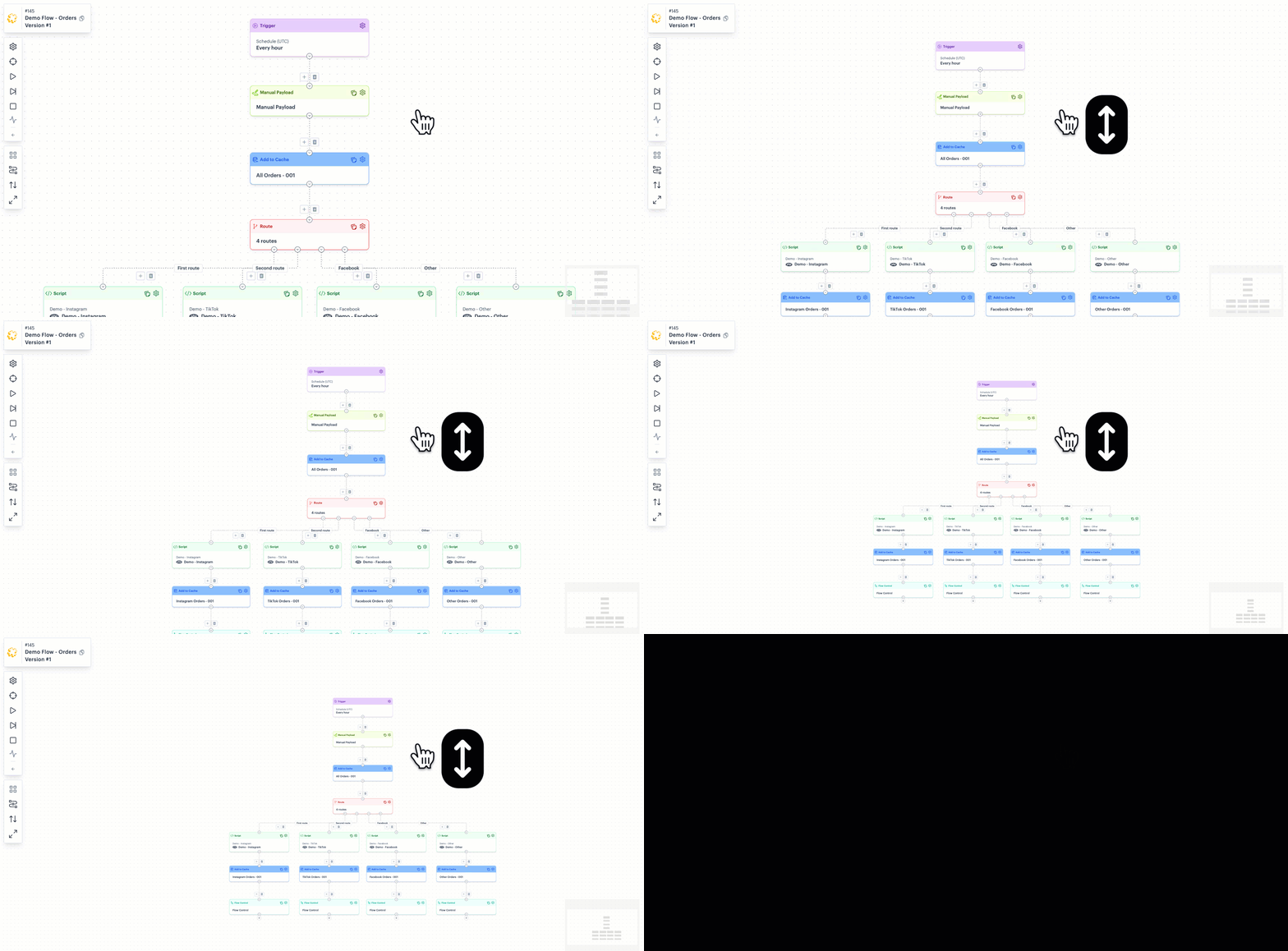
To zoom out and make the flow smaller, scroll your mouse forward (i.e. away from you). To zoom in and make the flow larger, scroll backwards (i.e. towards you).

<details>

<summary><img src="https://2440044887-files.gitbook.io/~/files/v0/b/gitbook-x-prod.appspot.com/o/spaces%2FLYNcUBVQwSkOMG6KjZfz%2Fuploads%2F3xgORwjKMvKpA0LF2GpW%2Ficon_demo.png?alt=media&#x26;token=d0553c74-ab0c-4711-8a0b-36276566676c" alt="" data-size="line"> <strong>Show me</strong></summary>

<figure><img src="https://2440044887-files.gitbook.io/~/files/v0/b/gitbook-x-prod.appspot.com/o/spaces%2FLYNcUBVQwSkOMG6KjZfz%2Fuploads%2FuWhKhCpEF3bVGrYa6UTq%2Fzoom%20flow.gif?alt=media&#x26;token=4d923414-623f-4b8a-8c61-c46d965567be" alt=""><figcaption></figcaption></figure>

</details>

If you don't want to use the [flow navigator (minimap)](https://doc.wearepatchworks.com/product-documentation/process-flows/building-process-flows/the-process-flow-canvas/the-drag-and-drop-canvas/..#flow-navigator-minimap), you can click and drag anywhere on the canvas to pan up/down/left right.

<details>

<summary><img src="https://2440044887-files.gitbook.io/~/files/v0/b/gitbook-x-prod.appspot.com/o/spaces%2FLYNcUBVQwSkOMG6KjZfz%2Fuploads%2F3xgORwjKMvKpA0LF2GpW%2Ficon_demo.png?alt=media&#x26;token=d0553c74-ab0c-4711-8a0b-36276566676c" alt="" data-size="line"> <strong>Show me</strong></summary>

<figure><img src="https://2440044887-files.gitbook.io/~/files/v0/b/gitbook-x-prod.appspot.com/o/spaces%2FLYNcUBVQwSkOMG6KjZfz%2Fuploads%2FQ6YflTL2juAzu1r81bPX%2Fclick%20and%20drag.gif?alt=media&#x26;token=e1ee4816-39d4-4289-8eb3-a267435796f3" alt=""><figcaption></figcaption></figure>

</details>

### Selecting shapes

Most interactions detailed on this page can be performed for a single shape or multiple shapes. When a single shape is clicked, you'll notice a solid outline which indicates it's selected. For example:

<div align="left"><figure><img src="https://2440044887-files.gitbook.io/~/files/v0/b/gitbook-x-prod.appspot.com/o/spaces%2FLYNcUBVQwSkOMG6KjZfz%2Fuploads%2FhPZned2x07g5Sde46Ogp%2Fdrag%20%26%20drop%20-%20select%20single%20shape.png?alt=media&#x26;token=5c5ddfa0-447c-4d60-97bc-ce550857d6f2" alt="" width="375"><figcaption></figcaption></figure></div>

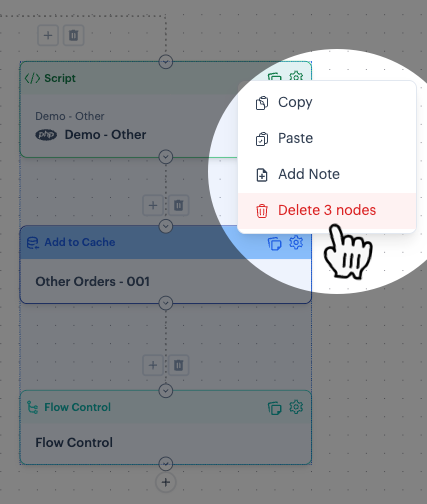
To select multiple shapes, press and hold the `SHIFT` key, then drag your cursor to select the required shapes. Right-click this selection to display a context menu, with quick access to interactions.

<details>

<summary><img src="https://2440044887-files.gitbook.io/~/files/v0/b/gitbook-x-prod.appspot.com/o/spaces%2FLYNcUBVQwSkOMG6KjZfz%2Fuploads%2F3xgORwjKMvKpA0LF2GpW%2Ficon_demo.png?alt=media&#x26;token=d0553c74-ab0c-4711-8a0b-36276566676c" alt="" data-size="line"> <strong>Show me</strong></summary>

<figure><img src="https://2440044887-files.gitbook.io/~/files/v0/b/gitbook-x-prod.appspot.com/o/spaces%2FLYNcUBVQwSkOMG6KjZfz%2Fuploads%2FTmx07TF6YItLjvzVjzMT%2Fdrag%20%26%20drop%20-%20select%20multi%20shapes%20demo.gif?alt=media&#x26;token=86dc5453-46a5-43ba-a859-d659f97c46ed" alt=""><figcaption></figcaption></figure>

</details>

### Using context menus

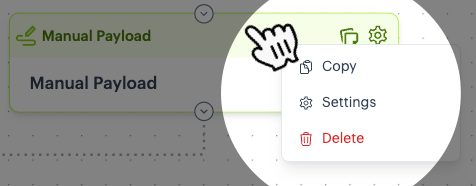
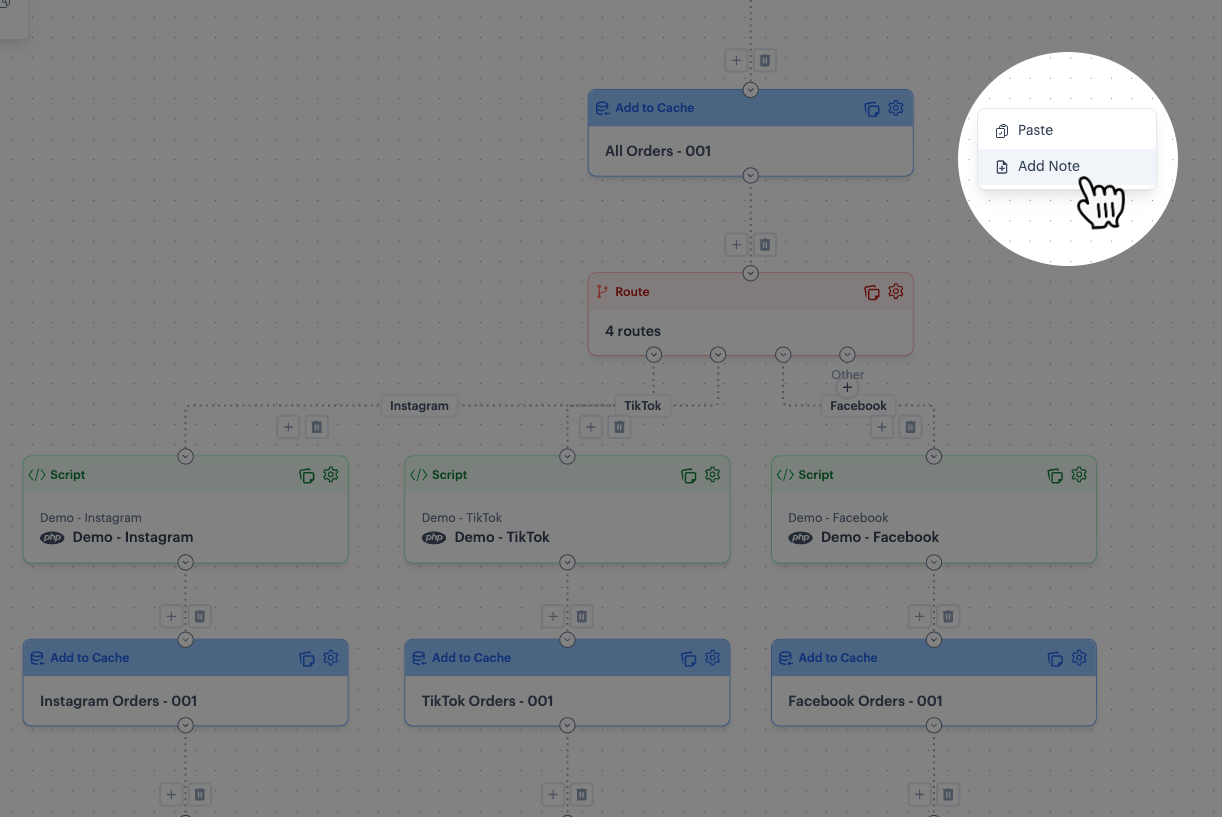
Having selected a shape or multiple shapes, a right-click context menu provides quick access to interactions. The same applies if no shapes are selected and you click anywhere on the canvas. For example:

<table data-view="cards" data-full-width="false"><thead><tr><th></th></tr></thead><tbody><tr><td>Right-click on a single shape:<br><br><img src="https://2440044887-files.gitbook.io/~/files/v0/b/gitbook-x-prod.appspot.com/o/spaces%2FLYNcUBVQwSkOMG6KjZfz%2Fuploads%2FyPeSUwxMS3AIlRsCsNN3%2Fright-click%20for%20shape%20b.png?alt=media&#x26;token=3207d0ea-367e-48f7-b95c-60089227abed" alt=""></td></tr><tr><td>Right-click on a selected group of shapes:<br><br><img src="https://2440044887-files.gitbook.io/~/files/v0/b/gitbook-x-prod.appspot.com/o/spaces%2FLYNcUBVQwSkOMG6KjZfz%2Fuploads%2FRAiRkKl6sgkGwKVqt9en%2Fright-click%20for%20group.png?alt=media&#x26;token=595f4601-5f44-4284-9cd0-9114b67a12c8" alt=""></td></tr><tr><td>Right-click on the canvas:<br><br><img src="https://2440044887-files.gitbook.io/~/files/v0/b/gitbook-x-prod.appspot.com/o/spaces%2FLYNcUBVQwSkOMG6KjZfz%2Fuploads%2F565yyK1S75MeTEbhlogX%2Fright-click%20for%20canvas.png?alt=media&#x26;token=33c7d299-e275-4282-8e7d-e5e732685fae" alt=""></td></tr></tbody></table>

Context menu options vary depending on what is selected and previous actions. For example, if you have copied a shape, you'll see a paste option when any context menu is activated.

<details>

<summary><img src="https://2440044887-files.gitbook.io/~/files/v0/b/gitbook-x-prod.appspot.com/o/spaces%2FLYNcUBVQwSkOMG6KjZfz%2Fuploads%2F3xgORwjKMvKpA0LF2GpW%2Ficon_demo.png?alt=media&#x26;token=d0553c74-ab0c-4711-8a0b-36276566676c" alt="" data-size="line"> <strong>Show me</strong></summary>

<figure><img src="https://2440044887-files.gitbook.io/~/files/v0/b/gitbook-x-prod.appspot.com/o/spaces%2FLYNcUBVQwSkOMG6KjZfz%2Fuploads%2FtPzGFLgxInnkhcFWDSOk%2Fcontext%20menu%20for%20multi%20select.gif?alt=media&#x26;token=bdca4ffc-6439-435c-8d78-3bcb52422d36" alt=""><figcaption></figcaption></figure>

</details>

### Moving shapes

You can click any shape (or a [multiple-shape selection](#selecting-multiple-shapes)) and drag it to a new location on the canvas (for example, you might want to drag nodes away for subsequent disconnection and isolated testing).&#x20;

<details>

<summary><img src="https://2440044887-files.gitbook.io/~/files/v0/b/gitbook-x-prod.appspot.com/o/spaces%2FLYNcUBVQwSkOMG6KjZfz%2Fuploads%2F3xgORwjKMvKpA0LF2GpW%2Ficon_demo.png?alt=media&#x26;token=d0553c74-ab0c-4711-8a0b-36276566676c" alt="" data-size="line"> <strong>Show me</strong></summary>

<figure><img src="https://2440044887-files.gitbook.io/~/files/v0/b/gitbook-x-prod.appspot.com/o/spaces%2FLYNcUBVQwSkOMG6KjZfz%2Fuploads%2FIKimYLM1qRE8ahx03lpF%2Fmove%20single%20shape.gif?alt=media&#x26;token=a0cf98e4-9fa9-4e7b-a8f4-a3631326524d" alt=""><figcaption></figcaption></figure>

</details>

If you move a single shape and it's associated with 'child' shapes, the child shapes are not included in the move. For this, you would need to [select multiple](#selecting-multiple-shapes) shapes and move that selection.

Moving a shape (or a multi-shape selection) may result in a messier-looking flow, but you can use the [auto layout](https://doc.wearepatchworks.com/product-documentation/process-flows/building-process-flows/the-process-flow-canvas/the-drag-and-drop-canvas/..#process-flow-actions) action at any time to bring everything back into line.

<details>

<summary><img src="https://2440044887-files.gitbook.io/~/files/v0/b/gitbook-x-prod.appspot.com/o/spaces%2FLYNcUBVQwSkOMG6KjZfz%2Fuploads%2F3xgORwjKMvKpA0LF2GpW%2Ficon_demo.png?alt=media&#x26;token=d0553c74-ab0c-4711-8a0b-36276566676c" alt="" data-size="line"> <strong>Show me</strong></summary>

<figure><img src="https://2440044887-files.gitbook.io/~/files/v0/b/gitbook-x-prod.appspot.com/o/spaces%2FLYNcUBVQwSkOMG6KjZfz%2Fuploads%2Fm88rqqiXWPquSK8XDTzp%2Fmove%20multi%20items.gif?alt=media&#x26;token=3818f8d1-1726-44a6-8223-4274e3bd6e19" alt=""><figcaption></figcaption></figure>

</details>

{% hint style="info" %}
When you move a shape (or a multi-shape selection) that's connected in the flow, the connection is retained. If required, you can [disconnect](#disconnecting-a-shape) it subsequently.&#x20;
{% endhint %}

### Disconnecting shapes

It can be useful to disconnect shapes from the main flow, especially for testing. For example, you may want to disconnect a route leg for isolated testing, or 'park' a [manual payload](https://doc.wearepatchworks.com/product-documentation/process-flows/building-process-flows/process-flow-shapes/standard-shapes/manual-payload-shape) or [assert](https://doc.wearepatchworks.com/product-documentation/process-flows/building-process-flows/process-flow-shapes/standard-shapes/assert-shape) shape once testing is finished.&#x20;

{% hint style="warning" %}
To be part of the flow, a shape must have an input connection and also an output connection - i.e. a connection FROM one shape and a connection TO another shape. Disconnected shapes are ignored when a process flow runs, and also when you [switch to the classic canvas](https://doc.wearepatchworks.com/product-documentation/process-flows/building-process-flows/the-process-flow-canvas/..#how-do-i-access-the-new-beta-canvas).
{% endhint %}

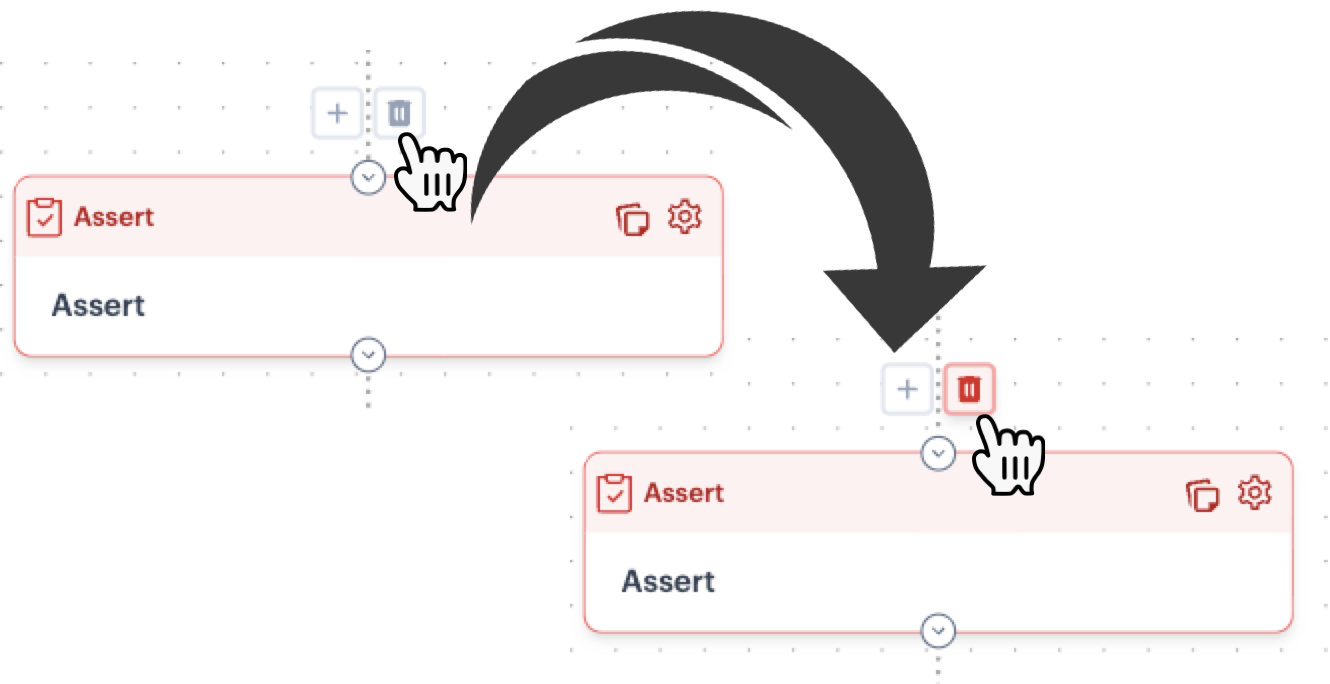
To delete a connection between shapes, use the associated 'trash' icon (every connection has one). For example:

<div align="left"><figure><img src="https://2440044887-files.gitbook.io/~/files/v0/b/gitbook-x-prod.appspot.com/o/spaces%2FLYNcUBVQwSkOMG6KjZfz%2Fuploads%2FHFI7lypiKpHWx0u87g2c%2Fshape%20delete.png?alt=media&#x26;token=28ffc743-dbd2-4648-9325-01d7ea20867b" alt="" width="563"><figcaption></figcaption></figure></div>

When you hover the cursor over this icon, it changes to red - click to confirm the action.

<details>

<summary><img src="https://2440044887-files.gitbook.io/~/files/v0/b/gitbook-x-prod.appspot.com/o/spaces%2FLYNcUBVQwSkOMG6KjZfz%2Fuploads%2F3xgORwjKMvKpA0LF2GpW%2Ficon_demo.png?alt=media&#x26;token=d0553c74-ab0c-4711-8a0b-36276566676c" alt="" data-size="line"> <strong>Show me</strong></summary>

<figure><img src="https://2440044887-files.gitbook.io/~/files/v0/b/gitbook-x-prod.appspot.com/o/spaces%2FLYNcUBVQwSkOMG6KjZfz%2Fuploads%2FyKYS05Lfytw0y4yunIl4%2Fdisconnect%20shapes.gif?alt=media&#x26;token=4b27aaab-2b76-4b3a-83f7-67fe976f52f7" alt=""><figcaption></figcaption></figure>

</details>

### Connecting shapes

Each shape is associated with input and output anchors, used to create a connection to the flow. When you hover the cursor over a shape anchor, you'll see the cursor change to a cross - for example:

<div align="left"><figure><img src="https://2440044887-files.gitbook.io/~/files/v0/b/gitbook-x-prod.appspot.com/o/spaces%2FLYNcUBVQwSkOMG6KjZfz%2Fuploads%2F9gDTIROE4HEBYDjA55Ee%2Fshape%20anchors.png?alt=media&#x26;token=1edf675b-d91c-43e4-bb58-532feb26a987" alt="" width="563"><figcaption></figcaption></figure></div>

This indicates that you can drag a path between the shape from which the connection will be made and the shape to be connected (or vice versa).&#x20;

<details>

<summary><img src="https://2440044887-files.gitbook.io/~/files/v0/b/gitbook-x-prod.appspot.com/o/spaces%2FLYNcUBVQwSkOMG6KjZfz%2Fuploads%2F3xgORwjKMvKpA0LF2GpW%2Ficon_demo.png?alt=media&#x26;token=d0553c74-ab0c-4711-8a0b-36276566676c" alt="" data-size="line"> <strong>Show me</strong></summary>

<figure><img src="https://2440044887-files.gitbook.io/~/files/v0/b/gitbook-x-prod.appspot.com/o/spaces%2FLYNcUBVQwSkOMG6KjZfz%2Fuploads%2FtrmJpXBaqsav550CjF6j%2Freconnect%20shape.gif?alt=media&#x26;token=3c17ba2f-0cf2-4993-88a3-1207539b669f" alt=""><figcaption></figcaption></figure>

</details>

{% hint style="warning" %}
To be part of the flow, a shape must have an input connection and also an output connection - i.e. a connection FROM one shape and a connection TO another shape. Disconnected shapes are ignored when the process flow runs.
{% endhint %}

If you need to connect a shape at a point where there's an existing connection, you must [delete](#disconnecting-shapes) the existing connection first.

<details>

<summary><img src="https://2440044887-files.gitbook.io/~/files/v0/b/gitbook-x-prod.appspot.com/o/spaces%2FLYNcUBVQwSkOMG6KjZfz%2Fuploads%2F3xgORwjKMvKpA0LF2GpW%2Ficon_demo.png?alt=media&#x26;token=d0553c74-ab0c-4711-8a0b-36276566676c" alt="" data-size="line"> <strong>Show me</strong></summary>

<figure><img src="https://2440044887-files.gitbook.io/~/files/v0/b/gitbook-x-prod.appspot.com/o/spaces%2FLYNcUBVQwSkOMG6KjZfz%2Fuploads%2Fe1syJPyWvEsDfbKfwLag%2Fconnect%20where%20connection%20exists.gif?alt=media&#x26;token=9d8c2198-6688-4109-9e53-3d5ebea71c56" alt=""><figcaption></figcaption></figure>

</details>

To tidy the flow after making a new connection, use the [auto layout](https://doc.wearepatchworks.com/product-documentation/process-flows/building-process-flows/the-process-flow-canvas/the-drag-and-drop-canvas/..#process-flow-actions) action to bring everything back into line.

### Copying & pasting shapes

Copying/pasting shapes and groups of shapes really speeds up the flow creation process. Imagine a [route shape](https://doc.wearepatchworks.com/product-documentation/process-flows/building-process-flows/process-flow-shapes/standard-shapes/route-shape) with multiple legs that are all the same except for some config variations; rather than building each leg individually, you can:

1. Build the first leg
2. Copy/paste that leg as many times as needed
3. Connect each leg to the route shape
4. Edit shape settings for each leg, as needed

<details>

<summary><img src="https://2440044887-files.gitbook.io/~/files/v0/b/gitbook-x-prod.appspot.com/o/spaces%2FLYNcUBVQwSkOMG6KjZfz%2Fuploads%2F3xgORwjKMvKpA0LF2GpW%2Ficon_demo.png?alt=media&#x26;token=d0553c74-ab0c-4711-8a0b-36276566676c" alt="" data-size="line"> <strong>Show me</strong></summary>

<figure><img src="https://2440044887-files.gitbook.io/~/files/v0/b/gitbook-x-prod.appspot.com/o/spaces%2FLYNcUBVQwSkOMG6KjZfz%2Fuploads%2FDKjlF4Odl7uq7TnIFydx%2Fpaste%20route%20legs.gif?alt=media&#x26;token=d24a5487-e00e-4bcf-8008-71faa05651b9" alt=""><figcaption></figcaption></figure>

</details>

{% hint style="info" %}
You can copy/paste shapes within the current process flow. Shapes cannot be copied between flows.&#x20;
{% endhint %}

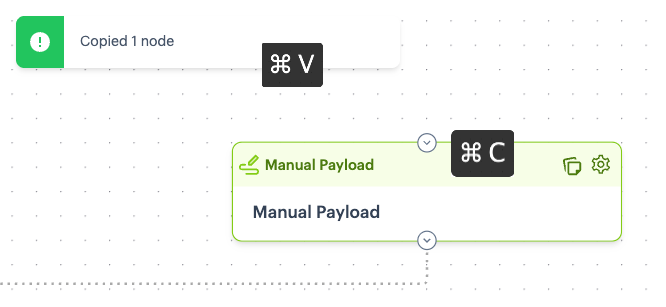
To copy/paste a single shape or a [selected group of shapes](#selecting-multiple-shapes), you can:

<table><thead><tr><th width="275.53515625" valign="top">Option</th><th align="center">Example</th></tr></thead><tbody><tr><td valign="top">Use the <a href="#the-multi-shape-context-menu">right-click context menu</a>. Right-click on the shape (or selected group of shapes) and select <code>copy</code> from the context menu.<br><br>Then move roughly to the required destination on the canvas, right-click again and select <code>paste</code> from the context menu.<br><br></td><td align="center"><img src="https://2440044887-files.gitbook.io/~/files/v0/b/gitbook-x-prod.appspot.com/o/spaces%2FLYNcUBVQwSkOMG6KjZfz%2Fuploads%2Fh30yJb5tbxEOLvJihTGf%2Fright-click%20options%20for%20group.png?alt=media&#x26;token=718fc986-96e2-464f-99f5-a055fa226914" alt=""></td></tr><tr><td valign="top">Select the shape (or group of shapes) and press <code>CTRL</code>+<code>C</code>.<br><br>Then move roughly to the required destination on the canvas and press <code>CTRL</code>+<code>V</code>.</td><td align="center"><img src="https://2440044887-files.gitbook.io/~/files/v0/b/gitbook-x-prod.appspot.com/o/spaces%2FLYNcUBVQwSkOMG6KjZfz%2Fuploads%2FMlUQE5pFrRR1qDpN2Cap%2Fcopy%20paste%20with%20keys.png?alt=media&#x26;token=b2f43949-95a3-4941-8a55-37cf47492962" alt=""></td></tr></tbody></table>

### Deleting shapes

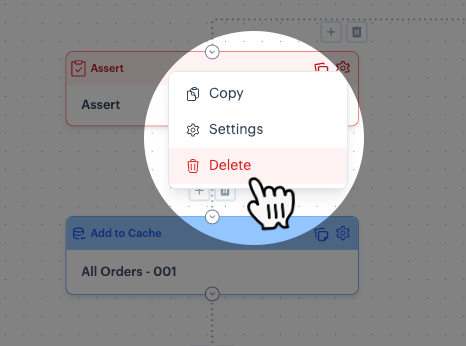
To delete a shape or multiple shapes quickly, you can simply select the required shape(s) and press your delete key. Alternatively, use the [context menu](#using-context-menus). For example:

<table data-card-size="large" data-view="cards" data-full-width="false"><thead><tr><th></th></tr></thead><tbody><tr><td>Select a single shape, then right-click and select the <code>delete</code> option:  <br><br><img src="https://2440044887-files.gitbook.io/~/files/v0/b/gitbook-x-prod.appspot.com/o/spaces%2FLYNcUBVQwSkOMG6KjZfz%2Fuploads%2FNGsxdzYqBXBNp8YnJSsV%2Fdelete%20single%20shape.png?alt=media&#x26;token=c6fe52dd-be56-4be2-8179-9686f6f273f9" alt=""></td></tr><tr><td>Select a group of shapes, then right-click and select the <code>delete</code> option: <br><br><img src="https://2440044887-files.gitbook.io/~/files/v0/b/gitbook-x-prod.appspot.com/o/spaces%2FLYNcUBVQwSkOMG6KjZfz%2Fuploads%2FsJGOkrY2UG5Cvxqra17Z%2Fdelete%20multiple%20shapes.png?alt=media&#x26;token=c7fb875d-f248-4858-8d3d-992b02acbddb" alt=""></td></tr></tbody></table>

{% hint style="warning" %}
When a shape or group of shapes is deleted, their associated connections are also removed. Depending on the location in the flow and what you need to achieve, it may be necessary to [reconnect](#connecting-shapes) 'orphaned' shapes.
{% endhint %}

<details>

<summary><img src="https://2440044887-files.gitbook.io/~/files/v0/b/gitbook-x-prod.appspot.com/o/spaces%2FLYNcUBVQwSkOMG6KjZfz%2Fuploads%2F3xgORwjKMvKpA0LF2GpW%2Ficon_demo.png?alt=media&#x26;token=d0553c74-ab0c-4711-8a0b-36276566676c" alt="" data-size="line"> <strong>Show me</strong></summary>

<figure><img src="https://2440044887-files.gitbook.io/~/files/v0/b/gitbook-x-prod.appspot.com/o/spaces%2FLYNcUBVQwSkOMG6KjZfz%2Fuploads%2FchyVOEuK2oqXR8PBLtGl%2Fdelete%20shapes.gif?alt=media&#x26;token=2d9fba6b-fad0-4682-b08a-cb05836919ba" alt=""><figcaption></figcaption></figure>

</details>

## Canvas notes

When working with longer, complex process flows, canvas notes are a great way to keep track of thoughts for flow development, document the logic, list outstanding tasks, etc.

Whereas [shape notes](https://doc.wearepatchworks.com/product-documentation/process-flows/building-process-flows/shape-notes) are bound to a particular shape in the flow, canvas notes are general - as the name suggests, they are tied to the canvas as a whole. To add a canvas note, right-click anywhere on the canvas and select the add note option. For example:

<figure><img src="https://2440044887-files.gitbook.io/~/files/v0/b/gitbook-x-prod.appspot.com/o/spaces%2FLYNcUBVQwSkOMG6KjZfz%2Fuploads%2FjzpOfPrBtzsLEYxpLu5V%2Fadd%20note%201.png?alt=media&#x26;token=598f074a-3774-4e58-8b36-85174f423032" alt=""><figcaption></figcaption></figure>

The note is added at the current cursor position. For example:

<div align="left"><figure><img src="https://2440044887-files.gitbook.io/~/files/v0/b/gitbook-x-prod.appspot.com/o/spaces%2FLYNcUBVQwSkOMG6KjZfz%2Fuploads%2F8yA8wUMonINTAPiF4kD2%2Fadd%20note%202.png?alt=media&#x26;token=40afae3c-bc75-4bb5-9b8a-da9689ad369a" alt="" width="531"><figcaption></figcaption></figure></div>

Double-click to edit the note, or use the delete (cross) icon to remove a note.

{% hint style="info" %}
You can also choose to add a note from the context menu when a group of shapes is selected - for example:\
\
![](https://2440044887-files.gitbook.io/~/files/v0/b/gitbook-x-prod.appspot.com/o/spaces%2FLYNcUBVQwSkOMG6KjZfz%2Fuploads%2F5bbESdKNmdnbsXsBk6Ou%2Fadd%20note%20for%20group%20b.png?alt=media\&token=7e791e54-8e3f-43b0-8560-1583d4ae5cf2)\
\
Adding a note here doesn't bind it to the group in any way; it just places the note conveniently within the group.
{% endhint %}