# The process flows overview page

## Introduction

The **process flow home/overview** page shows process flow summary information and your latest run logs:&#x20;

<figure><img src="https://2440044887-files.gitbook.io/~/files/v0/b/gitbook-x-prod.appspot.com/o/spaces%2FLYNcUBVQwSkOMG6KjZfz%2Fuploads%2F2ofps0H4poBPjWtHlG3H%2Fprocess%20flow%20overview%20page%201.png?alt=media&#x26;token=9fb31e69-2a97-4f9f-a57a-c4940b02cc33" alt=""><figcaption></figcaption></figure>

{% hint style="info" %}
If you only use **process flows** to sync data, this will be your default 'home' page when you access the Patchworks dashboard. If you use **services** to sync data but you're experimenting with process flows, you'll find this information in the left-hand navigation bar - select **process flows** <mark style="color:orange;">**>**</mark> **overview**.&#x20;
{% endhint %}

The dashboard is split into three panels:

1. [Process flow stats](#process-flow-stats)
2. [Records chart](#records-chart)
3. [Run logs](#run-logs)

## Process flow stats

Process flow statistics show the operational status of current process flows for the last 24 hours, at a glance:&#x20;

<figure><img src="https://2440044887-files.gitbook.io/~/files/v0/b/gitbook-x-prod.appspot.com/o/spaces%2FLYNcUBVQwSkOMG6KjZfz%2Fuploads%2FnFR8NwPcTOa6JXzVZdE6%2Fprocess%20flow%20overview%20page%20-%20s1.png?alt=media&#x26;token=8123a87f-1d7c-4996-a800-4fe7e369be47" alt=""><figcaption></figcaption></figure>

The following statistics are available:

<table><thead><tr><th width="332">Statistic</th><th>Summary</th></tr></thead><tbody><tr><td>Active flows</td><td>The number of process flows within your company profile which are <a href="managing-process-flows/enabling-and-disabling-a-process-flow/enabling-and-disabling-a-process-flow-without-virtual-enviroments">enabled</a>.</td></tr><tr><td>Average runtime</td><td>The average time required to run and complete a process flow (based on successful runs).</td></tr><tr><td>Successful flow runs</td><td>The number of process flows that have started and not failed during the last 24 hours. Click this block to access <a href="error-reporting-and-exception-handling/run-logs-and-queue">retrospective run logs</a>. This number excludes runs that have completed with <a href="../error-reporting-and-exception-handling/run-logs-and-queue#run-status">partial success</a>.</td></tr><tr><td>Failed flow runs</td><td>The number of process flows that have started and failed during the last 24 hours. Click this block to access <a href="error-reporting-and-exception-handling/run-logs-and-queue">retrospective run logs</a>.</td></tr></tbody></table>

## Records chart (tracked data)

The **records** chart shows the number of operations **tracked records** processed for the selected period:

<figure><img src="https://2440044887-files.gitbook.io/~/files/v0/b/gitbook-x-prod.appspot.com/o/spaces%2FLYNcUBVQwSkOMG6KjZfz%2Fuploads%2FlsojNxb1lOJ9UAoepFLN%2Fprocess%20flow%20overview%20page%20-%20s2.png?alt=media&#x26;token=e4aca634-a2d0-4fe4-805f-02c38082e6c6" alt=""><figcaption></figcaption></figure>

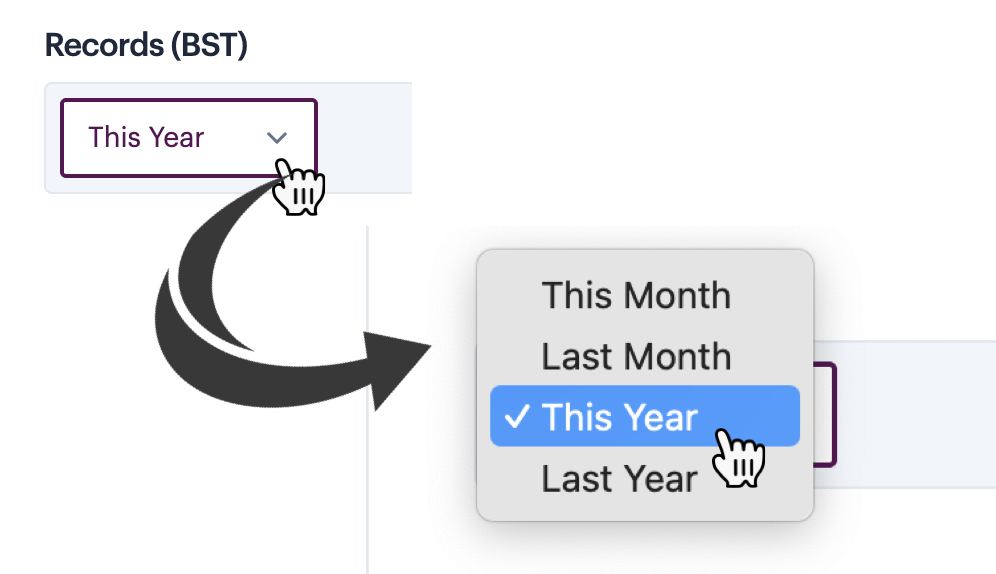
<table data-card-size="large" data-view="cards"><thead><tr><th></th><th></th><th></th></tr></thead><tbody><tr><td><strong>Choose a time period</strong><br>You can use the time period selector to choose which records to view:</td><td><img src="https://2440044887-files.gitbook.io/~/files/v0/b/gitbook-x-prod.appspot.com/o/spaces%2FLYNcUBVQwSkOMG6KjZfz%2Fuploads%2FTWQkTiCOfOKIQgiubm9i%2Fprocess%20flow%20overview%20page%20-%20s2b.png?alt=media&#x26;token=cb660755-8aa9-442d-b068-2467a243fbec" alt=""></td><td></td></tr><tr><td><strong>Choose the data direction to view</strong><br>You can choose to view inbound (received) operations or outbound (sent) operations:</td><td><img src="https://2440044887-files.gitbook.io/~/files/v0/b/gitbook-x-prod.appspot.com/o/spaces%2FLYNcUBVQwSkOMG6KjZfz%2Fuploads%2FuGFENFJX2RGm5AwAaXJq%2Fprocess%20flow%20overview%20page%20-%20s2b2.png?alt=media&#x26;token=388c28aa-ee52-4507-833a-f7a8332c047a" alt=""></td><td></td></tr><tr><td><strong>View details</strong><br>Hover your cursor over any point to view operation details:</td><td><img src="https://2440044887-files.gitbook.io/~/files/v0/b/gitbook-x-prod.appspot.com/o/spaces%2FLYNcUBVQwSkOMG6KjZfz%2Fuploads%2FqaVBJ5KJrnJc6GiJ5SuH%2Fprocess%20flow%20overview%20page%20-%20s2c.png?alt=media&#x26;token=07c73317-b537-493b-8bde-605927f6c027" alt=""></td><td></td></tr></tbody></table>

## Run logs

Standard run logs are displayed in the lower panel. Here you can see run logs for the last seven days, with options to access the process flow and/or detailed logs and payloads:&#x20;

<figure><img src="https://2440044887-files.gitbook.io/~/files/v0/b/gitbook-x-prod.appspot.com/o/spaces%2FLYNcUBVQwSkOMG6KjZfz%2Fuploads%2FdPMRaiv5fKAOqZaEHA1A%2Fprocess%20flow%20overview%20page%20-%20s3.png?alt=media&#x26;token=20a567eb-688d-4e6b-ad7c-c8ae231f01e9" alt=""><figcaption></figcaption></figure>

Please see our [Run logs & queue](https://doc.wearepatchworks.com/product-documentation/process-flows/error-reporting-and-exception-handling/run-logs-and-queue) section for further information about working with this panel.