# Creating a new user account for your company profile
## Introduction
If you are a user with an [administrator or manager role](roles-and-permissions-summary), you can create new user accounts for your company profile. These users will be able to log into the dashboard for your company - the level of access that they have will depend on the role that you grant during the account creation process.
By default, new users are created with a `user` role. Provided that you have an `administrator` or `manager` role, you can change this if required - the following rules apply:
Your role
Allowed role changes
Administrator
Can assign roles up to and including manager level (e.g. change a user account to a manager account).
Can reduce other non-administrator accounts to a lesser role (e.g. change a user account to a read-only account).
Manager
Can assign roles up to and including user level (e.g. change a read-only account to a user account).
Can reduce other non-manager accounts to a lesser role (e.g. change a user account to a read-only account).
{% hint style="info" %}
For more information please see our [Roles & permissions summary](roles-and-permissions-summary) page.
{% endhint %}
{% hint style="warning" %}
If you are an agency/partner with permissions to manage multiple companies, company profiles work a bit differently. Please refer to our [Managed company profiles](../company-management/multi-company-profiles) section.
{% endhint %}
## The steps
**Step 1**\
[Access the user list for your company profile](viewing-all-users-for-your-company-profile).
**Step 2**\
Move down to the **extra** section - you'll see a **\[company] users** tab showing all existing user accounts. At a glance you can see each user's name, email address and role - for example:
**Step 3**\
Click the **create user** button:
**Step 4**\
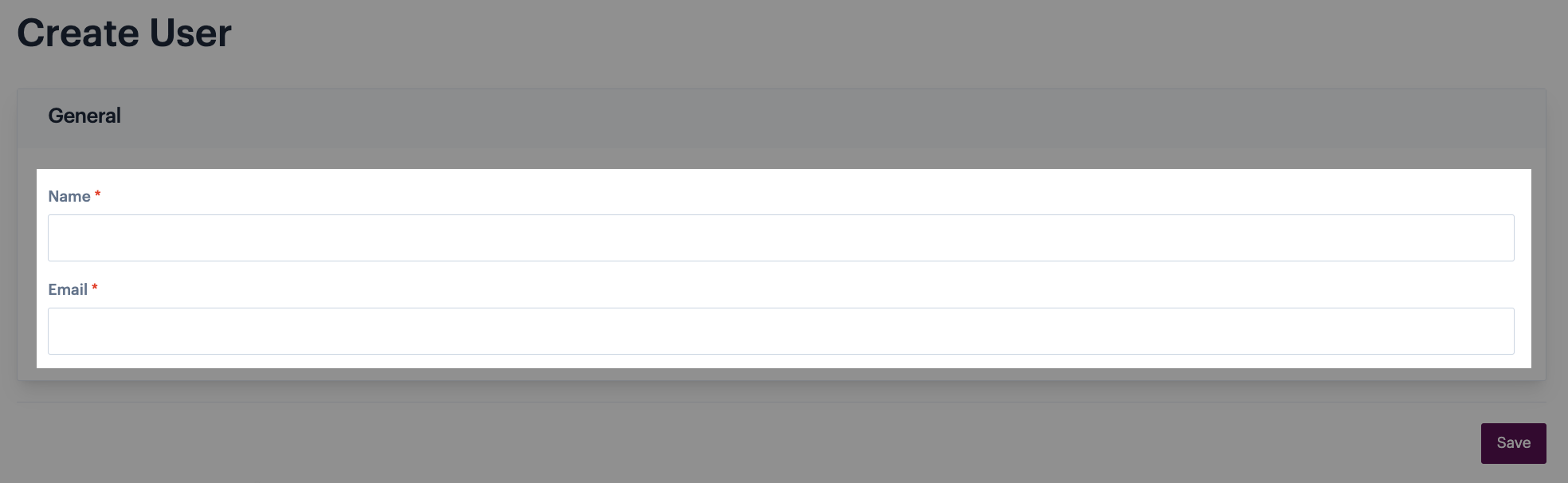
Enter the person's name and email address:
{% hint style="info" %}
The email address provided here is used to log into the Patchworks dashboard.
{% endhint %}
**Step 5**\
Click the **save** button. The user account is saved and an email is sent to the given address, with a link for the user to set their password.
{% hint style="info" %}
A password must be used with the user's email address in order to log into the Patchworks dashboard.
{% endhint %}
**Step 6**\
The user **roles** tab is displayed and you'll see that the new account is created - by default, new accounts are created with a `user` role:
If required, you can assign an alternative role by clicking the appropriate button.
{% hint style="info" %}
Roles determine the level of access that users have in the Patchworks dashboard. See the table [above](#introduction) for roles that you can set here.
{% endhint %}
**Step 7**\
Save changes. Once the user has set their password (via the link provided in an email triggered in step 6) they can access the Patchworks dashboard for their own company.