Flow variables are added and managed for any process flow via process flow settings. Once variables are defined, they can be referenced throughout the system - for example, in scripts, or as variable values.
Adding flow variables
Step 1
Access the required process flow.
Step 2
Select the 'settings' icon from the actions bar:
Step 3
Scroll down the settings drawer to the variables section, then click the add new flow variable button:
Step 4
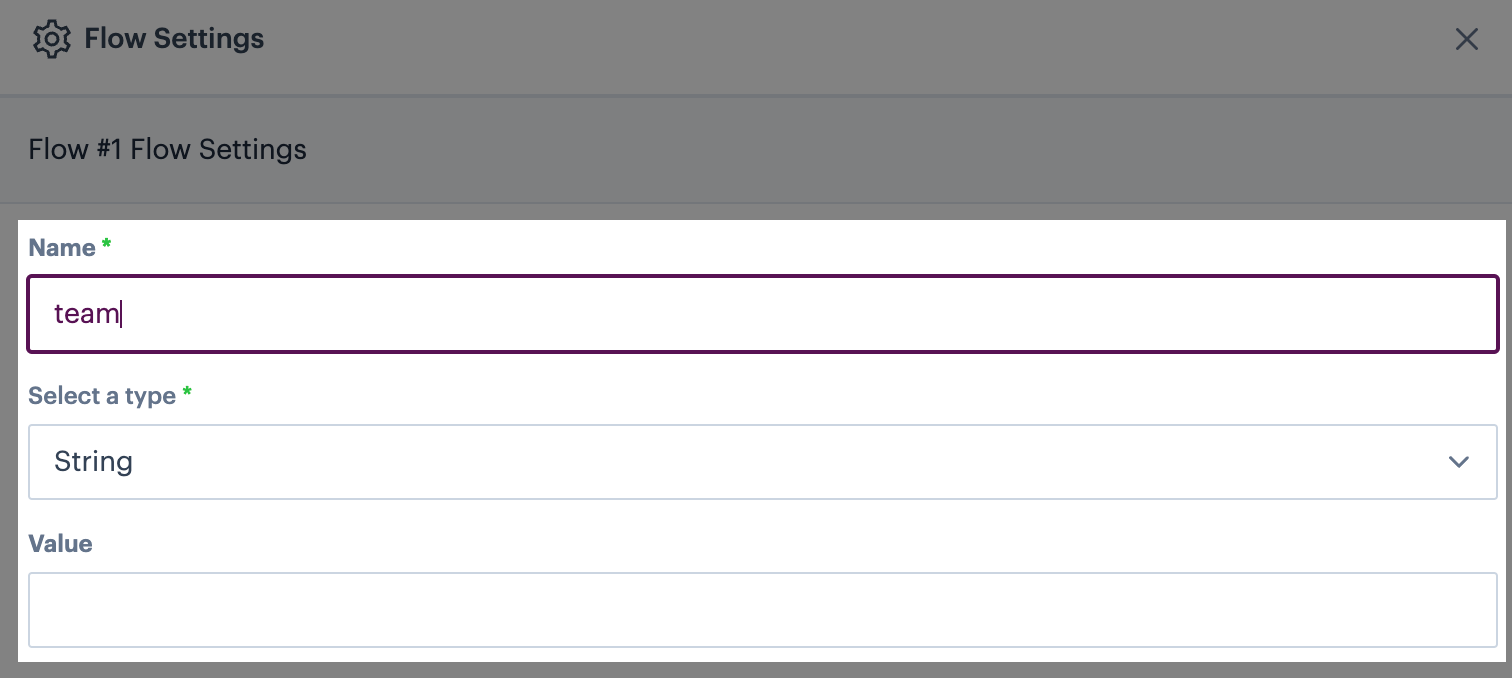
Enter a name for this variable - the name you enter here should be specified whenever you are referencing this variable:
Step 5
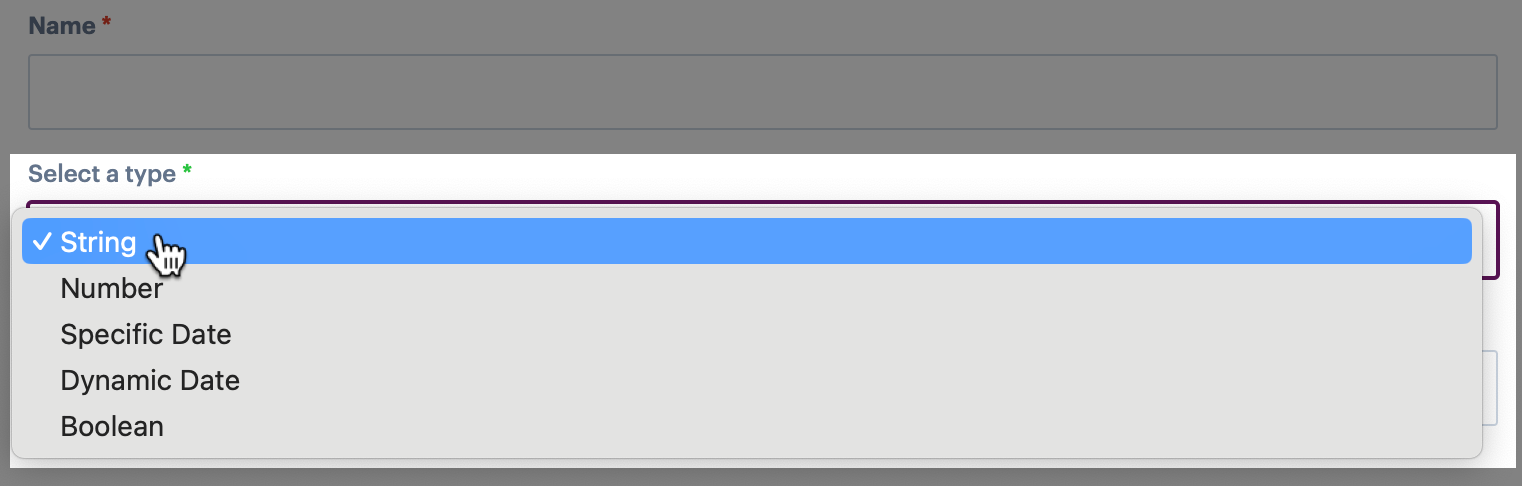
Click the select a type field and choose the required type:
The following options are available:
Variable type
Variable is defined and passed as...
A selected date - choose the required date/time from a date picker.
A +/- number of seconds, minutes, hours, days, months, years to be matched relative to the current date.
Step 6
Enter the required value for this variable and save settings:
Updating flow variables
Step 1
Access settings for the required process flow as detailed above.
Step 2
Click the 'edit' icon associated with the variable you want to change:
Step 3
Now you can either update existing settings and click the update button, or click the delete button to remove this variable: