> This is part 1 of 11 of the full documentation (pages 1–100 of 1088).
> The content is paginated: fetch every part to see all of it.
> Next part: https://doc.wearepatchworks.com/product-documentation/llms-full.txt/1
> Page index: https://doc.wearepatchworks.com/product-documentation/llms.txt

# Patchworks product documentation

## Dashboard guides

<table data-view="cards"><thead><tr><th></th><th></th><th></th><th data-hidden data-card-cover data-type="image">Cover image</th><th data-hidden data-card-target data-type="content-ref"></th></tr></thead><tbody><tr><td><strong>Getting started</strong></td><td>If you're new to Patchworks, find out who we are and what we do!</td><td></td><td><a href="https://2440044887-files.gitbook.io/~/files/v0/b/gitbook-x-prod.appspot.com/o/spaces%2FLYNcUBVQwSkOMG6KjZfz%2Fuploads%2FsFXdO4htVeOymWXxqc9T%2Fgetting-started.png?alt=media&amp;token=6292fa80-f079-4014-ac3b-ed2f3f33f4b8">getting-started.png</a></td><td><a href="/product-documentation/welcome/what-is-patchworks">What is Patchworks?</a></td></tr><tr><td><strong>Registration</strong></td><td>There are different ways to register for a Patchworks account - learn about them here.</td><td></td><td><a href="https://2440044887-files.gitbook.io/~/files/v0/b/gitbook-x-prod.appspot.com/o/spaces%2FLYNcUBVQwSkOMG6KjZfz%2Fuploads%2FNugjeLjXRuX1W9KEAQj9%2Fregistration.png?alt=media&amp;token=14b086d3-fddc-49e5-95ff-f024565c42b6">registration.png</a></td><td><a href="/product-documentation/registration/registering-for-a-patchworks-account">Registering for a Patchworks account</a></td></tr><tr><td><strong>AI studio</strong></td><td>A suite of agents that understand your integration context and help you build, run and operate integrations faster.</td><td></td><td><a href="https://2440044887-files.gitbook.io/~/files/v0/b/gitbook-x-prod.appspot.com/o/spaces%2FLYNcUBVQwSkOMG6KjZfz%2Fuploads%2FOpcvuGCXqgDMB2MWIPjd%2Fai-studio-tile.svg?alt=media&amp;token=17bfcfb4-8884-4fe2-a692-8cacc3c6d66c">ai-studio-tile.svg</a></td><td><a href="/product-documentation/ai/patchworks-ai-studio">Patchworks AI Studio</a></td></tr><tr><td><strong>Company setup</strong></td><td>View and manage your Patchworks company profile.</td><td></td><td><a href="https://2440044887-files.gitbook.io/~/files/v0/b/gitbook-x-prod.appspot.com/o/spaces%2FLYNcUBVQwSkOMG6KjZfz%2Fuploads%2Fxmsfq4PFWIuCknZOO6SS%2Fmanage-company.png?alt=media&amp;token=1f678a4d-f5b7-473a-8751-e77de447b90a">manage-company.png</a></td><td><a href="/product-documentation/company-management/about-company-profiles">About company profiles</a></td></tr><tr><td><strong>Virtual environments</strong></td><td>Run a single process flow in multiple environments by switching out environment-specific components at runtime.</td><td></td><td><a href="https://2440044887-files.gitbook.io/~/files/v0/b/gitbook-x-prod.appspot.com/o/spaces%2FLYNcUBVQwSkOMG6KjZfz%2Fuploads%2FZUIOuF9ScsWXzbSzbcc8%2Fvirtual%20envs.png?alt=media&amp;token=1951d56b-c3c1-4e68-9518-f16e57b6edee">virtual envs.png</a></td><td><a href="/product-documentation/virtual-environments/about-virtual-environments">Virtual Environments</a></td></tr><tr><td><strong>Users &#x26; roles</strong></td><td>Learn how to add and manage Patchworks users for your company.</td><td></td><td><a href="https://2440044887-files.gitbook.io/~/files/v0/b/gitbook-x-prod.appspot.com/o/spaces%2FLYNcUBVQwSkOMG6KjZfz%2Fuploads%2FVl54SAVNn0iJ6AXuhrzw%2Fmanage-users.png?alt=media&amp;token=daa3afc3-9f0d-493e-98c0-86cab3a92783">manage-users.png</a></td><td><a href="/product-documentation/users-roles-and-permissions/users-roles-and-permissions-introduction">Users, roles &amp; permissions introduction</a></td></tr><tr><td><strong>Marketplace</strong></td><td>Find out about the all-new Patchworks marketplace for blueprints, connectors, process flows, custom scripts, and cross-reference lookups.</td><td></td><td><a href="https://2440044887-files.gitbook.io/~/files/v0/b/gitbook-x-prod.appspot.com/o/spaces%2FLYNcUBVQwSkOMG6KjZfz%2Fuploads%2FNqy3mwhcDIK9t2G1wtKQ%2Fmarketplace%20(2).png?alt=media&amp;token=6738a466-f433-416a-a48d-c21b93638d1e">marketplace (2).png</a></td><td><a href="/product-documentation/marketplace/the-patchworks-marketplace">Marketplace</a></td></tr><tr><td><strong>Blueprints</strong></td><td>If you have a specific integration task in mind and want to install everything you need to get the job done, there might be a blueprint for that!</td><td></td><td><a href="https://2440044887-files.gitbook.io/~/files/v0/b/gitbook-x-prod.appspot.com/o/spaces%2FLYNcUBVQwSkOMG6KjZfz%2Fuploads%2FCFwtCF97YWfCDfBYrUgq%2Fapps.png?alt=media&amp;token=de0527bc-b76d-4aaa-8865-02a8e4a15580">apps.png</a></td><td><a href="/product-documentation/blueprints/blueprints-introduction">Blueprints</a></td></tr><tr><td><strong>Connectors &#x26; instances</strong></td><td>Patchworks is all about connections! Everything you need to know about installing and working with connectors can be found here.</td><td></td><td><a href="https://2440044887-files.gitbook.io/~/files/v0/b/gitbook-x-prod.appspot.com/o/spaces%2FLYNcUBVQwSkOMG6KjZfz%2Fuploads%2FXNPYzJzZFLsAmCC6chXn%2Fconnectors.png?alt=media&amp;token=bd084157-dfb5-485a-bb1e-8bda52dda51a">connectors.png</a></td><td><a href="/product-documentation/connectors-and-instances/connectors-and-instances-introduction">Connectors &amp; instances</a></td></tr><tr><td><strong>Process flows</strong></td><td>Everything you need to know about building your own powerful data flows between your business systems, and working with prebuilt flows.</td><td></td><td><a href="https://2440044887-files.gitbook.io/~/files/v0/b/gitbook-x-prod.appspot.com/o/spaces%2FLYNcUBVQwSkOMG6KjZfz%2Fuploads%2FNB4s1gjpMqufnaq7vu3k%2Fprocess-flows.png?alt=media&amp;token=5e64b02a-5319-4e04-bdc1-b4fe88380064">process-flows.png</a></td><td><a href="/product-documentation/process-flows/about-process-flows">Process flows</a></td></tr><tr><td><strong>General settings</strong></td><td>Find help for Patchworks setup options for system administrators.</td><td></td><td><a href="https://2440044887-files.gitbook.io/~/files/v0/b/gitbook-x-prod.appspot.com/o/spaces%2FLYNcUBVQwSkOMG6KjZfz%2Fuploads%2F4x2qNfj03flHMc14Pflf%2Fgeneral-settings.png?alt=media&amp;token=bfbf6d92-b9a4-4575-80df-543ba289ebd0">general-settings.png</a></td><td><a href="/product-documentation/general-settings/general-settings-introduction">General settings introduction</a></td></tr><tr><td><strong>Release notes</strong></td><td>Stay up to date with what's new in the Patchworks dashboard and our bolt-ons.</td><td></td><td><a href="https://2440044887-files.gitbook.io/~/files/v0/b/gitbook-x-prod.appspot.com/o/spaces%2FLYNcUBVQwSkOMG6KjZfz%2Fuploads%2FWS1IUDEdJhlSWuPcD5G8%2Frelease-info.png?alt=media&amp;token=55206472-fb63-4651-a8b3-21ae79208c20">release-info.png</a></td><td><a href="https://doc.wearepatchworks.com/product-documentation/release-information/core-release-notes">https://doc.wearepatchworks.com/product-documentation/release-information/core-release-notes</a></td></tr></tbody></table>

## Developer hub

<table data-view="cards"><thead><tr><th></th><th></th><th></th><th data-hidden data-card-cover data-type="image">Cover image</th><th data-hidden data-card-target data-type="content-ref"></th></tr></thead><tbody><tr><td><strong>Connector builder</strong></td><td>Find guidance on using the all-new connector builder to build connectors for systems that aren't available in the Patchworks marketplace.</td><td></td><td><a href="https://2440044887-files.gitbook.io/~/files/v0/b/gitbook-x-prod.appspot.com/o/spaces%2FLYNcUBVQwSkOMG6KjZfz%2Fuploads%2FZtREC8IbgO1BaYv8nhZ4%2Fconnector-builder.png?alt=media&amp;token=e0d85590-8ab6-41b7-8338-58b9e4fa6ee0">connector-builder.png</a></td><td><a href="/product-documentation/developer-hub/connector-builder">Connector builder</a></td></tr><tr><td><strong>Custom scripting</strong></td><td>Find out how you can write your own field and payload-level scripts to handle complex data manipulation requirements.</td><td></td><td><a href="https://2440044887-files.gitbook.io/~/files/v0/b/gitbook-x-prod.appspot.com/o/spaces%2FLYNcUBVQwSkOMG6KjZfz%2Fuploads%2FgUCxu85NLxCDGNz7BJnZ%2Fcustom-scripting.png?alt=media&amp;token=3eebd348-0e90-41c9-ab5c-b73a204edc96">custom-scripting.png</a></td><td><a href="/product-documentation/developer-hub/custom-scripting">Custom scripting</a></td></tr><tr><td><strong>API</strong></td><td>See how to use the Patchworks Inbound API connector for ultimate flexibility in connecting to non-standard systems.</td><td></td><td><a href="https://2440044887-files.gitbook.io/~/files/v0/b/gitbook-x-prod.appspot.com/o/spaces%2FLYNcUBVQwSkOMG6KjZfz%2Fuploads%2Ff7zCg37kR2fQxx7RLOHA%2Fapi.png?alt=media&amp;token=61eb6e2e-9881-4b45-8cc4-83ead8a134e8">api.png</a></td><td><a href="/product-documentation/developer-hub/patchworks-core-api">Patchworks Core API</a></td></tr><tr><td><strong>MCP</strong></td><td>Connect your integration platform directly to an AI assistant.</td><td></td><td><a href="https://2440044887-files.gitbook.io/~/files/v0/b/gitbook-x-prod.appspot.com/o/spaces%2FLYNcUBVQwSkOMG6KjZfz%2Fuploads%2Ff8RSzSB4R90VwCctXaSA%2Fmcp%20server.png?alt=media&amp;token=19678b15-5f20-4822-ad20-99fc65cca69e">mcp server.png</a></td><td><a href="/product-documentation/developer-hub/patchworks-mcp">Patchworks MCP</a></td></tr><tr><td><strong>Self-hosting</strong></td><td>Deploy and run Patchworks on your own infrastructure.</td><td>( Coming Soon )</td><td><a href="https://2440044887-files.gitbook.io/~/files/v0/b/gitbook-x-prod.appspot.com/o/spaces%2FLYNcUBVQwSkOMG6KjZfz%2Fuploads%2FilzQJCvwPrbjBZKiHDjQ%2Fself-hosting-tile.png?alt=media&amp;token=0933cac9-393c-4859-816b-53c01186c971">self-hosting-tile.png</a></td><td><a href="/product-documentation/developer-hub/self-hosting">Self-hosting</a></td></tr></tbody></table>

## Patchworks bolt-ons

<table data-view="cards"><thead><tr><th></th><th></th><th></th><th data-hidden data-card-cover data-type="files"></th><th data-hidden data-card-target data-type="content-ref"></th></tr></thead><tbody><tr><td><strong>Stockr</strong></td><td>Understand how you can manage stock levels across multiple Shopify stores in real-time.</td><td></td><td><a href="https://2440044887-files.gitbook.io/~/files/v0/b/gitbook-x-prod.appspot.com/o/spaces%2FLYNcUBVQwSkOMG6KjZfz%2Fuploads%2FHaKxpbrUmpsLFteS9mbg%2Fstockr%20(1).png?alt=media&amp;token=0d5e953d-af19-44aa-b042-383bee21e6eb">stockr (1).png</a></td><td><a href="/product-documentation/patchworks-bolt-ons/stockr">Stockr</a></td></tr></tbody></table>


# Welcome to Patchworks!

## About this section

If you're new to Patchworks and want to find out more before you get started, take a look through this section for background information and demo videos.

## In this section

* [What is Patchworks?](/product-documentation/welcome/what-is-patchworks)
* [Patchworks demos](/product-documentation/welcome/patchworks-demos)
* [Product roadmap](/product-documentation/welcome/product-roadmap)


# What is Patchworks?

## Introduction

Patchworks is an Integration Platform as a Service (iPaaS).

Our secure, [multi-language](/product-documentation/getting-started/multi-language-support), cloud-based platform automates the flow of data between your company’s business-critical systems/applications in a smart, intuitive way.

In today's market, businesses can pick and mix from best-of-breed applications to tackle specific goals...perhaps an eCommerce application for sales order processing; an ERP system for records management; a warehouse management system to maintain inventory and a CRM for relationship management and marketing.

On their own, these applications fulfil their requirements perfectly. However, the key to real strategic advantage is integration - establishing a frictionless exchange of data between all of your applications, smartly.

## Video explainer

Watch our two-minute explainer video for Patchworks!

{% embed url="<https://www.youtube.com/watch?v=Lp2X-44MTHs>" %}

## Your centralised systems hub

Historically, many businesses have gone down the API route to integrate systems, building and maintaining direct APIs in-house. This can be a costly exercise, carrying an administrative burden and a potential drain on resources (assuming you have the resources in the first place).

In contrast, Patchworks provides a cost-efficient way to streamline your operations via one centralised platform - your integrations hub, if you will. Using our intuitive [dashboard](#self-serve-integrations-with-process-flows), you can add, manage and orchestrate your integrations with complete peace of mind when it comes to security and scalability.

## Self-serve integrations with process flows

Patchworks is a powerful no-code/low-code platform with everything you need to add and manage your integrations.

We know that integration requirements are often highly complex and a real challenge for customers, but we don't think the solution should be. A huge amount of thought has gone into making our no-code/low-code dashboard as smart and user-friendly as possible.

Using click-and-drop [process flows](/product-documentation/process-flows/about-process-flows) with automated [shapes](/product-documentation/process-flows/building-process-flows/process-flow-shapes) and an impressive library of prebuilt [connectors](/product-documentation/connectors-and-instances/connectors-and-instances-introduction) (in the [Patchworks marketplace](/product-documentation/marketplace/the-patchworks-marketplace)) and blueprints (from the [Patchworks website](https://www.wearepatchworks.com/collections/blueprint#Landing)), you can create powerful data flows in a matter of minutes. You can adjust default field mappings and transformations as needed, trigger syncs, watch syncs run in real-time, view historical data, and troubleshoot issues - all without a single line of code.

## Virtual environments

Virtual environments are a great way for enterprise organisations to manage large-scale sync requirements with minimal process flows and no replication of effort.

A [virtual environment](/product-documentation/virtual-environments/about-virtual-environments) is a collection of overrides (known as [replacements](/product-documentation/virtual-environments/implementing-virtual-environments/configuring-a-virtual-environment-version/configuring-virtual-environment-replacements)) that can be applied when a 'master' process flow runs, so the specific requirements for each environment can be met without needing to duplicate flows.

## Connector builder

With Patchworks, you can configure and connect any of our prebuilt [connectors](/product-documentation/connectors-and-instances/connectors-and-instances-introduction) in [process flows](/product-documentation/process-flows/about-process-flows).

But what if we don't have a prebuilt [connector](/product-documentation/connectors-and-instances/connectors-and-instances-introduction) for an application that you need to sync? Perhaps you have a bespoke, in-house system, or maybe you need to integrate an application that's completely outside of the eCommerce arena. No problem - the Patchworks [connector builder](/product-documentation/developer-hub/connector-builder) is your new best friend!

If you have technical knowledge of APIs and working with data structures, you can use the [connector builder](/product-documentation/developer-hub/connector-builder) to integrate any application with REST or SOAP APIs.

## Developer hub

Speaking of technical expertise...

'Out of the box', Patchworks includes everything you need to manipulate and then exchange data securely between different third-party applications, securely and intuitively. However, for users with in-house development expertise and more complex requirements, advanced tools are available that you can use to take your integrations to the next level:

* Use the [Patchworks API ](/product-documentation/developer-hub/patchworks-core-api)to build against Patchworks from third-party systems and interact with your Patchworks process flows or services.
* [Custom scripting](/product-documentation/developer-hub/custom-scripting) can be used at the field level (to build highly complex transformations for mapping individual fields) and at the payload level, so you can manipulate an entire payload before it is sent to the next step in your process flow.

## Certifications

Patchworks is proud to be a member of the [MACH Alliance](https://machalliance.org/members/patchworks), and certified for [ISO/IEC 27001:2022](https://www.iso.org/standard/27001).


# Patchworks demos

## Introduction

This page includes video demonstrations showing different aspects of the Patchworks platform.

## What is Patchworks?

Watch our two-minute explainer video for Patchworks!

{% embed url="<https://www.youtube.com/watch?v=Lp2X-44MTHs>" %}

## Integrating 5 Systems in Under 10 Minutes

Our CTO, Conor Barr, demonstrates using our pre-built [Blueprints](https://doc.wearepatchworks.com/product-documentation/marketplace/blueprints) , [Connector Builder ](https://doc.wearepatchworks.com/product-documentation/developer-hub/connector-builder)[Postman Importer](https://doc.wearepatchworks.com/product-documentation/developer-hub/postman-importer-beta) & no-code/low-code canvas with ready-to-use process flows, how quickly and easily you can cut down on implementation time and get your systems connected.

{% embed url="<https://youtu.be/KH8yml7vyTc>" %}

## Connector builder in 5 minutes

Our CEO, Jim Herbert, shows how easy it is to build your own custom connector with the Patchworks [connector builder](/product-documentation/developer-hub/connector-builder) in just 5 minutes!

{% embed url="<https://www.youtube.com/watch?v=tV7hmrta6HE>" %}

## Cache & flow control in process flows

Our CTO, Conor Barr, demonstrates the power of [flow control](/product-documentation/process-flows/building-process-flows/process-flow-shapes/standard-shapes/flow-control-shape) and [cache](/product-documentation/process-flows/building-process-flows/process-flow-shapes/advanced-shapes/cache) shapes in Patchworks process flows.

{% embed url="<https://youtu.be/NiVxv6lV1zU>" %}


# Product roadmap

## Introduction

We have some exciting features in the pipeline for this year and beyond! Our current roadmap is shown below.

## Current roadmap

<figure><img src="https://2440044887-files.gitbook.io/~/files/v0/b/gitbook-x-prod.appspot.com/o/spaces%2FLYNcUBVQwSkOMG6KjZfz%2Fuploads%2FiQTaSqG6hFgKtM5GSobC%2FScreenshot%202026-09-22%20at%2009.34.08.png?alt=media&amp;token=1dcf38fb-1934-41e5-9497-848e69bbd0db" alt=""><figcaption></figcaption></figure>


# Subscription tier limits

## Introduction

To ensure our platform remains performant, stable and fair for everyone, some Patchworks features are limited. Below you can find more information about those limits.

{% hint style="info" %}
Having [purchased a subscription](#how-do-i-purchase-a-subscription-tier), its associated features and allowances are available to your organisation. Each user within your organisation is assigned a [role](/product-documentation/users-roles-and-permissions/roles-and-permissions-summary) which determines if/how they can access these features.
{% endhint %}

## Subscription tier limits

The table below summarises feature limits / allowances for each subscription tier.

<table data-full-width="true"><thead><tr><th>Feature ↓</th><th>Trial</th><th align="center">Standard</th><th align="center">Professional</th><th align="center">Enterprise</th></tr></thead><tbody><tr><td><a href="/product-documentation/process-flows/managing-process-flows/enabling-and-disabling-a-process-flow/enabling-and-disabling-a-process-flow-without-virtual-enviroments">Deployed connectors</a> (i.e. connectors used in enabled &#x26; deployed process flows)</td><td>2</td><td align="center">2</td><td align="center">5</td><td align="center">Starting at 10</td></tr><tr><td><a href="/product-documentation/ai/patchworks-ai-studio/tokens">AI Studio Tokens</a></td><td>1000000</td><td align="center">2500000</td><td align="center">7500000</td><td align="center">20000000</td></tr><tr><td><a href="/product-documentation/process-flows/error-reporting-and-exception-handling/run-logs-and-queue#about-concurrent-processing">Concurrent running process flows</a></td><td>2</td><td align="center">10</td><td align="center">25</td><td align="center">Starting at 30</td></tr><tr><td><a href="/product-documentation/company-management/company-insights/company-insights-overview/about-operations">Operations</a><br>(per month)</td><td>100,000</td><td align="center">150,000</td><td align="center">400,000</td><td align="center">Starting at 1,000,000</td></tr><tr><td><a href="/product-documentation/developer-hub/patchworks-core-api">Patchworks API</a><br>(per minute)</td><td>240</td><td align="center">240</td><td align="center">240</td><td align="center">Starting at 240</td></tr><tr><td><a href="/product-documentation/process-flows/building-process-flows/process-flow-shapes/standard-shapes/trigger-shape/trigger-shape-webhook">Webhooks</a><br>(per minute)</td><td>2</td><td align="center">120</td><td align="center">120</td><td align="center">Starting at 120</td></tr><tr><td><a href="#about-the-callback-bolt-on">Callbacks</a><br>(per minute)</td><td>2</td><td align="center">240</td><td align="center">240</td><td align="center">Starting at 240</td></tr><tr><td><a href="/product-documentation/process-flows/building-process-flows/process-flow-shapes/standard-shapes/notify-shape">Email notifications</a> (per month)</td><td>100</td><td align="center">1000</td><td align="center">1000</td><td align="center">Starting at 1000</td></tr><tr><td><a href="/product-documentation/virtual-environments/about-virtual-environments">Virtual environments</a></td><td>2</td><td align="center">2</td><td align="center">5</td><td align="center">Starting at 2</td></tr><tr><td>Cache memory (MB)</td><td>0</td><td align="center">50</td><td align="center">50</td><td align="center">Starting at 50</td></tr></tbody></table>

## How do I purchase a subscription tier increase or bolt-on?

Anyone can sign up for a new Patchworks [trial subscription](#available-core-subscription-tiers) via our [login page](https://app.wearepatchworks.com/login). When your 15-day trial period ends, you can contact the Patchworks Sales team to purchase the required subscription. You can do this via our [website](https://www.wearepatchworks.com/pages/contact-us), or our [dashboard chatbot](/product-documentation/raising-a-support-ticket#dashboard-chatbot):

<div align="left"><figure><img src="https://2440044887-files.gitbook.io/~/files/v0/b/gitbook-x-prod.appspot.com/o/spaces%2FLYNcUBVQwSkOMG6KjZfz%2Fuploads%2FNhkDkuSZx78V1vvRWE1W%2Fcontact%20sales.png?alt=media&amp;token=70c68bf7-17a7-4197-9f62-aff5a40b9700" alt="" width="300"><figcaption></figcaption></figure></div>

{% hint style="info" %}
If you have come to Patchworks via an agency/partner, please contact them to arrange your preferred subscription.
{% endhint %}

## How can I check my subscription allowances?

To view all allowances for your subscription, [access your Company insights page](/product-documentation/company-management/company-insights/accessing-your-company-insights) - you'll see your current subscription tier in the top right-hand corner. Click this to view all associated allowances:

<figure><img src="https://2440044887-files.gitbook.io/~/files/v0/b/gitbook-x-prod.appspot.com/o/spaces%2FLYNcUBVQwSkOMG6KjZfz%2Fuploads%2F1nxOh1jjmkFGOCXghXyB%2Finsights%20-%20view%20tier%20info.png?alt=media&amp;token=e7a0b995-fac9-40b6-9fc6-7ac0b155a793" alt=""><figcaption></figcaption></figure>

{% hint style="info" %}
For more information about this option please see our [Company insights overvie](/product-documentation/company-management/company-insights/company-insights-overview)w page.
{% endhint %}

### How can I check the status of my connector & process flow allowances?

Subscription tiers are associated with different allowances for the number of deployed connectors, and the number of deployed process flows.

{% hint style="info" %}
For allowance purposes, a 'deployed' process flow is a process flow that is both **deployed and enabled**. A 'deployed' connector is a connector that is in use by a 'deployed' process flow.
{% endhint %}

To view the number of 'deployed' connectors and the number remaining in your subscription tier allowance, select `connectors and instances` from the left-hand navigation menu - your allowance status is shown in the header of the `manage connectors` page:

<figure><img src="https://2440044887-files.gitbook.io/~/files/v0/b/gitbook-x-prod.appspot.com/o/spaces%2FLYNcUBVQwSkOMG6KjZfz%2Fuploads%2FwyL94fOn9n6tYV6GcqhV%2Fshow%20deployed%20connectors.png?alt=media&amp;token=7b836ce0-5359-43d6-9cd4-7ca2d8631603" alt=""><figcaption></figcaption></figure>

To view the number of 'deployed' process flows and the number remaining in your subscription tier allowance, select `process flows` from the left-hand navigation menu - your allowance status is shown in the header of the `manage your flows` page:

<figure><img src="https://2440044887-files.gitbook.io/~/files/v0/b/gitbook-x-prod.appspot.com/o/spaces%2FLYNcUBVQwSkOMG6KjZfz%2Fuploads%2FR57kso6ML4PmvFAp4d76%2Fshow%20deployed%20flows.png?alt=media&amp;token=535f56ec-93f6-4b27-919e-e3874fc3dcad" alt=""><figcaption></figcaption></figure>


# VPN options

Connect Patchworks to resources inside your private network - such as on-premise systems or internal APIs - using a dedicated VPN connection.

## Overview

Some integrations require Patchworks to reach resources that aren't accessible over the public internet - such as internal ERP systems, on-premise databases, or private APIs behind a corporate firewall. VPN options give you a secure, dedicated tunnel between Patchworks' infrastructure and your network.

Two tiers are available, depending on whether you need to run **custom scripts** that also require VPN access:

### Connector + Scripts

**Full VPN access**

VPN access for both connectors and custom scripts that need to reach private network resources.

**Includes**

* ✓ Connector access to VPN resources
* ✓ Custom script access to VPN resources
* ✓ Node group(s)
* ✓ Dedicated customer queue (push/pull)
* ✓ Dedicated subnet(s)
* ✓ AWS Site-to-Site VPN tunnel

### Connector only

**Connector VPN access**

VPN access scoped to connectors only. Custom scripts continue to run on the shared infrastructure.

**Includes**

* ✓ Connector access to VPN resources
* ✗ Custom scripts (shared queue)
* ✓ Node group
* ✓ Dedicated customer queue (push/pull)
* ✓ Dedicated subnet(s)
* ✓ AWS Site-to-Site VPN tunnel

{% hint style="info" %}
Both options give your company its own **node group(s)**, providing entirely dedicated, separated traffic. Push/pull jobs also run on a **dedicated customer queue**. Custom scripts are an exception - they use the shared queue in both tiers.
{% endhint %}

## How it works

Both VPN tiers are built on **AWS Site-to-Site VPN**, which creates an encrypted IPsec tunnel between your network and the dedicated Patchworks VPC (Virtual Private Cloud) provisioned for your company.

[🔗AWS Site-to-Site VPN — official documentation docs.aws.amazon.com](https://docs.aws.amazon.com/vpn/latest/s2svpn/VPC_VPN.html)

At a high level, the provisioning process works like this:

```
Your network

──── IPsec tunnel ────

AWS VPN gateway

→

Customer VPC

Inside the Customer VPC

New subnet(s)

→

Node group(s)

→

Dedicated queue
```

### Dedicated infrastructure

Unlike standard Patchworks tenancy - where node groups and queues are shared across customers - VPN customers receive:

* **A new set of subnets** provisioned per customer inside the AWS VPC
* **A dedicated node group** (or multiple, depending on your workload) - ensuring your traffic is never co-mingled with other customers
* **A dedicated push/pull queue** - so inbound and outbound events are isolated end-to-end

{% hint style="info" %}
Custom scripts run on a **shared script queue** in both tiers. If your custom scripts also need to reach private network resources, you need the **Connector + Scripts** tier
{% endhint %}

## Tier comparison

| Feature                               | Connector only       | Connector + Scripts  |
| ------------------------------------- | -------------------- | -------------------- |
| Connector access to VPN resources     | ✓ Yes                | ✓ Yes                |
| Custom script access to VPN resources | ✗ No                 | ✓ Yes                |
| Dedicated node group(s)               | ✓ Yes                | ✓ Yes                |
| Dedicated push/pull queue             | ✓ Yes                | ✓ Yes                |
| Dedicated subnets (per customer)      | ✓ Yes                | ✓ Yes                |
| VPN technology                        | AWS Site-to-Site VPN | AWS Site-to-Site VPN |

* The current implementation uses **AWS Site-to-Site VPN**.
* Final pricing will be confirmed during customer review.
* Setup requires coordination with your network team to configure the VPN tunnel from your side.

## Getting started

VPN connectivity is set up on a per-customer basis by the Patchworks team. To get started:

{% stepper %}
{% step %}

## Contact Patchworks

Contact your Patchworks account manager or reach out via **support** to express interest.
{% endstep %}

{% step %}

## Share network resource details

Share details about the network resources that Patchworks needs to reach (endpoints, protocols, ports).
{% endstep %}

{% step %}

## Configure the customer-side VPN endpoint

Your network team will need to configure the customer-side VPN endpoint - Patchworks will provide the AWS VPN gateway details.
{% endstep %}

{% step %}

## Provision dedicated infrastructure

Patchworks provisions your dedicated subnets, node group(s), and queue.
{% endstep %}

{% step %}

## Test connectivity

Connectivity is tested end-to-end before go-live.
{% endstep %}
{% endstepper %}

{% hint style="info" %}
There is no self-service setup for VPN connectivity. All provisioning is handled by the Patchworks infrastructure team in coordination with your network administrators.
{% endhint %}


# Key concepts & terminology

## **Blueprint**

A Patchworks **blueprint** contains everything you need to perform a specific task - for example, to sync orders from TikTok Shop to Shopify; to sync customers from Shopify to HubSpot, etc.

{% hint style="info" %}
For more information please see: [Blueprints](/product-documentation/marketplace/marketplace-blueprints).
{% endhint %}

## **Canvas**

See [process flow canvas](#process-flow-canvas).

## Dashboard

Having registered for a Patchworks account, use your credentials to log in to the [Patchworks dashboard](https://app.wearepatchworks.com/). This is where you can access everything you need to set up and manage data exchanges between third-party applications.

{% hint style="info" %}
For more information please see: [Patchworks quickstart guide](/product-documentation/getting-started/patchworks-quickstart-guide).
{% endhint %}

## Connector

The meaning of **connector** varies, depending on whether you are using [process flows](#process-flow) or [services](#services) to sync data in Patchworks. Please expand the appropriate definition below.

<details>

<summary>Connectors in process flows</summary>

**Connectors** and [instances](#instance) are the key building blocks in [process flows](#process-flow).

A **connector** is a generic integration of a third-party business system/application - it contains everything needed 'under the hood' (for example, endpoints, authentication methods, etc.) to sync data from/to the associated application.

You must [install a connector](/product-documentation/connectors-and-instances/working-with-connectors/installing-a-connector) for any third-party application that you wish to integrate with Patchworks. As you'd expect, Patchworks has made this easy for you, with a curated library of prebuilt connectors in the [Patchworks marketplace](/product-documentation/marketplace/the-patchworks-marketplace).

Having installed a connector, you can then add as many [instances](#instance) of it as you need for use in your [process flows](#process-flow). For more information please see: [Connectors & instances](/product-documentation/connectors-and-instances/connectors-and-instances-introduction).

</details>

<details>

<summary>Connectors in services</summary>

A **connector** is the mechanism that Patchworks uses to configure a [system](#system) for use in [services](#services) - it's how we store your system credentials in a single, easy-to-manage place. For more information please see: [Working with services](/product-documentation/patchworks-services/working-with-services/accessing-services).
</details>

## Connector builder

If you need to integrate a third-party application that doesn't have a prebuilt connector in the [Patchworks marketplace](#patchworks-marketplace) - and if you have technical knowledge of APIs and working with data structures - you can use the [connector builder](/product-documentation/developer-hub/connector-builder) to integrate any application with REST or SOAP APIs.

{% hint style="info" %}
For more information please see: [Connector builder](/product-documentation/developer-hub/connector-builder).
{% endhint %}

## Instance

An **instance** is the mechanism that Patchworks uses to configure a **connector** for use in [process flows](#process-flow) - it's how we store your system credentials for a given connector in a single, easy-to-manage place.

You can add as many instances of a single connector as you need. For example, if you've installed the Shopify connector, you would go on to add one **instance** of this connector for every Shopify store that you need to sync using process flows.

{% hint style="info" %}
For more information please see: [Connectors & instances](/product-documentation/connectors-and-instances/connectors-and-instances-introduction).
{% endhint %}

## Marketplace

With Patchworks, you can [install](/product-documentation/connectors-and-instances/working-with-connectors/installing-a-connector) and then use [instances](/product-documentation/connectors-and-instances/working-with-instances) of a range of curated, prebuilt connectors which are available from the [Patchworks marketplace](/product-documentation/marketplace/the-patchworks-marketplace).

## **Patchworks**

Typically, when we talk about Patchworks in this documentation set, we're referring to the Patchworks Integration Platform as a Service (iPaaS), which is accessed via the Patchworks [dashboard](#dashboard).

## **Process flow**

Introduced in June 2023, the **process flow** feature is a completely new way to define if, when, what, and how data is synced between your third-party applications.

**Process flows** are built by dragging and dropping automated [shapes](#process-flow-shapes) onto a [canvas](#process-flow-canvas), and then configuring them as required.

{% hint style="info" %}
For more information please see: [About process flows](/product-documentation/process-flows/about-process-flows).
{% endhint %}

## Process flow canvas

The **canvas** includes everything you need to build a [process flow](#process-flow). Here, you drag [shapes](#process-flow-shapes) from the shapes tray, drop them onto the canvas, and then configure settings and relationships as required.

{% hint style="info" %}
For more information please see: [The process flow canvas](/product-documentation/process-flows/building-process-flows/the-process-flow-canvas).
{% endhint %}

## Process flow shapes

When you [add/edit](/product-documentation/process-flows/building-process-flows/adding-a-new-process-flow) a process flow, a set of **shapes** is available from the [canvas](#process-flow-canvas). Each **shape** performs a specific task - for example, the [trigger (schedule)](/product-documentation/process-flows/building-process-flows/process-flow-shapes/standard-shapes/trigger-shape/trigger-shape-schedule) shape is used to define a schedule upon which the **process flow** runs. Having dropped a shape onto the canvas, you can configure it with the required settings for that **process flow**.

{% hint style="info" %}
For more information please see: [Process flow shapes](/product-documentation/process-flows/building-process-flows/process-flow-shapes).
{% endhint %}

## Services

A **service** is the original Patchworks mechanism for defining if, when, what, and how data is synced via Patchworks. If you registered for a Patchworks account before July 2023, you'll be familiar with using [services](/product-documentation/patchworks-services/getting-started/what-is-a-service) to sync data between systems.

**Process flows** include all the functionality of services and much more. You can continue to use services but if you'd like to try [process flows](#process-flows), please contact your Customer Success Manager, or reach out to <customersuccess@wearepatchworks.com>.

{% hint style="info" %}
If you registered for a Patchworks account after July 2023, you will be using [process flows](#process-flows) automatically.
{% endhint %}

## Shapes

See [process flow shapes](#process-flow-shapes).

## System

When working with [services](#services) to sync data in Patchworks, a **system** is a Patchworks integration for a third-party business system - for example, Shopify.

For more information please see: [Working with services](/product-documentation/patchworks-services/working-with-services/accessing-services).
{% hint style="info" %}
The concept of 'systems' is only relevant if you use Patchworks [services](#services) to sync data - it is not used in [process flows](#process-flow).
{% endhint %}


# Multi-language support

## Introduction

You can work with the Patchworks dashboard in your preferred language, using the language switcher in the top information bar - for example:

<figure><img src="https://2440044887-files.gitbook.io/~/files/v0/b/gitbook-x-prod.appspot.com/o/spaces%2FLYNcUBVQwSkOMG6KjZfz%2Fuploads%2FrlZ72gNneBoAcAfEIJ7b%2Fnew%20languages.png?alt=media&amp;token=62f27f95-f514-4b08-a768-f653266ee5e1" alt=""><figcaption></figcaption></figure>

When you switch languages, the dashboard fields, labels, buttons, and options are translated.

## Supported languages

The following languages are currently supported:

* English
* French
* German
* Italian
* Japanese
* Netherlands
* Portuguese
* Serbian
* Spanish


# Patchworks quickstart guide

## Introduction

There are two possible paths for new clients to get up and running with Patchworks:

* Custom integrations, with help from the Patchworks team
* Self-serve integrations, via the Patchworks dashboard

If yours is a **custom integration**, you're in safe hands! Our teams will work with you to gather requirements and implement a tailor-made solution to meet your exact needs. However, with the launch of the new Patchworks dashboard, **self-serve onboarding** is now possible.

In this guide, we summarise the key steps required to get up and running, with links to relevant articles to help you complete each one.

## Where to start?

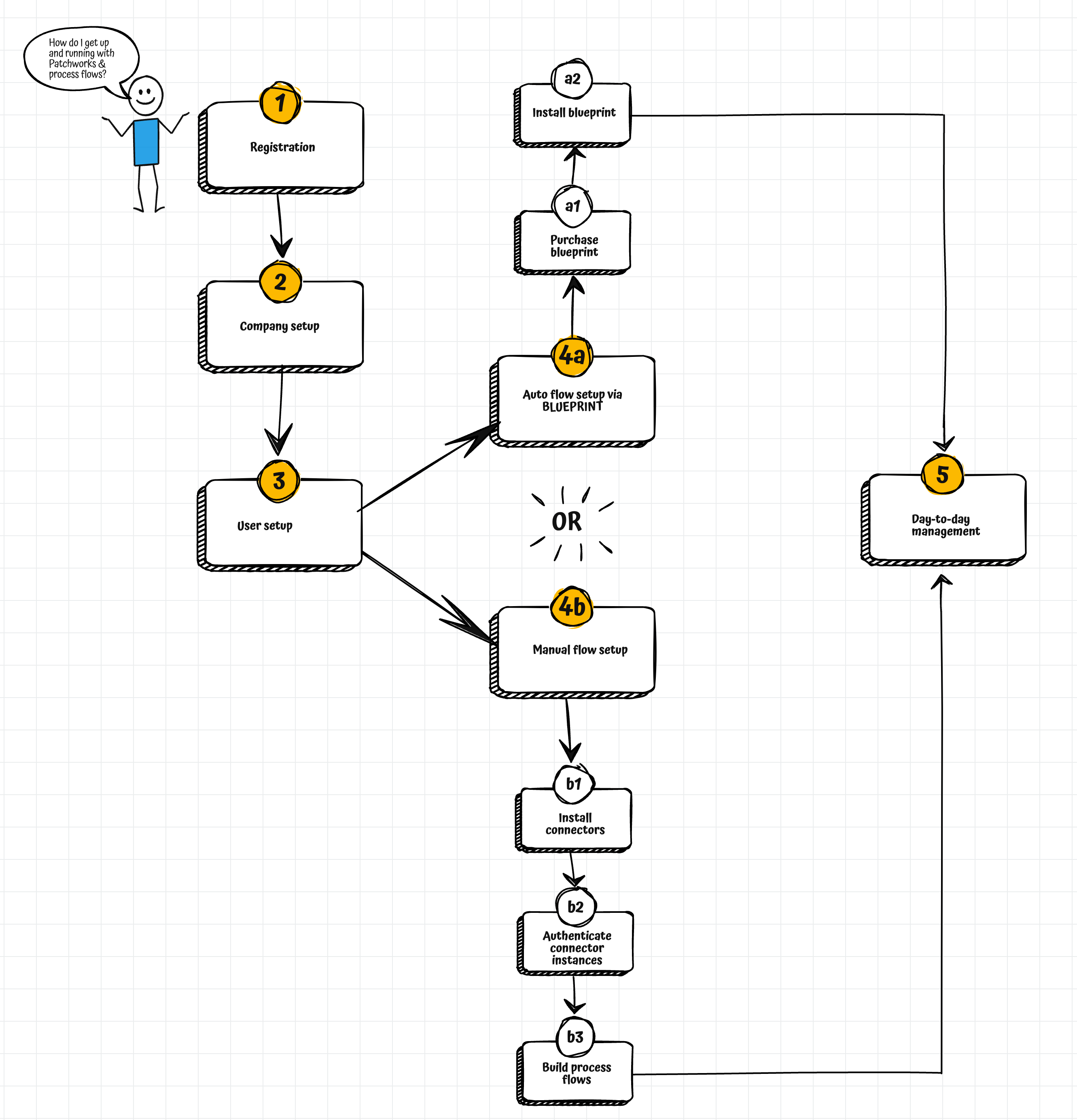
Key steps from initial registration through to putting process flows live are summarised in the illustration below:

<figure><img src="https://2440044887-files.gitbook.io/~/files/v0/b/gitbook-x-prod.appspot.com/o/spaces%2FLYNcUBVQwSkOMG6KjZfz%2Fuploads%2F8QqTKa0lcvTjfQlcPbQy%2Fquickstart%202024%203.png?alt=media&amp;token=c93994da-670f-46e9-9299-4bd7ce87341b" alt=""><figcaption></figcaption></figure>

## Step 1: Registration

To register your company for a Patchworks account so you can access the Patchworks dashboard, use our registration link below:

{% embed url="<https://app.wearepatchworks.com/register>" %}

You can register with a **Google sign-in**, or with a **username and password**. For details, please see: [Registering for a Patchworks account](/product-documentation/registration/registering-for-a-patchworks-account).

{% hint style="info" %}
If you are a **Patchworks partner** managing multiple company profiles, the [partner features bolt-on](/product-documentation/getting-started/subscription-tier-limits#core-subscription-tier-bolt-ons) should be enabled for your account. With this in place, you can [create a company profile for each of your managed companies](/product-documentation/company-management/multi-company-profiles/adding-and-linking-a-new-company).
{% endhint %}

## Step 2: Company setup

If your company is standalone and you don't need to manage other (linked) companies, you won't need to complete any further company setup.

If your company DOES need to manage other companies in Patchworks and the [partner features bolt-on](/product-documentation/getting-started/subscription-tier-limits#core-subscription-tier-bolt-ons) is enabled for your account, you can [create those company profiles from yours](/product-documentation/company-management/multi-company-profiles/adding-and-linking-a-new-company).

## Step 3: User setup

Having registered for a Patchworks account, a user account is created with the credentials you provided. By default, this is an **admin** account.

As an **admin** user, you can choose to create additional user accounts so other members of your team can access the Patchworks dashboard. When you create a user account, you can choose whether that person will have **admin** privileges (so they can create and manage process flows in Patchworks), or simple **user** permissions, (so they largely have view-only access). For details, please see [Adding a company user](/product-documentation/users-roles-and-permissions/creating-a-new-user-account-for-your-company-profile).

{% hint style="info" %}
To learn more about Patchworks roles and permissions, please see: [About passwords, roles & permissions](broken://pages/sNrlmpgLbYhnny02igKi). If you are adding/updating users for a managed company profile, please see [Managing team members & users for multi-company profile](/product-documentation/users-roles-and-permissions/managing-team-members-and-users-for-multi-company-profiles)s.
{% endhint %}

## Step 4: Flow setup

With your Patchworks company profile in place and users created, you're ready to start creating process flows. There are two approaches for this - [auto setup via blueprints](#auto-setup-via-blueprints), or [manual setup](#manual-setup).

### Auto setup via blueprints

A [blueprint](/product-documentation/blueprints/blueprints-introduction) includes everything you need to sync data between two systems - i.e. [connectors](/product-documentation/connectors-and-instances/connectors-and-instances-introduction#connectors), [connector instances](/product-documentation/connectors-and-instances/connectors-and-instances-introduction#instances), [process flows](/product-documentation/process-flows/building-process-flows), [scripts](/product-documentation/developer-hub/custom-scripting), [cross-reference lookups](/product-documentation/marketplace/marketplace-cross-reference-lookups).\
\
Having purchased and installed a blueprint from the [Patchworks store](https://www.wearepatchworks.com/collections/blueprint#Landing) (following installation instructions provided) - process flows are then ready to test and subsequently put live.

### Manual setup

Here, you add/install/build all required resources - i.e. [connectors](/product-documentation/connectors-and-instances/connectors-and-instances-introduction#connectors), [connector instances](/product-documentation/connectors-and-instances/connectors-and-instances-introduction#instances), [process flows](/product-documentation/process-flows/building-process-flows), [scripts](/product-documentation/developer-hub/custom-scripting), [cross-reference lookups](/product-documentation/marketplace/marketplace-cross-reference-lookups), and any other resources needed to perform given tasks.\
\
Note that the Patchworks marketplace includes a library of connectors, process flows, scripts and cross-reference lookups that you can install and use as-is, or edit to meet specific requirements. If we don't have a prebuilt [connector](/product-documentation/connectors-and-instances/connectors-and-instances-introduction) for an application you need to sync and you have some technical expertise in-house, you can use the [Patchworks connector builder](/product-documentation/developer-hub/connector-builder) to build your own.

## Step 5: Day-to-day-management

Once a **process flow** is activated, it runs automatically as per any defined [trigger shape](/product-documentation/process-flows/building-process-flows/process-flow-shapes/standard-shapes/trigger-shape) settings. if required, you can also choose to [run a process flow manually](/product-documentation/process-flows/managing-process-flows/initialising-a-process-flow-manually), with instant feedback and real-time logging.

As a process flow runs, you can see real-time progress from the [canvas](#process-flow-canvas), with detailed logs generated throughout the run. [Run logs](/product-documentation/process-flows/error-reporting-and-exception-handling/real-time-run-logs) can also be viewed retrospectively, so you always have full oversight of what's happened with your data.


# Troubleshooting dashboard & login issues

If you're experiencing general issues with the Patchworks dashboard - such as being logged out unexpectedly, images or icons not loading, or pages failing to load fully - the cause is often **not Patchworks itself**, but security software running on your company network or device.

### Common symptoms

| Symptom                                                                       | Likely cause                                                                     |
| ----------------------------------------------------------------------------- | -------------------------------------------------------------------------------- |
| Logged out unexpectedly or repeatedly                                         | Session cookies being stripped or modified by a corporate proxy / TLS inspection |
| Images, icons, or fonts not loading                                           | Asset/CDN domains blocked or filtered by network security tools                  |
| Pages partially loading or appearing broken                                   | Scripts or API calls blocked by a firewall, proxy, or browser policy             |
| Live updates not appearing (e.g. run logs)                                    | WebSocket connections blocked by a proxy or VPN                                  |
| Browser prompt: *"Look for and connect to any device on your local network?"* | Chrome's Local Network Access permission (see below)                             |

### Corporate security tools

Tools such as **Zscaler (ZIA/ZPA)**, **Netskope**, **Cisco Umbrella**, **Palo Alto Prisma Access**, and similar zero-trust/proxy products inspect and sometimes modify web traffic. This can interfere with authentication cookies, blocked asset domains, and real-time connections.

{% hint style="info" %}
**Example: Chrome 142 & Zscaler.** From Chrome 142, Google introduced a Local Network Access permission. When a site attempts to reach addresses Chrome classes as local - including the synthetic IP ranges used by Zscaler Private Access - Chrome shows a permission prompt. If **Block** is selected, the connection fails and the application won't load. See [Zscaler's advisory](https://trust.zscaler.com/private.zscaler.com/posts/26216) for details and the recommended enterprise policy fix.
{% endhint %}

### What to try

1. **Test on a different network** - if the dashboard works on a personal device or home/mobile network, the issue is almost certainly your corporate network or security software.
2. **Check for browser permission prompts** - if you've previously clicked *Block* on a Chrome local network prompt, re-allow it via the padlock/site settings icon in the address bar.
3. **Ask your IT team to allowlist Patchworks** - traffic to Patchworks domains should be excluded from TLS inspection and content filtering.
4. **Ensure WebSocket traffic is permitted** to Patchworks domains.
5. **Still stuck?** Contact Patchworks support with your browser version, network setup (VPN/proxy in use), and a screenshot of any errors in the browser console.


# Technical overview

## Introduction

The Patchworks infrastructure is designed for resilience and scalability - utilising cutting-edge technologies and best practices to ensure your data flows securely, efficiently, and reliably.

Leveraging a combination of proven technologies and innovative solutions, our tech stack is curated to provide a comprehensive, flexible environment for developing, deploying, and managing our Core product.

<figure><img src="https://2440044887-files.gitbook.io/~/files/v0/b/gitbook-x-prod.appspot.com/o/spaces%2FLYNcUBVQwSkOMG6KjZfz%2Fuploads%2FMkKhQEDvcLZZUAHhnoms%2F2.png?alt=media&amp;token=3357337d-b7a2-434f-93c9-6bbac721ee40" alt=""><figcaption></figcaption></figure>

## In this section

* [Patchworks infrastructure](/product-documentation/getting-started/technical-overview/patchworks-infrastructure)
* [ISO certification](/product-documentation/getting-started/technical-overview/iso-certification)
* [Data security (SOC 2)](/product-documentation/getting-started/technical-overview/data-security-soc-2)
* [Product security](/product-documentation/getting-started/technical-overview/product-security)
* [Tech stack](/product-documentation/getting-started/technical-overview/tech-stack)
* [Patchworks IPs](/product-documentation/getting-started/technical-overview/patchworks-ips)


# Patchworks infrastructure

## Introduction

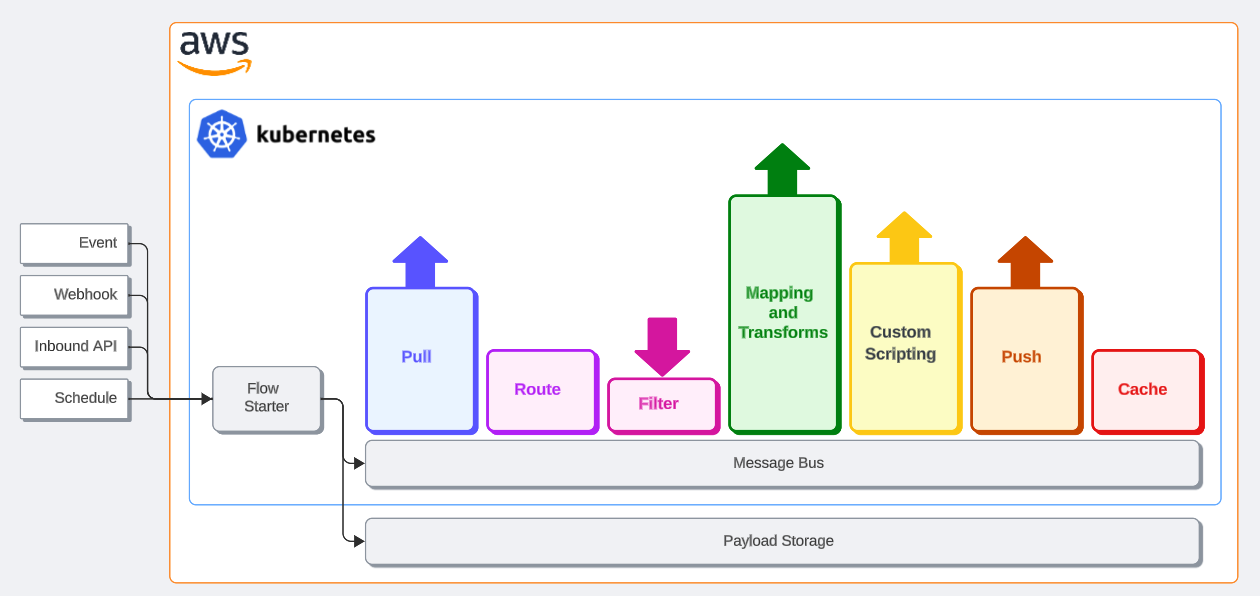
A cutting-edge iPaaS platform requires a robust, versatile infrastructure that scales with its customers. The Patchworks infrastructure is built on Kubernetes, a technology that has revolutionised how we deploy, manage, and scale our applications:

<figure><img src="https://2440044887-files.gitbook.io/~/files/v0/b/gitbook-x-prod.appspot.com/o/spaces%2FLYNcUBVQwSkOMG6KjZfz%2Fuploads%2F6TilsfdrvQDQVU0QsRev%2FPatchworks%20infrastructure%20overview.png?alt=media&amp;token=e3e805c0-6d6b-4c69-ad65-d46de0c89beb" alt=""><figcaption></figcaption></figure>

## MACH

<table data-card-size="large" data-view="cards"><thead><tr><th></th><th></th><th></th><th data-hidden data-card-cover data-type="files"></th></tr></thead><tbody><tr><td><strong>Microservices</strong> are used to build the Patchworks platform - small, independent services that communicate with each other, allowing for flexibility, scalability, and easier maintenance.</td><td></td><td></td><td><a href="https://2440044887-files.gitbook.io/~/files/v0/b/gitbook-x-prod.appspot.com/o/spaces%2FLYNcUBVQwSkOMG6KjZfz%2Fuploads%2Fw1B9VWWbwdOlLmxElj0d%2Fmicroservices.png?alt=media&amp;token=85f9097a-a1ee-4bad-bd8a-52e297e0db9c">microservices.png</a></td></tr><tr><td><strong>API first</strong> is key for powerful integrations. Our next-generation dashboard is driven by powerful APIs which means we can integrate with any other API simply and seamlessly.</td><td></td><td></td><td><a href="https://2440044887-files.gitbook.io/~/files/v0/b/gitbook-x-prod.appspot.com/o/spaces%2FLYNcUBVQwSkOMG6KjZfz%2Fuploads%2FvhbUqCkI3wWrhiQgJ1m9%2Fbanner5%20api.png?alt=media&amp;token=f87eb8c5-6bf0-4c31-93ef-7a07b5c3998f">banner5 api.png</a></td></tr><tr><td><strong>Cloud-native</strong> development facilitates our microservice architecture, Kubernetes deployments, DevOps infrastructure as code, and much more!</td><td></td><td></td><td><a href="https://2440044887-files.gitbook.io/~/files/v0/b/gitbook-x-prod.appspot.com/o/spaces%2FLYNcUBVQwSkOMG6KjZfz%2Fuploads%2FEvYLPAEKYyQZ9sqbaobK%2Fbanner%20cloud.png?alt=media&amp;token=1f5e43f5-c28b-4ad5-97a7-67512a62fcf9">banner cloud.png</a></td></tr><tr><td><strong>Headless</strong> is exactly what you'd expect for an API-first platform. The Patchworks backend is built with our own API, which is then consumed by the dashboard for general use.</td><td></td><td></td><td><a href="https://2440044887-files.gitbook.io/~/files/v0/b/gitbook-x-prod.appspot.com/o/spaces%2FLYNcUBVQwSkOMG6KjZfz%2Fuploads%2FG6yV8ituMopNDgVTHr0I%2Fheadless.png?alt=media&amp;token=5b432d55-4572-408c-925d-e481a57c0acd">headless.png</a></td></tr></tbody></table>

## Performance & scalability

<table data-card-size="large" data-view="cards"><thead><tr><th></th><th></th><th></th><th data-hidden data-card-cover data-type="files"></th></tr></thead><tbody><tr><td><strong>Kubernetes pod and node auto-scaling</strong> Ensure that integrations run consistently, even in the busiest times. See our <a href="/product-documentation/getting-started/technical-overview/patchworks-infrastructure/auto-scaling">auto-scaling</a> page for more information.</td><td></td><td></td><td><a href="https://2440044887-files.gitbook.io/~/files/v0/b/gitbook-x-prod.appspot.com/o/spaces%2FLYNcUBVQwSkOMG6KjZfz%2Fuploads%2FKAgP0rLEr5ps2OdUMnzQ%2Fbanner1%20k8s%202.png?alt=media&amp;token=01802350-998e-45dc-a958-8d65ad22425c">banner1 k8s 2.png</a></td></tr><tr><td>We use <strong>AWS RDS</strong> for all critical databases. Our databases have full redundancy with one ‘read’ and one ‘write’ copy of each.</td><td></td><td></td><td><a href="https://2440044887-files.gitbook.io/~/files/v0/b/gitbook-x-prod.appspot.com/o/spaces%2FLYNcUBVQwSkOMG6KjZfz%2Fuploads%2FEmyaOkasz79fzvxC39tg%2Fbanner2%20rds%202.png?alt=media&amp;token=8ee2a80e-319e-489c-b6d1-3351e702d6b4">banner2 rds 2.png</a></td></tr><tr><td>Each database copy is hosted in a <strong>separate availability zone</strong> so, in the unlikely event of a failure in one zone, we can fall back to the other.</td><td></td><td></td><td><a href="https://2440044887-files.gitbook.io/~/files/v0/b/gitbook-x-prod.appspot.com/o/spaces%2FLYNcUBVQwSkOMG6KjZfz%2Fuploads%2FhDkiqGRXmEaWRWarFoOy%2Fbanner%203%20ha.png?alt=media&amp;token=8aa0175b-e17b-4b4b-8bf6-e84fb4c95ee6">banner 3 ha.png</a></td></tr></tbody></table>

## Issue identification & resolution

<table data-card-size="large" data-view="cards"><thead><tr><th></th><th></th><th></th><th data-hidden data-card-cover data-type="files"></th></tr></thead><tbody><tr><td><strong>Real-time logs</strong> (via web sockets) can be viewed while a process flow runs, with visibility of request, response and payload information at every step.</td><td></td><td></td><td><a href="https://2440044887-files.gitbook.io/~/files/v0/b/gitbook-x-prod.appspot.com/o/spaces%2FLYNcUBVQwSkOMG6KjZfz%2Fuploads%2F0BgvKp3MKxM4dpJ1tqsJ%2Fbanner4%20logs.png?alt=media&amp;token=ac6206d1-4a43-4540-859f-6dabf4b2f9de">banner4 logs.png</a></td></tr><tr><td>Logs are <strong>retained for one month</strong> for retrospective problem-solving.</td><td></td><td></td><td><a href="https://2440044887-files.gitbook.io/~/files/v0/b/gitbook-x-prod.appspot.com/o/spaces%2FLYNcUBVQwSkOMG6KjZfz%2Fuploads%2FdnnkT9E4H2RroH4qJfi1%2Fbanner%20retention.png?alt=media&amp;token=5af68a22-7de8-4386-907f-16ff46728716">banner retention.png</a></td></tr><tr><td><strong>Webhooks</strong>, <strong>events</strong>, and <strong>inbound API</strong> requests can all be tracked through the Patchworks Dashboard - you don’t need to be an engineer to figure out when/where execution errors occur.</td><td></td><td></td><td><a href="https://2440044887-files.gitbook.io/~/files/v0/b/gitbook-x-prod.appspot.com/o/spaces%2FLYNcUBVQwSkOMG6KjZfz%2Fuploads%2FoIqxDcF22mhQcxU29W44%2Fbanner%20monitor.png?alt=media&amp;token=21dd6e68-5d96-4aa8-a186-a25873c5b7d6">banner monitor.png</a></td></tr></tbody></table>

## Removal of complexity

<table data-card-size="large" data-view="cards"><thead><tr><th></th><th></th><th></th><th data-hidden data-card-cover data-type="files"></th></tr></thead><tbody><tr><td>We manage all <strong>API updates</strong> for our library of prebuilt connectors.</td><td></td><td></td><td><a href="https://2440044887-files.gitbook.io/~/files/v0/b/gitbook-x-prod.appspot.com/o/spaces%2FLYNcUBVQwSkOMG6KjZfz%2Fuploads%2FvhbUqCkI3wWrhiQgJ1m9%2Fbanner5%20api.png?alt=media&amp;token=f87eb8c5-6bf0-4c31-93ef-7a07b5c3998f">banner5 api.png</a></td></tr><tr><td>We take care of all supported <strong>authentication mechanisms</strong> (OAuth, token, API key, etc.).</td><td></td><td></td><td><a href="https://2440044887-files.gitbook.io/~/files/v0/b/gitbook-x-prod.appspot.com/o/spaces%2FLYNcUBVQwSkOMG6KjZfz%2Fuploads%2Fyc1Lbwg1wv0S7xpRT4cq%2Fbanner6%20auth.png?alt=media&amp;token=a2870c69-5b6f-4c46-9601-bb156050b7a9">banner6 auth.png</a></td></tr><tr><td>We've removed all the complexity when it comes to <strong>building and maintaining new integrations</strong>.</td><td></td><td></td><td><a href="https://2440044887-files.gitbook.io/~/files/v0/b/gitbook-x-prod.appspot.com/o/spaces%2FLYNcUBVQwSkOMG6KjZfz%2Fuploads%2F98n914HH5Q70qRdWdt58%2Fbanner%20build.png?alt=media&amp;token=560aa60f-811f-45a4-9244-9359222a7f39">banner build.png</a></td></tr></tbody></table>

## Multi-tenancy

<table data-card-size="large" data-view="cards"><thead><tr><th></th><th></th><th></th><th data-hidden data-card-cover data-type="files"></th></tr></thead><tbody><tr><td>Our <strong>multi-tenant architecture</strong> means that customers have the benefits of shared software and infrastructure, secure in the knowledge that each customer's data is isolated and invisible to other tenants.</td><td></td><td></td><td><a href="https://2440044887-files.gitbook.io/~/files/v0/b/gitbook-x-prod.appspot.com/o/spaces%2FLYNcUBVQwSkOMG6KjZfz%2Fuploads%2FA3WTfDwNz1wAnOt4sswF%2Fmulti-tenancy-shared%202.png?alt=media&amp;token=155cb6d7-3201-4283-9772-1e97c37d9de0">multi-tenancy-shared 2.png</a></td></tr><tr><td>Multi-tenancy provides a much <strong>faster solution</strong>, since we only search one set of data rather than everything - all database operations and secret storage is per-tenant.</td><td></td><td></td><td><a href="https://2440044887-files.gitbook.io/~/files/v0/b/gitbook-x-prod.appspot.com/o/spaces%2FLYNcUBVQwSkOMG6KjZfz%2Fuploads%2FvJfRIkJZIvl2eSabGDSh%2Fmulti-tenancy-search%202.png?alt=media&amp;token=6a14d31a-b45f-4b23-9780-2491177336a0">multi-tenancy-search 2.png</a></td></tr><tr><td>Multi-tenancy allows <strong>flexibility for change</strong> - if necessary we can 'lift and shift' a tenant to a new database, or to a faster region, or even to a completely different cloud provider in a different continent!</td><td></td><td></td><td><a href="https://2440044887-files.gitbook.io/~/files/v0/b/gitbook-x-prod.appspot.com/o/spaces%2FLYNcUBVQwSkOMG6KjZfz%2Fuploads%2FIj95W1hVFzjqBk3XhuKh%2Fmulti-tenancy-change%202.png?alt=media&amp;token=e9180209-f794-4278-97ea-ce4bc24d937d">multi-tenancy-change 2.png</a></td></tr><tr><td></td><td></td><td></td><td></td></tr></tbody></table>

## Robust processes for assured uptime

<table data-card-size="large" data-view="cards"><thead><tr><th></th><th></th><th></th><th data-hidden data-card-cover data-type="files"></th></tr></thead><tbody><tr><td>Infrastructure updates are made via <strong>IaC (Infrastructure as Code)</strong>.</td><td></td><td></td><td><a href="https://2440044887-files.gitbook.io/~/files/v0/b/gitbook-x-prod.appspot.com/o/spaces%2FLYNcUBVQwSkOMG6KjZfz%2Fuploads%2FPC3OQQUNp8a4Oq7zFxzk%2Fbanner7%20iac.png?alt=media&amp;token=fca050f6-f8a0-49cf-8710-7aa78853c101">banner7 iac.png</a></td></tr><tr><td>Infrastructure updates are <strong>peer-reviewed and authorised</strong> before being merged.</td><td></td><td></td><td><a href="https://2440044887-files.gitbook.io/~/files/v0/b/gitbook-x-prod.appspot.com/o/spaces%2FLYNcUBVQwSkOMG6KjZfz%2Fuploads%2F5yFPVdACoihk7ICLNbsj%2Fbanner8%20review.png?alt=media&amp;token=966b3f77-7da2-48a1-998d-00deb0e72928">banner8 review.png</a></td></tr><tr><td>All production code flows through <strong>development and staging review cycles</strong> before release to production.</td><td></td><td></td><td><a href="https://2440044887-files.gitbook.io/~/files/v0/b/gitbook-x-prod.appspot.com/o/spaces%2FLYNcUBVQwSkOMG6KjZfz%2Fuploads%2F5yFPVdACoihk7ICLNbsj%2Fbanner8%20review.png?alt=media&amp;token=966b3f77-7da2-48a1-998d-00deb0e72928">banner8 review.png</a></td></tr><tr><td>Every release must pass both <strong>automated</strong> and <strong>hands-on testing</strong> by our QA team.</td><td></td><td></td><td><a href="https://2440044887-files.gitbook.io/~/files/v0/b/gitbook-x-prod.appspot.com/o/spaces%2FLYNcUBVQwSkOMG6KjZfz%2Fuploads%2FCrkncrrtAFPWwHop7SL4%2Fbanner%209%20test.png?alt=media&amp;token=f0fb81d9-e8ca-4ea7-8c18-191a81a99679">banner 9 test.png</a></td></tr></tbody></table>

## Infrastructure security

<table data-card-size="large" data-view="cards"><thead><tr><th></th><th></th><th></th><th data-hidden data-card-cover data-type="files"></th></tr></thead><tbody><tr><td>Product <strong>penetration testing</strong> is performed annually by an external, CREST-accredited organisation.</td><td></td><td></td><td><a href="https://2440044887-files.gitbook.io/~/files/v0/b/gitbook-x-prod.appspot.com/o/spaces%2FLYNcUBVQwSkOMG6KjZfz%2Fuploads%2FbW2YGrGuZf6hY1rre3MX%2Fbanner%20secure.png?alt=media&amp;token=ee958f30-ffde-4c45-9483-7be79cc83fa5">banner secure.png</a></td></tr><tr><td>Our Kubernetes nodes live in <strong>private subnets</strong>.</td><td></td><td></td><td><a href="https://2440044887-files.gitbook.io/~/files/v0/b/gitbook-x-prod.appspot.com/o/spaces%2FLYNcUBVQwSkOMG6KjZfz%2Fuploads%2F3YlDj7hmNTdqK2PIB3eZ%2Fbanner%20subnet.png?alt=media&amp;token=884913d1-95a1-4cfd-997d-272783e0ba7f">banner subnet.png</a></td></tr><tr><td>All key ingresses are <strong>IP whitelisted</strong>.</td><td></td><td></td><td><a href="https://2440044887-files.gitbook.io/~/files/v0/b/gitbook-x-prod.appspot.com/o/spaces%2FLYNcUBVQwSkOMG6KjZfz%2Fuploads%2FiSJ31YFDR0UxXLyucfFB%2Fbanner%20allow%20list.png?alt=media&amp;token=4035b4f5-3ea2-4a29-ae44-9c0262e62795">banner allow list.png</a></td></tr><tr><td>We adopt a 'least privilege' model for our development team, and also for users of our AWS and Kubernetes infrastructure.</td><td></td><td></td><td><a href="https://2440044887-files.gitbook.io/~/files/v0/b/gitbook-x-prod.appspot.com/o/spaces%2FLYNcUBVQwSkOMG6KjZfz%2Fuploads%2FkyUeMl4iq1nuXSVlERAi%2Fleast%20privilege.png?alt=media&amp;token=a40f223f-f10d-4769-8854-a2a6161e1e56">least privilege.png</a></td></tr><tr><td>All key business systems must be accessed via a VPN</td><td></td><td></td><td><a href="https://2440044887-files.gitbook.io/~/files/v0/b/gitbook-x-prod.appspot.com/o/spaces%2FLYNcUBVQwSkOMG6KjZfz%2Fuploads%2FRQ68RxzGOuHUO3aCPK91%2Fvpn.png?alt=media&amp;token=6a43bf42-4fc1-4f39-8221-948d4baaea80">vpn.png</a></td></tr><tr><td>All staff use LastPass to generate and store strong passwords - 2FA access to LastPass is mandated.</td><td></td><td></td><td><a href="https://2440044887-files.gitbook.io/~/files/v0/b/gitbook-x-prod.appspot.com/o/spaces%2FLYNcUBVQwSkOMG6KjZfz%2Fuploads%2FtMewA8TnTeu78s5iehLB%2Flastpass.png?alt=media&amp;token=da6882e0-7748-40db-a14c-f56e4d5b3c6b">lastpass.png</a></td></tr></tbody></table>

## Platform account security

<table data-card-size="large" data-view="cards"><thead><tr><th></th><th></th><th></th><th data-hidden data-card-cover data-type="files"></th></tr></thead><tbody><tr><td>Access is managed via <strong>role-based permissions</strong>, so only authorised users can access integrations and data for their company profile(s).</td><td></td><td></td><td><a href="https://2440044887-files.gitbook.io/~/files/v0/b/gitbook-x-prod.appspot.com/o/spaces%2FLYNcUBVQwSkOMG6KjZfz%2Fuploads%2FpwYJNmGtUailXwQuKFiz%2Fbanner%20role.png?alt=media&amp;token=d1f25d27-c1b6-458d-8ad0-d708503ff271">banner role.png</a></td></tr><tr><td><strong>Audit logs</strong> provide a complete history of all user account activity, including Patchworks users.</td><td></td><td></td><td><a href="https://2440044887-files.gitbook.io/~/files/v0/b/gitbook-x-prod.appspot.com/o/spaces%2FLYNcUBVQwSkOMG6KjZfz%2Fuploads%2FqUp2kXKmYjk0Yh1N0Few%2Fbanner%20log.png?alt=media&amp;token=49d55071-1a44-42cf-b138-a243ad7191a1">banner log.png</a></td></tr><tr><td>Users always <strong>control their own passwords</strong> - password resets are never performed on behalf of other users.</td><td></td><td></td><td><a href="https://2440044887-files.gitbook.io/~/files/v0/b/gitbook-x-prod.appspot.com/o/spaces%2FLYNcUBVQwSkOMG6KjZfz%2Fuploads%2F4wSaoIDcdX8iTUCyWGSf%2Fbanner%20password.png?alt=media&amp;token=8ddc2219-e718-472b-a2c3-7f563149df3e">banner password.png</a></td></tr><tr><td><strong>Single sign-on</strong> via Google is supported.</td><td></td><td></td><td><a href="https://2440044887-files.gitbook.io/~/files/v0/b/gitbook-x-prod.appspot.com/o/spaces%2FLYNcUBVQwSkOMG6KjZfz%2Fuploads%2Fek98XIGp9utVXC4H4NHe%2Fbanner%20google.png?alt=media&amp;token=df45ab34-7f38-4c10-b5c9-dda83b9f379a">banner google.png</a></td></tr></tbody></table>


# Auto-scaling

## Introduction

Flexible auto-scaling is a significant advantage for Patchworks users - it means you don't pay for a predetermined capacity that might only be required during peak periods, such as Black Friday.

Our flexible, auto-scaling architecture gives peace of mind by allowing you to start on your preferred plan, with the ability to exceed soft limits as needed. If you require more resources, you can transition to a higher tier seamlessly, or manage overages with ease.

Auto-scaling adjusts computing resources dynamically, based on demand - ensuring efficient, cost-effective resource management that's always aligned with real-time demand. The auto-scaling process breaks down into four stages:

<table data-card-size="large" data-view="cards"><thead><tr><th></th><th></th><th></th><th data-hidden data-card-cover data-type="files"></th></tr></thead><tbody><tr><td>The system continuously monitors traffic and resource usage (CPU, memory).</td><td></td><td></td><td><a href="https://2440044887-files.gitbook.io/~/files/v0/b/gitbook-x-prod.appspot.com/o/spaces%2FLYNcUBVQwSkOMG6KjZfz%2Fuploads%2FbAeDtdK1u7zkBMI2kkYO%2Fauto%20scale%20tile%201.png?alt=media&amp;token=e6ed08ea-4bab-45bc-be30-7a4439505f8c">auto scale tile 1.png</a></td></tr><tr><td>When usage exceeds predefined thresholds, the auto-scaler triggers.</td><td></td><td></td><td><a href="https://2440044887-files.gitbook.io/~/files/v0/b/gitbook-x-prod.appspot.com/o/spaces%2FLYNcUBVQwSkOMG6KjZfz%2Fuploads%2FSrKlasBPvXrjAv2M37Up%2Fauto%20scale%20tile%202.png?alt=media&amp;token=b67ea196-dac2-43af-bdbb-8b4bb7b8e023">auto scale tile 2.png</a></td></tr><tr><td>Additional resources/pods are deployed to handle the increased load</td><td></td><td></td><td><a href="https://2440044887-files.gitbook.io/~/files/v0/b/gitbook-x-prod.appspot.com/o/spaces%2FLYNcUBVQwSkOMG6KjZfz%2Fuploads%2FSJ6A0nWMvJoxfOHapdr8%2Fauto%20scale%20tile%203.png?alt=media&amp;token=de333352-526d-4508-a55a-9d7d97ba5d0b">auto scale tile 3.png</a></td></tr><tr><td>When demand drops, resources are reduced to optimise costs.</td><td></td><td></td><td><a href="https://2440044887-files.gitbook.io/~/files/v0/b/gitbook-x-prod.appspot.com/o/spaces%2FLYNcUBVQwSkOMG6KjZfz%2Fuploads%2F3rS004qfrwdGQzDdU9Ic%2Fauto%20scale%20tile%204.png?alt=media&amp;token=97c53baa-1e70-47d1-b572-1b6edacfbf19">auto scale tile 4.png</a></td></tr></tbody></table>

## Kubernetes pods & nodes

At Patchworks, every process flow shape has its own microservice and its own Kubernetes pod(s). The diagram below shows how this works:

<div data-full-width="true"><figure><img src="https://2440044887-files.gitbook.io/~/files/v0/b/gitbook-x-prod.appspot.com/o/spaces%2FLYNcUBVQwSkOMG6KjZfz%2Fuploads%2FxZMFT5jrfznM4OayjIgd%2Farch%200.png?alt=media&amp;token=34517bee-a080-4588-a0fd-bc22f2deaf5c" alt=""><figcaption></figcaption></figure></div>

### Kubernetes pod auto-scaling

Metrics for Kubernetes pods are scraped from Horizon using Prometheus. These metrics are queried by KEDA and - when the given threshold is reached - auto-scaling takes place. This process is shown below:

<figure><img src="https://2440044887-files.gitbook.io/~/files/v0/b/gitbook-x-prod.appspot.com/o/spaces%2FLYNcUBVQwSkOMG6KjZfz%2Fuploads%2FknGoJmpZc05WWVxOyut9%2Farch%201.png?alt=media&amp;token=d5d4f8fe-bc58-40b8-83f0-7be12419ca45" alt=""><figcaption></figcaption></figure>

1. *Prometheus JSON exporter* scrapes *Horizon* metrics for each Core microservice count.
2. *Prometheus* scrapes metrics from the *JSON exporter*.
3. *KEDA* queries *Prometheus*, checking if any Core microservice has reached the process threshold (set to **8**).
4. If the process threshold is reached, *KEDA* scales the Core microservice pod.

### Kubernetes node auto-scaling

The *Kubernetes cluster auto-scaler* monitors **pods** and decides when a **node** needs to be added. A **node** is added if a **pod** needs to be scheduled and there aren't sufficient resources to fulfill the request. This process is shown below:

<figure><img src="https://2440044887-files.gitbook.io/~/files/v0/b/gitbook-x-prod.appspot.com/o/spaces%2FLYNcUBVQwSkOMG6KjZfz%2Fuploads%2FeHagWduRXa9HLbtl1Pe2%2Farch%202b.png?alt=media&amp;token=f81c5475-4f4e-4f31-83a5-2a4f6f129f53" alt=""><figcaption></figcaption></figure>

1. The *Kubernetes scheduler* reads the resource request for a **pod** and decides if there are enough resources on an existing **node**. If *yes*, the **pod** is assigned to the **node**. If *no*, the **pod** is set to a `pending` state and cannot start.
2. The *Kubernetes auto-scaler* detects that a **pod** cannot schedule due to a lack of resources.
3. The *Kubernetes auto-scaler* adds a new **node** to the **cluster node pool** - at which point, the *Kubernetes scheduler* detects the new **nod**e and schedules the **pod** on the new node.


# ISO certification

## Introduction

With customers worldwide relying on Patchworks to sync data between numerous systems, we understand just how vital data security and integrity are throughout our operations. Patchworks is committed to implementing and promoting Information Security best practices at every level of our organisation.

Following rigorous audits by an accredited certification body, we are delighted to see this reflected in our certification for compliance with ISO/IEC 27001:2022.

## ISO/IEC 27001:2022 @ Patchworks

[ISO/IEC 27001:2022](https://www.iso.org/standard/27001) is the most recent update of the international standard for managing information security.

Published by the [International Organisation for Standardisation (ISO)](https://www.iso.org/home.html), it provides a framework for establishing, implementing, maintaining, and continuously improving an Information Security Management System (ISMS). This defines how Patchworks manages security in a holistic, comprehensive manner.

<figure><img src="https://2440044887-files.gitbook.io/~/files/v0/b/gitbook-x-prod.appspot.com/o/spaces%2FLYNcUBVQwSkOMG6KjZfz%2Fuploads%2FJCfBLfKzH30y78kngPWF%2Fiso%20qr%205.png?alt=media&amp;token=c14e9289-5076-4bb3-a4e4-a6bec1eb7464" alt=""><figcaption></figcaption></figure>

To confirm our certification, scan the QR code above, or check the link below!

{% embed url="<https://certcheck.ukas.com/certification/cbd25c5c-190f-527e-be7f-c4156de0285f>" %}


# Data security (SOC 2)

## Introduction

*SOC 2 (Service Organisation Control Type 2)* is a cybersecurity framework that assesses how well a service organisation protects client data.

{% embed url="<https://www.aicpa-cima.com/topic/audit-assurance/audit-and-assurance-greater-than-soc-2>" %}

## Purpose

Developed by the *American Institute of Certified Public Accountants (AICPA)*, the purpose of SOC 2 is to:

* Ensure that client data is handled securely by third-party service providers
* Build trust between a company and its customers
* Demonstrate a company's maturity in handling customer data

## The SOC 2 report

The SOC 2 report evaluates controls against the *Trust Services Criteria*, focusing on controls in five categories:

* [Security](#security)
* [Availability](#availability)
* [Confidentiality](#confidentiality)
* [Processing integrity](#processing-integrity)
* [Privacy](#privacy)

The Patchworks SOC 2 report is available upon request.

### Security

Information and systems are protected against unauthorised access/disclosure, and damage to the system that could compromise availability, confidentiality, integrity and privacy. Protections include:

* Firewalls
* Intrusion detection
* Multi-factor authentication

### Availability

Systems, tools, and processes are in place to ensure systems are available for operational use. These include:

* Performance monitoring
* Disaster recovery
* Incident handling

### Confidentiality

Systems, tools, and processes are in place to ensure information is protected and available on a legitimate, need-to-know basis (applies to various types of sensitive information). These include:

* Encryption
* Access controls
* Firewalls

### Processing integrity

Resources, tools and processes are in place to ensure system processing is complete, valid, accurate, timely and authorised. These include

* Quality assurance
* Process monitoring
* Adherence to principle

### Privacy

Systems, tools, and processes are in place to ensure personal information is collected, used, retained, disclosed and disposed of according to policy (privacy applies only to personal information). These include:

* Access control
* Multi-factor authentication
* Encryption


# Product security

The Patchworks platform is designed with robust security controls at every level of our [tech stack](/product-documentation/getting-started/technical-overview/tech-stack), ensuring peace of mind for your organisation.

## Security by design

Our core product is built using industry-standard frameworks, which are certified as part of our I[SO 27001](/product-documentation/getting-started/technical-overview/iso-certification) and [SOC](/product-documentation/getting-started/technical-overview/data-security-soc-2) compliance. Our Information Security Management System is continuously updated and improved to meet the ever-changing threat landscape. From inception through deployment, security is a fundamental part of our development lifecycle.

## Secure coding practices

Our development team adheres to secure coding standards and best practices. Secure coding training is mandatory for all engineers (security awareness training is mandatory for everyone), and regular code reviews are an integral part of our release pipeline.

## Security testing

All code repositories are tested with static and dynamic code analysis to ensure clean code, a secure product and the use of appropriate code library licensing.

## Separation of customer data

Each customer is provisioned with a dedicated, tenanted database. This ensures strict data segregation.

## Strong authentication measures

All passwords are hashed and salted using secure AES cryptographic algorithms. We never store plain-text passwords. Federated SSO FIDO2 Google authentication implementation is in place for all internal and privileged access roles.

## Vaulted sensitive data

Sensitive application data (such as API keys and access tokens) is encrypted and securely stored in a protected vault.

## Single sign-on (SSO)

Organisations can manage user authentication using their preferred single sign-on (SSO) method, choosing from a range of identity providers. SSO can be assigned at both the company and user levels.

## Role-based access control (RBAC)

Role-Based Access Control (RBAC) is strictly enforced throughout the platform - both in the front-end user interface (i.e. the dashboard) and the back-end API layer. Access to features and data is granted according to user roles and permissions, ensuring the principle of least privilege is maintained.


# Tech stack

## Introduction

Leveraging a combination of proven technologies and innovative solutions, our tech stack is curated to provide a comprehensive, flexible environment for developing, deploying, and managing our products.

## Overview

<figure><img src="https://2440044887-files.gitbook.io/~/files/v0/b/gitbook-x-prod.appspot.com/o/spaces%2FLYNcUBVQwSkOMG6KjZfz%2Fuploads%2FeJrPAbTUG2zbKpy5h17E%2Ftech%20stack.png?alt=media&amp;token=785edf00-09c6-4a77-b108-f9709a5736df" alt=""><figcaption></figcaption></figure>

### Presentation Layer

Our user interface combines the power of PrimeVue for feature-rich UI components, Tailwind for styling, and Vue.js for building a progressive and interactive user experience.

### Business Logic

Laravel is a PHP framework known for its elegant syntax and robust features. Combined with Nuxt - an open source framework based on Vue.js, Nitro, and Vite - we have a solid foundation for server-side rendering and seamless navigation.

### DevOps & Deployment

We leverage the agility and scalability of Amazon Web Services (AWS) for cloud infrastructure, Vercel for seamless deployment and hosting, Kubernetes for container orchestration, and Argo for managing and automating workflows.

### Development Tools

Our development process utilises TypeScript for type safety, PHPUnit for comprehensive testing, NPM for efficient package management, and Docker for containerisation.

### Data Management

We use MariaDB and MySQL for relational database management, Elasticsearch for powerful search and analytics, and Redis for high-performance caching and data storage.


# Patchworks IPs

## Introduction

This page details Patchworks IPs that should be whitelisted if required (typically if you are experiencing connection issues and your systems are behind a firewall).

## IPs to be whitelisted

* [K8s Cluster 1](#k8s-cluster-1)
* [K8s Cluster 2](#k8s-cluster-2)

{% hint style="warning" %}
Irrespective of whether you're running Patchworks *Tapestry* (i.e. *services*) or *Core* (i.e. *process flows*), please ensure that all IPs for [Cluster 1](#k8s-cluster-1) and [Cluster 2](#k8s-cluster-2) are added.
{% endhint %}

### K8s Cluster 1

| Type                       | IPs                                                                         |
| -------------------------- | --------------------------------------------------------------------------- |
| AWS Production K8s Cluster | <ul><li>13.42.116.71</li><li>13.41.182.240</li><li>35.179.222.179</li></ul> |

### K8s Cluster 2

| Type                       | IPs                                                                        |
| -------------------------- | -------------------------------------------------------------------------- |
| AWS Production K8s Cluster | <ul><li>18.168.241.46</li><li>18.168.94.149</li><li>13.41.170.82</li></ul> |


# Patchworks AI Studio

A set of intelligent agents built directly into Patchworks, designed to do the heavy lifting of integration for you.

### What is AI Studio? <a href="#what-is" id="what-is"></a>

AI Studio is Patchworks' AI layer - a suite of agents that understand your integration context and help you build, run and operate integrations faster. Instead of manually constructing flows or mapping schemas field by field, you can simply describe what you need in plain English and AI Studio handles the rest.

The agents in AI Studio have access to your connectors, your data structures and your existing flows. That context is what makes them genuinely useful - they're not general-purpose AI tools, they're purpose-built for integration work on Patchworks.

{% hint style="info" %}
AI Studio is available on all plans. Token usage is tracked per company and shown on the Agents page. See [Token usage](/product-documentation/ai/patchworks-ai-studio/tokens) for more detail.
{% endhint %}

### Agents <a href="#agents" id="agents"></a>

AI Studio is organised around agents. Each agent has a specific focus and a set of capabilities. There are two types:

<table data-view="cards"><thead><tr><th></th><th></th><th data-hidden data-card-cover data-type="image">Cover image</th><th data-hidden data-card-target data-type="content-ref"></th></tr></thead><tbody><tr><td><p><strong>Platform Agents</strong></p><p>Agents built and maintained by Patchworks.</p><p> </p><ul><li><a href="/product-documentation/ai/patchworks-ai-studio/ai-assistant">Assistant</a></li><li><a href="/product-documentation/ai/patchworks-ai-studio/platform-agents/implementation-agent">Implementation</a></li><li><a href="/product-documentation/ai/patchworks-ai-studio/platform-agents/answers-agent">Answers</a></li><li><a href="/product-documentation/ai/patchworks-ai-studio/platform-agents/documentation-agent">Documentation</a></li><li><a href="/product-documentation/ai/patchworks-ai-studio/platform-agents/health-monitor-agent">Health</a></li><li><a href="/product-documentation/ai/patchworks-ai-studio/platform-agents/migration-agent">Migration</a></li></ul></td><td></td><td><a href="https://2440044887-files.gitbook.io/~/files/v0/b/gitbook-x-prod.appspot.com/o/spaces%2FLYNcUBVQwSkOMG6KjZfz%2Fuploads%2FVPzkTWczceYLjivZ8Ikm%2Fplatform-agents-tile.svg?alt=media&amp;token=076fe841-1f96-417b-995c-7ad9d487d003">platform-agents-tile.svg</a></td><td><a href="/product-documentation/ai/patchworks-ai-studio/platform-agents">Platform Agents</a></td></tr><tr><td><p><strong>Custom Agents</strong></p><p>Build your own agents using prompts, tools and guardrails - connected to your systems and running on Patchworks infrastructure.   </p><p></p><p>                         </p></td><td>                                                                 ( <a href="/product-documentation/ai/patchworks-ai-studio/custom-agents">Coming Soon</a> )</td><td><a href="https://2440044887-files.gitbook.io/~/files/v0/b/gitbook-x-prod.appspot.com/o/spaces%2FLYNcUBVQwSkOMG6KjZfz%2Fuploads%2FQ0ndpiGZUyCvztuKj0ap%2Fcustom-agents-tile.svg?alt=media&amp;token=9c8b569a-e903-4422-8c93-54d63b8670b9">custom-agents-tile.svg</a></td><td></td></tr><tr><td></td><td></td><td></td><td></td></tr></tbody></table>


# AI Assistant

Work with any AI Studio agent in a side or single full-screen window.

### Overview <a href="#overview" id="overview"></a>

The Assistant is where your conversations with AI Studio live. This unified chat panel brings everything together. No jumping around different agent windows.&#x20;

You can talk to any agent available to your company from here, return to an earlier conversation to see what was discussed, and continue it from where it stopped.

<div data-with-frame="true"><figure><img src="https://2440044887-files.gitbook.io/~/files/v0/b/gitbook-x-prod.appspot.com/o/spaces%2FLYNcUBVQwSkOMG6KjZfz%2Fuploads%2FwhpYWx9Cz94KyNNDrbay%2FScreenshot%202026-07-28%20at%2011.11.47.png?alt=media&amp;token=09471fd0-16ea-4d4c-a11c-1418dfc7d073" alt="" width="375"><figcaption></figcaption></figure></div>

<table data-view="cards"><thead><tr><th></th><th></th></tr></thead><tbody><tr><td><p><strong>Every agent, one place</strong></p><p>Reach any agent available to your company without switching pages.</p></td><td></td></tr><tr><td><p><strong>Full conversation history</strong></p><p>Every exchange is kept, so you can see what was asked and what the agent did.</p></td><td></td></tr><tr><td><p><strong>Room to work</strong></p><p>A full-screen window instead of a docked panel - useful when an agent returns a flow, a mapping or a long answer.</p></td><td></td></tr></tbody></table>

### Accessing the Assistant <a href="#accessing" id="accessing"></a>

There are two routes, and both open the same full-screen view.

{% tabs %}
{% tab title="From the header" %}
Select the **AI** button in the top right of the application header.

This is available from wherever you are in Patchworks, so you don't need to navigate away from what you're working on first.
{% endtab %}

{% tab title="From the navigation menu" %}
Select **AI Studio** from the left-hand navigation menu, then **Assistant**.

You'll find it directly below Agents.
{% endtab %}
{% endtabs %}

{% hint style="info" %}
Access follows the existing `use ai-studio` permission. If you can't see AI Studio in the navigation menu, speak to an administrator for your company profile.
{% endhint %}

### From Header <a href="#conversations" id="conversations"></a>

<div data-with-frame="true"><figure><img src="https://2440044887-files.gitbook.io/~/files/v0/b/gitbook-x-prod.appspot.com/o/spaces%2FLYNcUBVQwSkOMG6KjZfz%2Fuploads%2FEGmYM9kiiL6fp5DtzhSc%2FScreenshot%202026-07-28%20at%2011.13.39.png?alt=media&amp;token=29c3103b-77d1-43cb-a556-f58531b5a87b" alt="" width="356"><figcaption></figcaption></figure></div>

<div data-with-frame="true"><figure><img src="https://2440044887-files.gitbook.io/~/files/v0/b/gitbook-x-prod.appspot.com/o/spaces%2FLYNcUBVQwSkOMG6KjZfz%2Fuploads%2FCP4tkFy6shAasBt8kSNR%2FScreenshot%202026-07-27%20at%2023.28.46.png?alt=media&amp;token=c56a696e-ca90-4578-b137-acb352bce220" alt=""><figcaption></figcaption></figure></div>

### Full Screen - Conversations  <a href="#conversations" id="conversations"></a>

Conversations are listed down the left-hand side of the page, most recent first. Each one keeps the full exchange, so you can return to a flow you built last week and see exactly what was asked and what the agent did.

<div data-with-frame="true"><figure><img src="https://2440044887-files.gitbook.io/~/files/v0/b/gitbook-x-prod.appspot.com/o/spaces%2FLYNcUBVQwSkOMG6KjZfz%2Fuploads%2FrJ3QtYSuu71X04YmK9el%2FScreenshot%202026-07-27%20at%2023.24.02.png?alt=media&amp;token=42db5a44-dd7d-4d52-9315-ed3c2aa6f159" alt=""><figcaption></figcaption></figure></div>

From the conversations list you can:

* **Start a new conversation** - select **New** at the top of the list
* **Search your conversations** - useful once you've built up a history and you're looking for a particular piece of work
* **Return to an earlier conversation** - select it from the list to reopen it in the main window

{% hint style="info" %}
The Assistant replaces the previous AI Conversation History page. Your existing conversations are still available - they're now listed here.
{% endhint %}

### Working with agents <a href="#working-with-agents" id="working-with-agents"></a>

Any agent available to your company can be used from the Assistant. Which agents you have depends on what's installed - the Agents page shows what's available now and what's coming.

<div data-with-frame="true"><figure><img src="https://2440044887-files.gitbook.io/~/files/v0/b/gitbook-x-prod.appspot.com/o/spaces%2FLYNcUBVQwSkOMG6KjZfz%2Fuploads%2F5aHKxu3zcWYUfwjv2z0k%2FScreenshot%202026-07-27%20at%2023.24.57.png?alt=media&amp;token=cadba487-90c3-4de8-ac60-6e7c95bf69c6" alt=""><figcaption></figcaption></figure></div>

Agents can also call on each other. If you ask something another agent is better placed to answer, that agent is brought into the conversation without you needing to switch pages or start again - a documentation question asked mid-conversation is handled by the Answers Agent and returned inline.

<br>


# Platform Agents

Agents built and maintained by Patchworks. Each agent has a specific role and a set of capabilities that help you build and operate integrations faster.

### Overview <a href="#overview" id="overview"></a>

Platform Agents are the first layer of AI Studio. They sit inside the Patchworks platform, understand your integration context, and can take action on your behalf. You interact with them through natural language - describing what you want to build or change - and the agent does the work.

<div data-with-frame="true"><figure><img src="https://2440044887-files.gitbook.io/~/files/v0/b/gitbook-x-prod.appspot.com/o/spaces%2FLYNcUBVQwSkOMG6KjZfz%2Fuploads%2FSLsGNlvpmPJm7tIeUnbr%2FScreenshot%202026-08-25%20at%2015.48.48.png?alt=media&amp;token=3c42f17b-eccb-4341-a6c6-45fe5b39279b" alt=""><figcaption></figcaption></figure></div>

In 2027...

<figure><img src="https://2440044887-files.gitbook.io/~/files/v0/b/gitbook-x-prod.appspot.com/o/spaces%2FLYNcUBVQwSkOMG6KjZfz%2Fuploads%2FADiCZHON7YYfZJ6iSsC3%2FScreenshot%202026-08-25%20at%2015.49.18.png?alt=media&amp;token=7bacc7ea-d103-4fbd-9635-664b72561e62" alt=""><figcaption></figcaption></figure>


# Implementation Agent

The Implementation Agent generates your connectors, flows and resolves schema mappings automatically - no manual configuration required.

{% hint style="success" %}
The Implementation Agent is **active** on your account. Access it from connector builder, process flow or mapping via the AI icon.
{% endhint %}

### How it works <a href="#how-it-works" id="how-it-works"></a>

The Implementation Agent is accessed through a chat panel, primarily from within the Patchworks canvas on the left-hand side. It can also be opened from the Connector Builder and mapping screens (both shown further down this page). You describe what you want to build — for example, *"Build a Shopify to NetSuite order flow"* or *"Map Shopify to NetSuite order fields"* — and the agent builds it step by step.

Because the agent has access to your connector configurations and available endpoints, it can make sensible decisions about which connectors to use, how shapes should connect, and what mappings are needed - surfacing any ambiguities for you to confirm rather than guessing.

You can also give the agent files to work from - a specification, a sample payload, or a screenshot - see [attachments](#attachments).

<figure><img src="https://2440044887-files.gitbook.io/~/files/v0/b/gitbook-x-prod.appspot.com/o/spaces%2FLYNcUBVQwSkOMG6KjZfz%2Fuploads%2F56hmEBavYnMdJorU4BOL%2FImplementation%20Agent%20building%20a%20Shopify%20to%20NetSuite%20flow?alt=media&amp;token=15c8467e-b546-43d2-86ea-56e57963be75" alt=""><figcaption></figcaption></figure>

### Flow Builder <a href="#flow-builder" id="flow-builder"></a>

Flow Builder lets you generate a complete integration flow from a single prompt. Describe the systems involved and what you want to move between them, and the agent constructs the full flow on the canvas - trigger, connector steps, mappings and all.

{% stepper %}
{% step %}

### **Open a new or existing process flow**

Navigate to Process Flows and open the canvas. The AI assistant panel appears on the left-hand side.
{% endstep %}

{% step %}

### **Describe your integration**

Type what you want to build - e.g. *"Build a flow to sync Shopify orders to NetSuite every hour"*. Be as specific or as high-level as you like.
{% endstep %}

{% step %}

### **Review and confirm**

The agent builds the flow step by step, surfacing any decisions that need your input (e.g. which connector instance to use). Confirm or adjust as needed.
{% endstep %}

{% step %}

### **Iterate with follow-up prompts**

Once the initial flow is built, continue the conversation to refine it - add filters, change triggers, or ask the agent to build the mapping data.<br>
{% endstep %}
{% endstepper %}

<figure><img src="https://2440044887-files.gitbook.io/~/files/v0/b/gitbook-x-prod.appspot.com/o/spaces%2FLYNcUBVQwSkOMG6KjZfz%2Fuploads%2FtP2JVHnOxUvJaIlOmDMn%2FFlow%20Builder%20%E2%80%94%20initial%20flow%20generated?alt=media&amp;token=a696f00c-58e7-490e-827c-b9aaf8cc90a5" alt=""><figcaption></figcaption></figure>

<figure><img src="https://2440044887-files.gitbook.io/~/files/v0/b/gitbook-x-prod.appspot.com/o/spaces%2FLYNcUBVQwSkOMG6KjZfz%2Fuploads%2FwqpFYZJniecPKFbf04TA%2Fimage.png?alt=media&amp;token=8b3305a7-b1d6-476c-86bf-a0d00c59af40" alt=""><figcaption></figcaption></figure>

{% hint style="info" %}
Flow Builder works best when your connectors are already set up and authenticated but can also grab from the Marketplace.
{% endhint %}

### Smart Mapping <a href="#smart-mapping" id="smart-mapping"></a>

Smart Mapping handles schema translation between systems. Once a flow is built, you can ask the agent to resolve the field-by-field mapping between your source and destination connectors - it reads the schemas, works out the appropriate field matches and transformations, and builds the mapping for you.

You can also use Smart Mapping independently, opening the Map Builder panel within any mapping step and describing the changes you want to make.<br>

<figure><img src="https://2440044887-files.gitbook.io/~/files/v0/b/gitbook-x-prod.appspot.com/o/spaces%2FLYNcUBVQwSkOMG6KjZfz%2Fuploads%2FQm1dxoPFDwpNNN9Xuvyb%2Fimage.png?alt=media&amp;token=987c8bea-d29c-4fdb-98ec-42dd9e31a37a" alt=""><figcaption></figcaption></figure>

{% stepper %}
{% step %}
Automatically resolves field names across different system schemas
{% endstep %}

{% step %}
Applies appropriate transformations (format conversions, string casting, fallbacks)
{% endstep %}

{% step %}
Handles multi-source fields - e.g. combining first and last name into a full name field
{% endstep %}

{% step %}
Works iteratively - describe changes to update an existing mapping
{% endstep %}
{% endstepper %}

### Attachments

Both Flow Builder and Smart Mapping accept file attachments alongside your prompt, so you can give the agent something to work from rather than describing it.

<div data-with-frame="true"><figure><img src="https://2440044887-files.gitbook.io/~/files/v0/b/gitbook-x-prod.appspot.com/o/spaces%2FLYNcUBVQwSkOMG6KjZfz%2Fuploads%2FxXJCbLe68OuLZWCJcFxR%2FScreenshot%202026-07-28%20at%2010.44.29.png?alt=media&amp;token=75a380f8-b223-424d-a61b-4929a74ede56" alt="" width="363"><figcaption></figcaption></figure></div>

Typical uses:

* An integration specification, so the agent builds to a documented requirement
* A sample payload from the source or destination system, so field names and structure come from real data
* A screenshot of an existing configuration you want to reproduce

Supported file types and limits are summarised below:

| Property             | Detail                               |
| -------------------- | ------------------------------------ |
| Supported file types | PDF, JPEG, PNG, GIF, WebP, JSON, TXT |
| Maximum file size    | 2 MB per file                        |

{% hint style="info" %}
Where an attachment and prompt together are interpreted as a request to build a flow, the agent responds with its understanding and a proposal of what it intends to build - so you can confirm it has read the file correctly before anything is created.

If the agent intends to build a new or different flow in the context of an existing one, it will ask for your approval before removing any existing steps.&#x20;
{% endhint %}

### **Connector Builder**

Generate a complete, ready-to-use connector from a description.

Describe the API you want to connect to and the agent researches it, maps the endpoints, detects the authentication method and required variables, and builds the connector configuration for you - no Postman Collection / OpenAPI spec or manual setup required.\ <br>

{% stepper %}
{% step %}

### **Create a new connector**

From **Manage Connectors**, select **Create new connector**.

<figure><img src="https://2440044887-files.gitbook.io/~/files/v0/b/gitbook-x-prod.appspot.com/o/spaces%2FLYNcUBVQwSkOMG6KjZfz%2Fuploads%2F0VoWkQyeUaiMmNiLd8OP%2FScreenshot%202026-06-23%20at%2011.23.12.png?alt=media&amp;token=4953ebbb-d038-408d-a52d-02396e401862" alt=""><figcaption></figcaption></figure>
{% endstep %}

{% step %}

### **Describe the API**

On the **Discover** step, type what you want to build - e.g. *“Build a NetSuite Connector”* - and select **Build**. The AI searches for a specification and uses it to generate your connector. Prefer to set it up yourself? Use **Import OpenAPI**, **Import Postman**, or **Build manually**.

<figure><img src="https://2440044887-files.gitbook.io/~/files/v0/b/gitbook-x-prod.appspot.com/o/spaces%2FLYNcUBVQwSkOMG6KjZfz%2Fuploads%2FwOqxj6z2Nnkz4XubVKOz%2FScreenshot%202026-06-23%20at%2011.23.38.png?alt=media&amp;token=8f0977ca-9b06-4474-9439-9304c89d4cdd" alt=""><figcaption></figcaption></figure>
{% endstep %}

{% step %}

### **Let the AI research and build**

The agent constructs the connector for you - usually in under 30 seconds. It checks the Patchworks marketplace, searches for endpoint collections, fetches brand assets, extracts authentication methods, maps endpoints and parameters, identifies required variables, and generates the configuration.

<figure><img src="https://2440044887-files.gitbook.io/~/files/v0/b/gitbook-x-prod.appspot.com/o/spaces%2FLYNcUBVQwSkOMG6KjZfz%2Fuploads%2FcAEAiRY9Dd5kBUhGzU67%2FScreenshot%202026-06-23%20at%2011.24.17.png?alt=media&amp;token=ef73a7a8-8a0b-49da-b673-f3ae5f2639e1" alt=""><figcaption></figcaption></figure>
{% endstep %}

{% step %}

### **Review & edit**

Check the detected **authentication method**, **variables**, and **endpoints**. Up to 20 initial endpoints are generated here; if the API has more, they’re discovered and added automatically in the background. Select **Looks good, continue**, or use **Edit details** to adjust.

<figure><img src="https://2440044887-files.gitbook.io/~/files/v0/b/gitbook-x-prod.appspot.com/o/spaces%2FLYNcUBVQwSkOMG6KjZfz%2Fuploads%2Fo2mihCW58GPIFrn4vaBJ%2FScreenshot%202026-06-23%20at%2011.24.51.png?alt=media&amp;token=3478b333-1477-4aa6-b5cc-ed12c7fe7e0d" alt=""><figcaption></figcaption></figure>
{% endstep %}

{% step %}

### Authenticate

Enter the credentials for your new connector instance. Fill in the **Connection Settings** (e.g. Account ID and Base URL) and the **authentication details** detected for the API - for example, OAuth 2.0 Client Credentials.

![](https://2440044887-files.gitbook.io/~/files/v0/b/gitbook-x-prod.appspot.com/o/spaces%2FLYNcUBVQwSkOMG6KjZfz%2Fuploads%2FOR5OeNeIMvsSv1tj8iRN%2FScreenshot%202026-06-23%20at%2011.25.27.png?alt=media\&token=8797a7db-ad8d-402d-ba8d-2397cb0e51a3)
{% endstep %}

{% step %}

### Deploy

Once authenticated, your connector is ready to use with all of its configured endpoints. Select **Build a flow with it** to jump straight into Flow Builder, or **New connector** to build another.

<figure><img src="https://2440044887-files.gitbook.io/~/files/v0/b/gitbook-x-prod.appspot.com/o/spaces%2FLYNcUBVQwSkOMG6KjZfz%2Fuploads%2FoNPpeXWZwZ0urqLEhKMY%2FScreenshot%202026-06-23%20at%2011.25.53.png?alt=media&amp;token=f8d0dd36-f406-449d-b7e7-3e76f4f16011" alt=""><figcaption></figcaption></figure>
{% endstep %}

{% step %}

### Manage instances

Your new connector now appears in your connector library. Use **Add new instance** to create additional authenticated instances (e.g. staging vs production), or **Export** / **Upload** to share it across accounts.

![](https://2440044887-files.gitbook.io/~/files/v0/b/gitbook-x-prod.appspot.com/o/spaces%2FLYNcUBVQwSkOMG6KjZfz%2Fuploads%2Fx57DIlKon6tERy3B0dU5%2FScreenshot%202026-06-23%20at%2011.26.21.png?alt=media\&token=68c9a127-e279-4b60-8cfb-3728257e21a8)<br>
{% endstep %}
{% endstepper %}

### **Connector Builder AI via Flow Builder**

You don’t have to build connectors up front. When you ask the Implementation Agent to build a flow, it can build the connectors that flow needs at the same time -calling Connector Builder AI in the background as part of the same conversation.

For example, prompt the agent with *“Build a Shopify to NetSuite order flow”* and *“Map Shopify to NetSuite order fields”*, and ask it to create any connectors it’s missing. The agent builds the new connectors, creates placeholder instances and mapping steps, and assembles the full flow on the canvas - all in one pass.

<figure><img src="https://2440044887-files.gitbook.io/~/files/v0/b/gitbook-x-prod.appspot.com/o/spaces%2FLYNcUBVQwSkOMG6KjZfz%2Fuploads%2FXTRPyKI7oVG0lUOOzIr0%2FScreenshot%202026-06-23%20at%2011.28.56.png?alt=media&amp;token=79b0df48-8010-4e8e-9fb9-d1141b197422" alt=""><figcaption></figcaption></figure>

### **Tips & best practices**

{% hint style="info" icon="lightbulb" %}
**Be specific about connector instances.** If you have multiple instances of the same connector (e.g. Shopify staging vs production), mention which one you want the agent to use. If you don't specify, it will ask.
{% endhint %}

{% hint style="info" icon="lightbulb" %}
**Build flows and mappings in sequence.** Ask the agent to build the flow structure first, then follow up with *"Build the mapping data"* as a second prompt. This gives cleaner results than trying to do both in one step.
{% endhint %}

{% hint style="info" icon="lightbulb" %}
Connector Builder AI works best for APIs with a published OpenAPI / Swagger specification. For APIs without one, use **Import Postman** or **Build manually** to configure endpoints yourself.
{% endhint %}

{% hint style="warning" icon="triangle-exclamation" %}
**Always review before activating.** The Implementation Agent builds flows based on your description and available connectors, but you should review the generated steps and mappings before setting a flow live in production.
{% endhint %}


# Answers Agent

Ask anything about Patchworks - searches docs, community, and knowledge base for a direct answer without leaving the platform.

{% hint style="success" %}
The Answers Agent is **active** on your account. Access it from the AI Studio or via the AI icon in the top right of the screen.
{% endhint %}

The Answers Agent is your in-platform support companion. Ask it anything about Patchworks - it searches across the documentation, community, and knowledge base and gives you a direct, contextual answer without you having to leave what you're working on.

Rather than opening a new tab, hunting through docs, or waiting for a support ticket, you get an immediate answer grounded in the same sources the Patchworks team uses - surfaced right where you need it.

<figure><img src="https://2440044887-files.gitbook.io/~/files/v0/b/gitbook-x-prod.appspot.com/o/spaces%2FLYNcUBVQwSkOMG6KjZfz%2Fuploads%2FJefESfFRgmjTGMNIBfX9%2FScreenshot%202026-07-24%20at%2022.55.04.png?alt=media&amp;token=d9d5639f-f088-4875-9c4b-f8378230bdb4" alt="" width="364"><figcaption></figcaption></figure>

### What it searches <a href="#sources" id="sources"></a>

When you ask a question, the Answers Agent queries across three sources simultaneously and synthesises a single, direct response:

<figure><img src="https://2440044887-files.gitbook.io/~/files/v0/b/gitbook-x-prod.appspot.com/o/spaces%2FLYNcUBVQwSkOMG6KjZfz%2Fuploads%2FiRIj2Tlm99aUoSf6acov%2FScreenshot%202026-07-24%20at%2022.48.57.png?alt=media&amp;token=dd203429-6e62-4942-a3b5-8efd8db7be33" alt=""><figcaption></figcaption></figure>

Results are ranked by relevance and recency, so you always get an answer that reflects the current state of the platform - not an out-of-date article.

### How to use it <a href="#how-to-use" id="how-to-use"></a>

The Answers Agent is available from the **AI Studio** page under **Platform Agents**, and can also be opened from the persistent chat icon in the top navigation bar anywhere in Patchworks.

{% stepper %}
{% step %}

### Open the Answers Agent

Navigate to **AI Studio → Platform Agents** and select the Answers Agent card, or click the chat icon in the top navigation bar from any screen in Patchworks.
{% endstep %}

{% step %}

### Ask your question

Type your question in plain language - as specifically or broadly as you like. You don't need to know which section of the docs to look in; the agent handles that for you.
{% endstep %}

{% step %}

### Get a direct answer

The agent returns a synthesised answer with links to the relevant source pages so you can read further if needed. No list of search results to trawl through - just the answer.
{% endstep %}

{% step %}

### Follow up or go deeper

Continue the conversation with follow-up questions. The agent keeps context across the chat, so you can drill into specifics without repeating yourself
{% endstep %}
{% endstepper %}

### What you can ask <a href="#what-to-ask" id="what-to-ask"></a>

The Answers Agent is designed for questions about how Patchworks works. Here is an examples:

<figure><img src="https://2440044887-files.gitbook.io/~/files/v0/b/gitbook-x-prod.appspot.com/o/spaces%2FLYNcUBVQwSkOMG6KjZfz%2Fuploads%2FRlXza3PMLJr8elioS0Tp%2FScreenshot%202026-07-24%20at%2022.45.27.png?alt=media&amp;token=63d2c95c-6004-4e03-891c-0febebc1ab02" alt=""><figcaption></figcaption></figure>


# Documentation Agent

The Documentation Agent writes and maintains the documentation for your integrations.

{% hint style="success" %}
The Documentation Agent is **active** on your account. Access it from the AI Studio, from within any Process Flow, or from a step's Notes panel.
{% endhint %}

Point it at a flow and it generates a clear, structured description - endpoints, mappings, and change history - written for your team rather than left as tribal knowledge.

Rather than keeping a separate document in sync by hand, you get living documentation that reflects what the flow actually does, generated on demand and downloadable when you need to share it.

<figure><img src="https://2440044887-files.gitbook.io/~/files/v0/b/gitbook-x-prod.appspot.com/o/spaces%2FLYNcUBVQwSkOMG6KjZfz%2Fuploads%2FEGNOxGjpHbC84WHnjcmL%2Fdocumentation-agent-card.png?alt=media&amp;token=de507968-9519-4603-93bd-ed332d93e235" alt=""><figcaption></figcaption></figure>

### What it produces <a href="#sources" id="sources"></a>

When you ask it to document a flow, the Documentation Agent reads the flow configuration and produces a single, structured write-up covering:

* **Overview** - what the flow does and how it is intended to run.
* **Trigger** - how execution starts, including schedule or event detail.
* **Data flow** - how the payload moves from step to step, start to finish.
* **Shapes** - each step in sequence, with its purpose, key configuration, and notes.

The documentation reflects the current state of the flow at the time it is generated, so it stays aligned with the configuration rather than drifting out of date.

### How to use it <a href="#sources" id="sources"></a>

There are three ways to interact with the Documentation Agent, depending on where you are working.

<details>

<summary><strong>From the Platform Agents page</strong></summary>

Navigate to **AI Studio → Platform Agents** and select the Documentation Agent card, then click **Start conversation**. Ask it to document a flow by name and it locates the flow, generates the documentation, and gives you a link to view it.&#x20;

<figure><img src="https://2440044887-files.gitbook.io/~/files/v0/b/gitbook-x-prod.appspot.com/o/spaces%2FLYNcUBVQwSkOMG6KjZfz%2Fuploads%2FCX6dRgevEdx0sNIJ13Le%2FScreenshot%202026-08-25%20at%2015.22.56.png?alt=media&amp;token=293b6f2c-e23d-4fa9-8320-8517d6b915b7" alt=""><figcaption></figcaption></figure>

</details>

<details>

<summary><strong>From the flow directly</strong></summary>

Open any Process Flow and select **Flow documentation** from the flow toolbar. The agent generates documentation for the flow in place, showing the overview, trigger, data flow, and per-step breakdown in a side panel. Use **Regenerate** to refresh it after changes, or **Download PDF** to export a copy to share.&#x20;

<figure><img src="https://2440044887-files.gitbook.io/~/files/v0/b/gitbook-x-prod.appspot.com/o/spaces%2FLYNcUBVQwSkOMG6KjZfz%2Fuploads%2FADK0Ht0TzTRgWXnhH1ES%2Fimage.png?alt=media&amp;token=aa0bbc0a-0a87-44ef-ac41-0be268253a7d" alt=""><figcaption></figcaption></figure>

<figure><img src="https://2440044887-files.gitbook.io/~/files/v0/b/gitbook-x-prod.appspot.com/o/spaces%2FLYNcUBVQwSkOMG6KjZfz%2Fuploads%2FBJva1a3OzNTGevaxKcrN%2Fimage.png?alt=media&amp;token=1a7c9f0c-ee41-4bb2-8fcb-f76700a3a642" alt=""><figcaption></figcaption></figure>

</details>

<details>

<summary><strong>From a shape's Notes</strong></summary>

**From a shape's Notes.** Open the **Notes** panel on any step and choose **Generate note with AI**. The agent documents what that individual step does - its configuration and effect on the payload - and drops the text straight into the note, ready to edit, colour-code, and save. &#x20;

<figure><img src="https://2440044887-files.gitbook.io/~/files/v0/b/gitbook-x-prod.appspot.com/o/spaces%2FLYNcUBVQwSkOMG6KjZfz%2Fuploads%2Fy0hgpCCrHTsU3YfWEiI5%2FScreenshot%202026-08-25%20at%2014.55.08.png?alt=media&amp;token=e71fbdeb-0225-4b78-992a-703f32429e15" alt=""><figcaption></figcaption></figure>

<figure><img src="https://2440044887-files.gitbook.io/~/files/v0/b/gitbook-x-prod.appspot.com/o/spaces%2FLYNcUBVQwSkOMG6KjZfz%2Fuploads%2Fbr8nIuRgwAz7xvVSAYJQ%2FScreenshot%202026-08-25%20at%2014.55.27.png?alt=media&amp;token=05182bc3-5324-4846-8025-18634062d0a2" alt=""><figcaption></figcaption></figure>

</details>


# Health Monitor Agent

The Health Monitor Agent finds out why your flows are failing.

{% hint style="success" %}
The Health Monitor Agent is **active** on your account. Access it from the AI Studio or from the Process Flow Run Logs page
{% endhint %}

It investigates your runs, logs, and scripts, explains the root cause in plain language, and can hand the fix straight to the Implementation Agent to apply for you.

Rather than digging through run logs and error groups yourself to work out which step broke and why, you get a single, direct diagnosis - and, when you want it, a fix carried out on your behalf.

<figure><img src="https://2440044887-files.gitbook.io/~/files/v0/b/gitbook-x-prod.appspot.com/o/spaces%2FLYNcUBVQwSkOMG6KjZfz%2Fuploads%2FEsIhtwkXU2nrAvURGaR6%2Fhealth-monitor-root-cause.png?alt=media&amp;token=3fb0943a-0c17-47df-83b5-163d8bac26ff" alt=""><figcaption></figcaption></figure>

### What it does <a href="#sources" id="sources"></a>

When you ask about a failure, the Health Monitor Agent reads across the flow's runs, logs, and scripts and synthesises a single answer covering:

* **The failure** - which flow failed, when, how many times, and whether it is still recurring.
* **Root cause** - the underlying reason, separated from the downstream errors it triggered.
* **What to investigate next** - where to look, including practical constraints such as payload retention.
* **A suggested fix** - a concrete change to the flow, which it can apply through the Implementation Agent.

Because it distinguishes the root cause from its knock-on errors, you get the one thing that actually needs fixing rather than a wall of retry and "flow run failed" messages.

<div data-with-frame="true"><figure><img src="https://2440044887-files.gitbook.io/~/files/v0/b/gitbook-x-prod.appspot.com/o/spaces%2FLYNcUBVQwSkOMG6KjZfz%2Fuploads%2FhfCVN8VdPqL3cGLyOuP6%2FScreenshot%202026-08-25%20at%2015.39.03.png?alt=media&amp;token=3c16c7c4-c437-4583-b33a-5e0b2eb1d7d8" alt=""><figcaption></figcaption></figure></div>

### How to use it <a href="#sources" id="sources"></a>

The Health Monitor Agent is available from the **AI Studio** page under **Platform Agents**, and can also be opened from the **Process Flow Run Logs** page while you are reviewing failures.

{% stepper %}
{% step %}

### Open the Health Monitor

Navigate to **AI Studio → Platform Agents** and select the Health Monitor card, then click **Start conversation**. Alternatively, open it from the **Process Flow Run Logs** page and select **Health Monitor** in the assistant, so you can ask about failures while looking at them.
{% endstep %}

{% step %}

### Ask what is failing

Ask in plain language - for example, "What are the most recent flow failures?" The agent locates the failing runs, reads the logs and scripts, and returns the root cause with the surrounding detail.
{% endstep %}

{% step %}

### Review the suggested fix

Where there is a sensible remediation, the agent describes exactly what it would change and why, then asks whether you would like it applied.&#x20;
{% endstep %}

{% step %}

### Let it apply the fix

Confirm, and the Health Monitor hands the change to the **Implementation Agent**, which makes it in the flow for you - for example, inserting a validation step ahead of the step that was failing. The agent confirms what was changed and what to expect going forward.
{% endstep %}
{% endstepper %}

{% hint style="info" %}
A fix applied by the Health Monitor is a guard against the symptom, not always a cure for the cause. If a bad payload or upstream issue produced the failure, it is still worth tracing back to the source system or step that caused it.
{% endhint %}


# Migration Agent

The Migration Agent rebuilds integrations from other platforms in Patchworks.

{% hint style="success" %}
The Migration Agent is **active** on your account. Access it from the AI Studio.
{% endhint %}

Upload an export of a flow from your current platform - Celigo, Boomi, Workato, Make, Zapier, or any other tool that can export its configuration - and the agent works out what the integration does, then hands a build brief to the Implementation Agent, which creates the process flow(s) for you.

Rather than documenting each step of an old integration by hand and rebuilding it shape by shape, you get a plain-language breakdown of what the flow does, a clear list of what the export doesn't tell us, and a working starting point in Patchworks.

<figure><img src="https://2440044887-files.gitbook.io/~/files/v0/b/gitbook-x-prod.appspot.com/o/spaces%2FLYNcUBVQwSkOMG6KjZfz%2Fuploads%2F8HvhsH7cF3PUIIAznfZS%2FScreenshot%202026-09-20%20at%2023.24.17.png?alt=media&amp;token=49e3128d-45ad-4442-9ec8-4439d3928a22" alt="" width="375"><figcaption></figcaption></figure>

#### What it does

The Migration Agent does the analysis; the [Implementation Agent](/product-documentation/ai/patchworks-ai-studio/platform-agents/implementation-agent) does the building. It takes a required file upload, reads it, and passes on a brief. When you upload an export, the agent works through it and returns:

* **Platform and flow** - which system the export came from, plus the flow's name, schedule and timezone.
* **Source and destination** - where data is read from and written to, and how (API, RESTlet, file transfer, database).
* **Steps, mappings and logic** - every step in order, with the field mappings, conditions, filters and hardcoded values it can find.
* **What it can't know** - credentials, saved search IDs, lookup tables and mappings that aren't in the export, listed so you can complete them after the build.
* **A test plan** - the checks that confirm the new flow matches the old one, including error scenarios.

<div data-with-frame="true"><figure><img src="https://2440044887-files.gitbook.io/~/files/v0/b/gitbook-x-prod.appspot.com/o/spaces%2FLYNcUBVQwSkOMG6KjZfz%2Fuploads%2F2T7op8GlPeXDBGGGTyur%2FScreenshot%202026-09-20%20at%2023.44.31.png?alt=media&amp;token=89796855-db60-4ecb-8a55-2b36c41f484c" alt=""><figcaption></figcaption></figure></div>

Because every platform exports differently, the agent works from what the file contains rather than a fixed template. Where something is unclear, it says so rather than guessing, and it asks you before anything is built.

#### How the export is translated

| In the export                      | In Patchworks                                                          |
| ---------------------------------- | ---------------------------------------------------------------------- |
| Trigger or schedule                | Trigger shape (schedule, webhook or event listener)                    |
| Source and destination shapes      | Connector shapes using your installed connectors                       |
| Field mappings and transformations | Map shape, with mappings carried across where the export includes them |
| Conditions and branching           | Filter, Route and Branch shapes                                        |
| Lookups and reference tables       | Cross-reference lookups                                                |
| Error handling and alerts          | Try/Catch and Notify shapes                                            |
| Custom code                        | Script shape                                                           |

#### How to use it

The Migration Agent is available from the **AI Studio** page under **Platform Agents**, and from the **AI Assistant**.

1. **Open the Migration Agent** - Navigate to **AI Studio → Platform Agents**, select the Migration Agent card and click **Start conversation**.
2. **Upload the export** - Attach the export file from your current platform. This is required, and the agent will not start without one. Attach the original export (usually JSON, XML or a zip) rather than a screenshot, and add anything the file won't show, such as a sample payload or a note on what the flow is for. Then tell the agent what you want - for example, "Convert this flow into a Patchworks process flow."
3. **Review the analysis** - The agent identifies the platform, flow, schedule, source, destination and steps, and lists any open questions. Answer them in the conversation - the more it knows, the more complete the build.
4. **Confirm the build** - The agent tells you exactly what it can create and what you will need to configure yourself, then asks whether to proceed. Confirm, and it hands the brief to the **Implementation Agent**, which creates the process flow - or several flows, if the export contains more than one - and reports back with what was built and a link to each flow.
5. **Finish the configuration** - Open the flow and complete the parts the export couldn't provide: connector instances and credentials, saved search or query IDs, cross-reference lookups, and any mappings flagged for the mapping editor. Run it against test data before enabling it.

> A migrated flow is a faithful starting point, not a finished integration. Connections and credentials never travel in an export, and mappings are only as complete as the file that contained them - so always review the flagged items and test before switching over from the old platform.

<div data-with-frame="true"><figure><img src="https://2440044887-files.gitbook.io/~/files/v0/b/gitbook-x-prod.appspot.com/o/spaces%2FLYNcUBVQwSkOMG6KjZfz%2Fuploads%2F31yJ1nNE6HK7eDRIBJjm%2FScreenshot%202026-09-20%20at%2023.18.29.png?alt=media&amp;token=872d0de3-b102-4bc0-9eec-2050341e0eeb" alt=""><figcaption></figcaption></figure></div>


# Custom Agents

December 2026

## Introduction

Custom agents are AI agents that your team builds in [AI Studio](https://doc.wearepatchworks.com/product-documentation/ai-studio) to run and operate your integrations. Each agent has a **role**, an ordered list of **tasks**, and a defined set of **tools** and **MCP servers** it's allowed to use. Agents can run on a schedule in the background, or on demand in a chat interface.

A typical custom agent might review failed NetSuite orders every morning, group them by root cause, replay the ones that will now succeed, and post a summary to Slack — using tools you've built once and can reuse across any agent.

{% hint style="info" %}
Custom agents are managed from **AI Studio** in the left-hand navigation, which has four related sections: `custom agents`, `tools`, `external MCP` (MCP servers) and `run history`.
{% endhint %}

### Key concepts

| Concept        | Summary                                                                                                                                                                                                                            |
| -------------- | ---------------------------------------------------------------------------------------------------------------------------------------------------------------------------------------------------------------------------------- |
| **Agent**      | A role plus an ordered list of tasks. An agent is either **scheduled** (runs in the background with no user in the loop) or **conversational** (runs in chat, on demand).                                                          |
| **Task**       | One step of the agent's work. Each task has its own prompt, tools and MCP servers, and receives the output of the task before it. The output of the last task is the run result.                                                   |
| **Tool**       | A saved action an agent can call — running a process flow, calling a connector endpoint, or calling a Patchworks API endpoint. Tools are built once and shared across every agent in your company.                                 |
| **MCP server** | An external MCP server you connect. Each server brings its own tools, which stay inside the server (they're not added to your Tools list). You choose which of its tools agents may use.                                           |
| **Guardrails** | Filtered words, a blocked message, run limits and notifications that keep an agent secure and on topic.                                                                                                                            |
| **Schedule**   | When and where a scheduled agent runs. An agent can have one or more schedules, each against its own [virtual environment](https://doc.wearepatchworks.com/product-documentation/virtual-environments/about-virtual-environments). |
| **Run**        | A single execution of an agent — scheduled, on request, or triggered from a conversation. Every run is recorded in run history with a task-by-task timeline.                                                                       |

### Accessing custom agents

Select `AI Studio` from the left-hand navigation, then `custom agents`. Any agents your team has built are shown as cards:

<div data-with-frame="true"><figure><img src="https://2440044887-files.gitbook.io/~/files/v0/b/gitbook-x-prod.appspot.com/o/spaces%2FLYNcUBVQwSkOMG6KjZfz%2Fuploads%2FfbqQO2sFJFBY94WQg8ua%2Fagents_page.png?alt=media&amp;token=bd862831-a420-4200-9fa8-11957c7e4469" alt=""><figcaption></figcaption></figure></div>

Each card shows the agent's status and mode, its schedules (one line per virtual environment), the outcome and duration of its last run, and a `run now` button (or `finish setup` for drafts). Use the search field and `filters` to narrow the list by status, mode or environment.

| Status     | Meaning                                                                                                         |
| ---------- | --------------------------------------------------------------------------------------------------------------- |
| `Deployed` | The agent is live. Scheduled agents run on every enabled schedule; conversational agents are available in chat. |
| `Paused`   | The agent is deployed but none of its schedules are enabled, so it won't run until one is switched on.          |
| `Draft`    | The agent has been saved but not deployed. It never runs.                                                       |

The `⋯` menu on each card gives you `edit agent`, `run now`, `view run history`, `duplicate` and `delete agent`.

### Creating a custom agent

{% hint style="info" %}
Before you start, it's worth having the tools and MCP servers the agent will need already set up — although you can also create them from inside the agent editor.
{% endhint %}

Click the `create agent` button and choose how to start:

| Option            | Summary                                                                    |
| ----------------- | -------------------------------------------------------------------------- |
| **Blank agent**   | Set the role, tasks and guardrails yourself.                               |
| **Build with AI** | Describe the goal and Patchworks drafts the tasks for you. *(Coming soon)* |
| **Import JSON**   | Reuse an exported agent configuration. *(Coming soon)*                     |

The agent editor walks you through four steps: `profile`, `tasks`, `guardrails` and `review and deploy`. Your draft is saved automatically — you can leave and come back at any point, and nothing runs until you deploy.

#### Step 1: Profile

The profile defines who the agent is, which model it uses and how it runs:

<div data-with-frame="true"><figure><img src="https://2440044887-files.gitbook.io/~/files/v0/b/gitbook-x-prod.appspot.com/o/spaces%2FLYNcUBVQwSkOMG6KjZfz%2Fuploads%2Fvfv72vw9ekwA503reKFw%2Feditor_profile.png?alt=media&amp;token=bee22f11-fc84-4d3f-8713-104a41baf4f5" alt=""><figcaption></figcaption></figure></div>

| Field                        | Summary                                                                                                                                                                                              |
| ---------------------------- | ---------------------------------------------------------------------------------------------------------------------------------------------------------------------------------------------------- |
| **Name**                     | Shown in lists, chat and run logs.                                                                                                                                                                   |
| **Role**                     | The role this agent plays, up to 2,000 characters. It shapes how the agent reasons about every task you give it, so be specific about what the agent is for and what a good outcome looks like.      |
| **Model**                    | `Fast` — low latency, lowest cost; suited to extraction and formatting. `Standard` — higher quality for complex, multi-step work. `Thorough` — deepest reasoning; for ambiguous or high-stakes work. |
| **How does this agent run?** | `Conversational` — runs in chat, on demand. `Scheduled` — runs in the background, with no user in the loop.                                                                                          |

**Schedules**

If the agent is scheduled, add one or more schedules. Each schedule runs against its own virtual environment, so the same agent can run daily in production and hourly in staging, for example.

| Field                                             | Summary                                                                                                                                                                                                                                                |
| ------------------------------------------------- | ------------------------------------------------------------------------------------------------------------------------------------------------------------------------------------------------------------------------------------------------------ |
| **Virtual environment**                           | The environment this schedule runs in.                                                                                                                                                                                                                 |
| **Occurrence**                                    | `Minutes`, `Hourly`, `Daily`, `Monthly` or `Advanced`.                                                                                                                                                                                                 |
| **Every**                                         | For minute/hourly schedules, the interval. For daily schedules, `Day`, `Weekday`, `Weekend`, `Other day`, `Alternate other day` or `Custom`. For monthly schedules, `Month`, a season, `Every other month`, `Alternate every other month` or `Custom`. |
| **Starting time**                                 | The time of day the run starts (daily and monthly schedules).                                                                                                                                                                                          |
| **Days of the week / days of the month / months** | Fine-tune which days a daily or monthly schedule runs on.                                                                                                                                                                                              |
| **Cron expression**                               | For `Advanced` occurrences, enter a five-field cron expression. A plain-English summary of the expression is shown beneath it.                                                                                                                         |

Each schedule has an `enabled` toggle. A paused schedule is still deployed with the agent, but doesn't run until you enable it. The summary line under each schedule confirms the next run and environment.

Click `continue` to move to tasks.

#### Step 2: Tasks

Tasks break the agent's role into individual steps. Tasks run in order — each one gets its own prompt, tools and MCP servers, and receives the output of the task before it. The output of the last task is the run result.

<div data-with-frame="true"><figure><img src="https://2440044887-files.gitbook.io/~/files/v0/b/gitbook-x-prod.appspot.com/o/spaces%2FLYNcUBVQwSkOMG6KjZfz%2Fuploads%2FdYwmiHJU4u1STviUqssy%2Feditor_tasks.png?alt=media&amp;token=ddc8d4a1-35ce-4542-b4f9-2202faccc1ac" alt=""><figcaption></figcaption></figure></div>

Click `add task`, then complete the task on the right:

| Field           | Summary                                                                                                                                                                                                                                                              |
| --------------- | -------------------------------------------------------------------------------------------------------------------------------------------------------------------------------------------------------------------------------------------------------------------- |
| **Task name**   | A short name, shown in run timelines and logs.                                                                                                                                                                                                                       |
| **Description** | One line describing what this step does.                                                                                                                                                                                                                             |
| **Task**        | The prompt for this step — describe the behaviour you want, what to return and anything to skip. For example: *"Fetch every failed order sync from the last 24 hours. Return the order id, the integration it came from, the error code and the raw error message."* |
| **Tools**       | The tools this task may call. Start typing to search, or choose `create a new tool` to build one without leaving the editor.                                                                                                                                         |
| **MCP servers** | The MCP servers whose enabled tools this task may call. Choose `connect a server` to add a new one.                                                                                                                                                                  |

Drag tasks to reorder them. Use `duplicate` and `delete` at the top of a task to manage it.

{% hint style="warning" %}
Flow tools count towards your operation usage — each call runs the process flow for real, in the virtual environment the agent is running against.
{% endhint %}

#### Step 3: Guardrails

Guardrails are rules that keep the agent secure and on topic. Anything caught here is blocked before it reaches the user.

<div data-with-frame="true"><figure><img src="https://2440044887-files.gitbook.io/~/files/v0/b/gitbook-x-prod.appspot.com/o/spaces%2FLYNcUBVQwSkOMG6KjZfz%2Fuploads%2FdkmkkTjc0Fr26p0H6D4A%2Feditor_guardrails.png?alt=media&amp;token=19faa548-8db1-40b2-8198-5b981bdeb2fd" alt=""><figcaption></figcaption></figure></div>

**Content filtering**

| Field                   | Summary                                                                                                            |
| ----------------------- | ------------------------------------------------------------------------------------------------------------------ |
| **Filtered words**      | Messages containing any of these terms are blocked automatically. Type a word or phrase and press enter to add it. |
| **Blocked message**     | The message shown whenever a filtered word is caught.                                                              |
| **Notify these people** | Users in your company who are emailed whenever a guardrail blocks a message or a run hits a limit.                 |

**Run limits**

A run stops as soon as any limit is reached, and the people above are notified.

| Field                  | Summary                                                            |
| ---------------------- | ------------------------------------------------------------------ |
| **Max tokens per run** | The total tokens (context and output) a single run may use.        |
| **Max turns per run**  | The maximum number of model turns in a single run.                 |
| **Max time per run**   | In minutes. The run is stopped and marked as timed out after this. |

{% hint style="info" %}
Run limits are the safety net for scheduled agents — because there's no user in the loop, they're what stops a run that gets stuck in a loop from consuming tokens indefinitely.
{% endhint %}

#### Step 4: Review and deploy

The review step summarises the profile, tasks and guardrails you've configured, with an `edit` link on each card to jump back and change something:

<div data-with-frame="true"><figure><img src="https://2440044887-files.gitbook.io/~/files/v0/b/gitbook-x-prod.appspot.com/o/spaces%2FLYNcUBVQwSkOMG6KjZfz%2Fuploads%2FPFIqWitf29oBHDnOdw1D%2Feditor_review.png?alt=media&amp;token=cde3682a-ccb4-4d58-aec6-dc14cc56b901" alt=""><figcaption></figcaption></figure></div>

**Deployment**

The `deployment` card lists every virtual environment the agent has a schedule for. Deploying makes the agent reachable in every environment it has an enabled schedule for; paused schedules deploy but don't run until you enable them.

**Test agent**

Before deploying, use the `test agent` panel to try the agent out. Choose a virtual environment, type a message and check the responses. The panel shows tokens used in the test against the agent's per-run limit, and `reset` clears the conversation.

{% hint style="warning" %}
Test runs use the agent's real tools against the selected environment — a flow tool runs the flow, and a connector tool calls the connector.
{% endhint %}

When you're happy, click `deploy agent`. Runs start on the next scheduled slot in each enabled environment. Alternatively, `save as draft` keeps everything without deploying.

### Editing a deployed agent

Open an agent from the custom agents list (or choose `edit agent` from its `⋯` menu). The same four steps are available. Changes take effect on the next scheduled run in each environment — click `save changes` to apply them, or `revert` to discard.

### Tools

Tools are saved actions your agents can call. Build a tool once, then attach it to any task in any agent. Tools are shared across every agent in your company.

Select `AI Studio` > `tools`:

<div data-with-frame="true"><figure><img src="https://2440044887-files.gitbook.io/~/files/v0/b/gitbook-x-prod.appspot.com/o/spaces%2FLYNcUBVQwSkOMG6KjZfz%2Fuploads%2FXeZE77fm37KonO7kkYdT%2Ftools_page.png?alt=media&amp;token=46a44ba7-7e18-4b2c-adea-1c7a7b8a6d00" alt=""><figcaption></figcaption></figure></div>

The list shows each tool's type, how many inputs it takes, how many agents use it and when it was last updated. The `⋯` menu gives you `edit tool`, `duplicate` and `delete tool`.

{% hint style="warning" %}
A tool that's in use by an agent can't be deleted — remove it from those tasks first.
{% endhint %}

#### Tool types

| Type               | Summary                                                                                                                                                                                                                       |
| ------------------ | ----------------------------------------------------------------------------------------------------------------------------------------------------------------------------------------------------------------------------- |
| **Flow**           | Lets the agent run a [process flow](https://doc.wearepatchworks.com/product-documentation/process-flows/managing-process-flows/flow-deployment) you've already built and deployed, on your existing mappings and credentials. |
| **Connector**      | One connector operation, with the request and response mapped for you — the agent only supplies the values it works out.                                                                                                      |
| **Patchworks API** | A single [Patchworks API](https://doc.wearepatchworks.com/product-documentation/developer-hub/patchworks-core-api) endpoint, authenticated with one of your API keys.                                                         |
| **Script**         | Runs one of your saved payload scripts on the data the agent passes in. *(Coming soon)*                                                                                                                                       |

#### Creating a tool

{% stepper %}
{% step %}
**Choose the tool type**

Click `create tool` and choose a type. The configuration section changes depending on what you pick — for example, a flow tool:

<figure><img src="https://2440044887-files.gitbook.io/~/files/v0/b/gitbook-x-prod.appspot.com/o/spaces%2FLYNcUBVQwSkOMG6KjZfz%2Fuploads%2FClb5chWiDJ1Bc3Nu5ngn%2Ftool_editor_flow.png?alt=media&amp;token=8274830d-76e1-4a8f-8fcc-582f418e1181" alt=""><figcaption></figcaption></figure>
{% endstep %}

{% step %}
**Complete the basics**

Enter a `name` and a `description shown to the agent` (up to 400 characters). The agent chooses tools by name and description, so write both for the agent, not for your team — say what the tool does and when to use it, e.g. *"use this to read an order before replying"*.
{% endstep %}

{% step %}
**Configure what the tool calls**

| Type               | Configuration                                                                                         |
| ------------------ | ----------------------------------------------------------------------------------------------------- |
| **Flow**           | Select the `process flow` (and version) to run.                                                       |
| **Connector**      | Select the `connector`, the `instance` (which holds the credentials) and the `endpoint` to call.      |
| **Patchworks API** | Select the `method`, enter the `path`, and choose the `API key` to authenticate with (or create one). |

<div data-with-frame="true"><figure><img src="https://2440044887-files.gitbook.io/~/files/v0/b/gitbook-x-prod.appspot.com/o/spaces%2FLYNcUBVQwSkOMG6KjZfz%2Fuploads%2FtUSSi6Li2gPu2r2gGMKC%2Ftool_editor_connector.png?alt=media&amp;token=35e000db-577c-4be8-905b-798990ac1b75" alt=""><figcaption></figcaption></figure></div>
{% endstep %}

{% step %}
**Define the inputs the agent supplies**

Inputs are the values the agent works out at run time and passes in. Anything not listed as an input stays fixed in the configuration above.

* For **flow** tools, inputs are loaded from the flow — its payload and flow variables. Click `reload from flow` if the flow changes.
* For **connector** tools, inputs are the endpoint variables (path, query and body parameters), loaded from the connector. Click `reload from endpoint` if the endpoint changes.
* For **Patchworks API** tools, click `add input` and define each one yourself.

Each input has a `name`, a `type`, a `required` toggle and a description under `what it is, for the agent` — the agent reads this when deciding what to send, so keep it plain and specific.

<div data-with-frame="true"><figure><img src="https://2440044887-files.gitbook.io/~/files/v0/b/gitbook-x-prod.appspot.com/o/spaces%2FLYNcUBVQwSkOMG6KjZfz%2Fuploads%2FGwf5liTv6sRUe5dLdfSe%2Ftool_editor_api.png?alt=media&amp;token=173cecf4-7a3f-4564-bcff-e6b0030a3f7b" alt=""><figcaption></figcaption></figure></div>
{% endstep %}

{% step %}
**Test the tool**

Use the `test this tool` panel to enter sample values for each input and click `run test`. The result is exactly what the agent will receive back.
{% endstep %}

{% step %}
**Save**

Click `save tool`. The `used by` panel shows which agents and tasks use this tool once it's attached.
{% endstep %}
{% endstepper %}

### MCP servers

MCP servers are external servers you connect so that agents can use the tools they expose. Each server brings its own tools — you enable the ones your agents may use, and they stay inside the server rather than being added to your Tools list.

Select `AI Studio` > `external MCP`:

<div data-with-frame="true"><figure><img src="https://2440044887-files.gitbook.io/~/files/v0/b/gitbook-x-prod.appspot.com/o/spaces%2FLYNcUBVQwSkOMG6KjZfz%2Fuploads%2FgrDWSulTVryjF2vd7Hb9%2Fsources_page.png?alt=media&amp;token=b37bd3de-c995-4b00-92a1-986f664836d0" alt=""><figcaption></figcaption></figure></div>

The list shows each server's URL, connection status, how many of its tools are enabled and how many agents use it.

| Status        | Meaning                                                                                                       |
| ------------- | ------------------------------------------------------------------------------------------------------------- |
| `Connected`   | The last connection test succeeded.                                                                           |
| `Not tested`  | The connection hasn't been tested yet, so its tools haven't been discovered and can't be used by agents.      |
| `Unreachable` | The last connection test failed. Agents that use this server's tools will fail at that task until it's fixed. |

{% hint style="warning" %}
Disconnecting a server removes its tools from every task that uses them.
{% endhint %}

#### Connecting an MCP server

{% stepper %}
{% step %}
**Add the connection details**

Click `connect server` and complete the `connection` section:

<div data-with-frame="true"><figure><img src="https://2440044887-files.gitbook.io/~/files/v0/b/gitbook-x-prod.appspot.com/o/spaces%2FLYNcUBVQwSkOMG6KjZfz%2Fuploads%2Fg0Uo5gSsLn4VlQxFaLJD%2Fsource_editor.png?alt=media&amp;token=d1d7d725-7662-4503-b9e2-3540277f4c74" alt=""><figcaption></figcaption></figure></div>

| Field           | Summary                                                                   |
| --------------- | ------------------------------------------------------------------------- |
| **Name**        | Shown in the MCP server picker when someone builds a task.                |
| **URL**         | The server's MCP endpoint.                                                |
| **Description** | For your team — say what this server reaches and how far its access goes. |
| {% endstep %}   |                                                                           |

{% step %}
**Add authentication**

Choose the authentication `method` (e.g. `bearer token`) and enter the credential. Add any `headers` that should be sent with every request the agent makes.

{% hint style="info" %}
Credentials are encrypted and never shown to the agent — it only ever sees tool results.
{% endhint %}
{% endstep %}

{% step %}
**Test the connection**

Click `test`. Nothing is available to agents until the connection succeeds. A successful test shows the server as `reachable` along with the response time, protocol version, authentication result and the number of tools the server advertises.
{% endstep %}

{% step %}
**Choose which tools agents may use**

The `tools from this server` section lists every tool the server advertises. Switch on the ones agents may use — only enabled tools appear in the server picker when someone builds a task. Use `enable all` to switch them all on, or `re-discover` to refresh the list after the server changes.

{% hint style="warning" %}
Turning a tool off removes it from any task that's using it.
{% endhint %}
{% endstep %}

{% step %}
**Save**

Click `save changes`. The `used by` panel shows which agents and tasks use this server.
{% endstep %}
{% endstepper %}

When you edit a server later, changes apply the next time an agent calls one of its tools. Re-test the connection after editing it.

### Run history

Every agent run — scheduled, on request or triggered from a conversation — is recorded in run history. Select `AI Studio` > `run history`:

<div data-with-frame="true"><figure><img src="https://2440044887-files.gitbook.io/~/files/v0/b/gitbook-x-prod.appspot.com/o/spaces%2FLYNcUBVQwSkOMG6KjZfz%2Fuploads%2FcLFnrytQBz9FR3p9BUpV%2Frun_history.png?alt=media&amp;token=e4a7e8d0-05b6-49bf-9e39-bb70b858e70d" alt=""><figcaption></figcaption></figure></div>

The summary cards show runs today, success rate, failed runs and median duration. Use the search field (agent name or run id), `filters` and the date range (`today`, `last 7 days`, `last 30 days` or `custom`) to narrow the list.

| Column          | Summary                                                                                                       |
| --------------- | ------------------------------------------------------------------------------------------------------------- |
| **Started**     | When the run started, with its run id.                                                                        |
| **Agent**       | The agent that ran.                                                                                           |
| **Trigger**     | `Schedule`, `Manual` (run now) or `Conversation`.                                                             |
| **Environment** | The virtual environment the run used.                                                                         |
| **Duration**    | How long the run took.                                                                                        |
| **Tokens**      | Total tokens used by the run.                                                                                 |
| **Status**      | `Succeeded`, `Failed` (with the task and error), `Halted` (stopped by a guardrail or run limit) or `Retried`. |

#### Viewing a run

Click a run to open its detail page:

<div data-with-frame="true"><figure><img src="https://2440044887-files.gitbook.io/~/files/v0/b/gitbook-x-prod.appspot.com/o/spaces%2FLYNcUBVQwSkOMG6KjZfz%2Fuploads%2FG3xBdXg2btrWzwFRqBMe%2Frun_detail.png?alt=media&amp;token=d32cb628-63b1-478d-ad13-c4b61cd7bfe3" alt=""><figcaption></figcaption></figure></div>

The `task timeline` tab shows each task in order, with its tool calls, tokens, duration and status. Expand a task to see the tool it used, the instruction it was given, and the input and output for the step. The `raw log` tab shows the full underlying log.

The panel on the right shows the run context (run id, timings, environment, model and who or what initiated the run), a breakdown of token usage by task, and recent runs of the same agent so you can compare.

### Related information

* [AI Studio](https://doc.wearepatchworks.com/product-documentation/ai-studio)
* [Virtual environments](https://doc.wearepatchworks.com/product-documentation/virtual-environments/about-virtual-environments)
* [Flow deployment](https://doc.wearepatchworks.com/product-documentation/process-flows/managing-process-flows/flow-deployment)
* [Patchworks Core API](https://doc.wearepatchworks.com/product-documentation/developer-hub/patchworks-core-api)


# Tokens

Understanding how tokens work helps you use your AI budget wisely and avoid unexpected costs.

### What is a token?

AI tokens are the unit of measurement used to track how much work your AI agents are doing inside Patchworks. Every time you interact with an AI feature - whether that's chatting with an agent, building a connector, or running a flow - tokens are being consumed.

***

### How tokens are used in Patchworks

Token consumption varies significantly depending on what you're doing. Here's a practical breakdown, for one prompt against the following agents:

| Agent                                                                               | Typical token range |
| ----------------------------------------------------------------------------------- | ------------------- |
| Flow Builder ( without Mapping )                                                    | 36,000 - 40,000     |
| Smart Mapping ( 1 Map request )                                                     | 47,000 - 52,000     |
| Connector Builder                                                                   | 90,000 - 120,000    |
| Full Implementation ( Full Flow including multiple maps, connectors already exist ) | 92,000 - 110,000    |

***

### Checking your balance and buying more

Every company has a monthly token allowance for AI Studio. You can see your current usage in the top-right of the Agents page. Token consumption varies by agent and task complexity - building a multi-step flow with mapping will use more tokens than a simple single-step flow.

{% hint style="warning" %}
Token limits are enforced per company. If you reach your monthly limit, agents are temporarily unavailable until your next billing cycle, or until you buy more tokens - use the **Buy more tokens** button on the main AI Studio screen.

To avoid this, [set up an alert](/product-documentation/company-management/company-insights/company-insights-overview/configuring-usage-alerts) to let you know when you're running low.
{% endhint %}

<div data-with-frame="true"><figure><img src="https://2440044887-files.gitbook.io/~/files/v0/b/gitbook-x-prod.appspot.com/o/spaces%2FLYNcUBVQwSkOMG6KjZfz%2Fuploads%2FSTKhlPWe0RSVjHKDYgSe%2FScreenshot%202026-07-28%20at%2011.21.10.png?alt=media&amp;token=947ab367-dddd-4f72-9054-1fa51696e479" alt="" width="375"><figcaption></figcaption></figure></div>

Once payment is complete, your reference and top-up history are available in your Company profile under Allowances.

<figure><img src="https://2440044887-files.gitbook.io/~/files/v0/b/gitbook-x-prod.appspot.com/o/spaces%2FLYNcUBVQwSkOMG6KjZfz%2Fuploads%2FqfkZgiEGkGunHAM92guB%2FScreenshot%202026-06-23%20at%2009.58.58.png?alt=media&amp;token=0b76a9e5-dbb9-4d09-95ed-5dcd82fcc002" alt=""><figcaption></figcaption></figure>

***

### Practical guidance

#### Check your balance before large tasks

Before starting a connector build or a full implementation session, check your current token balance in **Main side menu → AI Studio**. If your balance is low, top up before starting rather than mid-task.

#### Break large tasks into stages

If you're building a complex connector with many endpoints, consider building it in stages. Completing the core authentication and a handful of critical endpoints in one session, then extending in a second, can make usage more predictable and easier to review.

#### Avoid redundant context

When chatting with agents, be specific. A focused question uses far fewer tokens than a broad one. Asking "why did run 4821 fail?" is more efficient than "can you look through my recent runs and tell me if anything looks wrong?"

#### Reuse what you've built

Connectors built with AI can be reused across flows and clients. The token cost is a one-time investment - once a connector exists, subsequent flows using it don't require rebuilding it from scratch.


# Models

AI Studio isn't built on a single AI model. This page explains how that works, and what it means for you.

## Frontier models on AWS Bedrock

For tasks that need deep reasoning, natural conversation, and the ability to write scripts and documentation, AI Studio uses frontier models - currently Anthropic's Claude family - served through **AWS Bedrock**.

We chose Bedrock as our primary route to frontier models because:

* **It runs where Patchworks runs.** The Patchworks platform is built on AWS, so requests to frontier models are handled inside our AWS environment, alongside the rest of the platform, with the same security controls and per-tenant isolation.
* **It's enterprise-grade.** Bedrock is a managed AWS service with the security, compliance and availability guarantees that our customers already expect from Patchworks infrastructure.
* **Your data isn't used for training.** Requests processed through Bedrock are not used to train the underlying models.
* **We can adopt new models quickly.** As new frontier model releases become available, we evaluate them against our integration benchmarks and adopt them when they perform better - without any change to the agents you use.

{% hint style="info" %}
The specific model versions behind AI Studio change over time as new releases are evaluated and adopted. You don't need to do anything when this happens - the Assistant and Platform Agents work exactly as before.
{% endhint %}

### Always on: provider fallback

AI providers, like any cloud service, can experience outages. AI Studio is designed so that a problem with one provider doesn't stop you working.

<div data-with-frame="true"><figure><img src="https://2440044887-files.gitbook.io/~/files/v0/b/gitbook-x-prod.appspot.com/o/spaces%2FLYNcUBVQwSkOMG6KjZfz%2Fuploads%2Fpdkstkfm9VDR2U4kTlGe%2Fai-studio-models-resilience.svg?alt=media&amp;token=8b944777-10c5-40de-b9da-77357a28102d" alt=""><figcaption></figcaption></figure></div>

Every request goes to AWS Bedrock first. If Bedrock can't be reached, AI Studio automatically falls back to the **Anthropic API** directly - the same Claude models, via a different route. If that's also unavailable, it falls back again to the **OpenAI API**, an entirely independent provider. The result is that AI Studio remains operational even if two providers are down at the same time.

A few things worth knowing:

* Failover is automatic. There's nothing to configure and nothing you need to do - your conversation simply continues.
* AI Studio returns to the primary provider as soon as it's healthy again.
* During a fallback period you may notice small differences in how responses are phrased, particularly if the OpenAI fallback is in use. The agents' capabilities, and their access to your integration context, are unchanged.
* The same data-protection commitments apply to every provider we use: requests are processed only to answer them and are not used to train any provider's models.

### Patchworks-trained models using AWS SageMaker

{% hint style="warning" %}
Coming soon&#x20;
{% endhint %}

Using **Amazon SageMaker**, Patchworks fine-tunes models on integration patterns and best practice from across the platform: how connectors, process flows, mappings and transformations are structured, and what good looks like. The result is a set of specialised models that are fast, consistent and cost-efficient at the integration-specific tasks that make up much of an agent's work - such as suggesting field mappings, matching schemas between systems, and recommending flow structure.

<div data-with-frame="true"><figure><img src="https://2440044887-files.gitbook.io/~/files/v0/b/gitbook-x-prod.appspot.com/o/spaces%2FLYNcUBVQwSkOMG6KjZfz%2Fuploads%2F2Iwf2zsDtTGTLfJudrIz%2Fai-studio-models-lifecycle.svg?alt=media&amp;token=80346aee-3d6e-42be-9e28-938658dc6c8f" alt=""><figcaption></figcaption></figure></div>

These models are trained and tuned in cycles. Each cycle produces a candidate model, which is benchmarked against the current Patchworks model *and* the latest frontier releases on real integration tasks. A candidate is only promoted if it performs better - so the model you're using is always the one that has proven itself, and we're never locked into our own models when a frontier model does a better job.

{% hint style="info" %}
Patchworks models are trained on integration structures and best-practice patterns - not on your flows or business data. The records that flow through your process flows are never used as training material.
{% endhint %}

#### A hybrid approach

{% hint style="warning" %}
Coming soon&#x20;
{% endhint %}

Frontier models and Patchworks models run side by side. When an agent works on a task, AI Studio routes each step to the model best suited to it - specialised models for well-defined integration tasks, frontier models where broad reasoning and language understanding matter most.

<figure><img src="https://2440044887-files.gitbook.io/~/files/v0/b/gitbook-x-prod.appspot.com/o/spaces%2FLYNcUBVQwSkOMG6KjZfz%2Fuploads%2FbQlxQ8unE0UUzKJC0zw5%2Fai-studio-models-hybrid.svg?alt=media&amp;token=92df5378-0516-4e30-bcce-dc6b7333914d" alt=""><figcaption></figcaption></figure>

This is what the hybrid approach lets us do:

| Benefit                                 | What it means                                                                                                                                                 |
| --------------------------------------- | ------------------------------------------------------------------------------------------------------------------------------------------------------------- |
| **Faster responses**                    | Routine integration tasks are answered by small, focused models, so agents spend less time waiting on the parts of a job that don't need deep reasoning.      |
| **Better integration-specific results** | Models trained on how integrations are actually built produce more consistent mappings, structures and suggestions than a general model working from scratch. |
| **The best of the frontier**            | Complex, open-ended requests still get the full reasoning power of the latest frontier models - and we upgrade as better models are released.                 |
| **Cost efficiency**                     | Using the right-sized model for each task keeps AI Studio efficient, which is what allows it to be available on every plan.                                   |
| **Resilience**                          | No single model or provider is a point of failure - between provider fallback and our own models, AI Studio stays operational.                                |
| **Continuous improvement**              | Patchworks models improve with every training cycle, and frontier models improve with every release. You get both, automatically.                             |

### Your data

The same principles that apply across the Patchworks platform apply to AI Studio:

* Agents only work with the connectors, data structures and flows that belong to your company profile - the per-tenant isolation described in our [Patchworks infrastructure](/product-documentation/getting-started/technical-overview/patchworks-infrastructure) overview carries through to AI Studio.
* Requests sent to any AI provider are processed only to generate a response, and are not used to train that provider's models.
* Patchworks models are trained on integration patterns and structure, not on the business data that flows through your integrations.

For more on how Patchworks handles security and compliance generally, see Product security and [Data security (SOC 2)](/product-documentation/getting-started/technical-overview/data-security-soc-2).

### Need to know

* Model selection and provider fallback are handled automatically - there's nothing to configure.
* Token usage is tracked per company regardless of which model or provider handles a request. See [Tokens](/product-documentation/ai/patchworks-ai-studio/tokens) for details.


# Registering for a Patchworks account

How to create a Patchworks account

## Introduction

After registering for a Patchworks account, a dashboard instance is created using the provided information, with full access on a 14-day trial.

## Registration steps

{% stepper %}
{% step %}
**Request a trial account**

Click the link below:

{% embed url="<https://www.wearepatchworks.com/pages/free-14-day-trial>" %}
{% endstep %}

{% step %}
**Submit request details**

Complete and submit our `request a trial` form:

<figure><img src="https://2440044887-files.gitbook.io/~/files/v0/b/gitbook-x-prod.appspot.com/o/spaces%2FLYNcUBVQwSkOMG6KjZfz%2Fuploads%2F0ASSKJ34jQythGJ5dpOL%2Fregister%202.png?alt=media&amp;token=1bf6acb5-3620-410e-9d22-1f01f005746f" alt=""><figcaption></figcaption></figure>
{% endstep %}

{% step %}
**Schedule a meeting**

Book a slot with a member of the Patchworks Sales team:

<div align="left"><figure><img src="https://2440044887-files.gitbook.io/~/files/v0/b/gitbook-x-prod.appspot.com/o/spaces%2FLYNcUBVQwSkOMG6KjZfz%2Fuploads%2FGOmuh6VLl3t6ILIgu3Go%2Fregister%202a.png?alt=media&amp;token=aa3929ad-b7b6-4def-a144-4b4509a25704" alt="" width="563"><figcaption></figcaption></figure></div>
{% endstep %}

{% step %}
**Enter contact information**

Complete and submit the contact information form:

<div align="left"><figure><img src="https://2440044887-files.gitbook.io/~/files/v0/b/gitbook-x-prod.appspot.com/o/spaces%2FLYNcUBVQwSkOMG6KjZfz%2Fuploads%2F0Y7loGIKbS8WQtLNSFKC%2Fregister%203a.png?alt=media&amp;token=5d128a6f-7f28-4741-b3bf-00bf30fcfe35" alt="" width="563"><figcaption></figcaption></figure></div>

{% hint style="info" %}
The email address provided here is used as the Patchworks point of contact for your company.
{% endhint %}
{% endstep %}
{% endstepper %}

## What happens next?

Following your meeting with the Patchworks Sales team, a [trial account](/product-documentation/getting-started/subscription-tier-limits) will be created and you'll receive sign-in details via the email address provided. By default, this will be an [admin account](/product-documentation/users-roles-and-permissions/roles-and-permissions-summary).

{% hint style="info" %}
Within Patchworks, user accounts are associated with a role. This role determines the level of access that users have within the Patchworks dashboard (subject to the active [subscription tier](/product-documentation/getting-started/subscription-tier-limits)). For more information, please see the [Roles & permissions](/product-documentation/users-roles-and-permissions/roles-and-permissions-summary) page.
{% endhint %}

## Patchworks partners

If you are a Patchworks partne**r** managing [multi-company profiles](/product-documentation/company-management/multi-company-profiles), you can add linked company profiles after your own company profile is created.

{% hint style="info" %}
For more information, please check our [multi-company profiles](/product-documentation/company-management/multi-company-profiles) section.
{% endhint %}


# Password control

## Password requirements

When setting a password for [simple sign-in](#simple-sign-in), the following rules apply:

* A minimum length of 8 characters
* At least 1 lowercase letter (a-z)
* At least 1 uppercase letter (A-Z)
* At least 1 number (0 - 9)
* At least 1 special character (!, $, #, or %)

{% hint style="info" %}
Password validation includes checks to determine if the password specified for registration or reset is compromised.

Checks are made using the **haveibeenpwned.com** service with the `k-anonymity` model, to determine if a password has been leaked. If a specified password is found to be compromised, it cannot be used, and you will be prompted to try again.
{% endhint %}

## Password expiry

Patchworks passwords do not expire.

If you are logged into the dashboard, you can change your password by selecting the `change password` option associated with your avatar (in the top right-hand corner of the dashboard). For further information, please see: [Managing your own user account](/product-documentation/users-roles-and-permissions/managing-your-own-user-account).

Users with an [administrator or manager role](/product-documentation/users-roles-and-permissions/roles-and-permissions-summary) can [trigger password resets for other users in their company profile](#password-control).

## Password storage

Patchworks passwords are stored in an encrypted AWS database.

## Password control

Passwords can never be viewed or accessed by users, irrespective of their role.

### Managing passwords for other users

Users associated with an [administrator or manager role](/product-documentation/users-roles-and-permissions/roles-and-permissions-summary) can trigger a password reset for any users in their company profile, via the Patchworks dashboard. For more information, please see our [Triggering a password reset for another user](/product-documentation/users-roles-and-permissions/triggering-a-password-reset-for-another-user) page.

{% hint style="warning" %}
Password reset links are valid for 24 hours. After this, another password reset must be triggered so a new link is emailed.
{% endhint %}

{% hint style="info" %}
Passwords are never set on behalf of other users.
{% endhint %}

### Forgotten passwords

If you sign in to the Patchworks dashboard with an email address and password, you can [reset your password](#managing-your-own-password) at any time, from the Patchworks sign-in page:

<div align="left"><img src="https://2440044887-files.gitbook.io/~/files/v0/b/gitbook-x-prod.appspot.com/o/spaces%2FLYNcUBVQwSkOMG6KjZfz%2Fuploads%2FXwhRd8APBhulE69GdB29%2Fforgot%20password%20option.png?alt=media&amp;token=959d25f8-7551-4dde-8ecd-bd4a43f83d02" alt="Forgot your password option from Patchworks sign-in page" width="375"></div>

{% hint style="info" %}
Alternatively, use the link below:

<https://app.wearepatchworks.com/reset-password>
{% endhint %}

Selecting this option displays a `reset password` page - enter your email address to trigger a password reset email:

<div align="left"><img src="https://2440044887-files.gitbook.io/~/files/v0/b/gitbook-x-prod.appspot.com/o/spaces%2FLYNcUBVQwSkOMG6KjZfz%2Fuploads%2FLkMfbrU9DQtsozPbRNbo%2Fforgot%20password%20email.png?alt=media&amp;token=f062e825-5d63-410d-baac-3a74371fce4f" alt="" width="375"></div>

The password reset email includes a link which allows you to reset your password.

{% hint style="warning" %}
Password reset links are valid for 24 hours. After this, another password reset must be triggered so a new link is emailed.
{% endhint %}

## Google sign-in passwords

If you sign into Patchworks with your Google account, you won't have a password for Patchworks.

However, if a password reset is triggered for a Google sign-In user, a password reset email IS triggered and can be used to set a Patchworks password.

This does not affect your Google sign-in, it just means you can choose to log in via Google OR by entering your email address and Patchworks password.

## External access

External access via the Patchworks API is granted via API tokens. For further information, please see our [API help pages](/product-documentation/developer-hub/patchworks-core-api).


# Two-factor authentication (2FA)

## Introduction

Two-factor authentication (2FA) is a subset of multifactor authentication (MFA). It typically uses a one-time time-based passcode (TOTP) to add an extra layer of security to the user’s account.

## How it works - technical

Generally, 2FA works as follows:

1. A secure string of letters and numbers (known as a **secret key**) is generated.
2. This string is shared with an **authenticator app** on the user’s mobile device - usually by scanning a QR code.
3. The **authenticator app** uses the **secret key**, along with the current date/time to generate a code. These codes expire after a short period of time and a new one is generated.
4. When authenticating with an application, the user is prompted to retrieve the current code from their **authenticator app** and input it into the application. If the code matches what the application has generated, the user is authenticated.

## How it works - user journey

When 2FA is enabled for your Patchworks account, you will log into the dashboard as normal with your username and password. Having entered your credentials, you are prompted to enter an authentication code, which you obtain from your authenticator app:

<div align="left"><figure><img src="https://2440044887-files.gitbook.io/~/files/v0/b/gitbook-x-prod.appspot.com/o/spaces%2FLYNcUBVQwSkOMG6KjZfz%2Fuploads%2FL5jdybqRSBtcS5wIabh1%2F2fa%20journey.png?alt=media&amp;token=5564d864-c88c-4def-ab7c-4097f5fd3db2" alt="" width="563"><figcaption></figcaption></figure></div>

## Need to know

To enable 2FA for your Patchworks login, you will need an authenticator app - for example (but not limited to *Google Authenticator*, *Microsoft Authenticator*, *Duo*, *Authy*).

## Enabling 2FA for your Patchworks login

To enable 2FA for Patchworks, follow the steps below:

**Step 1**\
Log into the Patchworks dashboard.

**Step 2**\
Select **settings** (from the bottom of the left-hand navigation menu):

<img src="https://2440044887-files.gitbook.io/~/files/v0/b/gitbook-x-prod.appspot.com/o/spaces%2FLYNcUBVQwSkOMG6KjZfz%2Fuploads%2FRMhaxOxZb5KO2PvTsPsd%2Fenable%202fa%201.png?alt=media&amp;token=eaa5205c-79bc-4502-ac17-bc7472edee8a" alt="" data-size="original">

**Step 3**\
Select **my account settings**:

<figure><img src="https://2440044887-files.gitbook.io/~/files/v0/b/gitbook-x-prod.appspot.com/o/spaces%2FLYNcUBVQwSkOMG6KjZfz%2Fuploads%2F2jidkFbA6IsgajKTQpBo%2Fenable%202fa%202.png?alt=media&amp;token=406c0a9f-e02c-49c9-8591-185f0841760c" alt=""><figcaption></figcaption></figure>

**Step 4**\
Select the **multi-factor authentication** tab:

<div align="left"><figure><img src="https://2440044887-files.gitbook.io/~/files/v0/b/gitbook-x-prod.appspot.com/o/spaces%2FLYNcUBVQwSkOMG6KjZfz%2Fuploads%2FG5MtVUzxRF5eOi5U8Pgj%2F2fa%201.png?alt=media&amp;token=6b281840-1c50-458a-ac63-1c1a912209f5" alt=""><figcaption></figcaption></figure></div>

**Step 5**\
Click the **enable** button:

<figure><img src="https://2440044887-files.gitbook.io/~/files/v0/b/gitbook-x-prod.appspot.com/o/spaces%2FLYNcUBVQwSkOMG6KjZfz%2Fuploads%2FiQoba4RbE0vVfRo7LMiQ%2Fenable%202fa%204.png?alt=media&amp;token=ca78b962-0606-4b21-9f28-29099d65cda1" alt=""><figcaption></figcaption></figure>

...setup information is displayed with a QR code:

<figure><img src="https://2440044887-files.gitbook.io/~/files/v0/b/gitbook-x-prod.appspot.com/o/spaces%2FLYNcUBVQwSkOMG6KjZfz%2Fuploads%2FgGcgND2MOCv1jKoj0Ph0%2Fenable%202fa%205.png?alt=media&amp;token=249db442-b01f-453d-84ff-f9743c89515a" alt=""><figcaption></figcaption></figure>

**Step 6**\
Open your preferred authenticator app and scan the QR code.

**Step 7**\
Your authenticator app will generate a 2FA code, which you should enter in the Patchworks multi-factor authentication tab, then click **confirm:**:

<figure><img src="https://2440044887-files.gitbook.io/~/files/v0/b/gitbook-x-prod.appspot.com/o/spaces%2FLYNcUBVQwSkOMG6KjZfz%2Fuploads%2FrBsO5Lu7ZpazooBlXwQH%2Fenable%202fa%206.png?alt=media&amp;token=3c2ab657-0a76-4f5a-8385-f865d032fadb" alt=""><figcaption></figcaption></figure>

**Step 8**\
A set of recovery codes is displayed, which can be used in the event that you can't access your authenticator app for any reason. Copy these codes somewhere secure (such as a password manager).

<div align="left"><figure><img src="https://2440044887-files.gitbook.io/~/files/v0/b/gitbook-x-prod.appspot.com/o/spaces%2FLYNcUBVQwSkOMG6KjZfz%2Fuploads%2FjUoutRdeb1JID7SUDHCS%2Fenable%202fa%207a.png?alt=media&amp;token=9b20aee1-c4d3-490c-9453-5a46f8e65314" alt=""><figcaption></figcaption></figure></div>

**Step 9**\
Click the **copied** button to confirm that you've copied recovery codes - the setup is now complete:

<figure><img src="https://2440044887-files.gitbook.io/~/files/v0/b/gitbook-x-prod.appspot.com/o/spaces%2FLYNcUBVQwSkOMG6KjZfz%2Fuploads%2F3KmjlA7LUqmx6tA9oVgs%2Fenable%202fa%209.png?alt=media&amp;token=aa6c976c-0da6-4db8-8935-b68370eaa386" alt=""><figcaption></figcaption></figure>

The next time that you log into Patchworks, you'll be prompted to enter a 2FA code (generated by your authenticator app) before you can access the dashboard:

![](https://2440044887-files.gitbook.io/~/files/v0/b/gitbook-x-prod.appspot.com/o/spaces%2FLYNcUBVQwSkOMG6KjZfz%2Fuploads%2F54UPdAHWiP33KMdIIvdX%2Fenable%202fa%2010.png?alt=media\&token=326517c5-78f9-48db-b10b-0bbc5b631ab8)

## Disabling 2FA for your Patchworks login

To disable 2FA for Patchworks, follow the steps below:

**Step 1**\
Log into the Patchworks dashboard.

**Step 2**\
Select **settings** (from the bottom of the left-hand navigation menu):

<img src="https://2440044887-files.gitbook.io/~/files/v0/b/gitbook-x-prod.appspot.com/o/spaces%2FLYNcUBVQwSkOMG6KjZfz%2Fuploads%2FRMhaxOxZb5KO2PvTsPsd%2Fenable%202fa%201.png?alt=media&amp;token=eaa5205c-79bc-4502-ac17-bc7472edee8a" alt="" data-size="original">

**Step 3**\
Select **my account settings**:

<figure><img src="https://2440044887-files.gitbook.io/~/files/v0/b/gitbook-x-prod.appspot.com/o/spaces%2FLYNcUBVQwSkOMG6KjZfz%2Fuploads%2F2jidkFbA6IsgajKTQpBo%2Fenable%202fa%202.png?alt=media&amp;token=406c0a9f-e02c-49c9-8591-185f0841760c" alt=""><figcaption></figcaption></figure>

**Step 4**\
Select the **multi-factor authentication** tab:

<figure><img src="https://2440044887-files.gitbook.io/~/files/v0/b/gitbook-x-prod.appspot.com/o/spaces%2FLYNcUBVQwSkOMG6KjZfz%2Fuploads%2FG5MtVUzxRF5eOi5U8Pgj%2F2fa%201.png?alt=media&amp;token=6b281840-1c50-458a-ac63-1c1a912209f5" alt=""><figcaption></figcaption></figure>

**Step 5**\
Click the **disable MFA** button:

<figure><img src="https://2440044887-files.gitbook.io/~/files/v0/b/gitbook-x-prod.appspot.com/o/spaces%2FLYNcUBVQwSkOMG6KjZfz%2Fuploads%2F4Rqga7EUHIsMvXNShQ09%2Fdiable%202fa.png?alt=media&amp;token=0038ee9f-4b66-4cfb-8e26-4bd1afb40aa2" alt=""><figcaption></figcaption></figure>

**Step 6**\
When prompted, confirm your decision:

<figure><img src="https://2440044887-files.gitbook.io/~/files/v0/b/gitbook-x-prod.appspot.com/o/spaces%2FLYNcUBVQwSkOMG6KjZfz%2Fuploads%2FjO3GAZeBxS9CwNS5lo8P%2Fdisable%202fa%202.png?alt=media&amp;token=13764980-f113-4d56-8437-1e1b499722f2" alt=""><figcaption></figcaption></figure>


# SSO

## **Introduction**

If your organisation controls access to applications via SSO using an enterprise identity management system, you can configure your provider in general settings. The following providers are supported:

* [Azure AD / Entra](/product-documentation/registration/sso/azure-ad-entra)
* [Okta](/product-documentation/registration/sso/okta)
* [PingOne](/product-documentation/registration/sso/pingone)

With the foundations for SSO firmly in place, [additional providers](#additional-providers) can be enabled easily. If you'd like to use any of the providers listed below, please [raise a support ticket](/product-documentation/raising-a-support-ticket).

## Additional providers

Additional providers are listed under the following categories:

* [Social](#social)
* [Gaming](#gaming)
* [Education & career](#education-and-career)
* [Productivity & business](#productivity-and-business)
* [Government & university](#government-and-university)
* [Payments](#payments)
* [Music](#music)
* [Miscellaneous](#miscellaneous)

### Social

<table data-view="cards"><thead><tr><th></th></tr></thead><tbody><tr><td><ul><li>Apple</li><li>Authelia</li><li>Authentik</li><li>AuthO</li><li>Cognito</li><li>Clerk</li><li>ClickUp</li><li>Dailymotion</li><li>Deviantart</li><li>Dribbble</li><li>Facebook</li><li>Flattr</li><li>Flickr</li><li>Foursquare</li><li>FusionAuth</li><li>Gitea</li><li>GitHub</li><li>GitLab</li><li>Google</li><li>Imgur</li><li>Infomaniak</li><li>Instagram</li><li>Instagram Basic</li><li>JumpCloud</li><li>Kakao</li></ul></td></tr><tr><td><ul><li>Kanidm</li><li>Keycloak</li><li>Kinde</li><li>LaravelPassport</li><li>Line</li><li>Medium</li><li>Meetup</li><li>Microsoft</li><li>Microsoft Azure</li><li>Naver</li><li>OAuthgen</li><li>Odnoklassniki</li><li>Okta</li><li>prOgramm</li><li>PropelAuth</li><li>Pinterest</li><li>Pixnet</li><li>Planning Center</li><li>Pushbullet</li><li>QQ</li><li>Reddit</li><li>Snapchat</li><li>StackExchange</li><li>Steem</li><li>Telegram</li></ul></td></tr><tr><td><ul><li>Threads</li><li>TikTok</li><li>Reddit</li><li>Snapchat</li><li>StackExchange</li><li>Steem</li><li>lelegram</li><li>Threads</li><li>TikTok</li><li>Tumblr</li><li>Twitter</li><li>Vimeo</li><li>VK</li><li>WeChat Service Account</li><li>WeChat Web</li><li>Weibo</li><li>Weixin</li><li>Weixin Web</li><li>WordPress</li><li>Yahoo</li><li>Yammer</li><li>Yandex</li><li>YouTube</li><li>Zalo</li><li>Zitadel</li></ul></td></tr></tbody></table>

### Gaming

<table data-view="cards"><thead><tr><th></th></tr></thead><tbody><tr><td><ul><li>Battlenet</li><li>Discord</li><li>Eveonline</li><li>IVAO</li><li>Lichess</li></ul></td></tr><tr><td><ul><li>Minecraft</li><li>ProjectV</li><li>Smashcast</li><li>Start.gg</li><li>Steam</li></ul></td></tr><tr><td><ul><li>StreamElements</li><li>Streamlabs</li><li>Twitch</li><li>VATSIM</li></ul></td></tr></tbody></table>

### Education & career

<table data-view="cards"><thead><tr><th></th></tr></thead><tbody><tr><td><ul><li>Acclaim</li><li>Coursera</li><li>Dataporten</li><li>EdulD</li><li>AppNet</li></ul></td></tr><tr><td><ul><li>Goodreads</li><li>HeadHunter</li><li>Indeed</li><li>MoiKrug</li><li>SciStarter</li></ul></td></tr><tr><td><ul><li>StockTwits</li><li>SURFconext</li><li>USOS</li><li>Xing</li></ul></td></tr></tbody></table>

### Productivity & Business

<table data-view="cards"><thead><tr><th></th></tr></thead><tbody><tr><td><ul><li>Asana</li><li>37Signals</li><li>Atlassian</li><li>Aweber</li><li>Bitly</li><li>Bitbucket</li><li>Bitrix24</li><li>Box</li><li>Buffer</li><li>Campaign Monitor</li><li>Cheddar</li><li>ConstantContact</li><li>DigitalOcean</li><li>Disqus</li><li>Dropbox</li><li>Envato</li><li>Etsy</li><li>Eventbrite</li><li>EyeEm</li><li>GettyImages</li><li>Gitee</li></ul></td></tr><tr><td><ul><li>Harvest</li><li>Heroku</li><li>HubSpot</li><li>Human API</li><li>Intercom</li><li>LinkedIn</li><li>MailChimp</li><li>Mailru</li><li>MakerLog</li><li>Mattermost</li><li>MercadoLibre</li><li>Monday</li><li>Netlify</li><li>Notion</li><li>Nuvemshop</li><li>OSChina</li><li>OVH</li><li>Pipedrive</li><li>Podio</li><li>Procore</li><li>ProductHunt</li></ul></td></tr><tr><td><ul><li>QuickBooks</li><li>Readability</li><li>Sage</li><li>SalesForce</li><li>Salla</li><li>SharePoint</li><li>Shopify</li><li>SuperOffice</li><li>Teamleader</li><li>Teamweek</li><li>Todoist</li><li>Trello</li><li>Unsplash</li><li>Vercel</li><li>VersionOne</li><li>Webex</li><li>WHMCS</li><li>Zendesk</li><li>Zoho</li><li>Zoom</li></ul></td></tr></tbody></table>

### Government & university

<table data-view="cards"><thead><tr><th></th></tr></thead><tbody><tr><td><ul><li>ClaveUnica</li><li>FranceConnect</li><li>GovBR</li></ul></td></tr><tr><td><ul><li>IFSP</li><li>Life Science Login</li></ul></td></tr><tr><td><ul><li>UCL</li><li>UAEPass</li></ul></td></tr></tbody></table>

### Payments

<table data-view="cards"><thead><tr><th></th></tr></thead><tbody><tr><td><ul><li>Binance</li><li>Coinbase</li><li>Clover</li><li>Gumroad</li><li>Klarna</li><li>MediaCube</li></ul></td></tr><tr><td><ul><li>Mollie</li><li>Monzo</li><li>Patreon</li><li>Paymill</li><li>PayPal</li><li>PayPalSandbox</li></ul></td></tr><tr><td><ul><li>Redbooth</li><li>Starling</li><li>Stripe</li><li>Venmo</li><li>Xero</li><li>You Need A Budget</li></ul></td></tr></tbody></table>

### Music

<table data-view="cards"><thead><tr><th></th></tr></thead><tbody><tr><td><ul><li>Deezer</li><li>Discogs</li></ul></td></tr><tr><td><ul><li>Mixcloud</li><li>SoundCloud</li></ul></td></tr><tr><td><ul><li>Spotify</li></ul></td></tr></tbody></table>

### Miscellaneous

<table data-view="cards"><thead><tr><th></th></tr></thead><tbody><tr><td><ul><li>Admitad</li><li>AngelList</li><li>ArcGIS</li><li>Autodesk APS</li><li>Douban</li><li>Fablabs</li></ul></td></tr><tr><td><ul><li>Fitbit</li><li>Flexkids</li><li>GarminConnect</li><li>PeeringDB</li><li>RunKeeper</li><li>Saml2</li></ul></td></tr><tr><td><ul><li>Strava</li><li>Trakt</li><li>TVShowTime</li><li>Uber</li><li>Untappd</li><li>Withings</li><li>Worldcoin</li></ul></td></tr></tbody></table>


# Azure AD / Entra

## Introduction

With an `Azure AD / Entra` SSO integration, users log into the Patchworks dashboard from Azure AD / Entra. Your Azure AD / Entra administrator determines who has access to Patchworks and these users will see a Patchworks app in their Azure AD / Entra dashboard.

Selecting this app directs the authenticated user to the Patchworks dashboard, where they are logged in directly. Azure AD / Entra users never see or require a password to access the Patchworks dashboard.

{% hint style="info" %}
Your Azure AD / Entra administrator requires a Patchworks account with administrator permissions to complete this setup.
{% endhint %}

This guide details the setup required to integrate Patchworks with Azure AD / Entra. For clarity, the setup is documented in five stages:

* [Stage 1: Patchworks - add Azure AD / Entra provider & generate URLs](#stage-1-patchworks-add-azure-a-d-entra-provider-and-generate-urls)
* [Stage 2: Azure AD / Entra - add new app registration & apply URLs](#stage-2-azure-a-d-entra-add-new-app-registration-and-apply-urls)
* [Stage 3: Patchworks - apply Azure AD / Entra credentials & enable](#stage-3-patchworks-apply-azure-a-d-entra-credentials-and-enable)
* [Stage 4: Azure AD / Entra - API permissions](#stage-4-azure-a-d-entra-api-permissions)
* [Stage 5: Test the connection](#stage-5-test-the-connection)

## Demo

The steps detailed in this guide are shown in this demonstration video:

<figure><img src="https://2440044887-files.gitbook.io/~/files/v0/b/gitbook-x-prod.appspot.com/o/spaces%2FLYNcUBVQwSkOMG6KjZfz%2Fuploads%2F3ex5uenQUAcMMS6O7hBY%2FAzure%20setup%20demo.gif?alt=media&amp;token=f024d760-7047-405c-b138-067459bb1052" alt=""><figcaption></figcaption></figure>

## Prerequisites

* Your Patchworks user account must be associated with [administrator permissions](/product-documentation/users-roles-and-permissions/roles-and-permissions-summary).
* You must have administrator access to your Azure dashboard.
* The Azure AD / Entra tenant ID for your organisation.

## Stage 1: Patchworks - add Azure AD / Entra provider & generate URLs

In this stage, we add a new SSO provider in Patchworks using your Azure AD / Entra `tenant ID` . This generates a set of URLs that we'll go on to apply in Azure AD / Entra.

**Step 1**\
In a new browser tab or window, log into the [Patchworks dashboard](https://app.wearepatchworks.com/) and select `my company admin` from general settings:

<div align="left"><figure><img src="https://2440044887-files.gitbook.io/~/files/v0/b/gitbook-x-prod.appspot.com/o/spaces%2FLYNcUBVQwSkOMG6KjZfz%2Fuploads%2FVug9swL4CvhMUF8Z7q86%2Fsso%201.png?alt=media&amp;token=62dce850-0191-4356-aa77-a24bbf8602e7" alt=""><figcaption></figcaption></figure></div>

{% hint style="info" %}
If you don't see this option, it's most likely that your user account is not associated with administrator permissions. In this case, please contact your system administrator.
{% endhint %}

**Step 2**\
Click the `Azure AD / Entra` button:

<div align="left"><figure><img src="https://2440044887-files.gitbook.io/~/files/v0/b/gitbook-x-prod.appspot.com/o/spaces%2FLYNcUBVQwSkOMG6KjZfz%2Fuploads%2FiBYMTTHZo504psXuKtUl%2Fazure%201.png?alt=media&amp;token=e2c46204-01ba-4175-aba7-bf7ca1eab6cd" alt=""><figcaption></figcaption></figure></div>

**Step 3**\
Paste your Azure AD / Entra `tenant ID` into the `base URL` field:

<div align="left"><figure><img src="https://2440044887-files.gitbook.io/~/files/v0/b/gitbook-x-prod.appspot.com/o/spaces%2FLYNcUBVQwSkOMG6KjZfz%2Fuploads%2FPN6cLKYhm4fQLYlzY6Bp%2Fazure%202.png?alt=media&amp;token=fa90e7f0-2053-438b-bf9c-e5f45d97dd12" alt="" width="563"><figcaption></figcaption></figure></div>

{% hint style="info" %}
You'll find the `tenant ID` for your organisation in the Azure AD / Entra admin portal, under `identity` | `overview`.
{% endhint %}

**Step 4**\
Click the `create` button to confirm.

**Step 5**\
An Azure AD / entra provider is added - click this entry:

<div align="left"><figure><img src="https://2440044887-files.gitbook.io/~/files/v0/b/gitbook-x-prod.appspot.com/o/spaces%2FLYNcUBVQwSkOMG6KjZfz%2Fuploads%2FGVc9aKPMfmaNJ4JBsmGl%2Fazure%203.png?alt=media&amp;token=b5d426ed-537a-4fd7-8c01-d6da1837f89e" alt=""><figcaption></figcaption></figure></div>

...you'll see that three Patchworks URLs have been generated - for example:

<div align="left"><figure><img src="https://2440044887-files.gitbook.io/~/files/v0/b/gitbook-x-prod.appspot.com/o/spaces%2FLYNcUBVQwSkOMG6KjZfz%2Fuploads%2FlNOoN96FMCLDf05mKSTs%2Fazure%203.png?alt=media&amp;token=1bdebe35-c87a-43ce-8b93-05897a9de1c0" alt=""><figcaption></figcaption></figure></div>

These URLs are needed to complete your Azure AD / Entra setup in the next stage. For reference, these are:

| Patchworks URL          | Azure AD / Entra usage                     |
| ----------------------- | ------------------------------------------ |
| Initiate sign-in url    | `Branding & properties` \| `Home page URL` |
| Callback url (auth url) | `App registration` \| `Redirect URIs`      |
| Logout url              | Not required for Azure AD / Entra          |

{% hint style="info" %}
Note that URLs shown in our screenshots are for a development environment -`dev.app.wearepatchworks.com`. Yours will always be for a production environment -`app.wearepatchworks.com`.
{% endhint %}

**Step 6**\
Optionally, you can click the `edit` option here and set a specific name for this implementation:

<div align="left"><figure><img src="https://2440044887-files.gitbook.io/~/files/v0/b/gitbook-x-prod.appspot.com/o/spaces%2FLYNcUBVQwSkOMG6KjZfz%2Fuploads%2FJdm5eJJPPhJwWeQ0zyN2%2Fazure%20name.png?alt=media&amp;token=ceb0430d-7dff-4e05-8333-534a82b3e292" alt=""><figcaption></figcaption></figure></div>

{% hint style="info" %}
This isn't mandatory but using specific names can be useful if you're adding multiple implementations of the same type. Remember to save your change if you do update the name.
{% endhint %}

**Step 7**\
Leave this page open and switch to your Azure AD / Entra admin portal for the next stage.

## Stage 2: Azure AD / Entra - add new app registration & apply URLs

In this stage, we register a Patchworks app in the Azure AD / Entra admin portal and apply Patchworks URLs generated for this provider at the end of the previous stage.

**Step 1**\
In your Azure AD / Entra admin portal, navigate to `identity` | `app registrations` and select the `new registration` option:

<div align="left"><figure><img src="https://2440044887-files.gitbook.io/~/files/v0/b/gitbook-x-prod.appspot.com/o/spaces%2FLYNcUBVQwSkOMG6KjZfz%2Fuploads%2FdHmdWK4JqFSoCXkzbZTs%2Fazure%208.png?alt=media&amp;token=1fcbc546-671b-4c29-ac85-bc82115f8f60" alt=""><figcaption></figcaption></figure></div>

**Step 2**\
Enter a `name` for this registration (we recommend `Patchworks` or similar):

<div align="left"><figure><img src="https://2440044887-files.gitbook.io/~/files/v0/b/gitbook-x-prod.appspot.com/o/spaces%2FLYNcUBVQwSkOMG6KjZfz%2Fuploads%2FniFwyxAISWkGp2kpDDci%2Fazure%209.png?alt=media&amp;token=aa9682fb-d756-44f5-adfb-5338708586d0" alt=""><figcaption></figcaption></figure></div>

**Step 3**\
Move down to the `redirect URI (optional)` section and set the `platform` to `web`:

<div align="left"><figure><img src="https://2440044887-files.gitbook.io/~/files/v0/b/gitbook-x-prod.appspot.com/o/spaces%2FLYNcUBVQwSkOMG6KjZfz%2Fuploads%2F3ZagaPMpMDsryIhdG3Ni%2Fazure%2010.png?alt=media&amp;token=e63f6c3c-8b56-49b5-ada7-755552e208fe" alt=""><figcaption></figcaption></figure></div>

For the URL, paste the `callback URL` value from your Azure AD / Entra provider setup in Patchworks.

{% hint style="info" %}
When copying URLs from your Patchworks provider details, click anywhere on the required link to copy it to your clipboard:

<img src="https://2440044887-files.gitbook.io/~/files/v0/b/gitbook-x-prod.appspot.com/o/spaces%2FLYNcUBVQwSkOMG6KjZfz%2Fuploads%2F3va4Np8FXBPvMqhPdSnt%2Fazure%20callback%20select.png?alt=media&amp;token=b07236f9-3225-44d0-9a01-eb929ffad9d4" alt="" data-size="original">
{% endhint %}

**Step 4**\
Click `register`:

<div align="left"><figure><img src="https://2440044887-files.gitbook.io/~/files/v0/b/gitbook-x-prod.appspot.com/o/spaces%2FLYNcUBVQwSkOMG6KjZfz%2Fuploads%2FINrkFEefAfn9E5GZmp73%2Fazure%2011.png?alt=media&amp;token=822661ba-6fa8-4b31-a6ec-5fcf3a834362" alt=""><figcaption></figcaption></figure></div>

**Step 5**\
Select `branding & properties` from the navigation menu. For the `home page URL`, paste the `initiate sign-in URL` value from your Azure AD / Entra provider setup in Patchworks:

<div align="left"><figure><img src="https://2440044887-files.gitbook.io/~/files/v0/b/gitbook-x-prod.appspot.com/o/spaces%2FLYNcUBVQwSkOMG6KjZfz%2Fuploads%2Fgw5P3BM6AmSV4zbBM305%2Fazure%2012.png?alt=media&amp;token=40d6097a-8fb2-42d4-87e0-837dc91dd897" alt=""><figcaption></figcaption></figure></div>

{% hint style="info" %}
When copying URLs from your Patchworks provider details, click anywhere on the required link to copy it to your clipboard:

<img src="https://2440044887-files.gitbook.io/~/files/v0/b/gitbook-x-prod.appspot.com/o/spaces%2FLYNcUBVQwSkOMG6KjZfz%2Fuploads%2FHAL5reKVBZp7vkyQmCso%2Fazure%20initiate%20select.png?alt=media&amp;token=08751976-5511-47e2-86a0-d1b1e7057707" alt="" data-size="original">
{% endhint %}

**Step 6**\
Save changes.

## Stage 3: Patchworks - apply Azure AD / Entra credentials & enable

In this stage, we take client credentials generated in Azure AD / Entra, apply them to our Azure AD / Entra provider setup in Patchworks, and enable this SSO implementation.

**Step 1**\
Still in the Azure AD / Entra admin portal, select `overview` from the navigation bar, then copy the `application (client) ID`:

<div align="left"><figure><img src="https://2440044887-files.gitbook.io/~/files/v0/b/gitbook-x-prod.appspot.com/o/spaces%2FLYNcUBVQwSkOMG6KjZfz%2Fuploads%2FNvTZsERGWy3r1AYnxeR9%2Fazure%2013.png?alt=media&amp;token=bb4dbfd6-19f3-4615-a858-bf11b405fd02" alt=""><figcaption></figcaption></figure></div>

**Step 2**\
Switch to Patchworks and select the `edit` option for your Azure AD / Entra provider setup:

<figure><img src="https://2440044887-files.gitbook.io/~/files/v0/b/gitbook-x-prod.appspot.com/o/spaces%2FLYNcUBVQwSkOMG6KjZfz%2Fuploads%2F4LXSYGMgS5z23attGbmQ%2Fazure%2015.png?alt=media&amp;token=f754c8f9-acb5-4964-b3ca-fab32e82eb0e" alt=""><figcaption></figcaption></figure>

**Step 3**\
Paste the `application (client) ID` into the `client ID` field:

<div align="left"><figure><img src="https://2440044887-files.gitbook.io/~/files/v0/b/gitbook-x-prod.appspot.com/o/spaces%2FLYNcUBVQwSkOMG6KjZfz%2Fuploads%2FOoxFDJhN6orqaC0btTd2%2Fazure%2016.png?alt=media&amp;token=865d39dd-8473-4bf5-8262-b21db84fbddd" alt=""><figcaption></figcaption></figure></div>

**Step 4**\
Back in the Azure AD / Entra admin portal, select `certificates & secrets` from the navigation bar and then select `new client secret`:

<div align="left"><figure><img src="https://2440044887-files.gitbook.io/~/files/v0/b/gitbook-x-prod.appspot.com/o/spaces%2FLYNcUBVQwSkOMG6KjZfz%2Fuploads%2Fl8Mzk3ThJSJeIp9bgCtN%2Fazure%2014.png?alt=media&amp;token=bf2363f3-36fb-4b45-902a-8ae25e724d97" alt=""><figcaption></figcaption></figure></div>

**Step 5**\
Enter a `description` to identify this secret, set the `expiry` according to your organisational policies and click `add`:

<div align="left"><figure><img src="https://2440044887-files.gitbook.io/~/files/v0/b/gitbook-x-prod.appspot.com/o/spaces%2FLYNcUBVQwSkOMG6KjZfz%2Fuploads%2FTAla7IknHSeIX0MbKWul%2Fazure%2017.png?alt=media&amp;token=6ad0c6c2-f5b4-449a-ae3e-afc6368cd197" alt="" width="563"><figcaption></figcaption></figure></div>

**Step 6**\
Copy the value for the new secret:

<div align="left"><figure><img src="https://2440044887-files.gitbook.io/~/files/v0/b/gitbook-x-prod.appspot.com/o/spaces%2FLYNcUBVQwSkOMG6KjZfz%2Fuploads%2FEEzrsQ92m6BKvoAAsHEQ%2Fazure%2018.png?alt=media&amp;token=5b4612ea-78af-40d1-89b6-af41b988d85d" alt=""><figcaption></figcaption></figure></div>

**Step 7**\
Switch to Patchworks and paste the secret into the `client secret` field:

<div align="left"><figure><img src="https://2440044887-files.gitbook.io/~/files/v0/b/gitbook-x-prod.appspot.com/o/spaces%2FLYNcUBVQwSkOMG6KjZfz%2Fuploads%2FGeuBxMEIYeaNScCA6jeP%2Fazure%2019.png?alt=media&amp;token=4e097cc8-b680-448b-b49c-e8f67e7e0e45" alt=""><figcaption></figcaption></figure></div>

**Step 8**\
Toggle the `enable` option to `on`:

<div align="left"><figure><img src="https://2440044887-files.gitbook.io/~/files/v0/b/gitbook-x-prod.appspot.com/o/spaces%2FLYNcUBVQwSkOMG6KjZfz%2Fuploads%2Fu4TAvGakKtsChsVYqH7F%2Fazure%2020.png?alt=media&amp;token=34a611bb-259e-45ee-8e05-08d769fa7bbc" alt=""><figcaption></figcaption></figure></div>

{% hint style="warning" %}
The SSO implementation won't be operational until this setup is enabled.
{% endhint %}

**Step 9**\
Save changes:

<div align="left"><figure><img src="https://2440044887-files.gitbook.io/~/files/v0/b/gitbook-x-prod.appspot.com/o/spaces%2FLYNcUBVQwSkOMG6KjZfz%2Fuploads%2Fqwe0ABEeH2XKFRam3lge%2Fazure%2021.png?alt=media&amp;token=0c63aed0-962d-4a2a-ab87-032833882828" alt=""><figcaption></figcaption></figure></div>

## **Stage 4: Azure AD / Entra - API permissions**

In this stage, we define the required API permissions for the new Azure AD / Entra app.

**Step 1**\
Switch back to the Azure AD / Entra admin portal, select `API permissions` from the navigation bar, then select `add a permission`:

<div align="left"><figure><img src="https://2440044887-files.gitbook.io/~/files/v0/b/gitbook-x-prod.appspot.com/o/spaces%2FLYNcUBVQwSkOMG6KjZfz%2Fuploads%2Fe6DQ7Rus06gWYGDCeATQ%2Fazure%2023.png?alt=media&amp;token=726f57c9-5891-490b-ba3c-bfa19a81f6e2" alt=""><figcaption></figcaption></figure></div>

**Step 2**\
Select Microsft Graph, then delegated permissions:

<div align="left"><figure><img src="https://2440044887-files.gitbook.io/~/files/v0/b/gitbook-x-prod.appspot.com/o/spaces%2FLYNcUBVQwSkOMG6KjZfz%2Fuploads%2FKbimrHlxztDvIXHzosrS%2Fazure%2024.png?alt=media&amp;token=890cb99e-58e9-4f62-a8fe-b7571c6531d4" alt=""><figcaption></figcaption></figure></div>

**Step 3**\
Add the following `openid` permissions:

* `email`
* `offline access`
* `openid`
* `profile`

For example:

<div align="left"><figure><img src="https://2440044887-files.gitbook.io/~/files/v0/b/gitbook-x-prod.appspot.com/o/spaces%2FLYNcUBVQwSkOMG6KjZfz%2Fuploads%2FGG0mOFdb9mytorpblol5%2Fazure%2025.png?alt=media&amp;token=86233925-0496-47d6-966b-26fe1b21d623" alt="" width="563"><figcaption></figcaption></figure></div>

## Stage 5: Test the connection

To quickly test that a successful connection has been made between Patchworks and Azure AD / Entra, switch back to the Patchworks dashboard, and copy the `initiate sign-in URL` value:

<figure><img src="https://2440044887-files.gitbook.io/~/files/v0/b/gitbook-x-prod.appspot.com/o/spaces%2FLYNcUBVQwSkOMG6KjZfz%2Fuploads%2FJWKoOaMcHSpzc7QhSSpX%2Fazure%2026.png?alt=media&amp;token=26ed1037-be56-49b0-b6f1-8f99350c18d0" alt=""><figcaption></figcaption></figure>

Now log out of Patchworks and paste the `initiate sign-in URL` value into your browser - this should log straight into the Patchworks dashboard.


# Okta

## Introduction

With an `Okta` SSO implementation, users log into the Patchworks dashboard from Okta. Your Okta administrator determines who has access to Patchworks and these users will see a Patchworks app in their Okta dashboard - for example:

<div align="left"><figure><img src="https://2440044887-files.gitbook.io/~/files/v0/b/gitbook-x-prod.appspot.com/o/spaces%2FLYNcUBVQwSkOMG6KjZfz%2Fuploads%2F0yhh3iSDDpagfCpoEvGB%2Fokta%20app%20added%202.png?alt=media&amp;token=0e04e2ce-58e1-4189-8756-81b22dd70350" alt=""><figcaption></figcaption></figure></div>

Selecting this app directs the authenticated user to the Patchworks dashboard, where they are logged in directly. Okta users never see or require a password to access the Patchworks dashboard.

{% hint style="info" %}
Your Okta administrator requires a Patchworks account with administrator permissions to complete this setup.
{% endhint %}

This guide details the setup required to integrate Patchworks with Okta. For clarity, the setup is documented in three stages:

* [Stage 1: Patchworks - add OktaOne provider & generate URL](#stage-1-patchworks-add-okta-provider-and-generate-urls)s
* [Stage 2: Okta - add Patchworks app & apply URLs](#stage-2-okta-add-patchworks-app-and-apply-urls)
* [Stage 3: Patchworks - apply Okta credentials & enable](#stage-3-patchworks-final-setup)

## Demo

The steps detailed in this guide are shown in this demonstration video:

<div align="left"><figure><img src="https://2440044887-files.gitbook.io/~/files/v0/b/gitbook-x-prod.appspot.com/o/spaces%2FLYNcUBVQwSkOMG6KjZfz%2Fuploads%2FBtHnCrRGlyrZWhsYbC4g%2FOkta%20setup%20demo.gif?alt=media&amp;token=02aa2d0e-a1ec-41ca-83a1-f2612458289f" alt=""><figcaption></figcaption></figure></div>

## Prerequisites

* Your Patchworks user account must be associated with [administrator permissions](/product-documentation/users-roles-and-permissions/roles-and-permissions-summary).
* You must have administrator access to your Okta dashboard.

## Stage 1: Patchworks - add Okta provider & generate URLs

In this stage, we add a new SSO provider in Patchworks using your Okta base URL. This generates a set of URLs that we'll go on to apply in Okta.

**Step 1**\
Log into the [Patchworks dashboard](https://app.wearepatchworks.com/) and select `my company admin` from `general settings`:

<div align="left"><figure><img src="https://2440044887-files.gitbook.io/~/files/v0/b/gitbook-x-prod.appspot.com/o/spaces%2FLYNcUBVQwSkOMG6KjZfz%2Fuploads%2FVug9swL4CvhMUF8Z7q86%2Fsso%201.png?alt=media&amp;token=62dce850-0191-4356-aa77-a24bbf8602e7" alt=""><figcaption></figcaption></figure></div>

{% hint style="info" %}
If you don't see this option, it's most likely that your user account is not associated with administrator permissions. In this case, please contact your system administrator.
{% endhint %}

**Step 2**\
Click the `Okta` button:

<div align="left"><figure><img src="https://2440044887-files.gitbook.io/~/files/v0/b/gitbook-x-prod.appspot.com/o/spaces%2FLYNcUBVQwSkOMG6KjZfz%2Fuploads%2FcM89oWNWPlA8HwKpwdq0%2Fokta%20a2.png?alt=media&amp;token=d950157d-b572-495b-856d-b88cf6c4302a" alt="" width="375"><figcaption></figcaption></figure></div>

**Step 3**\
When prompted, enter the base URL for your Okta account.

<div align="left"><figure><img src="https://2440044887-files.gitbook.io/~/files/v0/b/gitbook-x-prod.appspot.com/o/spaces%2FLYNcUBVQwSkOMG6KjZfz%2Fuploads%2Fc3V2OcTsJBRohw8fWtkg%2Fokta%20a3.png?alt=media&amp;token=30d9423d-6f25-4456-8275-f24c3582e974" alt="" width="375"><figcaption></figcaption></figure></div>

{% hint style="info" %}
This is the first part of the URL that you use to access your Okta dashboard - for example:\
[https://wearepatchworks.okta.com/](https://trial-6142540.okta.com/). For our working example, the base URL is:\
`https://trial-6142540.okta.com/`.
{% endhint %}

**Step 4**\
Click the `create` button:

<div align="left"><figure><img src="https://2440044887-files.gitbook.io/~/files/v0/b/gitbook-x-prod.appspot.com/o/spaces%2FLYNcUBVQwSkOMG6KjZfz%2Fuploads%2F80oEY2pKno6KHL32BbmM%2Fokta%20a4.png?alt=media&amp;token=599aa5fe-bd7f-4d95-9d39-d1e3eacbc7ff" alt="" width="375"><figcaption></figcaption></figure></div>

**Step 5**\
An Okra provider is added - click this entry:

<div align="left"><figure><img src="https://2440044887-files.gitbook.io/~/files/v0/b/gitbook-x-prod.appspot.com/o/spaces%2FLYNcUBVQwSkOMG6KjZfz%2Fuploads%2F2IV4pHFH295ZZS6CW6NP%2Fokta%20a5.png?alt=media&amp;token=076c787c-df5e-40d7-8e13-29508e0e0ee9" alt=""><figcaption></figcaption></figure></div>

**Step 6**\
You'll see that three Patchworks URLs have been generated - for example:

<div align="left"><figure><img src="https://2440044887-files.gitbook.io/~/files/v0/b/gitbook-x-prod.appspot.com/o/spaces%2FLYNcUBVQwSkOMG6KjZfz%2Fuploads%2F3S95PQFo8xz2PgccOvR3%2Fokta%20a6.png?alt=media&amp;token=399ef54f-400e-4ee1-b569-898565c08f70" alt=""><figcaption></figcaption></figure></div>

These URLs are needed to complete your [Okta setup in the next stage](#stage-2-okta-setup). For reference, these are:

| Patchworks URL          | Okta usage                                           |
| ----------------------- | ---------------------------------------------------- |
| Initiate sign-in url    | `Login` > `Initiate login URI`                       |
| Callback url (auth url) | `New Web App Integration` > `Sign-in redirect URIs`  |
| Logout url              | `New Web App Integration` > `Sign-out redirect URIs` |

{% hint style="info" %}
Note that URLs shown in our screenshots are for a development environment -`dev.app.wearepatchworks.com`. Yours will always be for a production environment -`app.wearepatchworks.com`.
{% endhint %}

**Step 7**\
Optionally, you can click the `edit` option here and set a specific name for this implementation:

<div align="left"><figure><img src="https://2440044887-files.gitbook.io/~/files/v0/b/gitbook-x-prod.appspot.com/o/spaces%2FLYNcUBVQwSkOMG6KjZfz%2Fuploads%2Fu10inTgkiuPJO98hvRSo%2FOkta%20name.png?alt=media&amp;token=427617ea-9231-4fbf-8b0d-75cf9cc3be0f" alt=""><figcaption></figcaption></figure></div>

{% hint style="info" %}
This isn't mandatory but using specific names can be useful if you're adding multiple implementations of the same type. Remember to save your change if you do update the name.
{% endhint %}

**Step 8**\
Leave this page open and switch to another browser tab for the next stage.

## Stage 2: Okta - add Patchworks app & apply URLs

In this stage, we create a new app for Patchworks in Okta. As part of this setup, we will provide URLs generated by Patchworks, at the end of the previous stage.

**Step 1**\
Access Okta `admin`for your organisation:

<div align="left"><figure><img src="https://2440044887-files.gitbook.io/~/files/v0/b/gitbook-x-prod.appspot.com/o/spaces%2FLYNcUBVQwSkOMG6KjZfz%2Fuploads%2F9XiaoiFGfy9SPIDeedUL%2Fokta%20b1a.png?alt=media&amp;token=89cf26a2-4314-4438-beb6-ef279fcff007" alt=""><figcaption></figcaption></figure></div>

**Step 2**\
Choose to `add an app to use single sign-on`:

<div align="left"><figure><img src="https://2440044887-files.gitbook.io/~/files/v0/b/gitbook-x-prod.appspot.com/o/spaces%2FLYNcUBVQwSkOMG6KjZfz%2Fuploads%2FUCv47bGmH8Q3IbuJfHCo%2Fokta%20b2a.png?alt=media&amp;token=3ef86567-5c3f-4c7c-97dc-781413b691f3" alt=""><figcaption></figcaption></figure></div>

**Step 3**\
Choose to `create new app`:

<div align="left"><figure><img src="https://2440044887-files.gitbook.io/~/files/v0/b/gitbook-x-prod.appspot.com/o/spaces%2FLYNcUBVQwSkOMG6KjZfz%2Fuploads%2FvDl5xUPSNt10CTaQA2GX%2Fokta%20b3a.png?alt=media&amp;token=a8ef9a91-96ca-4b82-901a-38e649a14798" alt=""><figcaption></figcaption></figure></div>

{% hint style="info" %}
As an Okta administrator, you'll likely have your own shortcut/route to access this option - feel free to use these instead.
{% endhint %}

**Step 4**\
Select `OIDC - OpenID Connect` as the sign-in method:

<div align="left"><figure><img src="https://2440044887-files.gitbook.io/~/files/v0/b/gitbook-x-prod.appspot.com/o/spaces%2FLYNcUBVQwSkOMG6KjZfz%2Fuploads%2FxR53G8WryhfPAWMKG3bg%2Fokta%20b4a.png?alt=media&amp;token=44ac103c-72ba-4103-9ffe-9f9e2c3789d2" alt=""><figcaption></figcaption></figure></div>

**Step 5**\
Select `web application` as the `application type`:

<div align="left"><figure><img src="https://2440044887-files.gitbook.io/~/files/v0/b/gitbook-x-prod.appspot.com/o/spaces%2FLYNcUBVQwSkOMG6KjZfz%2Fuploads%2FgIWuhuYbSNYpdcqUYOYY%2Fokta%20b5.png?alt=media&amp;token=68357c7e-0775-4416-a396-c4a29f7405f3" alt=""><figcaption></figcaption></figure></div>

**Step 6**\
Click `next` to access the `New Web App Integration` page:

<div align="left"><figure><img src="https://2440044887-files.gitbook.io/~/files/v0/b/gitbook-x-prod.appspot.com/o/spaces%2FLYNcUBVQwSkOMG6KjZfz%2Fuploads%2FeaYJf9HCJNlhoFkpUasD%2Fokta%20d1.png?alt=media&amp;token=ca098422-8bbe-4ef5-9d94-71d848c7e7e1" alt=""><figcaption></figcaption></figure></div>

**Step 7**\
Update the following fields on this page (for URLs, you should switch back to the Patchworks dashboard to copy/paste values):

| Field                  | Summary                                                                                                                                          |
| ---------------------- | ------------------------------------------------------------------------------------------------------------------------------------------------ |
| Name                   | We suggest `Patchworks` or similar.                                                                                                              |
| Logo                   | Optionally, you can upload a logo. A selection of Patchworks logos is available beneath this table.                                              |
| Sign-in redirect URIs  | Paste the `callback url` from your Okta provider details in Patchworks (click once in the `callback url` field to copy the url to the clipboard) |
| Sign-out redirect URIs | Paste the `logout url` from your Okta details in Patchworks (click once in the `logout url` field to copy the url to the clipboard).             |
| Assignments            | Assign people and groups from your organisation who require access to the Patchworks dashboard.                                                  |

<details>

<summary><img src="https://2440044887-files.gitbook.io/~/files/v0/b/gitbook-x-prod.appspot.com/o/spaces%2FLYNcUBVQwSkOMG6KjZfz%2Fuploads%2Fe24ddVSXGgzcMmLTF7SP%2Ficon%20download.png?alt=media&amp;token=7291bfe9-763a-4b7c-ba81-f70ae4fff917" alt="" data-size="line"> Patchworks logos</summary>

Right-click and save the desired logo with a `.png` file extension.

<img src="https://2440044887-files.gitbook.io/~/files/v0/b/gitbook-x-prod.appspot.com/o/spaces%2FLYNcUBVQwSkOMG6KjZfz%2Fuploads%2FCGm7jCVdHVIUsClQBIam%2Flogo-patchworks-yellow-black.png?alt=media&amp;token=5d9327e2-e454-49f1-95ec-bd2b762fd13e" alt="" data-size="original"> <img src="https://2440044887-files.gitbook.io/~/files/v0/b/gitbook-x-prod.appspot.com/o/spaces%2FLYNcUBVQwSkOMG6KjZfz%2Fuploads%2F9dBCmEpwCEzixo9VKUx8%2Flogo-patchworks-yellow.png?alt=media&amp;token=0f149ea1-1d6f-4634-af8d-6ae96239e91e" alt="" data-size="original"> <img src="https://2440044887-files.gitbook.io/~/files/v0/b/gitbook-x-prod.appspot.com/o/spaces%2FLYNcUBVQwSkOMG6KjZfz%2Fuploads%2Fk7Wpc2mik8dsxBhN4Aqn%2Flogo-patchworks-black.svg?alt=media&amp;token=74b02b4c-ec22-4797-b738-bc5002fbdc1c" alt="" data-size="original">

</details>

**Step 8**\
Save changes.

**Step 9**\
On the same page, move back up to `general settings` and select `edit`:

<figure><img src="https://2440044887-files.gitbook.io/~/files/v0/b/gitbook-x-prod.appspot.com/o/spaces%2FLYNcUBVQwSkOMG6KjZfz%2Fuploads%2FaxYppWO8KiDRxibBCjtT%2Fokta%20d2.png?alt=media&amp;token=bc6818e5-ace8-4695-bdb5-d20f08861d52" alt=""><figcaption></figcaption></figure>

**Step 10**\
Move down to the `login` section and update fields as detailed below:

| Field                  | Required setting                                                                                                                                                  |
| ---------------------- | ----------------------------------------------------------------------------------------------------------------------------------------------------------------- |
| Login initiated by     | `Either Okta or App`                                                                                                                                              |
| Application visibility | `Display application to users`                                                                                                                                    |
| Initiate login URI     | Paste the `initiate sign-in url` from your Okta provider details in Patchworks (click once in the `initiate sign-in url` field to copy the url to the clipboard). |

For example:

<div align="left"><figure><img src="https://2440044887-files.gitbook.io/~/files/v0/b/gitbook-x-prod.appspot.com/o/spaces%2FLYNcUBVQwSkOMG6KjZfz%2Fuploads%2FpDGLSyvaTcXrNUzbCzFc%2Fokta%20d4.png?alt=media&amp;token=91ac8787-16dd-478e-b40c-65b058b55be4" alt=""><figcaption></figcaption></figure></div>

**Step 11**\
Save your changes.

{% hint style="info" %}
At this point, you may wish to assign a test user to try out the app once you've finished.
{% endhint %}

## Stage 3: Patchworks - apply Okta credentials & enable

In this stage, we take client credentials generated in Okta, apply them to our Okta provider setup in Patchworks, and enable this SSO implementation.

**Step 1**\
Still on the `New Web App Integration` page in Okta, scroll to the `client credential`s section - you'll see `client id` and `client secret` details:

<div align="left"><figure><img src="https://2440044887-files.gitbook.io/~/files/v0/b/gitbook-x-prod.appspot.com/o/spaces%2FLYNcUBVQwSkOMG6KjZfz%2Fuploads%2F4uZUo0j8WsY0QCJP7vN3%2Fokta%20e1.png?alt=media&amp;token=1c001898-9812-4b02-b73a-fd1ded26c277" alt=""><figcaption></figcaption></figure></div>

**Step 2**\
In Patchworks, select the `edit` option for your Okta provider setup:

<figure><img src="https://2440044887-files.gitbook.io/~/files/v0/b/gitbook-x-prod.appspot.com/o/spaces%2FLYNcUBVQwSkOMG6KjZfz%2Fuploads%2FmcMlJmywAPvL1BqWpzoa%2Fokta%20e3a%201.png?alt=media&amp;token=e76ddb0b-d232-4352-bdc2-7374ac64e522" alt=""><figcaption></figcaption></figure>

**Step 3**\
Copy and paste `client id` and `client secret` values from Okta, into correlating Patchworks fields:

<div align="left"><figure><img src="https://2440044887-files.gitbook.io/~/files/v0/b/gitbook-x-prod.appspot.com/o/spaces%2FLYNcUBVQwSkOMG6KjZfz%2Fuploads%2FChixN0RPNbt4P34R3Q3h%2Fokta%20e4a%201.png?alt=media&amp;token=c6be6025-de56-4f92-8a27-770cf17494f2" alt=""><figcaption></figcaption></figure></div>

**Step 4**\
Toggle the `enable` option to `on`:

<div align="left"><figure><img src="https://2440044887-files.gitbook.io/~/files/v0/b/gitbook-x-prod.appspot.com/o/spaces%2FLYNcUBVQwSkOMG6KjZfz%2Fuploads%2FfAFKHYWJixTVXFRAdN39%2Fokta%20e3a.png?alt=media&amp;token=1891ae4e-8b1b-460d-a320-89b9101de915" alt=""><figcaption></figcaption></figure></div>

{% hint style="warning" %}
The SSO implementation won't be operational until this setup is enabled.
{% endhint %}

**Step 5**\
Save changes:

<div align="left"><figure><img src="https://2440044887-files.gitbook.io/~/files/v0/b/gitbook-x-prod.appspot.com/o/spaces%2FLYNcUBVQwSkOMG6KjZfz%2Fuploads%2FF8dKB50mnJPY0bO3JQw8%2Fokta%20e6.png?alt=media&amp;token=6e98e71a-68b8-485c-8ea0-13ed895e22c2" alt=""><figcaption></figcaption></figure></div>

Any assigned users in Okta should now see a Patchworks app in their Okta dashboard, ready for use:

<figure><img src="https://2440044887-files.gitbook.io/~/files/v0/b/gitbook-x-prod.appspot.com/o/spaces%2FLYNcUBVQwSkOMG6KjZfz%2Fuploads%2F0yhh3iSDDpagfCpoEvGB%2Fokta%20app%20added%202.png?alt=media&amp;token=0e04e2ce-58e1-4189-8756-81b22dd70350" alt=""><figcaption></figcaption></figure>


# PingOne

## Introduction

With a `PingOne` SSO implementation, users log into the Patchworks dashboard from PingOne. Your PingOne administrator determines who has access to Patchworks and these users will see a Patchworks app in their PingOne dashboard.

Selecting this app directs the authenticated user to the Patchworks dashboard, where they are logged in directly. PingOne users never see or require a password to access the Patchworks dashboard.

{% hint style="info" %}
Your PingOne administrator requires a Patchworks account with administrator permissions to complete this setup.
{% endhint %}

This guide details the setup required to integrate Patchworks with PingOne. For clarity, the setup is documented in six stages:

* [Stage 1: PingOne - create app for Patchworks](#stage-1-pingone-create-app-for-patchworks)
* [Stage 2: Patchworks - add PingOne provider & generate URLs](#stage-2-patchworks-add-pingone-provider-and-generate-urls)
* [Stage 3: PingOne - configure app](#stage-3-pingone-configure-app)
* [Stage 4: Patchworks - apply PingOne credentials & enable](#stage-4-patchworks-apply-pingone-credentials-and-enable)
* [Stage 5: PingOne - define scopes](#stage-5-pingone-define-scopes)
* [Stage 6: Test the connection](#stage-6-test-the-connection)

## Demo

The steps detailed in this guide are shown in this demonstration video:

<figure><img src="https://2440044887-files.gitbook.io/~/files/v0/b/gitbook-x-prod.appspot.com/o/spaces%2FLYNcUBVQwSkOMG6KjZfz%2Fuploads%2FSuOvJ6Ca2IvjFuOlV645%2FPingOne%20setup%20demo.gif?alt=media&amp;token=3b494030-61d0-4351-8009-005140787275" alt=""><figcaption></figcaption></figure>

## Prerequisites

* Your Patchworks user account must be associated with [administrator permissions](/product-documentation/users-roles-and-permissions/roles-and-permissions-summary).
* You must have administrator access to your PingOne dashboard.

## Stage 1: PingOne - create app for Patchworks

In this stage, we create a new app in PingOne and copy the associated `issuer id` for use in the next stage.

**Step 1**\
Log into PingOne and select `administrators` | `applications` | `applications` from the navigation menu:

<div align="left"><figure><img src="https://2440044887-files.gitbook.io/~/files/v0/b/gitbook-x-prod.appspot.com/o/spaces%2FLYNcUBVQwSkOMG6KjZfz%2Fuploads%2FuZ2Gj18SubhNWWfV4pwh%2Fpingone%201.png?alt=media&amp;token=29a1da92-691a-4ca3-b7c0-d46765f0eea7" alt=""><figcaption></figcaption></figure></div>

**Step 2**\
Click the plus icon at the top of the page:

<div align="left"><figure><img src="https://2440044887-files.gitbook.io/~/files/v0/b/gitbook-x-prod.appspot.com/o/spaces%2FLYNcUBVQwSkOMG6KjZfz%2Fuploads%2FAwOxGUY30IScmNhzDpxm%2Fpingone%202.png?alt=media&amp;token=baf253e2-c230-456a-b4a9-5918210f79ec" alt=""><figcaption></figcaption></figure></div>

**Step 3**\
Enter an `application name` (we suggest `Patchworks` or similar), then select `OIDC Web App` as the application type, and save changes:

<div align="left"><figure><img src="https://2440044887-files.gitbook.io/~/files/v0/b/gitbook-x-prod.appspot.com/o/spaces%2FLYNcUBVQwSkOMG6KjZfz%2Fuploads%2Fd6fXprtdvlyrXHveXJ0A%2Fpingone%203a.png?alt=media&amp;token=5e27d08b-9284-4d37-8b7b-efcc37b70db2" alt=""><figcaption></figcaption></figure></div>

The app is saved/published and configuration details are shown.

**Step 4**\
Scroll down to the `connection details` section and copy the `issuer ID`:

<div align="left"><figure><img src="https://2440044887-files.gitbook.io/~/files/v0/b/gitbook-x-prod.appspot.com/o/spaces%2FLYNcUBVQwSkOMG6KjZfz%2Fuploads%2Fg4bnZ6o5RTYkbo7BEgF9%2Fpingone%204.png?alt=media&amp;token=23b04265-3caf-4ed5-a773-3b8ec58fc4cc" alt=""><figcaption></figcaption></figure></div>

**Step 5**\
Leave this page where it is and go to the next stage.

## Stage 2: Patchworks - add PingOne provider & generate URLs

In this stage, we add a new SSO provider in Patchworks using your PingOne `issuer ID` (obtained in the previous stage) as the `base URL`. This generates a set of URLs that we'll go on to apply in PingOne.

**Step 1**\
In a new browser tab or window, log into the [Patchworks dashboard](https://app.wearepatchworks.com/) and select `my company admin` from general settings:

<div align="left"><figure><img src="https://2440044887-files.gitbook.io/~/files/v0/b/gitbook-x-prod.appspot.com/o/spaces%2FLYNcUBVQwSkOMG6KjZfz%2Fuploads%2FVug9swL4CvhMUF8Z7q86%2Fsso%201.png?alt=media&amp;token=62dce850-0191-4356-aa77-a24bbf8602e7" alt=""><figcaption></figcaption></figure></div>

{% hint style="info" %}
If you don't see this option, it's most likely that your user account is not associated with administrator permissions. In this case, please contact your system administrator.
{% endhint %}

**Step 2**\
Click the `PingOne` button:

<div align="left"><figure><img src="https://2440044887-files.gitbook.io/~/files/v0/b/gitbook-x-prod.appspot.com/o/spaces%2FLYNcUBVQwSkOMG6KjZfz%2Fuploads%2FscoIpF3BAfirbmMpW3nb%2Fpingone%205.png?alt=media&amp;token=661740c3-3b67-42b3-8036-17069db98f6d" alt=""><figcaption></figcaption></figure></div>

**Step 3**\
Paste the `issuer ID` for your new PingOne app (copied at the end of the [previous stage](#stage-2-patchworks-add-pingone-provider-and-generate-urls)) into the `base URL` field **but remove the `/as` characters from the end**:

<div align="left"><figure><img src="https://2440044887-files.gitbook.io/~/files/v0/b/gitbook-x-prod.appspot.com/o/spaces%2FLYNcUBVQwSkOMG6KjZfz%2Fuploads%2F1uJ4e3qCCbmykEfm6QzH%2Fpingone%203a%202.png?alt=media&amp;token=29f836c9-f2a8-4ef0-a81b-6f691bd700ec" alt="" width="563"><figcaption></figcaption></figure></div>

{% hint style="warning" %}
It's important to remove the `/as` characters from the end of the `issuer ID`. For example:\
`https://auth.pingone.eu/3c2eca2e-fc6e-4509-8154-68d93a9dbdf3/as` would be entered as:\
`https://auth.pingone.eu/3c2eca2e-fc6e-4509-8154-68d93a9dbdf3`.
{% endhint %}

**Step 4**\
Click the `create` button to confirm.

**Step 5**\
A PingOne provider is added - click this entry:

<div align="left"><figure><img src="https://2440044887-files.gitbook.io/~/files/v0/b/gitbook-x-prod.appspot.com/o/spaces%2FLYNcUBVQwSkOMG6KjZfz%2Fuploads%2FpInchKLtnoupC7kHhZ5i%2Fpingone%207a.png?alt=media&amp;token=a60d5b26-632a-4bec-9461-7bab3f7c1346" alt=""><figcaption></figcaption></figure></div>

...you'll see that three Patchworks URLs have been generated - for example:

<div align="left"><figure><img src="https://2440044887-files.gitbook.io/~/files/v0/b/gitbook-x-prod.appspot.com/o/spaces%2FLYNcUBVQwSkOMG6KjZfz%2Fuploads%2F3S95PQFo8xz2PgccOvR3%2Fokta%20a6.png?alt=media&amp;token=399ef54f-400e-4ee1-b569-898565c08f70" alt=""><figcaption></figcaption></figure></div>

These URLs are needed to complete your PingOne setup in the next stage. For reference, these are:

| Patchworks URL          | PingOne usage            |
| ----------------------- | ------------------------ |
| Initiate sign-in url    | `Initiate Login URI`     |
| Callback url (auth url) | `Redirect URIs`          |
| Logout url              | Not required for PingOne |

{% hint style="info" %}
Note that URLs shown in our screenshots are for a development environment -`dev.app.wearepatchworks.com`. Yours will always be for a production environment -`app.wearepatchworks.com`.
{% endhint %}

**Step 6**\
Optionally, you can click the `edit` option here and set a specific name for this implementation:

<div align="left"><figure><img src="https://2440044887-files.gitbook.io/~/files/v0/b/gitbook-x-prod.appspot.com/o/spaces%2FLYNcUBVQwSkOMG6KjZfz%2Fuploads%2FRSOtpT0dNO1cL0O1ZPWD%2Fpingone%20name.png?alt=media&amp;token=98f8cf23-168d-4d78-b318-ae0dc83240a0" alt=""><figcaption></figcaption></figure></div>

{% hint style="info" %}
This isn't mandatory but using specific names can be useful if you're adding multiple implementations of the same type. Remember to save your change if you do update the name.
{% endhint %}

**Step 7**\
Save changes.

**Step 8**\
Leave this page open and switch back to PingOne for the next stage.

## Stage 3: PingOne - configure app

In this stage, we configure your new Patchworks app in PingOne. As part of this setup, we will provide URLs generated by Patchworks, at the end of the previous stage.

**Step 1**\
Back in PingOne, select the `configuration` tab:

<div align="left"><figure><img src="https://2440044887-files.gitbook.io/~/files/v0/b/gitbook-x-prod.appspot.com/o/spaces%2FLYNcUBVQwSkOMG6KjZfz%2Fuploads%2FZBILbPlWgdqsnqhukH5I%2Fpingone%208.png?alt=media&amp;token=40782d50-4bc9-4e25-91ad-8e219ed04fda" alt=""><figcaption></figcaption></figure></div>

**Step 2**\
Edit settings, then move down to the `redirect URIs` field and paste the `callback URL` value from your PingOne provider setup in Patchworks:

<div align="left"><figure><img src="https://2440044887-files.gitbook.io/~/files/v0/b/gitbook-x-prod.appspot.com/o/spaces%2FLYNcUBVQwSkOMG6KjZfz%2Fuploads%2Fy0ie0S0muvwH4PZ9VGU9%2Fpingone%2010b.png?alt=media&amp;token=3da58510-9725-4b3d-a266-e04275bfdfe0" alt="" width="563"><figcaption></figcaption></figure></div>

{% hint style="info" %}
When copying URLs from your Patchworks provider details, click anywhere on the required link to copy it to your clipboard:

<img src="https://2440044887-files.gitbook.io/~/files/v0/b/gitbook-x-prod.appspot.com/o/spaces%2FLYNcUBVQwSkOMG6KjZfz%2Fuploads%2FTgloqNmUUKZfcK1hDUqA%2Fpingone%20callback%20select.png?alt=media&amp;token=9b19a579-5c11-43d4-8880-47f9fb50d77e" alt="" data-size="original">
{% endhint %}

**Step 3**\
Set `token endpoint authentication method` to `client secret post`:

<div align="left"><figure><img src="https://2440044887-files.gitbook.io/~/files/v0/b/gitbook-x-prod.appspot.com/o/spaces%2FLYNcUBVQwSkOMG6KjZfz%2Fuploads%2FGx1ZHj17OGaY8ZauvIn4%2Fpingone%209a.png?alt=media&amp;token=a81a6bed-19b0-4da9-93e4-144f563c20bb" alt="" width="563"><figcaption></figcaption></figure></div>

**Step 4**\
Move down to the `initiate login URI` field paste the `initiate sign-in URL` value from your PingOne provider setup in Patchworks:

<div align="left"><figure><img src="https://2440044887-files.gitbook.io/~/files/v0/b/gitbook-x-prod.appspot.com/o/spaces%2FLYNcUBVQwSkOMG6KjZfz%2Fuploads%2FJVIxUuyPaPYptdx1fhh1%2Fpingone%2010.png?alt=media&amp;token=9f7b2a9f-7668-4eb8-a8c9-5efffb37cce2" alt="" width="563"><figcaption></figcaption></figure></div>

**Step 5**\
Save your changes and go to the next stage.

## Stage 4: Patchworks - apply PingOne credentials & enable

In this stage, we take client credentials generated in PingOne, apply them to our PingOne provider setup in Patchworks, and enable this SSO implementation.

**Step 1**\
Still in PingOne, scroll to the top of the configuration page and toggle the 'enable' option (to the right of the app name) to the `on` position:

<div align="left"><figure><img src="https://2440044887-files.gitbook.io/~/files/v0/b/gitbook-x-prod.appspot.com/o/spaces%2FLYNcUBVQwSkOMG6KjZfz%2Fuploads%2F5aVAl72rhon8g2LIeXgn%2Fpingone%2012c.png?alt=media&amp;token=2c7b1119-2afd-4a05-88a1-a05bf07ce509" alt=""><figcaption></figcaption></figure></div>

**Step 2**\
A little further down, you'll see `client id` and `client secret` details - copy the `client id`:

<div align="left"><figure><img src="https://2440044887-files.gitbook.io/~/files/v0/b/gitbook-x-prod.appspot.com/o/spaces%2FLYNcUBVQwSkOMG6KjZfz%2Fuploads%2FxhTHlmQqbP2gJHdL0xa6%2Fpingone%2011.png?alt=media&amp;token=88f06f16-b718-4820-8f3b-cdc7c5a9e2f7" alt=""><figcaption></figcaption></figure></div>

**Step 3**\
Switch to Patchworks and select the `edit` option for your PingOne provider setup:

<figure><img src="https://2440044887-files.gitbook.io/~/files/v0/b/gitbook-x-prod.appspot.com/o/spaces%2FLYNcUBVQwSkOMG6KjZfz%2Fuploads%2FcKrywvEfeH2897etv2I8%2Fpingone%2012.png?alt=media&amp;token=285b303a-23e6-4ce5-965e-df844fc2489e" alt=""><figcaption></figcaption></figure>

**Step 4**\
Paste the `client id` and then repeat the copy/paste for the `client secret` value:

<div align="left"><figure><img src="https://2440044887-files.gitbook.io/~/files/v0/b/gitbook-x-prod.appspot.com/o/spaces%2FLYNcUBVQwSkOMG6KjZfz%2Fuploads%2FChixN0RPNbt4P34R3Q3h%2Fokta%20e4a%201.png?alt=media&amp;token=c6be6025-de56-4f92-8a27-770cf17494f2" alt=""><figcaption></figcaption></figure></div>

**Step 5**\
Toggle the `enable` option to `on`:

<div align="left"><figure><img src="https://2440044887-files.gitbook.io/~/files/v0/b/gitbook-x-prod.appspot.com/o/spaces%2FLYNcUBVQwSkOMG6KjZfz%2Fuploads%2Fkp9tIvsBZ6B0GbdGmCXL%2Fpingone%2012b.png?alt=media&amp;token=62568042-e824-4786-ae15-174f19b1ee6b" alt=""><figcaption></figcaption></figure></div>

{% hint style="warning" %}
The SSO implementation won't be operational until this setup is enabled.
{% endhint %}

**Step 6**\
Save changes:

<div align="left"><figure><img src="https://2440044887-files.gitbook.io/~/files/v0/b/gitbook-x-prod.appspot.com/o/spaces%2FLYNcUBVQwSkOMG6KjZfz%2Fuploads%2F8tHpjdPfwQVDIGl4NN3W%2Fpingone%2012d.png?alt=media&amp;token=e0dde895-a68d-4fd9-86f9-c8599ffc78fe" alt=""><figcaption></figcaption></figure></div>

## Stage 5: PingOne - define scopes

In this stage, we define permissions (scopes) for the connection between PingOne and Patchworks.

**Step 1**\
Still in PingOne, select the `resources` tab at the top of the page:

<div align="left"><figure><img src="https://2440044887-files.gitbook.io/~/files/v0/b/gitbook-x-prod.appspot.com/o/spaces%2FLYNcUBVQwSkOMG6KjZfz%2Fuploads%2F3i32bDVTtp3bgehQJoyI%2Fpingone%2013a.png?alt=media&amp;token=52a19bb8-3cb7-4aa4-bdf0-e94448d9947d" alt=""><figcaption></figcaption></figure></div>

**Step 2**\
Edit scopes and make the following selections:

* `email`
* `offline access`
* `profile`

For example:

<div align="left"><figure><img src="https://2440044887-files.gitbook.io/~/files/v0/b/gitbook-x-prod.appspot.com/o/spaces%2FLYNcUBVQwSkOMG6KjZfz%2Fuploads%2FnENZEkpLJIyVP8DCBkBW%2Fpingone%2013b.png?alt=media&amp;token=89c28191-9f62-49ef-84ac-33eb54f15cad" alt="" width="563"><figcaption></figcaption></figure></div>

**Step 3**\
Save changes to complete the setup. When you're ready you can go on to assign groups/users who can access Patchworks. This is standard PingOne functionality that isn't covered here.

## Stage 6: Test the connection

To quickly test that a successful connection has been made between Patchworks and PingOne, switch back to the Patchworks dashboard, and copy the `initiate sign-in URL` value:

<figure><img src="https://2440044887-files.gitbook.io/~/files/v0/b/gitbook-x-prod.appspot.com/o/spaces%2FLYNcUBVQwSkOMG6KjZfz%2Fuploads%2FzXd24PVQeftCJFhGJghE%2Fpingone%2014a.png?alt=media&amp;token=8616063c-a682-40fc-b072-e503d33728f8" alt=""><figcaption></figcaption></figure>

Now log out of Patchworks and paste the `initiate sign-in URL` value into your browser - this should log straight into the Patchworks dashboard.


# About company profiles

## About this section

Having [registered](broken://pages/dX6Le9dy9nRcZ7XNs6G6) for a Patchworks account, a **company profile** is created for your organisation. From here you can view/update basic details for your organisation (name and contact information) and manage users.

{% hint style="info" %}
As the user who registers a company for a Patchworks account, you are granted [administrator](/product-documentation/users-roles-and-permissions/roles-and-permissions-summary) access to the dashboard. This is is the highest level of access that can be associated with a company profile.
{% endhint %}

{% hint style="info" %}
If you are an agency/partner with permissions to manage multiple companies, company profiles work a bit differently. Please refer to our [Multi-company profiles](/product-documentation/company-management/multi-company-profiles) section.
{% endhint %}

## In this section

* [Accessing your company profile](/product-documentation/company-management/accessing-your-company-profile)
* [Adding & managing company profile banners](/product-documentation/company-management/adding-and-managing-company-profile-banners)
* [Multi-company profiles](/product-documentation/company-management/multi-company-profiles)
* [Company insights](/product-documentation/company-management/company-insights)


# Accessing your company profile

## Introduction

Having registered from a Patchworks account, a **company profile** is added for the company that you registered. You'll need to access this profile to update company details or to [view/manage users.](/product-documentation/users-roles-and-permissions/users-roles-and-permissions-introduction) Follow the steps below to access your company profile.

{% hint style="info" %}
If you are an agency/partner with permissions to manage multiple companies, company profiles work a bit differently. Please refer to our [Multi-company profiles](/product-documentation/company-management/multi-company-profiles) section.
{% endhint %}

## The steps

**Step 1**\
Log into the Patchworks dashboard. and select **settings** from the bottom of the left-hand navigation bar.

**Step 2**\
Select **my company profile**:

<figure><img src="https://2440044887-files.gitbook.io/~/files/v0/b/gitbook-x-prod.appspot.com/o/spaces%2FLYNcUBVQwSkOMG6KjZfz%2Fuploads%2FzqC9QVjfZC59agurZGrT%2Fcompany%20profile%201.png?alt=media&amp;token=b3b2f4bb-dfa5-44a1-9736-276e642bf6e7" alt=""><figcaption><p><br></p></figcaption></figure>

...the **manage profile** page is displayed with **general** details at the top, and **extra** information in the lower pane:

<figure><img src="https://2440044887-files.gitbook.io/~/files/v0/b/gitbook-x-prod.appspot.com/o/spaces%2FLYNcUBVQwSkOMG6KjZfz%2Fuploads%2FTqdSJLRonhnCu5CtSbiN%2Fview%20company%20profile%201b.png?alt=media&amp;token=2c6149fa-17bd-4b41-95e5-c8ee2d520da2" alt=""><figcaption><p><br></p></figcaption></figure>

From here you can:

* Update general details, including company name, website, telephone and email address
* View [users](/product-documentation/users-roles-and-permissions/users-roles-and-permissions-introduction) associated with this company profile


# Adding & managing company profile banners

## Introduction

If your Patchworks account is associated with an admin role, you can add a message to be displayed as a dashboard banner. All users associated with your company profile will see this banner when they access the dashboard:

<figure><img src="https://2440044887-files.gitbook.io/~/files/v0/b/gitbook-x-prod.appspot.com/o/spaces%2FLYNcUBVQwSkOMG6KjZfz%2Fuploads%2F7DTRFRkZAhLAl1OZheX8%2Fcompany%20profile%20banner%20example.png?alt=media&amp;token=900c6397-f8bf-4d59-b481-6627d796147e" alt=""><figcaption></figcaption></figure>

Message text is added and managed via your company profile page.

## Need to know

* Only admin role users can add/manage message text.
* Banner text persists until the message is removed from your company profile.

## Adding a banner message

**Step 1**\
Log into the Patchworks dashboard and [access your company profile](/product-documentation/company-management/accessing-your-company-profile).

{% hint style="info" %}
If you manage [linked companies](/product-documentation/company-management/multi-company-profiles), make sure that you are switched into the company profile that you want to update.
{% endhint %}

**Step 2**\
In the top general section, add required message text to the **banner** field:

<div align="left"><figure><img src="https://2440044887-files.gitbook.io/~/files/v0/b/gitbook-x-prod.appspot.com/o/spaces%2FLYNcUBVQwSkOMG6KjZfz%2Fuploads%2F8wYom4i4s32hCl9QAfKV%2Fadd%20banner%20text.png?alt=media&amp;token=d1a52923-1237-4d17-a3e5-5b25595a0b49" alt=""><figcaption><p><br></p></figcaption></figure></div>

**Step 3**\
Save changes. Your banner is displayed immediately.

## Managing an existing banner

* To amend the text displayed in a current banner, simply change the **banner** field text as needed and save changes. The banner updates as soon your updates are saved.
* To remove a banner, clear all text from the **banner** field and save changes. The banner is cleared as soon as this change is saved.


# Multi-company profiles

## Introduction

If your team needs to manage multiple companies and each of these companies has its own Patchworks dashboard and its own setup, how do you manage these efficiently?

This is achieved by [adding required 'child' companies](/product-documentation/company-management/multi-company-profiles/adding-and-linking-a-new-company) and then [linking](/product-documentation/company-management/multi-company-profiles/unlinking-a-company-from-your-multi-company-profile) these to your own profile. When this is done, yours becomes a **multi-company profile** and your team members (with an appropriate Patchworks [role](/product-documentation/users-roles-and-permissions/roles-and-permissions-summary)) can be [granted access](/product-documentation/users-roles-and-permissions/managing-team-members-and-users-for-multi-company-profiles/working-with-your-team-members/granting-and-revoking-permission-for-an-existing-team-member-to-manage-a-linked-company) to manage linked companies. This allows them to ['switch into'](/product-documentation/company-management/multi-company-profiles/switching-in-and-out-of-a-linked-company) a company that they manage and perform required tasks.

{% hint style="info" %}
Having ['switched into'](/product-documentation/company-management/multi-company-profiles/switching-in-and-out-of-a-linked-company) a company, you can do everything that a user directly associated with that company can do - for example, [manage users](/product-documentation/users-roles-and-permissions/managing-team-members-and-users-for-multi-company-profiles), install [connectors](/product-documentation/connectors-and-instances/working-with-connectors/installing-a-connector), build [process flows](/product-documentation/process-flows/about-process-flows), etc.).
{% endhint %}

## In this section

* [Adding & linking a new company](/product-documentation/company-management/multi-company-profiles/adding-and-linking-a-new-company)
* [Switching in and out of a linked company](/product-documentation/company-management/multi-company-profiles/switching-in-and-out-of-a-linked-company)
* [Viewing your linked companies for your multi-company profile](/product-documentation/company-management/multi-company-profiles/viewing-linked-companies-for-your-multi-company-profile)
* [Downloading a linked companies summary](/product-documentation/company-management/multi-company-profiles/downloading-a-linked-companies-summary)
* [Un-linking a company from your multi-company profile](/product-documentation/company-management/multi-company-profiles/unlinking-a-company-from-your-multi-company-profile)

## Related information

* [Managing team members & users for multi-company profiles](/product-documentation/users-roles-and-permissions/managing-team-members-and-users-for-multi-company-profiles)
* [Duplicating a process flow between linked companies](/product-documentation/process-flows/managing-process-flows/duplicating-a-process-flow/duplicating-a-process-flow-between-linked-companies)


# Adding & linking a new company

Adding & linking a new managed company for Patchworks partners and agencies.

## Introduction

If you are a Patchworks partner and you have the [partner features subscription bolt-on](/product-documentation/getting-started/subscription-tier-limits) associated with your subscription, you can create new companies that are linked to your own profile. Having created a new linked company profile, you can go on to manage [subscription settings](#stage-2-set-subscription-details), [team member access](/product-documentation/users-roles-and-permissions/managing-team-members-and-users-for-multi-company-profiles/working-with-your-team-members), and ['native' company users](/product-documentation/users-roles-and-permissions/managing-team-members-and-users-for-multi-company-profiles/working-with-native-company-users).

## Need to know

* Your [partner features subscription bolt-on](/product-documentation/getting-started/subscription-tier-limits) is associated with an allowance for the number of companies that can be created in each subscription tier.
* If you don't have the [partner features subscription bolt-on](/product-documentation/getting-started/subscription-tier-limits) but require new linked companies to be added, please contact your Patchworks Partner Manager.

## The steps

The steps to add a new, linked company profile are summarised below:

* [Stage 1: Create a new company profile](#stage-1-create-a-new-company-profile)
* [Stage 2: Access the new company profile](#stage-2-access-the-new-company-profile)
* [Stage 3: Add users & review team member access](#stage-3-add-users-and-review-team-member-access)
* [Stage 4: Set subscription details](#stage-4-set-subscription-details)

### Stage 1: Create a new company profile

{% stepper %}
{% step %}
**Log in & switch to your partner profile**

Log in to the Patchworks dashboard using your own Patchworks credentials and ensure that you are [switched into your own company profile](/product-documentation/company-management/multi-company-profiles/switching-in-and-out-of-a-linked-company).

{% hint style="info" %}
If you've been working in a managed company, click the arrow associated with your current company name, then select the `switch companies` option, followed by `switch to original company`:

<img src="https://2440044887-files.gitbook.io/~/files/v0/b/gitbook-x-prod.appspot.com/o/spaces%2FLYNcUBVQwSkOMG6KjZfz%2Fuploads%2FJm2n4KlwF3uKdZzQixo0%2Fswitch%20back%201.png?alt=media&amp;token=828481ec-0e21-4f3a-9ccf-f491c09e26b3" alt="" data-size="original">

For more detailed steps, please refer to [Switching back to your own company](/product-documentation/company-management/multi-company-profiles/switching-in-and-out-of-a-linked-company#switching-back-to-your-own-company).
{% endhint %}
{% endstep %}

{% step %}
**Access your managed companies list**

In the top-left corner, click the arrow associated with your current company name and select the `switch companies` option:

<div align="left"><figure><img src="https://2440044887-files.gitbook.io/~/files/v0/b/gitbook-x-prod.appspot.com/o/spaces%2FLYNcUBVQwSkOMG6KjZfz%2Fuploads%2FS7dAQwIBqHDb2LYI6hx6%2Fadd%20linked%20company%201.png?alt=media&amp;token=eeb5e897-52eb-4c07-98d8-c2e5f46223d5" alt="" width="563"><figcaption></figcaption></figure></div>
{% endstep %}

{% step %}
**Start company creation**

Click the `create company` button at the top of your `managed companies` page:

<div align="left"><figure><img src="https://2440044887-files.gitbook.io/~/files/v0/b/gitbook-x-prod.appspot.com/o/spaces%2FLYNcUBVQwSkOMG6KjZfz%2Fuploads%2FNlI5PFIJunTNOsKyeyHM%2Fadd%20linked%20company%202.png?alt=media&amp;token=d689d42f-cc96-44e5-9fa1-8021fdd73e15" alt=""><figcaption></figcaption></figure></div>
{% endstep %}

{% step %}
**Enter company details**

Complete `general` details for this company - for example:

<figure><img src="https://2440044887-files.gitbook.io/~/files/v0/b/gitbook-x-prod.appspot.com/o/spaces%2FLYNcUBVQwSkOMG6KjZfz%2Fuploads%2FIabkvhdwiUEZN4c1ZhDN%2Flinked%20company%20added%20a.png?alt=media&amp;token=4e876edb-66b9-4b2e-a642-802b920b7cb5" alt=""><figcaption></figcaption></figure>

{% hint style="info" %}
Any email address provided here is used as the Patchworks point of contact for your company.
{% endhint %}
{% endstep %}

{% step %}
**Save the new company**

Click `create company` to save the company profile.
{% endstep %}

{% step %}
**Exit back to your managed companies list**

Use breadcrumbs at the top of the page to exit back to your `manage companies` list:

<figure><img src="https://2440044887-files.gitbook.io/~/files/v0/b/gitbook-x-prod.appspot.com/o/spaces%2FLYNcUBVQwSkOMG6KjZfz%2Fuploads%2F0b5PGnPFzCQUnvbUqzq3%2Flinked%20company%20breadcrumbs.png?alt=media&amp;token=59535ec9-5e5c-49eb-b5ed-bbb32589ce8b" alt=""><figcaption></figcaption></figure>
{% endstep %}
{% endstepper %}

### Stage 2: Access the new company profile

{% stepper %}
{% step %}
**Switch to the new company**

Use the 'switch' icon associated with the new company to switch into that profile - for example:

<figure><img src="https://2440044887-files.gitbook.io/~/files/v0/b/gitbook-x-prod.appspot.com/o/spaces%2FLYNcUBVQwSkOMG6KjZfz%2Fuploads%2FH16eacwmwWAWcqHQ6HQd%2Fswitch%20to%20managed%20co%201.png?alt=media&amp;token=729dd0f4-362f-4e15-91a0-117a06046107" alt=""><figcaption></figcaption></figure>
{% endstep %}

{% step %}
**Access profile details**

In the top-left corner, click the arrow associated with the new company name and select the `[[company]] profile` option. For example:

<figure><img src="https://2440044887-files.gitbook.io/~/files/v0/b/gitbook-x-prod.appspot.com/o/spaces%2FLYNcUBVQwSkOMG6KjZfz%2Fuploads%2FqMadrVBoi4KTts2vCpeT%2Faccess%20profile%20managed%20co%201.png?alt=media&amp;token=cf28a48f-d818-44d8-b301-929a17c17a67" alt=""><figcaption></figcaption></figure>

Company profile information is displayed for the new company, ready to review/update [user access](#stage-2-access-the-new-company-profile) and [subscription details](#stage-3-add-users-and-review-team-member-access).
{% endstep %}
{% endstepper %}

### Stage 3: Add users & review team member access

Having switched to the new managed company and accessed profile information, move down to the `extra` panel.

If you need to [create 'native' users](/product-documentation/users-roles-and-permissions/managing-team-members-and-users-for-multi-company-profiles/working-with-native-company-users/creating-a-new-native-user-for-a-linked-company) for the company who can then log in directly and access their own dashboard, select the `users` tab. For example:

<figure><img src="https://2440044887-files.gitbook.io/~/files/v0/b/gitbook-x-prod.appspot.com/o/spaces%2FLYNcUBVQwSkOMG6KjZfz%2Fuploads%2F0W7tJnkaduVKBftgfkn9%2Fusers%20tab.png?alt=media&amp;token=08520b3b-e497-4ef5-9c1b-3809b49c37da" alt=""><figcaption></figcaption></figure>

{% hint style="info" %}
For information about working with managed company users, please refer to [Working with 'native' company users](/product-documentation/users-roles-and-permissions/managing-team-members-and-users-for-multi-company-profiles/working-with-native-company-users).
{% endhint %}

All team members associated with your partner profile are granted access to the new company, automatically. To review and update team access, select the `team members with access` tab. For example:

<figure><img src="https://2440044887-files.gitbook.io/~/files/v0/b/gitbook-x-prod.appspot.com/o/spaces%2FLYNcUBVQwSkOMG6KjZfz%2Fuploads%2FGA2A6AKIyEDQ7Xsz8L4d%2Fteam%20tab%20a.png?alt=media&amp;token=8fff7aac-271a-4dff-bc27-f88224c2d88d" alt=""><figcaption></figcaption></figure>

{% hint style="info" %}
For information about working with team members, please refer to [Working with your team members](/product-documentation/users-roles-and-permissions/managing-team-members-and-users-for-multi-company-profiles/working-with-your-team-members).
{% endhint %}

### Stage 4: Set subscription details

By default, new company profiles are associated with a `trial` subscription. To update this, select the `subscriptions` tab:

<figure><img src="https://2440044887-files.gitbook.io/~/files/v0/b/gitbook-x-prod.appspot.com/o/spaces%2FLYNcUBVQwSkOMG6KjZfz%2Fuploads%2FQMXYeluZKoaRE1Mo6XaI%2Fsubs%201.png?alt=media&amp;token=8883a9ab-22e7-4456-8201-00763e48a283" alt=""><figcaption></figcaption></figure>

From here, you can choose the appropriate subscription.

{% hint style="info" %}
The number of `trial`, `standard` and `professional` tier profiles allowed is determined by your own partner/managing company profile. For information about subscription tiers, please refer to our [Core subscription tiers](/product-documentation/getting-started/subscription-tier-limits) page.
{% endhint %}


# Switching in & out of a linked company

## Introduction

The steps detailed on this page show how to switch into a linked company that you manage and - when you've finished working with that company - how to [switch back to your own company](#switching-back-to-your-own-company).

## Need to know

* You can only switch into companies that you have been [granted explicit permission to manage](/product-documentation/users-roles-and-permissions/managing-team-members-and-users-for-multi-company-profiles/working-with-your-team-members/granting-and-revoking-permission-for-an-existing-team-member-to-manage-a-linked-company).
* Your Patchworks account must have the [manager role](/product-documentation/users-roles-and-permissions/roles-and-permissions-summary) in order to view linked companies for your organisation.

## Switching into a linked company

**Step 1**\
Click the arrow associated with your current company name and select the **switch companies** option:

<div align="left"><figure><img src="https://2440044887-files.gitbook.io/~/files/v0/b/gitbook-x-prod.appspot.com/o/spaces%2FLYNcUBVQwSkOMG6KjZfz%2Fuploads%2FA6zgOJhrjIVYR15VQmCL%2Fswitch%20company%201.png?alt=media&amp;token=52d92275-9d7e-4863-be20-1774af0f7f15" alt="" width="375"><figcaption></figcaption></figure></div>

{% hint style="info" %}
If you don’t see this option, it means that you don’t have not been [granted access to manage any companies](/product-documentation/users-roles-and-permissions/managing-team-members-and-users-for-multi-company-profiles/working-with-your-team-members/granting-and-revoking-permission-for-an-existing-team-member-to-manage-a-linked-company).
{% endhint %}

The **managed companies** page is shown, listing all companies that are linked to your organisation (i.e. all companies that can be managed by your team):

<div align="left"><figure><img src="https://2440044887-files.gitbook.io/~/files/v0/b/gitbook-x-prod.appspot.com/o/spaces%2FLYNcUBVQwSkOMG6KjZfz%2Fuploads%2FpizXbKcuJEKIeltxFzbd%2Fswitch%20company%202.png?alt=media&amp;token=e1c012d1-0f2e-4dac-aa52-1668a9fa0f68" alt=""><figcaption></figcaption></figure></div>

If you have been [granted permission to manage a company](/product-documentation/users-roles-and-permissions/managing-team-members-and-users-for-multi-company-profiles/working-with-your-team-members/granting-and-revoking-permission-for-an-existing-team-member-to-manage-a-linked-company), you'll see an icon in the **switch** column:

<div align="left"><figure><img src="https://2440044887-files.gitbook.io/~/files/v0/b/gitbook-x-prod.appspot.com/o/spaces%2FLYNcUBVQwSkOMG6KjZfz%2Fuploads%2FrWbWNUkUXhwQrFUs8kNS%2Fswitch%20company%203.png?alt=media&amp;token=05a2639b-3ee5-441b-a39a-cd29bc482d66" alt=""><figcaption></figcaption></figure></div>

{% hint style="info" %}
If your organisation manages lots of companies, this list might be long, running over multiple pages. You can use the **search** field to find a company by name.
{% endhint %}

**Step 2**\
Click the ‘switch’ icon to the right of the required company profile:

<div align="left"><figure><img src="https://2440044887-files.gitbook.io/~/files/v0/b/gitbook-x-prod.appspot.com/o/spaces%2FLYNcUBVQwSkOMG6KjZfz%2Fuploads%2F0qV4Smf24ZEatuaUKnMQ%2Fswitch%20company%204.png?alt=media&amp;token=b6035952-7bf7-4f4a-a706-c61d0c0e1e70" alt=""><figcaption></figcaption></figure></div>

{% hint style="info" %}
If no icon is not shown, you have not been [granted access to manage this company](/product-documentation/users-roles-and-permissions/managing-team-members-and-users-for-multi-company-profiles/working-with-your-team-members/granting-and-revoking-permission-for-an-existing-team-member-to-manage-a-linked-company).
{% endhint %}

**Step 3**\
You are switched into this company profile:

<div align="left"><figure><img src="https://2440044887-files.gitbook.io/~/files/v0/b/gitbook-x-prod.appspot.com/o/spaces%2FLYNcUBVQwSkOMG6KjZfz%2Fuploads%2FxOjJy0KLhyd5IFATovyU%2Fswitch%20company%205.png?alt=media&amp;token=a8cdc0c6-d6f6-4700-9978-544358753b75" alt=""><figcaption></figcaption></figure></div>

Notice that the company name has changed at the top of your window - if you click the associated arrow, you'll find quick access to profile settings for this company, should you need to change general details or manage company users:

<div align="left"><figure><img src="https://2440044887-files.gitbook.io/~/files/v0/b/gitbook-x-prod.appspot.com/o/spaces%2FLYNcUBVQwSkOMG6KjZfz%2Fuploads%2FolBAnfSFaXP2vM6YNszb%2Fswitch%20company%206.png?alt=media&amp;token=2568fff8-7f2a-48cf-b957-e65ba5e0e221" alt="" width="243"><figcaption></figcaption></figure></div>

{% hint style="danger" %}
Any changes that you make from this point on will update the company you have switched into. **Always ensure that you are switched to the right company before making changes**.
{% endhint %}

{% hint style="info" %}
At the top of this page, you'll find a `copy company link` button, which can be used to copy a link to this company profile:

<img src="https://2440044887-files.gitbook.io/~/files/v0/b/gitbook-x-prod.appspot.com/o/spaces%2FLYNcUBVQwSkOMG6KjZfz%2Fuploads%2F7brQSGVwwYs2f0uslgXI%2Fcopy%201.png?alt=media&amp;token=67a15e87-a834-4d6a-8680-9cecd5eac2ce" alt="" data-size="original">

This is useful if you want to collaborate with other team members (who have sufficient permissions) - they can access the company directly via this link, seamlessly switching to the relevant company profile.
{% endhint %}

**Step 4**\
You can now proceed to complete any required setup for this company (for example, [add and manage users](/product-documentation/users-roles-and-permissions/managing-team-members-and-users-for-multi-company-profiles), add [connectors](/product-documentation/connectors-and-instances/working-with-connectors), [process flows](/product-documentation/process-flows/about-process-flows), etc.).

{% hint style="info" %}
If required, you can copy process flows from one of your managed companies into another. For further information please see
{% endhint %}

**Step 5**\
When you've finished working with this company, you should [switch back to your own company](#switching-back-to-your-own-company) to ensure that you don't make any subsequent updates in error.

## Switching back to your own company

When you've finished working with a managed company, follow the steps below to your own (i.e. original) company.

**Step 1**\
Click the arrow associated with your current company name and select the **switch companies** option:

<div align="left"><figure><img src="https://2440044887-files.gitbook.io/~/files/v0/b/gitbook-x-prod.appspot.com/o/spaces%2FLYNcUBVQwSkOMG6KjZfz%2Fuploads%2Fw3CnHqDoYOTOl665PQEq%2Fswitch%20back%200.png?alt=media&amp;token=9559e236-9384-429b-9dbd-c5e6732a8586" alt="" width="262"><figcaption></figcaption></figure></div>

{% hint style="info" %}
If you don’t see this option, you not been [granted access to manage any companies](/product-documentation/users-roles-and-permissions/managing-team-members-and-users-for-multi-company-profiles/working-with-your-team-members/granting-and-revoking-permission-for-an-existing-team-member-to-manage-a-linked-company).
{% endhint %}

**Step 2**\
The **managed companies** page is shown.

{% hint style="info" %}
Typically, no managed companies will be shown because you're currently switched into a managed company rather than your own profile.
{% endhint %}

**Step 3**\
Click the **switch to original company** button:

<figure><img src="https://2440044887-files.gitbook.io/~/files/v0/b/gitbook-x-prod.appspot.com/o/spaces%2FLYNcUBVQwSkOMG6KjZfz%2Fuploads%2FJm2n4KlwF3uKdZzQixo0%2Fswitch%20back%201.png?alt=media&amp;token=828481ec-0e21-4f3a-9ccf-f491c09e26b3" alt=""><figcaption></figcaption></figure>

**Step 4**\
You are switched back to your own profile and the **managed companies** page updates to show all companies that your team can manage:

<figure><img src="https://2440044887-files.gitbook.io/~/files/v0/b/gitbook-x-prod.appspot.com/o/spaces%2FLYNcUBVQwSkOMG6KjZfz%2Fuploads%2FpizXbKcuJEKIeltxFzbd%2Fswitch%20company%202.png?alt=media&amp;token=e1c012d1-0f2e-4dac-aa52-1668a9fa0f68" alt=""><figcaption></figcaption></figure>


# Viewing linked companies for your multi-company profile

## Introduction

When you choose to [switch into a managed company](/product-documentation/company-management/multi-company-profiles/switching-in-and-out-of-a-linked-company) you will see a **managed companies** list which shows all companies that are linked to your profile.

However, if your user account has not been granted explicit access to manage companies, the 'switch' option won't be available for you to use. In this case, you can access the **managed companies** list via Patchworks settings, as shown below.

## Need to know

* The fact that a company is [linked to your organisation](/product-documentation/company-management/multi-company-profiles/adding-and-linking-a-new-company) does not necessarily mean that you or anyone else in your team has the ability to manage it. Linked companies can only be managed by users in your team who have been [granted explicit permission for access](/product-documentation/users-roles-and-permissions/managing-team-members-and-users-for-multi-company-profiles/working-with-your-team-members/granting-and-revoking-permission-for-an-existing-team-member-to-manage-a-linked-company).
* Your Patchworks account must have the [manager role](/product-documentation/users-roles-and-permissions/roles-and-permissions-summary) in order to view linked companies for your organisation.

## The steps

**Step 1**\
Log in to the Patchworks dashboard using your own Patchworks credentials and ensure that you are [switched into your own company profile](/product-documentation/company-management/multi-company-profiles/switching-in-and-out-of-a-linked-company).

{% hint style="info" %}
If you've been working in a managed company, click the arrow associated with your current company name, then select the `switch companies` option, followed by `switch to original company`:

<img src="https://2440044887-files.gitbook.io/~/files/v0/b/gitbook-x-prod.appspot.com/o/spaces%2FLYNcUBVQwSkOMG6KjZfz%2Fuploads%2FJm2n4KlwF3uKdZzQixo0%2Fswitch%20back%201.png?alt=media&amp;token=828481ec-0e21-4f3a-9ccf-f491c09e26b3" alt="" data-size="original">

For more detailed steps, please refer to [Switching back to your own company](/product-documentation/company-management/multi-company-profiles/switching-in-and-out-of-a-linked-company#switching-back-to-your-own-company).
{% endhint %}

**Step 2**\
Click the **settings** option at the bottom of the left-hand navigation bar:

<div align="left"><figure><img src="https://2440044887-files.gitbook.io/~/files/v0/b/gitbook-x-prod.appspot.com/o/spaces%2FLYNcUBVQwSkOMG6KjZfz%2Fuploads%2FmKX6BrCzWcXiS1V3AUDr%2Fview%20all%20managed%20companies%201.png?alt=media&amp;token=0ef8bc6b-802f-4795-a431-77ad2523845b" alt="" width="563"><figcaption></figcaption></figure></div>

**Step 3**\
Select the **managed companies** option:

<div align="left"><figure><img src="https://2440044887-files.gitbook.io/~/files/v0/b/gitbook-x-prod.appspot.com/o/spaces%2FLYNcUBVQwSkOMG6KjZfz%2Fuploads%2FJGZLmxgGBFmXAs4d8oG6%2Fview%20all%20managed%20companies%202.png?alt=media&amp;token=258a66a3-8335-48b0-aa79-e4b3c4f08ea4" alt=""><figcaption></figcaption></figure></div>

{% hint style="info" %}
If you don't see this option it means that your user account does not have the required `manager` role. In this case, [someone in your organisation with an administrator role can assign it to you](/product-documentation/users-roles-and-permissions/managing-team-members-and-users-for-multi-company-profiles/working-with-your-team-members/assigning-user-roles-for-an-existing-team-member).
{% endhint %}

**Step 4**\
All linked companies for your organisation are shown:

<figure><img src="https://2440044887-files.gitbook.io/~/files/v0/b/gitbook-x-prod.appspot.com/o/spaces%2FLYNcUBVQwSkOMG6KjZfz%2Fuploads%2FYFC3M3yplHF7o4jTdLNN%2Fmanaged%20companies%201a.png?alt=media&amp;token=73f81e49-5e6d-49cc-8a03-31d8cc392011" alt=""><figcaption></figcaption></figure>

{% hint style="info" %}
If you have been granted permission to manage a linked company, you'll see an icon in the 'switch' column - you can use this to [switch into the associated company](/product-documentation/company-management/multi-company-profiles/switching-in-and-out-of-a-linked-company) now. If no icon is shown it means that you have not been [granted access to manage this company](/product-documentation/users-roles-and-permissions/managing-team-members-and-users-for-multi-company-profiles/working-with-your-team-members/granting-and-revoking-permission-for-an-existing-team-member-to-manage-a-linked-company).
{% endhint %}


# Downloading a linked companies summary

## Introduction

You can download summary details for all of your linked companies via the `managed companies` page.

{% hint style="info" %}
Details for your own (managing) profile are also included.
{% endhint %}

The following details are provided for each of your linked companies:

<table><thead><tr><th width="189">Item</th><th>Notes</th></tr></thead><tbody><tr><td>id</td><td>The internal Patchworks id for the company.</td></tr><tr><td>Name</td><td>The company profile name.</td></tr><tr><td>Plans</td><td>This is typically only relevant for Patchworks admins for non-core systems.</td></tr><tr><td>Tiers</td><td>Current core subscription tier.</td></tr><tr><td>Parent</td><td>The name of the managing company (i.e. your own company profile)</td></tr><tr><td>Created at</td><td>The date &#x26; time the company profile was created.</td></tr><tr><td>Last login</td><td>The most recent date/time that someone logged into this company profile.</td></tr><tr><td>Last flow run</td><td>The date &#x26; time of the last process flow run.</td></tr></tbody></table>

## Need to know

* The fact that a company is [linked to your organisation](/product-documentation/company-management/multi-company-profiles/adding-and-linking-a-new-company) does not necessarily mean that you or anyone else in your team has the ability to manage it. Linked companies can only be managed by users in your team who have been [granted explicit permission for access](/product-documentation/users-roles-and-permissions/managing-team-members-and-users-for-multi-company-profiles/working-with-your-team-members/granting-and-revoking-permission-for-an-existing-team-member-to-manage-a-linked-company).
* Your Patchworks account must have the [manager role](/product-documentation/users-roles-and-permissions/roles-and-permissions-summary) in order to view linked companies for your organisation.

## The steps

**Step 1**\
Log into the Patchworks dashboard using your own Patchworks credentials and ensure that you are [switched into your own company profile](/product-documentation/company-management/multi-company-profiles/switching-in-and-out-of-a-linked-company).

{% hint style="info" %}
If you've been working in a managed company, click the arrow associated with your current company name, then select the `switch companies` option, followed by `switch to original company`:

<img src="https://2440044887-files.gitbook.io/~/files/v0/b/gitbook-x-prod.appspot.com/o/spaces%2FLYNcUBVQwSkOMG6KjZfz%2Fuploads%2FJm2n4KlwF3uKdZzQixo0%2Fswitch%20back%201.png?alt=media&amp;token=828481ec-0e21-4f3a-9ccf-f491c09e26b3" alt="" data-size="original">

For more detailed steps, please refer to [Switching back to your own company](/product-documentation/company-management/multi-company-profiles/switching-in-and-out-of-a-linked-company#switching-back-to-your-own-company).
{% endhint %}

**Step 2**\
Choose to [view your linked companies](/product-documentation/company-management/multi-company-profiles/viewing-linked-companies-for-your-multi-company-profile) for a list of all companies that you have permission to manage:

<figure><img src="https://2440044887-files.gitbook.io/~/files/v0/b/gitbook-x-prod.appspot.com/o/spaces%2FLYNcUBVQwSkOMG6KjZfz%2Fuploads%2FYFC3M3yplHF7o4jTdLNN%2Fmanaged%20companies%201a.png?alt=media&amp;token=73f81e49-5e6d-49cc-8a03-31d8cc392011" alt=""><figcaption></figcaption></figure>

**Step 3**\
Click the `download` button:

<figure><img src="https://2440044887-files.gitbook.io/~/files/v0/b/gitbook-x-prod.appspot.com/o/spaces%2FLYNcUBVQwSkOMG6KjZfz%2Fuploads%2Fhku8oAOvapgJLaoJxnc9%2Fdownload%20linked%20company%20info%201.png?alt=media&amp;token=57521247-2f5f-4183-97df-e83bb1bfdc86" alt=""><figcaption></figcaption></figure>

{% hint style="info" %}
If you don't see this option it means that your user account does not have the required `manager` role. In this case, [someone in your organisation with an administrator role can assign it to you](/product-documentation/users-roles-and-permissions/managing-team-members-and-users-for-multi-company-profiles/working-with-your-team-members/assigning-user-roles-for-an-existing-team-member).
{% endhint %}

**Step 4**\
The CSV file is generated and saved to the default downloads folder for your browser.


# Unlinking a company from your multi-company profile

## Introduction

If you need to 'un-link' a managed company from your profile, please contact your Patchworks Partner Manager.

## What next?

Once a company has been removed from your profile, it's no longer shown in your [managed companies list](/product-documentation/company-management/multi-company-profiles/viewing-linked-companies-for-your-multi-company-profile) - none of your team members will have access from this point forward.

However, any 'native' users associated with the company can continue to log into the Patchworks dashboard with their own credentials and manage their own company as required.


# Company insights

## Introduction

Company insights can help you understand how your process flows are performing and your resource usage.

With the ability to view details for all process flows that run in a given month, and drill down to the performance of individual shapes, this is a powerful tool to help you identify areas that could be optimised for maximum efficiency.

## Pages in this section

* [Accessing your company insights](/product-documentation/company-management/company-insights/accessing-your-company-insights)
* [Company insights overview](/product-documentation/company-management/company-insights/company-insights-overview)

## Related pages

* [Patchworks advanced analytics](/product-documentation/company-management/company-insights/patchworks-advanced-analytics)


# Accessing your company insights

## Introduction

There are two ways to access your company insights page:

* [Directly from the left-hand navigation menu](#the-left-hand-navigation-menu)
* [From general settings](#general-settings)

## The left-hand navigation menu

The quickest way to access your company insights page is via the account summary link in the left-hand navigation bar:

<div align="left"><figure><img src="https://2440044887-files.gitbook.io/~/files/v0/b/gitbook-x-prod.appspot.com/o/spaces%2FLYNcUBVQwSkOMG6KjZfz%2Fuploads%2F6304c19RffiaqPDGF37n%2FCompany%20insights%20-%20option.png?alt=media&amp;token=9618baf7-1833-42a4-b0d8-9dbe41d3ce68" alt=""><figcaption></figcaption></figure></div>

Notice that you can also see a quick preview of your CPU and data usage for the current month:

<figure><img src="https://2440044887-files.gitbook.io/~/files/v0/b/gitbook-x-prod.appspot.com/o/spaces%2FLYNcUBVQwSkOMG6KjZfz%2Fuploads%2FGyeR6NDejmC3bxZ3S42f%2FCompany%20insights%20-%20option%20-%20summary.png?alt=media&amp;token=259c5196-7e22-47c1-ba15-56866797c5e0" alt=""><figcaption></figcaption></figure>

## General settings

Your **company insights** page can be accessed in settings - select the **settings** option (from the bottom of the left-hand navigation bar), then choose **company insights**:

<div align="left"><figure><img src="https://2440044887-files.gitbook.io/~/files/v0/b/gitbook-x-prod.appspot.com/o/spaces%2FLYNcUBVQwSkOMG6KjZfz%2Fuploads%2FgNBlj5YlIywT6DHziRsH%2Faccess%20insights%202.png?alt=media&amp;token=d86e4690-079c-4f48-ba2c-f54510f8a046" alt=""><figcaption></figcaption></figure></div>

## Related information

* [Company insights overview](/product-documentation/company-management/company-insights/company-insights-overview)
* [Viewing logs](/product-documentation/process-flows/error-reporting-and-exception-handling/run-logs-and-queue/working-with-run-logs/viewing-logs)


# Company insights overview

## Introduction

The `company insights` page is designed to help you understand how your process flows are performing, and resource usage. At a glance, you can see which process flows are most heavy on resources, drilling down to performance for connectors and shapes that are included within those process flows:

## Need to know

Company insights data is loaded at 1 a.m. every morning. This means that data for the current day will not be fully populated until 1 a.m. the following day.

## Understanding the company insights page

Key areas to consider on the `company insights` page are marked below:

<div align="left"><figure><img src="https://2440044887-files.gitbook.io/~/files/v0/b/gitbook-x-prod.appspot.com/o/spaces%2FLYNcUBVQwSkOMG6KjZfz%2Fuploads%2FZt6a6KTi5LB3H34ZeuOx%2Fcompany%20insights%20annotated.png?alt=media&amp;token=7a38c48c-c4f1-4346-81d9-989cea53b393" alt=""><figcaption></figcaption></figure></div>

These areas are summarised below:

<table><thead><tr><th width="153">Item</th><th>Summary</th></tr></thead><tbody><tr><td>1</td><td><strong>Subscription information</strong><br>Your Patchworks subscription is displayed as a button - click this to view your allowances, with access to more information on subscription tiers:<br><br><img src="https://2440044887-files.gitbook.io/~/files/v0/b/gitbook-x-prod.appspot.com/o/spaces%2FLYNcUBVQwSkOMG6KjZfz%2Fuploads%2FqJZgo5WRiQRz0c3HHFKg%2Fallowances.png?alt=media&amp;token=57f53c24-78e1-4dcd-aa16-57309aa4c3ba" alt="" data-size="original"><br><br>Allowances shown are for the current company profile. If you operate under an 'annual billing' agreement, the allowances shown here will be those available for the current company profile, multiplied by 12.</td></tr><tr><td>2</td><td><p><strong>Monthly usage date selector</strong></p><p>Choose a time period to analyse:<br><br><img src="https://2440044887-files.gitbook.io/~/files/v0/b/gitbook-x-prod.appspot.com/o/spaces%2FLYNcUBVQwSkOMG6KjZfz%2Fuploads%2FET5K44lL74FLzVsLHhKG%2Finsights%20date%20selector%201a.png?alt=media&amp;token=87e20bbf-84ab-468b-a893-f88a6ea0ed98" alt=""><br><br>All subsequent data displayed is for the selected period. The selection here also determines how analysis is shown on the <a href="#combination-chart">combination chart</a>.</p></td></tr><tr><td>3</td><td><a href="#managed-company-insights">Managed company selector.</a><br>If you manage multiple company profiles, you'll see insights for your own (parent) company profile by default. You can also use this dropdown field to view aggregated insights for all your linked companies.</td></tr><tr><td>4</td><td><a href="#performance-snapshot-panel">Performance snapshot panel</a><br>At a glance, view your aggregated data and operations usage. These numbers are for the month, <a href="#data-selectors">data type</a>, and (if applicable) the <a href="#managed-company-insights">managed company option</a> currently selected.</td></tr><tr><td>5</td><td><p>Download the current summary as a CSV file. The CSV file is delimited with a single comma and includes the following fields:</p><pre><code>company,cpu_time,payload_size,operations_sent,operations_received
</code></pre></td></tr><tr><td>6</td><td><a href="#data-selectors">Data selectors</a><br>Choose the type of data be analysed (process flows, connectors, or shapes).</td></tr><tr><td>7</td><td><p><a href="#combination-chart">Combination chart</a></p><p>A visual representation of usage by day, for the month and <a href="#data-selectors">data type</a> currently selected.</p></td></tr><tr><td>8</td><td><p><a href="#data-breakdown-panel">Data breakdown</a></p><p>A breakdown of each process flow, connector, or shape (depending which data type is selected) that's included in aggregated totals for the selected month.</p></td></tr><tr><td>9</td><td><p><a href="#tracked-data-graph">Tracked data graph</a></p><p>A visual representation of tracked records (inbound or outbound) for a selected time period.</p></td></tr></tbody></table>

### Performance snapshot panel

The snapshot panel provides summary metrics for the overall performance of your company's process flows, connectors used in process flows, and shapes used in process flows, for the selected month.

<div align="left"><figure><img src="https://2440044887-files.gitbook.io/~/files/v0/b/gitbook-x-prod.appspot.com/o/spaces%2FLYNcUBVQwSkOMG6KjZfz%2Fuploads%2Fd5ywJFPbko8VIbFE6Hge%2Fsnapshot%20panel.png?alt=media&amp;token=bb52c0ce-936f-486c-ad98-21480b6f19de" alt=""><figcaption></figcaption></figure></div>

These metrics are summarised below:

<table><thead><tr><th width="157">Metric</th><th>Summary</th></tr></thead><tbody><tr><td>Data usage</td><td>The aggregated size of all payloads that leave each shape in a process flow - these are known as <em>payloads out</em>.</td></tr><tr><td>Operation usage</td><td>The total number of operations completed. For more information about how operations are calculated please see <a href="/product-documentation/company-management/company-insights/company-insights-overview/about-operations">About operations</a>.</td></tr></tbody></table>

If you manage multiple company profiles, these totals will vary, depending on how the managed company selector is set. For more information, see [Managed company insights](#managed-company-insights).

{% hint style="info" %}
The `data usage` value shown here is the same as displayed in the left-hand navigation bar. If you notice a difference occasionally, this is most likely due to caching; values in the navigation bar are cached, but those on the main insights page are not. If this happens, you should work from the values shown on the insights page (caching will resolve itself in due course).
{% endhint %}

{% hint style="info" %}
If you operate under a 'powered by' agreement, usage bars will always show values associated with the parent company only, irrespective of whether the [managed company selector](#managed-company-insights) is set for `parent company`, `managed companies`, or `parent+managed companies`.
{% endhint %}

### Data type selectors

You can view insights for process flows, connectors used in process flows, and shapes used in process flows (for the selected month) - click the required selector tab for whichever of these you want to view:

<figure><img src="https://2440044887-files.gitbook.io/~/files/v0/b/gitbook-x-prod.appspot.com/o/spaces%2FLYNcUBVQwSkOMG6KjZfz%2Fuploads%2FkE3OwxAAAfsz4ZgDlnju%2Fdata%20selectors.png?alt=media&amp;token=d2484f54-ebac-4d19-b3c7-bc3cc670976b" alt=""><figcaption></figcaption></figure>

Changing the selection here updates all metrics and analysis for the new data type.

### Combination chart

The combination chart shows aggregated metrics for:

* Received operations
* Sent operations
* CPU hours
* Payload sizes

For example:

<figure><img src="https://2440044887-files.gitbook.io/~/files/v0/b/gitbook-x-prod.appspot.com/o/spaces%2FLYNcUBVQwSkOMG6KjZfz%2Fuploads%2FDyYQh23bBT3yZuwatzbJ%2Finsights%20-%20combination%20chart.png?alt=media&amp;token=2e9a199f-9728-4e15-bf6d-cbddbf564e8b" alt=""><figcaption></figcaption></figure>

#### Chart display

Chart data is broken down differently, depending on how the [monthly usage date selector](#understanding-the-company-insights-page) is set at the top of the page:

<table data-card-size="large" data-view="cards"><thead><tr><th></th></tr></thead><tbody><tr><td><strong>By month</strong><br>Usage analysis is shown for each day within the selected month.<br><br><img src="https://2440044887-files.gitbook.io/~/files/v0/b/gitbook-x-prod.appspot.com/o/spaces%2FLYNcUBVQwSkOMG6KjZfz%2Fuploads%2F47XAmF3oiynmoOCrtLVR%2Fchart%20by%20month.png?alt=media&amp;token=c0d2b617-ea37-49ed-809c-806f9e148b8d" alt=""></td></tr><tr><td><strong>Last 12 months</strong><br>Usage analysis is shown for each month within the last 12 months.<br><br><img src="https://2440044887-files.gitbook.io/~/files/v0/b/gitbook-x-prod.appspot.com/o/spaces%2FLYNcUBVQwSkOMG6KjZfz%2Fuploads%2FwLOBNTmXSaLyRSdMPXFy%2Fchart%20by%20last%2012%20months.png?alt=media&amp;token=fd980bf6-a0da-4242-aaa5-e31011df8322" alt=""></td></tr><tr><td><strong>Custom date (3 months or less)</strong><br>Usage analysis is shown for each day within the selected period.<br><br><img src="https://2440044887-files.gitbook.io/~/files/v0/b/gitbook-x-prod.appspot.com/o/spaces%2FLYNcUBVQwSkOMG6KjZfz%2Fuploads%2FLp4dhXYiDzTZ7k3Sv3ED%2Fchart%20by%20custom%20less%20than%203%20months.png?alt=media&amp;token=68ff72ab-633a-4222-9a7e-5627f455144f" alt=""></td></tr><tr><td><strong>Custom date (+3 months)</strong><br>Usage analysis is shown for each month within the selected period.<br><img src="https://2440044887-files.gitbook.io/~/files/v0/b/gitbook-x-prod.appspot.com/o/spaces%2FLYNcUBVQwSkOMG6KjZfz%2Fuploads%2Fxs8c9OXMoMrGg2coDruN%2Fchart%20by%20custom%20more%20than%203%20months.png?alt=media&amp;token=57fb9cbf-c5a6-49da-8d4a-3b73ae63e2e6" alt=""></td></tr></tbody></table>

#### Chart interactions

You can interact with this chart in several ways:

<table data-view="cards"><thead><tr><th></th><th></th><th></th></tr></thead><tbody><tr><td>Hover your cursor over an option to bring the corresponding data into focus:</td><td><img src="https://2440044887-files.gitbook.io/~/files/v0/b/gitbook-x-prod.appspot.com/o/spaces%2FLYNcUBVQwSkOMG6KjZfz%2Fuploads%2F6SnRJpZUOCr35vMixa7F%2Fhover%20cursor%20to%20focus.png?alt=media&amp;token=53f78578-cb99-40ac-afa5-e4e9de6f0b1b" alt=""></td><td></td></tr><tr><td>Click an option to toggle the corresponding data on/off:</td><td><img src="https://2440044887-files.gitbook.io/~/files/v0/b/gitbook-x-prod.appspot.com/o/spaces%2FLYNcUBVQwSkOMG6KjZfz%2Fuploads%2FNRtnIYsr5jf7qDFyAIqY%2Ftoggle%20on%20and%20off.png?alt=media&amp;token=b7d35f1a-8416-4fe0-af71-b10e2acd46b7" alt=""></td><td></td></tr><tr><td>Hover your cursor over any data point to view summary information:</td><td><img src="https://2440044887-files.gitbook.io/~/files/v0/b/gitbook-x-prod.appspot.com/o/spaces%2FLYNcUBVQwSkOMG6KjZfz%2Fuploads%2FsGdzID3UT5kl4yQuXLEu%2Fshow%20data%20for%20point.png?alt=media&amp;token=07e979ce-a6d3-4c9b-b258-e1ced15d8e51" alt=""></td><td></td></tr></tbody></table>

### Data breakdown panel

Beneath the combination chart, you'll find a breakdown of items ([process flows](#process-flow-data), [connectors](#connector-data), or [shapes](#shape-data)) included in summary metrics.

#### Process flow data

When [process flow data is selected](#data-selectors), you'll see a list of process flows that have been run within the selected month:

<figure><img src="https://2440044887-files.gitbook.io/~/files/v0/b/gitbook-x-prod.appspot.com/o/spaces%2FLYNcUBVQwSkOMG6KjZfz%2Fuploads%2FRZsTK5gJQrMZagNmgDwQ%2Fsummary%20table.png?alt=media&amp;token=752c2857-a137-4c62-a6ee-44c064c3c340" alt=""><figcaption></figcaption></figure>

For each entry, you can see the process flow name, CPU time used, the number of times used (i.e. run), data usage, and [operations usage](/product-documentation/company-management/company-insights/company-insights-overview/about-operations).

#### Connector data

When [connector data is selected](#data-selectors), you'll see a list of connectors that have been used within the selected month:

<figure><img src="https://2440044887-files.gitbook.io/~/files/v0/b/gitbook-x-prod.appspot.com/o/spaces%2FLYNcUBVQwSkOMG6KjZfz%2Fuploads%2FBtpiE3efaZVA8zfPfMXD%2Fconnector%20summary%20-%20view%20details.png?alt=media&amp;token=5d4b34b0-f518-4cf4-9352-724ab0b7c8f5" alt=""><figcaption></figcaption></figure>

For each entry, you can see the connector name, CPU time used, the number of times used, data usage, and [operations usage](/product-documentation/company-management/company-insights/company-insights-overview/about-operations).

To view more details for an entry, click the associated 'view' icon - here you'll see a breakdown of the specific connector endpoints and instances that were used (in the selected month):

<figure><img src="https://2440044887-files.gitbook.io/~/files/v0/b/gitbook-x-prod.appspot.com/o/spaces%2FLYNcUBVQwSkOMG6KjZfz%2Fuploads%2FIekUkmEe8rCmpNPxHX92%2Fcompany%20insights%20page%206a.png?alt=media&amp;token=d4a05923-37e3-455d-af4f-4443ff23ea46" alt=""><figcaption></figcaption></figure>

#### Shape data

When [shape data is selected](#data-selectors), you'll see a list of shapes that have been used in process flows, within the selected month:

<figure><img src="https://2440044887-files.gitbook.io/~/files/v0/b/gitbook-x-prod.appspot.com/o/spaces%2FLYNcUBVQwSkOMG6KjZfz%2Fuploads%2FbjkbBVg9DNVTQh0V7Wdf%2Fshape%20summary%20main.png?alt=media&amp;token=2fccade0-ab3d-476f-94a4-269e6a21bbd9" alt=""><figcaption></figcaption></figure>

For each entry, you can see the shape name, CPU time used, the number of times used, data usage, and [operation usage](/product-documentation/company-management/company-insights/company-insights-overview/about-operations).

## Tracked data graph

The **tracked data** chart provides a visual representation of records that have been tracked for the selected time period:

<figure><img src="https://2440044887-files.gitbook.io/~/files/v0/b/gitbook-x-prod.appspot.com/o/spaces%2FLYNcUBVQwSkOMG6KjZfz%2Fuploads%2FNhftU8IQeNQEdGWLVbkE%2Finsights%20-%20tracked%20data.png?alt=media&amp;token=0666a209-d12a-44d2-a34f-914a03364443" alt=""><figcaption></figcaption></figure>

You can interact with this chart in several ways:

<table data-card-size="large" data-view="cards"><thead><tr><th></th><th></th><th></th></tr></thead><tbody><tr><td><strong>Choose a time period</strong><br>You can use the time period selector to choose which records to view:</td><td><img src="https://2440044887-files.gitbook.io/~/files/v0/b/gitbook-x-prod.appspot.com/o/spaces%2FLYNcUBVQwSkOMG6KjZfz%2Fuploads%2FTWQkTiCOfOKIQgiubm9i%2Fprocess%20flow%20overview%20page%20-%20s2b.png?alt=media&amp;token=cb660755-8aa9-442d-b068-2467a243fbec" alt=""></td><td></td></tr><tr><td><strong>Choose the data direction to view</strong><br>You can choose to view inbound (received) operations or outbound (sent) operations:</td><td><img src="https://2440044887-files.gitbook.io/~/files/v0/b/gitbook-x-prod.appspot.com/o/spaces%2FLYNcUBVQwSkOMG6KjZfz%2Fuploads%2FuGFENFJX2RGm5AwAaXJq%2Fprocess%20flow%20overview%20page%20-%20s2b2.png?alt=media&amp;token=388c28aa-ee52-4507-833a-f7a8332c047a" alt=""></td><td></td></tr><tr><td><strong>View details</strong><br>Hover your cursor over any point to view operation details:</td><td><img src="https://2440044887-files.gitbook.io/~/files/v0/b/gitbook-x-prod.appspot.com/o/spaces%2FLYNcUBVQwSkOMG6KjZfz%2Fuploads%2FqaVBJ5KJrnJc6GiJ5SuH%2Fprocess%20flow%20overview%20page%20-%20s2c.png?alt=media&amp;token=07c73317-b537-493b-8bde-605927f6c027" alt=""></td><td></td></tr></tbody></table>

## Managed company insights

If you manage multiple company profiles, you'll see a selector at the top of the page, defaulting to `parent company` (i.e. your company):

<figure><img src="https://2440044887-files.gitbook.io/~/files/v0/b/gitbook-x-prod.appspot.com/o/spaces%2FLYNcUBVQwSkOMG6KjZfz%2Fuploads%2FlRmI0SkOznNIvoJBaIaV%2Fmanaged%20company%20selector.png?alt=media&amp;token=593732ed-b318-49b3-b100-a78ffd4d2597" alt=""><figcaption></figcaption></figure>

You can use this to view aggregated insights for your `managed companies`. For example:

<div align="left"><figure><img src="https://2440044887-files.gitbook.io/~/files/v0/b/gitbook-x-prod.appspot.com/o/spaces%2FLYNcUBVQwSkOMG6KjZfz%2Fuploads%2FhDAEowiVNLOaZvPs6c5m%2Fcompany%20insights%20-%20managed.png?alt=media&amp;token=acce6244-e9fc-406c-8717-45f23586a4f7" alt=""><figcaption></figcaption></figure></div>

Having selected this option, you'll see a snapshot panel with aggregated totals for your linked companies, followed by usage breakdown for each company that's linked to your profile.

Alternatively, select the `parent+managed companies` option to include your own (parent company) usage in the aggregated totals. For example:

<figure><img src="https://2440044887-files.gitbook.io/~/files/v0/b/gitbook-x-prod.appspot.com/o/spaces%2FLYNcUBVQwSkOMG6KjZfz%2Fuploads%2FXVwLc9JAXPSoYqyWTjqo%2Fcompany%20insights%20-%20parent%20and%20managed%20.png?alt=media&amp;token=a7319f94-364f-464e-b794-e3abb53a9053" alt=""><figcaption></figcaption></figure>

In this case, the company breakdown includes totals for the parent company, followed by managed companies.

{% hint style="info" %}
If you want to see full company insights for a managed company, you should [switch to that company](/product-documentation/company-management/multi-company-profiles/switching-in-and-out-of-a-linked-company) and [access company insights](/product-documentation/company-management/company-insights/accessing-your-company-insights) in the usual way.
{% endhint %}

## Annual billing profiles

For organisations with an annual billing agreement, an `annual usage` section is displayed at the top of the insights page, showing cumulative data and operations usage. For example:

<figure><img src="https://2440044887-files.gitbook.io/~/files/v0/b/gitbook-x-prod.appspot.com/o/spaces%2FLYNcUBVQwSkOMG6KjZfz%2Fuploads%2FBnjE37BOIWtAnilb7v4Y%2Fannual%20billing.png?alt=media&amp;token=9cbdb323-5347-4905-953d-56c781648ee0" alt=""><figcaption></figcaption></figure>

By default, you'll see usage totals since the start of your billing cycle, but you can set a custom date range if needed:

<div align="left"><figure><img src="https://2440044887-files.gitbook.io/~/files/v0/b/gitbook-x-prod.appspot.com/o/spaces%2FLYNcUBVQwSkOMG6KjZfz%2Fuploads%2FGqraBrf35Crw9IL71W1t%2Fannual%20billing%202.png?alt=media&amp;token=9511fb4a-ff6d-4d1c-ad97-b6420ec5802f" alt=""><figcaption></figcaption></figure></div>

Additionally, profiles associated with an annual billing agreement will see a `this year` summary in the navigation sidebar (instead of `this month`). For example:

<div align="left"><figure><img src="https://2440044887-files.gitbook.io/~/files/v0/b/gitbook-x-prod.appspot.com/o/spaces%2FLYNcUBVQwSkOMG6KjZfz%2Fuploads%2FeXpgOB7Vr599V2KES5X4%2Fannual%20billing%203.png?alt=media&amp;token=688180a0-77a7-4a92-9822-2521eef62ee1" alt=""><figcaption></figcaption></figure></div>

## Related information

* [Viewing logs](/product-documentation/process-flows/error-reporting-and-exception-handling/run-logs-and-queue/working-with-run-logs/viewing-logs)


# About operations

## Introduction

In Patchworks, an `operation` is counted whenever a request is made to send or receive a payload to/from an endpoint or query.

Crucially, we're not concerned with the number of items in the payload - we simply count the number of times a process flow requests to send or receive a payload. This might happen in several ways:

<table><thead><tr><th width="237">Mechanism</th><th>Summary</th></tr></thead><tbody><tr><td>Connector shape</td><td>A request is made (successfully or otherwise) to <em>receive</em> data from a specified endpoint/query.</td></tr><tr><td>Connector shape</td><td>A request is made (successfully or otherwise) to <em>send</em> data to a specified endpoint/query.</td></tr><tr><td>Webhook trigger</td><td>A <code>webhook</code> is <em>received</em> (with or without a payload) in the first step of the process flow.</td></tr><tr><td>Event trigger</td><td>An <code>event</code> is <em>received</em> (with or without a payload) in the first step of the process flow.</td></tr><tr><td>Patchworks API call</td><td>A <code>Patchworks API call</code> is <em>received</em> (with or without a payload) in the first step of the process flow.</td></tr></tbody></table>

## Considerations for your operations count

The number of payloads that a process flow sends or receives correlates with the number of operations logged. In the most straightforward case, you might create a process flow that always *receives* a single, unpaginated payload from one system and then *sends* a single, unpaginated payload to another system - this would be an operations count of 2.

However, as the complexity of a process flow increases, so too does the potential for an increase in the number of payloads being processed. The most likely ways that this can happen are:

**Paginated data.** If you receive paginated data, you receive 1 payload for each page of data - so each page represents 1 *receive* operation. In short, an initial data pull can result in multiple *receive* operations. And if you receive multiple pages, it follows that multiple pages continue through the flow - which means (potentially) multiple pages will be sent into your destination system, resulting in multiple *send* operations.

**Flow control.** The [flow control](/product-documentation/process-flows/building-process-flows/process-flow-shapes/standard-shapes/flow-control-shape) shape is typically used to batch an incoming payload into multiple, smaller payloads for onward processing. So, even if you start by *receiving* 1 payload, it's likely that you will be *sending* multiple payloads at the end of the flow.

{% hint style="info" %}
Retries for failed connection requests are included in your operations count. For more information on connector retry settings, please see [Understanding how data flows through shapes (retries)](/product-documentation/process-flows/building-process-flows/understanding-how-data-flows-through-shapes#retries).
{% endhint %}

### Examples

The examples below show the impact that these scenarios can have on operation counts:

<table data-card-size="large" data-view="cards"><thead><tr><th></th><th></th><th></th><th data-hidden data-card-cover data-type="files"></th></tr></thead><tbody><tr><td><p>In the simplest of flows you might <strong>receive</strong> 1 payload from a source endpoint which contains 350 records in a single, unpaginated payload. The flow goes on to <strong>send</strong> that payload to a destination endpoint.</p><p>This results in <strong>2</strong> operations - 1 for the <strong>receive</strong> operation and 1 for the <strong>send</strong> operation.</p></td><td><img src="https://2440044887-files.gitbook.io/~/files/v0/b/gitbook-x-prod.appspot.com/o/spaces%2FLYNcUBVQwSkOMG6KjZfz%2Fuploads%2FpHJWedSu9ol1VqKW30cr%2Fops%20example%20a.png?alt=media&amp;token=15c189aa-2eec-4155-a9e1-6a2436365c4d" alt=""></td><td></td><td><a href="https://2440044887-files.gitbook.io/~/files/v0/b/gitbook-x-prod.appspot.com/o/spaces%2FLYNcUBVQwSkOMG6KjZfz%2Fuploads%2F5tKEnqIEOJSan5px2unS%2Ftile%201a.png?alt=media&amp;token=ac0b15f0-e6b3-4439-a704-3aefdba86a94">tile 1a.png</a></td></tr><tr><td><p>In a slightly more complex flow you might <strong>receive</strong> 1 payload from a source endpoint which contains 350 records in a single, unpaginated payload.</p><p>The flow continues with a <a href="/product-documentation/process-flows/building-process-flows/process-flow-shapes/standard-shapes/flow-control-shape">flow control </a>shape which batches this data into smaller chunks, resulting in 5 payloads, each containing 70 records. The flow goes on to <strong>send</strong> all of these payloads to a destination endpoint.</p><p>This results in <strong>6</strong> operations - one for the <strong>receive</strong> operation and 5 for the <strong>send</strong> operations.</p></td><td><img src="https://2440044887-files.gitbook.io/~/files/v0/b/gitbook-x-prod.appspot.com/o/spaces%2FLYNcUBVQwSkOMG6KjZfz%2Fuploads%2FFEPFnOqhYYtShCMRkgRc%2Fops%20example%20b.png?alt=media&amp;token=dab695c5-b9d6-44f3-b5a9-865dbdde85a8" alt=""></td><td></td><td><a href="https://2440044887-files.gitbook.io/~/files/v0/b/gitbook-x-prod.appspot.com/o/spaces%2FLYNcUBVQwSkOMG6KjZfz%2Fuploads%2FVhk00GnZqRHMHWtc3Sxb%2Ftile%202a.png?alt=media&amp;token=fabd119d-c6b9-43ab-a5b9-8639ef9905f2">tile 2a.png</a></td></tr><tr><td><p>In this example, our incoming data is paginated as 50 records per page, so we <strong>receive</strong> 350 records as 7 payloads (50 records in each).</p><p>The flow proceeds to <strong>send</strong> all of these payloads to a destination endpoint.</p><p>This results <strong>14</strong> operations - 7 for <strong>receive</strong> operations and 7 for <strong>send</strong> operations.</p></td><td><img src="https://2440044887-files.gitbook.io/~/files/v0/b/gitbook-x-prod.appspot.com/o/spaces%2FLYNcUBVQwSkOMG6KjZfz%2Fuploads%2FwspWPcUHnlieGYrP2r0O%2Fops%20example%20c1.png?alt=media&amp;token=fc1ac399-337e-4372-b3f0-7b14cf104baf" alt=""></td><td></td><td><a href="https://2440044887-files.gitbook.io/~/files/v0/b/gitbook-x-prod.appspot.com/o/spaces%2FLYNcUBVQwSkOMG6KjZfz%2Fuploads%2FSmrJypsd1OezSilXbZGR%2Ftile%203a.png?alt=media&amp;token=ac762b44-bd3c-4deb-94bf-93c4dbd44043">tile 3a.png</a></td></tr><tr><td><p>In this example, our incoming data is paginated as 50 records per page, so we <strong>receive</strong> 350 records as 7 payloads (50 records in each).</p><p>The flow continues with a <a href="/product-documentation/process-flows/building-process-flows/process-flow-shapes/standard-shapes/flow-control-shape">flow control </a>shape which batches this data into single-item payloads. The flow goes on to <strong>send</strong> all of these payloads to a destination endpoint.</p><p>This results <strong>357</strong> operations - 7 for <strong>receive</strong> operations and 350 for <strong>send</strong> operations.</p></td><td><img src="https://2440044887-files.gitbook.io/~/files/v0/b/gitbook-x-prod.appspot.com/o/spaces%2FLYNcUBVQwSkOMG6KjZfz%2Fuploads%2F0DGy3RLqWhZ9srVKJFCE%2Fops%20example%20d1.png?alt=media&amp;token=777812fa-fec8-43eb-99a6-9353d1dfc5e8" alt=""></td><td></td><td><a href="https://2440044887-files.gitbook.io/~/files/v0/b/gitbook-x-prod.appspot.com/o/spaces%2FLYNcUBVQwSkOMG6KjZfz%2Fuploads%2FBKads87NpWAtxTQGJ3dO%2Ftile%204a.png?alt=media&amp;token=ec9369b9-5973-4b24-abca-cc0ba3614400">tile 4a.png</a></td></tr></tbody></table>


# Configuring usage alerts

## Introduction

Usage alerts can be configured to send automated email notifications when your company's operations & token usage allowance reaches a given (percentage) threshold within a billing cycle.

Alerts can be set against two separate allowances:

* **Operations usage** - the operations allowance consumed by your process flows.
* **Token usage** - the AI Studio token allowance consumed by agents.

Each allowance is tracked and alerted on independently, so reaching your operations threshold has no effect on token alerts, and vice versa.

## **Need to know**

* Usage alerts are based on a given 'allowance used' threshold - when this threshold is reached, email notifications are triggered.
* Usage is checked, and email notifications are triggered at 8 am each day. For example, if you reach your threshold at 10 am on Tuesday, users will be notified at 8 am on Wednesday.
* Email notifications for any given usage alert are sent ONCE in each billing cycle.
* Email notifications are sent to specified [notification groups](/product-documentation/general-settings/notification-groups).
* You can define any number of usage alerts. For example, you might add one alert to trigger notifications when usage exceeds a 50% threshold, another for 30%, and another for 10%.

## Who can create, manage & receive usage alerts?

The ability to create, manage, and receive alerts depends on the type of company profile - specifically, whether or not you manage or are managed by another company. Possible variations are summarised in the table below:

<table data-full-width="true"><thead><tr><th>Manages multiple company profiles<select><option value="fAGwD0syGH7U" label="yes" color="blue"></option><option value="kxBSTHBsRE8b" label="no" color="blue"></option></select></th><th>Is managed by another company<select><option value="3FFjJLRz9m4o" label="yes" color="blue"></option><option value="u3LBrzF2dRux" label="no" color="blue"></option><option value="HupvZG0UCvev" label="n/a" color="blue"></option></select></th><th>Managing company is a powered-by profile<select><option value="vjgZaC6UuK4w" label="yes" color="blue"></option><option value="TW44SwY5DkVZ" label="no" color="blue"></option><option value="hNMrbGmJQLg8" label="n/a" color="blue"></option></select></th><th>Is a powered-by profile<select><option value="EpO0yuq1LnbC" label="yes" color="blue"></option><option value="cKdAvEzuvYdo" label="no" color="blue"></option><option value="DS14X225qmkV" label="n/a" color="blue"></option></select></th><th>Can create &#x26; manage alerts<select><option value="hWbEgzT7l2px" label="yes" color="blue"></option><option value="sfr7oOAva2qb" label="no" color="blue"></option></select></th><th>Receives alerts for own usage<select><option value="pdtImnHQpdKB" label="yes" color="blue"></option><option value="uHInKrnG1kG2" label="no" color="blue"></option></select></th><th>Receives alerts for 'child' companies<select><option value="d3WNsFdnjtvX" label="yes" color="blue"></option><option value="B0MsOmzmSaHa" label="no" color="blue"></option><option value="MGw2KWMhaxjX" label="n/a" color="blue"></option></select></th></tr></thead><tbody><tr><td><span data-option="kxBSTHBsRE8b">no</span></td><td><span data-option="u3LBrzF2dRux">no</span></td><td><span data-option="hNMrbGmJQLg8">n/a</span></td><td><span data-option="cKdAvEzuvYdo">no</span></td><td><span data-option="hWbEgzT7l2px">yes</span></td><td><span data-option="pdtImnHQpdKB">yes</span></td><td><span data-option="MGw2KWMhaxjX">n/a</span></td></tr><tr><td><span data-option="kxBSTHBsRE8b">no</span></td><td><span data-option="3FFjJLRz9m4o">yes</span></td><td><span data-option="TW44SwY5DkVZ">no</span></td><td><span data-option="DS14X225qmkV">n/a</span></td><td><span data-option="hWbEgzT7l2px">yes</span></td><td><span data-option="pdtImnHQpdKB">yes</span></td><td><span data-option="MGw2KWMhaxjX">n/a</span></td></tr><tr><td><span data-option="kxBSTHBsRE8b">no</span></td><td><span data-option="3FFjJLRz9m4o">yes</span></td><td><span data-option="vjgZaC6UuK4w">yes</span></td><td><span data-option="DS14X225qmkV">n/a</span></td><td><span data-option="sfr7oOAva2qb">no</span></td><td><span data-option="uHInKrnG1kG2">no</span></td><td><span data-option="MGw2KWMhaxjX">n/a</span></td></tr><tr><td><span data-option="fAGwD0syGH7U">yes</span></td><td><span data-option="HupvZG0UCvev">n/a</span></td><td><span data-option="hNMrbGmJQLg8">n/a</span></td><td><span data-option="cKdAvEzuvYdo">no</span></td><td><span data-option="hWbEgzT7l2px">yes</span></td><td><span data-option="pdtImnHQpdKB">yes</span></td><td><span data-option="B0MsOmzmSaHa">no</span></td></tr><tr><td><span data-option="fAGwD0syGH7U">yes</span></td><td><span data-option="HupvZG0UCvev">n/a</span></td><td><span data-option="hNMrbGmJQLg8">n/a</span></td><td><span data-option="EpO0yuq1LnbC">yes</span></td><td><span data-option="hWbEgzT7l2px">yes</span></td><td><span data-option="pdtImnHQpdKB">yes</span></td><td><span data-option="d3WNsFdnjtvX">yes</span></td></tr></tbody></table>

{% hint style="info" %}
Users with a `manager` role or above can create and manage usage alerts.
{% endhint %}

## **The steps**

{% stepper %}
{% step %}
**Review, add, or update notification groups**

Select `settings` ➤ `notification groups` and check that the required notification groups are in place - if not, create them. For detailed information, please see our [Notification groups](/product-documentation/general-settings/notification-groups#introduction) section.

{% hint style="info" %}
If you need multiple alerts with different recipients for different usage thresholds, you should define multiple notification groups.
{% endhint %}
{% endstep %}

{% step %}
**Create a usage alert**

Select `settings` ➤ `alerts` ➤ `create alerts`:

<figure><img src="https://2440044887-files.gitbook.io/~/files/v0/b/gitbook-x-prod.appspot.com/o/spaces%2FLYNcUBVQwSkOMG6KjZfz%2Fuploads%2FwwehFOBhJGBVIrjazedx%2Fusage%20alerts%201.png?alt=media&amp;token=75b3fea1-4ed6-41ec-82c0-31b1c075e398" alt=""><figcaption></figcaption></figure>
{% endstep %}

{% step %}
**Create a usage alert**

Configure alert details:

<figure><img src="https://2440044887-files.gitbook.io/~/files/v0/b/gitbook-x-prod.appspot.com/o/spaces%2FLYNcUBVQwSkOMG6KjZfz%2Fuploads%2FnUVgaKSmfZ922xrBhzcj%2FScreenshot%202026-07-28%20at%2010.35.32.png?alt=media&amp;token=1f68ec6b-1b28-4de9-ab96-69c773878fa9" alt=""><figcaption></figcaption></figure>

Available fields are summarised below:

<table><thead><tr><th width="238.06640625">Field</th><th>Summary</th></tr></thead><tbody><tr><td>Name</td><td>Enter your preferred name for this alert.</td></tr><tr><td>Alert type</td><td>Set to <code>Operation Usage</code>or<code>Token Usage</code></td></tr><tr><td>Threshold</td><td>Enter a value between 1 and 100. This is the percentage of your operation allowance that must be used to trigger alert emails. For example, entering <code>50</code> will trigger the alert when 50% or more of your allowance has been used.</td></tr><tr><td>Notiication group</td><td>Use the dropdown list to select the required <a href="/product-documentation/general-settings/notification-groups">notification group</a>. You can select one notification group per alert.</td></tr></tbody></table>
{% endstep %}

{% step %}
**Save changes**

Click the `save` button to confirm alert details:

<figure><img src="https://2440044887-files.gitbook.io/~/files/v0/b/gitbook-x-prod.appspot.com/o/spaces%2FLYNcUBVQwSkOMG6KjZfz%2Fuploads%2FMc4Nf1digKRdg5n3w4ks%2FScreenshot%202026-07-28%20at%2010.36.53.png?alt=media&amp;token=4a7a4d7e-b695-4fef-b228-704199518125" alt=""><figcaption></figcaption></figure>
{% endstep %}
{% endstepper %}


# About data usage

## Introduction

Data usage is calculated by aggregating the size of payloads that leave each shape in a process flow - these are known as *payloads out*.

In any process flow, data is received and passed from one shape to the next. Different shapes handle their incoming payload(s) in different ways - in some cases, data simply passes through (data in is the same as data out) but in others, data is manipulated and changed.

Understanding how these payloads are aggregated provides a clearer picture of your overall data usage.

## What is a payload out?

A *payload* is the data generated/processed during the execution of any shapes within a flow. We refer to the *payload out* when it leaves that shape. This could be via any of the mechanisms below:

<table><thead><tr><th width="237">Mechanism</th><th>Summary</th></tr></thead><tbody><tr><td>Patchworks API call</td><td>Data is received from or sent to an API call.</td></tr><tr><td>Connector shape</td><td>Data is received from or sent to a Patchworks connector.</td></tr><tr><td>Other shapes</td><td>Data is processed within any shape - for example, by a custom script (script shape or transform function), mapping payloads from one structure to another (map shape), or routing payloads down multiple branches (route shape).</td></tr><tr><td>File transfers</td><td>Data moves between systems - for example, CSV files or image files.</td></tr><tr><td>Database queries</td><td>Data is fetched from or inserted into a database.</td></tr><tr><td>Triggers</td><td>Data is sent/received via an event, webhook or Patchworks API call.</td></tr></tbody></table>

## How data usage is calculated

To calculate data usage, all *payload out* sizes (from each shape in a process flow) are aggregated. Here's how this works:

<table data-view="cards"><thead><tr><th></th><th></th><th></th><th data-hidden data-card-cover data-type="files"></th></tr></thead><tbody><tr><td><strong>(1) Identify interactions</strong><br>Every time a shape in your process flow performs a manipulation, moves data or sends/receives data between systems, an <em>interaction</em> occurs. This could be an API call, a file upload, or any other data transfer/manipulation.</td><td></td><td></td><td><a href="https://2440044887-files.gitbook.io/~/files/v0/b/gitbook-x-prod.appspot.com/o/spaces%2FLYNcUBVQwSkOMG6KjZfz%2Fuploads%2FmcNnUdLmoccFoYP4sdSW%2Ffluent--location-target-square-32-regular.svg?alt=media&amp;token=760ba5d1-08b5-467a-846b-c2f8157c2b31">fluent--location-target-square-32-regular.svg</a></td></tr><tr><td><strong>(2) Measure payload sizes</strong><br>For each <em>interaction</em>, the size of the <em>payload out</em> is measured in megabytes.</td><td>Only the actual payload is considered - metadata, headers, and other non-payload data are NOT considered when calculating the <em>payload out</em> size.</td><td></td><td><a href="https://2440044887-files.gitbook.io/~/files/v0/b/gitbook-x-prod.appspot.com/o/spaces%2FLYNcUBVQwSkOMG6KjZfz%2Fuploads%2FduMnTQAuALuPT9v9wtnJ%2Fhugeicons--tape-measure.svg?alt=media&amp;token=4c6fcc8d-beb4-4462-9c25-c7c07eba94fc">hugeicons--tape-measure.svg</a></td></tr><tr><td><strong>(3) Aggregate payload sizes</strong><br>All payload sizes are aggregated to calculate the total data usage.</td><td></td><td></td><td><a href="https://2440044887-files.gitbook.io/~/files/v0/b/gitbook-x-prod.appspot.com/o/spaces%2FLYNcUBVQwSkOMG6KjZfz%2Fuploads%2FTjQJ3Lkafn8pedN3hF0s%2Fic--outline-calculate.svg?alt=media&amp;token=17e52163-7728-435a-99c8-acc183dfb526">ic--outline-calculate.svg</a></td></tr></tbody></table>

## Considerations for your data usage

Typically, the size of a payload that goes into a process flow shape is the same as the *payload out* size - payloads are not modified unless your flow includes actions that are designed to do this.

The table below summarises process flow shapes and their ability to change the size of incoming payloads:

<table><thead><tr><th width="203">Shape</th><th width="141">Change size?</th><th>Notes</th></tr></thead><tbody><tr><td><a href="/product-documentation/process-flows/building-process-flows/process-flow-shapes/advanced-shapes/cache/add-to-cache-shape">Add to cache</a></td><td>No</td><td>The <em>payload out</em> is always the same as the incoming payload.</td></tr><tr><td><a href="/product-documentation/process-flows/building-process-flows/process-flow-shapes/standard-shapes/assert-shape">Assert</a></td><td>No</td><td>The <em>payload out</em> is always the same as the incoming payload.</td></tr><tr><td><a href="/product-documentation/process-flows/building-process-flows/process-flow-shapes/standard-shapes/connector-shape">Connector</a></td><td>Yes</td><td><p>When <em>receiving</em> data, the <em>payload out</em> will reflect the volume of data received from this connection request.</p><p>When <em>sending</em> data, the <em>payload out</em> will be the same as the incoming payload UNLESS you choose to <code>save response as payload</code> (in which case the <em>payload out</em> is - typically - smaller than the incoming payload).</p></td></tr><tr><td><a href="/product-documentation/process-flows/building-process-flows/process-flow-shapes/advanced-shapes/de-dupe-shape">De-dupe</a></td><td>No</td><td><p>If set to <code>filter</code> or <code>track &#x26; filter</code>, a de-dupe shape may reduce the size of the incoming payload by removing duplicate items.</p><p>If set to <code>track</code>, the incoming payload simply passes through for tracking - the payload out will always be the same as the incoming payload.</p><p>A de-dupe shape will never increase the size of the <em>payload out</em>.</p></td></tr><tr><td><a href="/product-documentation/process-flows/building-process-flows/process-flow-shapes/standard-shapes/filter-shape">Filter</a></td><td>Yes</td><td>If a filter removes data from an incoming payload, the <em>payload out</em> will be smaller than the incoming payload. A filter will never increase the size of the <em>payload out</em>.</td></tr><tr><td><a href="/product-documentation/process-flows/building-process-flows/process-flow-shapes/standard-shapes/flow-control-shape">Flow control</a></td><td>No</td><td>The incoming payload is batched into multiple, smaller batches but the aggregate size of the <em>payload out</em> for those batches is always equal to the incoming payload size.</td></tr><tr><td><a href="/product-documentation/process-flows/building-process-flows/process-flow-shapes/advanced-shapes/cache/load-from-cache-shape">Load from cache</a></td><td>Yes</td><td>The <em>payload out</em> will reflect the volume of data loaded from the cache.</td></tr><tr><td><a href="/product-documentation/process-flows/building-process-flows/process-flow-shapes/standard-shapes/map-shape">Map</a></td><td>Yes</td><td>A straightforward like-for-like mapping between two systems will not affect the size of the payload out. However, if <a href="/product-documentation/process-flows/building-process-flows/process-flow-shapes/standard-shapes/map-shape/working-with-field-transformations/available-transform-functions">transform functions</a> are applied the size of the <em>payload out</em> may change slightly - for example, <code>prefix</code>, <code>suffix</code>, <code>format date</code> and <code>script</code> transforms.<br><br>Typically, any size variations from mapping transformations are small.</td></tr><tr><td><a href="/product-documentation/process-flows/building-process-flows/process-flow-shapes/standard-shapes/manual-payload-shape">Manual payload</a></td><td>No</td><td>The <em>payload out</em> is always the same as the incoming payload.</td></tr><tr><td><a href="/product-documentation/process-flows/building-process-flows/process-flow-shapes/standard-shapes/route-shape">Route</a></td><td>Yes</td><td><p>When an incoming payload hits a <em>route</em> shape, your defined conditions are checked and a <em>payload out</em> is created for each defined route.</p><p>If your route conditions exclude items in the incoming payload from progressing down any routes then the aggregate size of <em>payloads out</em> will be smaller than the incoming payload.</p></td></tr><tr><td><a href="/product-documentation/process-flows/building-process-flows/process-flow-shapes/standard-shapes/run-process-flow-shape">Run process flow</a></td><td>Yes</td><td>If you configure this shape with a manual payload then the payload out is likely to differ from any incoming payload.<br><br>If no manual payload is specified then the <em>payload out</em> is always the same as the incoming payload.</td></tr><tr><td><a href="/product-documentation/process-flows/building-process-flows/process-flow-shapes/advanced-shapes/script-shape">Script</a></td><td>Yes</td><td>A custom script might increase or decrease the size of the <em>payload out</em>.</td></tr><tr><td><a href="/product-documentation/process-flows/building-process-flows/process-flow-shapes/standard-shapes/set-variables-shape">Set variables</a></td><td>No</td><td>The <em>payload out</em> is always the same as the incoming payload.</td></tr><tr><td><a href="/product-documentation/process-flows/building-process-flows/process-flow-shapes/standard-shapes/split-shape">Split</a></td><td>Yes</td><td>The incoming data is split at a defined data element, so only that element progresses to the next step - i.e. the payload out is likely to be smaller than the incoming payload.</td></tr><tr><td><a href="/product-documentation/process-flows/building-process-flows/process-flow-shapes/standard-shapes/track-data-shape">Track data</a></td><td>No</td><td><p>The incoming payload simply passes through for tracking - the payload out will always be the same as the incoming payload.</p><p>A track data shape will never increase the size of the <em>payload out</em>.</p></td></tr></tbody></table>

### Examples

The examples below show how data usage can be affected by different process flow shapes.

<table data-card-size="large" data-view="cards"><thead><tr><th></th><th></th><th></th><th data-hidden data-card-cover data-type="files"></th></tr></thead><tbody><tr><td><img src="https://2440044887-files.gitbook.io/~/files/v0/b/gitbook-x-prod.appspot.com/o/spaces%2FLYNcUBVQwSkOMG6KjZfz%2Fuploads%2FewZkq2oR7VFlD4LbEA6R%2Fdata%20usage%20example%201.png?alt=media&amp;token=96008a0c-72f7-4e4f-8c68-6f61fbb583b6" alt=""></td><td><p>In the simplest of flows, a <em>connector</em> shape receives a 1MB payload, so the first <em>payload out</em> is <strong>1MB</strong>.</p><p>The <em>map</em> shape receives this as its incoming payload. There are no field transformations so the data doesn't change - the second <em>payload out</em> is <strong>1MB</strong>.</p><p>The final <em>connecto</em>r shape receives this as its incoming payload to be sent into the associated system. We have NOT set the save response as payload option to <code>on</code>, so the <em>payload out</em> is <strong>1MB</strong>.</p><p>The aggregate total for the <em>payload out</em> size for all three shapes is <strong>3MB</strong>.</p></td><td></td><td><a href="https://2440044887-files.gitbook.io/~/files/v0/b/gitbook-x-prod.appspot.com/o/spaces%2FLYNcUBVQwSkOMG6KjZfz%2Fuploads%2FwWEfZ4Bi1rUblXZ3I6X3%2Fdata%20use%20tile%201.png?alt=media&amp;token=c9974287-7355-4e45-ac0f-33901ba40077">data use tile 1.png</a></td></tr><tr><td><p><img src="https://2440044887-files.gitbook.io/~/files/v0/b/gitbook-x-prod.appspot.com/o/spaces%2FLYNcUBVQwSkOMG6KjZfz%2Fuploads%2FvoBnAXBNeKw1CDUiwrKO%2Fdata%20usage%20example%203.png?alt=media&amp;token=167f6737-3126-4e64-8ffb-aeadc4012f7d" alt="" data-size="original"></p><p>Here, a <em>connector</em> shape receives a 1MB payload, so the first <em>payload out</em> is <strong>1MB</strong>.</p><p>The <em>de-dupe</em> shape receives this as its incoming payload and filters out all duplicate records, reducing the payload size. The next <em>payload out</em> is <strong>0.75MB</strong>.</p><p>The map shape receives this as its incoming payload. There are no field transformations so the data doesn't change - the next <em>payload out</em> is <strong>0.75MB</strong>. The <em>flow control</em> shape receives this as its incoming payload and batches it into 10 payloads for onward processing. The next <em>payload out</em> is <strong>10 x 75K</strong>.</p><p>The second connector receives all 10 payloads to be sent into the associated system. We have NOT set the save response as payload option to <code>on</code>, so the <em>payload out</em> is <strong>10 x 75K</strong>. Finally, all 10 payloads pass through the <em>de-dupe</em> shape for tracking only. The <em>payload out</em> is <strong>10 x 75K</strong>.</p><p>The aggregate total for the <em>payload out</em> size for all shapes is <strong>4.75MB.</strong></p></td><td></td><td></td><td><a href="https://2440044887-files.gitbook.io/~/files/v0/b/gitbook-x-prod.appspot.com/o/spaces%2FLYNcUBVQwSkOMG6KjZfz%2Fuploads%2FMSaDtk9ILmYhWTnMBhNL%2Fdata%20use%20tile%203.png?alt=media&amp;token=c16c9588-2939-4b5a-b97d-3a1dc9728552">data use tile 3.png</a></td></tr><tr><td><p><img src="https://2440044887-files.gitbook.io/~/files/v0/b/gitbook-x-prod.appspot.com/o/spaces%2FLYNcUBVQwSkOMG6KjZfz%2Fuploads%2FZy1tq7OFzB2dkRCy9bjv%2Fdata%20usage%20example%201a.png?alt=media&amp;token=68868a92-8ac9-4f55-9cb3-1294ce8e1ae5" alt="" data-size="original"></p><p>Here, a <em>connector</em> shape receives a 1MB payload, so the first <em>payload out</em> is <strong>1MB</strong>.</p><p>This payload is added to a cache, and the next <em>payload out</em> is <strong>1MB</strong>. This payload is passed to a <em>route</em> shape with conditions that send half the payload down one route and half down the other - resulting in <strong>2 x 0.5MB</strong> payloads out.</p><p>For <em>route 1,</em> the first 0.5MB payload passes through a <em>track data</em> shape and the <em>payload out</em> is <strong>0.5MB</strong>. The <em>map</em> shape receives this as its incoming payload and there are no field transformations so the data doesn't change - the <em>payload out</em> is <strong>0.5MB</strong>. The final connector receives this as its incoming payload to be sent into the associated system. We have NOT set the save response as payload option to <code>on</code>, so the <em>payload out</em> is <strong>0.5MB</strong>.</p><p>For <em>route 2,</em> the first 0.5MB payload is received by the <em>map</em> shape - there are no field transformations so the data doesn't change - the <em>payload out</em> is <strong>0.5MB</strong>. The final connector receives this as its incoming payload to be sent into the associated system. We have NOT set the save response as payload option to <code>on</code>, so the <em>payload out</em> is <strong>0.5MB</strong>.</p><p>The aggregate total for the <em>payload out</em> size for all shapes is <strong>5.5MB</strong>.</p></td><td></td><td></td><td><a href="https://2440044887-files.gitbook.io/~/files/v0/b/gitbook-x-prod.appspot.com/o/spaces%2FLYNcUBVQwSkOMG6KjZfz%2Fuploads%2Fm21AZIEaCyP4alcgOFYw%2Fdata%20use%20tile%201a.png?alt=media&amp;token=b4f9b253-4691-4e9f-9573-da95c1eafc81">data use tile 1a.png</a></td></tr><tr><td><p><img src="https://2440044887-files.gitbook.io/~/files/v0/b/gitbook-x-prod.appspot.com/o/spaces%2FLYNcUBVQwSkOMG6KjZfz%2Fuploads%2F9E92Xzgb6ydzpK4pja92%2Fdata%20usage%20example%202.png?alt=media&amp;token=617fd9a1-c19d-4ea3-a831-6b97aef573a6" alt="" data-size="original"></p><p>Here, a <em>connector</em> shape receives a 1MB payload, so the first <em>payload out</em> is <strong>1MB</strong>.</p><p>This payload is added to a cache, and the next <em>payload out</em> is <strong>1MB</strong>. Then we <em>load cache</em> data from an existing company cache which is 50MB, so the next <em>payload out</em> is <strong>50MB</strong>.</p><p>The <em>script</em> shape receives this as its incoming payload and runs - it doesn't do anything that affects the payload size so the next <em>payload out</em> is <strong>50MB</strong>.</p><p>The map shape receives this as its incoming payload. There are no field transformations so the data doesn't change - the next <em>payload out</em> is <strong>50MB</strong>.</p><p>The final connector receives this as its incoming payload to be sent into the associated system. We have NOT set the save response as payload option to <code>on</code>, so the <em>payload out</em> is <strong>50MB</strong>.</p><p>The aggregate total for the <em>payload out</em> size for all shapes is <strong>202MB</strong>.</p></td><td></td><td></td><td><a href="https://2440044887-files.gitbook.io/~/files/v0/b/gitbook-x-prod.appspot.com/o/spaces%2FLYNcUBVQwSkOMG6KjZfz%2Fuploads%2FczDY5Y7XBf4oBP30wf9j%2Fdata%20use%20tile%202.png?alt=media&amp;token=0ad3a6b6-c383-45d6-aabc-1aa38e4f40ba">data use tile 2.png</a></td></tr></tbody></table>


# Patchworks advanced analytics

## Introduction

Patchworks powers the flow of clean, consistent, real-time data across your entire commerce stack. With Patchworks Advanced Analytics, you can use that data as it was meant to be used:

* One place to see how your business is performing
* One engine to spot opportunities before your competitors do
* One analytics layer built specifically for retail & ecommerce operators

To deliver this capability, Patchworks has partnered with analytics experts, Conjura. For pricing information, please [get in touch with the Patchworks team](https://pages.wearepatchworks.com/patchworks-advanced-analytics).

## Conjura & Patchworks

Conjura is a data analytics platform that centralises and transforms omnichannel data into actionable insights for online businesses.

To start using Patchworks Advanced Analytics, you will require a [Conjura account](#accessing-patchworks-advanced-analytics). You then connect systems that you want to analyse.

## Accessing advanced analytics

Select the `analytics` option from the dashboard menu:

<div align="left"><figure><img src="https://2440044887-files.gitbook.io/~/files/v0/b/gitbook-x-prod.appspot.com/o/spaces%2FLYNcUBVQwSkOMG6KjZfz%2Fuploads%2FaToIPHiu65AluMU2NKqb%2FAnalytics.png?alt=media&amp;token=0858259e-a68b-4491-ad9b-c9ae1c837f1c" alt=""><figcaption></figcaption></figure></div>

From here, you can log in or create a new account.

{% hint style="info" %}
You need a separate account for the analytics platform.
{% endhint %}


# Users, roles & permissions introduction

## About this section

This section includes guidance for administrators to add and manage user accounts via your [company profile](/product-documentation/company-management/about-company-profiles). It also includes guidance for all users wishing to access and manage their own user details, together with general information about passwords, roles and permissions.

{% hint style="info" %}
If you an an agency/partner who manages multiple companies via the Patchworks dashboard, please go to our [Managing team members & users for linked companies](/product-documentation/users-roles-and-permissions/managing-team-members-and-users-for-multi-company-profiles) section.
{% endhint %}

## In this section

* [Roles & permissions summary](/product-documentation/users-roles-and-permissions/roles-and-permissions-summary)
* [Viewing all users for a company profile](/product-documentation/users-roles-and-permissions/viewing-all-users-for-your-company-profile)
* [Creating a new user account for your company profile](/product-documentation/users-roles-and-permissions/creating-a-new-user-account-for-your-company-profile)
* [Updating general details for a user account](/product-documentation/users-roles-and-permissions/updating-general-details-for-an-existing-user-account)
* [Updating the role for a user account](/product-documentation/users-roles-and-permissions/updating-the-role-for-an-existing-user-account)
* [Triggering a password reset for another user](/product-documentation/users-roles-and-permissions/triggering-a-password-reset-for-another-user)
* [Deleting a user account](/product-documentation/users-roles-and-permissions/deleting-a-user-account)
* [Restoring a deleted user account](/product-documentation/users-roles-and-permissions/restoring-a-deleted-user-account)
* [Managing your own user account](/product-documentation/users-roles-and-permissions/managing-your-own-user-account)
* [Managing team members & users for multi-company profiles](/product-documentation/users-roles-and-permissions/managing-team-members-and-users-for-multi-company-profiles)


# Roles & permissions summary

## Introduction

This page details roles and permissions for key areas of the Patchworks platform. User accounts can be associated with one of four possible roles:

* Administrator
* Manager
* User
* Read-only

The tables [below](#roles-and-permissions-summary) summarise dashboard access by role. It's important to be aware that available features are determined by your [core subscription tier](/product-documentation/getting-started/subscription-tier-limits). So, although a user's role might be associated with permissions to access a given feature, that feature is only available if it's included in the active subscription tier - think of it as 'tier trumps role'. For example:

<table data-card-size="large" data-column-title-hidden data-view="cards"><thead><tr><th></th><th></th><th></th><th data-hidden data-card-cover data-type="files"></th></tr></thead><tbody><tr><td><ul><li>Bob is assigned the <code>manager</code> role</li><li>By default, the <code>manager</code> <strong>role</strong> has required permissions to create and update custom scripts</li><li>Bob's company is associated with a <code>standard</code> <strong>subscription</strong> <strong>tier</strong>, which permits <strong>read-only access</strong> to existing custom scripts and other advanced features</li><li>Bob can view any existing custom scripts (for example, that have been installed via blueprints), but he cannot make any changes and he cannot create his own scripts</li></ul></td><td></td><td></td><td><a href="https://2440044887-files.gitbook.io/~/files/v0/b/gitbook-x-prod.appspot.com/o/spaces%2FLYNcUBVQwSkOMG6KjZfz%2Fuploads%2FiuibVnH4JtjEf7HHSwaf%2FStandard%20manager%2013.svg?alt=media&amp;token=4deefb79-6701-42b9-a35f-825a2522e53f">Standard manager 13.svg</a></td></tr><tr><td><ul><li>Jack is assigned the <code>manager</code> role</li><li>By default, the <code>manager</code> <strong>role</strong> has required permissions to create and update custom scripts</li><li>Jack's company is associated with a <code>professional</code> <strong>subscription tier</strong>, which permits <strong>full access</strong> to custom scripts and other advanced features</li><li>Jack can view, create and update custom scripts as needed</li></ul></td><td></td><td></td><td><a href="https://2440044887-files.gitbook.io/~/files/v0/b/gitbook-x-prod.appspot.com/o/spaces%2FLYNcUBVQwSkOMG6KjZfz%2Fuploads%2FIX8EEIeRSW0XfHD4jDPP%2FPRO%20manager%204.svg?alt=media&amp;token=7250dbf6-b9c1-4c08-a346-5b3289d0aa1d">PRO manager 4.svg</a></td></tr></tbody></table>

{% hint style="info" %}
All permissions refer to **entities** **associated with your own company profile**. If you manage multiple company profiles, please see our [Multi-company profiles](/product-documentation/company-management/multi-company-profiles) section for more information.
{% endhint %}

{% hint style="info" %}
Roles determine access to create/read/update/delete functionality. There is nothing in the setup or execution of process flows that's tied explicitly to a user. For example, when a connector is authenticated, we don't check anything about who created it.
{% endhint %}

## How are roles assigned to users?

When someone registers for a Patchworks account, they are assigned to the `administrator` role, automatically. This user can go on to [create additional users](/product-documentation/users-roles-and-permissions/creating-a-new-user-account-for-your-company-profile) and/or [assign roles to other users](/product-documentation/users-roles-and-permissions/updating-the-role-for-an-existing-user-account) as needed.

{% hint style="info" %}
Typically, there is one administrator for each organisation. If you require more than one user with this role, please [raise a support request](/product-documentation/raising-a-support-ticket).
{% endhint %}

## Roles & permissions summary

The tables below summarise access by role for key tasks within the Patchworks dashboard:

* [Company permissions](#company-permissions)
* [Company users](#company-users)
* [Linked companies](#linked-companies)
* [Marketplace](#marketplace)
* [Private marketplaces](#private-marketplaces)
* [Connectors](#connectors)
* [Connector instances](#connector-instances)
* [Process flows](#process-flows)
* [Virtual environments](#virtual-environments)
* [Run logs](#run-logs)
* [General settings](#general-settings)
* [Custom scripts](#custom-scripts)
* [Cross-reference lookups](#cross-reference-lookups)
* [Caches](#caches)
* [Patchworks API](#patchworks-api)

### Company profile

Company permissions refer to features that are available from **settings** > **my company profile**.

<table><thead><tr><th>Task</th><th>Allowed roles<select multiple><option value="cd4b160b62c34c158dbafd8590a3716d" label="administrator" color="blue"></option><option value="ce018eede98e43399722f551a5607e85" label="manager" color="blue"></option><option value="313ffb46a3c449b2bffafa4128c6b5d8" label="read-only" color="blue"></option><option value="7956764a48f14920a249e10d649e736b" label="user" color="blue"></option></select></th></tr></thead><tbody><tr><td>View company profile</td><td><span data-option="cd4b160b62c34c158dbafd8590a3716d">administrator, </span><span data-option="ce018eede98e43399722f551a5607e85">manager, </span><span data-option="7956764a48f14920a249e10d649e736b">user, </span><span data-option="313ffb46a3c449b2bffafa4128c6b5d8">read-only</span></td></tr><tr><td>Update company profile name</td><td><span data-option="cd4b160b62c34c158dbafd8590a3716d">administrator</span></td></tr><tr><td>Update company profile contact information</td><td><span data-option="cd4b160b62c34c158dbafd8590a3716d">administrator, </span><span data-option="ce018eede98e43399722f551a5607e85">manager</span></td></tr><tr><td>Add &#x26; manage banner messages</td><td><span data-option="cd4b160b62c34c158dbafd8590a3716d">administrator</span></td></tr><tr><td>Delete company profile</td><td><span data-option="cd4b160b62c34c158dbafd8590a3716d">administrator</span></td></tr></tbody></table>

### Company admin

Company admin refers to features that are available from **settings** > **company admin**.

<table><thead><tr><th>Task</th><th>Allowed roles<select multiple><option value="cd4b160b62c34c158dbafd8590a3716d" label="administrator" color="blue"></option><option value="ce018eede98e43399722f551a5607e85" label="manager" color="blue"></option><option value="313ffb46a3c449b2bffafa4128c6b5d8" label="read-only" color="blue"></option><option value="7956764a48f14920a249e10d649e736b" label="user" color="blue"></option></select></th></tr></thead><tbody><tr><td>View/access company admin options</td><td><span data-option="cd4b160b62c34c158dbafd8590a3716d">administrator</span></td></tr><tr><td>SSO setup</td><td><span data-option="cd4b160b62c34c158dbafd8590a3716d">administrator</span></td></tr></tbody></table>

### Company users

Company user permissions refer to features that are available from **settings** > **my company profile** > **extra** > **users**.

<table><thead><tr><th>Task</th><th>Allowed roles<select multiple><option value="7d535bc0ece04794bd4cf0d293a346c5" label="administrator" color="blue"></option><option value="293b84f14ef04eba8a05b179f59ee683" label="manager" color="blue"></option><option value="a6d4ff7ab4214de0979034585ae73d49" label="read-only" color="blue"></option><option value="58adb23b485247e193d0f9c623c0114b" label="patchworks support" color="blue"></option><option value="36db382eac394c01a746cc9338a0b7cc" label="none" color="blue"></option><option value="2c1fb16894a74b37871c375e49bc6163" label="user" color="blue"></option></select></th></tr></thead><tbody><tr><td>View company users</td><td><span data-option="7d535bc0ece04794bd4cf0d293a346c5">administrator, </span><span data-option="293b84f14ef04eba8a05b179f59ee683">manager, </span><span data-option="2c1fb16894a74b37871c375e49bc6163">user, </span><span data-option="a6d4ff7ab4214de0979034585ae73d49">read-only</span></td></tr><tr><td>Search company users</td><td><span data-option="7d535bc0ece04794bd4cf0d293a346c5">administrator, </span><span data-option="293b84f14ef04eba8a05b179f59ee683">manager, </span><span data-option="2c1fb16894a74b37871c375e49bc6163">user, </span><span data-option="a6d4ff7ab4214de0979034585ae73d49">read-only</span></td></tr><tr><td>Create company user with an <code>administrator</code> role</td><td><span data-option="58adb23b485247e193d0f9c623c0114b">patchworks support</span></td></tr><tr><td>Create a company user with a <code>manager</code> role</td><td><span data-option="7d535bc0ece04794bd4cf0d293a346c5">administrator</span></td></tr><tr><td>Create a company user with a <code>user</code> or <code>read-only</code> role</td><td><span data-option="7d535bc0ece04794bd4cf0d293a346c5">administrator, </span><span data-option="293b84f14ef04eba8a05b179f59ee683">manager</span></td></tr><tr><td>Update details for an existing company user (all roles)</td><td><span data-option="7d535bc0ece04794bd4cf0d293a346c5">administrator, </span><span data-option="293b84f14ef04eba8a05b179f59ee683">manager</span></td></tr><tr><td>Elevate an existing <code>read-only</code> account to a <code>user</code> role</td><td><span data-option="7d535bc0ece04794bd4cf0d293a346c5">administrator, </span><span data-option="293b84f14ef04eba8a05b179f59ee683">manager</span></td></tr><tr><td>Elevate an existing <code>user</code> or <code>read-only</code> account to a <code>manager</code> role</td><td><span data-option="7d535bc0ece04794bd4cf0d293a346c5">administrator</span></td></tr><tr><td>Elevate an existing <code>user</code>, <code>read-only</code> or <code>manager</code> account to an <code>administrator</code> role</td><td><span data-option="58adb23b485247e193d0f9c623c0114b">patchworks support</span></td></tr><tr><td>Demote an existing <code>manager</code> account to a <code>user</code> or <code>read-only</code> role</td><td><span data-option="7d535bc0ece04794bd4cf0d293a346c5">administrator, </span><span data-option="293b84f14ef04eba8a05b179f59ee683">manager</span></td></tr><tr><td>Demote another <code>administrator</code> account to a <code>manager</code>, <code>user</code> or <code>read-only</code> role</td><td><span data-option="58adb23b485247e193d0f9c623c0114b">patchworks support</span></td></tr><tr><td>Trigger password reset password for a company user</td><td><span data-option="7d535bc0ece04794bd4cf0d293a346c5">administrator, </span><span data-option="293b84f14ef04eba8a05b179f59ee683">manager</span></td></tr><tr><td>Update own user details</td><td><span data-option="7d535bc0ece04794bd4cf0d293a346c5">administrator, </span><span data-option="293b84f14ef04eba8a05b179f59ee683">manager</span></td></tr><tr><td>Elevate or reduce own role</td><td><span data-option="36db382eac394c01a746cc9338a0b7cc">none</span></td></tr><tr><td>Enable/disable own MFA</td><td><span data-option="7d535bc0ece04794bd4cf0d293a346c5">administrator, </span><span data-option="293b84f14ef04eba8a05b179f59ee683">manager, </span><span data-option="2c1fb16894a74b37871c375e49bc6163">user, </span><span data-option="a6d4ff7ab4214de0979034585ae73d49">read-only</span></td></tr><tr><td>Delete company user</td><td><span data-option="7d535bc0ece04794bd4cf0d293a346c5">administrator, </span><span data-option="293b84f14ef04eba8a05b179f59ee683">manager</span></td></tr><tr><td>Restore company user</td><td><span data-option="7d535bc0ece04794bd4cf0d293a346c5">administrator, </span><span data-option="293b84f14ef04eba8a05b179f59ee683">manager</span></td></tr><tr><td>Delete own user profile</td><td><span data-option="7d535bc0ece04794bd4cf0d293a346c5">administrator, </span><span data-option="293b84f14ef04eba8a05b179f59ee683">manager</span></td></tr></tbody></table>

### Company insights

Company insights refers to your account summary company insights page.

<table><thead><tr><th>Task</th><th>Allowed roles<select multiple><option value="cd4b160b62c34c158dbafd8590a3716d" label="administrator" color="blue"></option><option value="ce018eede98e43399722f551a5607e85" label="manager" color="blue"></option><option value="313ffb46a3c449b2bffafa4128c6b5d8" label="read-only" color="blue"></option><option value="7956764a48f14920a249e10d649e736b" label="user" color="blue"></option></select></th></tr></thead><tbody><tr><td>View company insights</td><td><span data-option="cd4b160b62c34c158dbafd8590a3716d">administrator, </span><span data-option="ce018eede98e43399722f551a5607e85">manager, </span><span data-option="7956764a48f14920a249e10d649e736b">user, </span><span data-option="313ffb46a3c449b2bffafa4128c6b5d8">read-only</span></td></tr></tbody></table>

### Linked companies

Permissions in this section are only relevant if you use Patchworks to manage multiple companies - i.e. you have a [multi-company profile](/product-documentation/company-management/multi-company-profiles) with one or more linked companies.

<table><thead><tr><th>Task</th><th>Allowed roles<select multiple><option value="7d535bc0ece04794bd4cf0d293a346c5" label="administrator" color="blue"></option><option value="293b84f14ef04eba8a05b179f59ee683" label="manager" color="blue"></option><option value="a6d4ff7ab4214de0979034585ae73d49" label="read-only" color="blue"></option><option value="58adb23b485247e193d0f9c623c0114b" label="patchworks support" color="blue"></option><option value="36db382eac394c01a746cc9338a0b7cc" label="none" color="blue"></option><option value="eb13932560474e6591c2d0027a8b950e" label="user" color="blue"></option></select></th></tr></thead><tbody><tr><td><a href="/product-documentation/company-management/multi-company-profiles"><strong>Linked companies</strong></a></td><td></td></tr><tr><td>Adding &#x26; linking a new company to your multi-company profile</td><td><span data-option="58adb23b485247e193d0f9c623c0114b">patchworks support, </span><span data-option="7d535bc0ece04794bd4cf0d293a346c5">administrator</span></td></tr><tr><td>Switch in &#x26; out of linked companies</td><td><span data-option="7d535bc0ece04794bd4cf0d293a346c5">administrator, </span><span data-option="293b84f14ef04eba8a05b179f59ee683">manager</span></td></tr><tr><td>Update subscriptions for linked companies</td><td><span data-option="58adb23b485247e193d0f9c623c0114b">patchworks support, </span><span data-option="7d535bc0ece04794bd4cf0d293a346c5">administrator</span></td></tr><tr><td>View linked companies for your multi-company profile</td><td><span data-option="7d535bc0ece04794bd4cf0d293a346c5">administrator, </span><span data-option="293b84f14ef04eba8a05b179f59ee683">manager</span></td></tr><tr><td>Un-linking a company from your multi-company profile</td><td><span data-option="58adb23b485247e193d0f9c623c0114b">patchworks support</span></td></tr><tr><td><a href="/product-documentation/users-roles-and-permissions/managing-team-members-and-users-for-multi-company-profiles/working-with-your-team-members"><strong>Team members</strong></a></td><td></td></tr><tr><td>View team members for own company</td><td><span data-option="7d535bc0ece04794bd4cf0d293a346c5">administrator, </span><span data-option="293b84f14ef04eba8a05b179f59ee683">manager, </span><span data-option="eb13932560474e6591c2d0027a8b950e">user, </span><span data-option="a6d4ff7ab4214de0979034585ae73d49">read-only</span></td></tr><tr><td>Create new team member to manage a linked company</td><td><span data-option="7d535bc0ece04794bd4cf0d293a346c5">administrator</span></td></tr><tr><td>Assign user roles for an existing team member</td><td><span data-option="7d535bc0ece04794bd4cf0d293a346c5">administrator, </span><span data-option="293b84f14ef04eba8a05b179f59ee683">manager</span></td></tr><tr><td>View team members who manage a linked company</td><td><span data-option="7d535bc0ece04794bd4cf0d293a346c5">administrator, </span><span data-option="293b84f14ef04eba8a05b179f59ee683">manager</span></td></tr><tr><td>Grant &#x26; revoke access for team members to manage a linked company</td><td><span data-option="7d535bc0ece04794bd4cf0d293a346c5">administrator, </span><span data-option="293b84f14ef04eba8a05b179f59ee683">manager</span></td></tr><tr><td>Trigger a password reset for an existing team member</td><td><span data-option="7d535bc0ece04794bd4cf0d293a346c5">administrator, </span><span data-option="293b84f14ef04eba8a05b179f59ee683">manager</span></td></tr><tr><td>Removing a team member account</td><td><span data-option="7d535bc0ece04794bd4cf0d293a346c5">administrator, </span><span data-option="293b84f14ef04eba8a05b179f59ee683">manager</span></td></tr><tr><td><a href="/product-documentation/users-roles-and-permissions/managing-team-members-and-users-for-multi-company-profiles/working-with-native-company-users"><strong>'Native' company users</strong></a></td><td></td></tr><tr><td>View 'native' users for a linked company</td><td><span data-option="7d535bc0ece04794bd4cf0d293a346c5">administrator, </span><span data-option="293b84f14ef04eba8a05b179f59ee683">manager</span></td></tr><tr><td>Create a new 'native' user for a linked company</td><td><span data-option="7d535bc0ece04794bd4cf0d293a346c5">administrator, </span><span data-option="293b84f14ef04eba8a05b179f59ee683">manager</span></td></tr><tr><td>Assign user roles for an existing 'native' company user</td><td><span data-option="7d535bc0ece04794bd4cf0d293a346c5">administrator, </span><span data-option="293b84f14ef04eba8a05b179f59ee683">manager</span></td></tr><tr><td>Trigger a password reset for an existing 'native' company user</td><td><span data-option="7d535bc0ece04794bd4cf0d293a346c5">administrator, </span><span data-option="293b84f14ef04eba8a05b179f59ee683">manager</span></td></tr><tr><td>Remove a 'native' linked company user from their company profile</td><td><span data-option="7d535bc0ece04794bd4cf0d293a346c5">administrator, </span><span data-option="293b84f14ef04eba8a05b179f59ee683">manager</span></td></tr></tbody></table>

### Marketplace

Marketplace permissions refer to features that are available from the [marketplace](https://app.wearepatchworks.com/marketplace) page.

<table><thead><tr><th>Task</th><th>Allowed roles<select multiple><option value="890ccad7a57f4697ac63b9f77be64497" label="administrator" color="blue"></option><option value="ccd4d91f9212450e8fd0c139be1612ac" label="manager" color="blue"></option><option value="cddc9624efb94d32b1ad80e9a7910d8c" label="user" color="blue"></option><option value="db816a694dfa461fa2941fe2e65484f6" label="read-only" color="blue"></option><option value="2b3918ab13e845ee8b7acdb73d4391a2" label="patchworks support" color="blue"></option><option value="7cf53757670d473db4ee9d003726a647" label="none" color="blue"></option></select></th></tr></thead><tbody><tr><td>Install marketplace blueprints</td><td><span data-option="890ccad7a57f4697ac63b9f77be64497">administrator, </span><span data-option="ccd4d91f9212450e8fd0c139be1612ac">manager</span></td></tr><tr><td>Build blueprints</td><td><span data-option="890ccad7a57f4697ac63b9f77be64497">administrator</span></td></tr><tr><td>Browse &#x26; view marketplace connectors</td><td><span data-option="890ccad7a57f4697ac63b9f77be64497">administrator, </span><span data-option="ccd4d91f9212450e8fd0c139be1612ac">manager, </span><span data-option="cddc9624efb94d32b1ad80e9a7910d8c">user, </span><span data-option="db816a694dfa461fa2941fe2e65484f6">read-only</span></td></tr><tr><td>Install marketplace connectors</td><td><span data-option="890ccad7a57f4697ac63b9f77be64497">administrator, </span><span data-option="ccd4d91f9212450e8fd0c139be1612ac">manager</span></td></tr><tr><td>Update marketplace connectors</td><td><span data-option="890ccad7a57f4697ac63b9f77be64497">administrator, </span><span data-option="ccd4d91f9212450e8fd0c139be1612ac">manager</span></td></tr><tr><td>Browse &#x26; view marketplace process flows</td><td><span data-option="890ccad7a57f4697ac63b9f77be64497">administrator, </span><span data-option="ccd4d91f9212450e8fd0c139be1612ac">manager, </span><span data-option="cddc9624efb94d32b1ad80e9a7910d8c">user, </span><span data-option="db816a694dfa461fa2941fe2e65484f6">read-only</span></td></tr><tr><td>Install marketplace process flows</td><td><span data-option="890ccad7a57f4697ac63b9f77be64497">administrator, </span><span data-option="ccd4d91f9212450e8fd0c139be1612ac">manager</span></td></tr><tr><td>Browse marketplace scripts</td><td><span data-option="890ccad7a57f4697ac63b9f77be64497">administrator, </span><span data-option="ccd4d91f9212450e8fd0c139be1612ac">manager, </span><span data-option="cddc9624efb94d32b1ad80e9a7910d8c">user, </span><span data-option="db816a694dfa461fa2941fe2e65484f6">read-only</span></td></tr><tr><td>Preview script from scripts list</td><td><span data-option="890ccad7a57f4697ac63b9f77be64497">administrator, </span><span data-option="ccd4d91f9212450e8fd0c139be1612ac">manager, </span><span data-option="cddc9624efb94d32b1ad80e9a7910d8c">user, </span><span data-option="db816a694dfa461fa2941fe2e65484f6">read-only</span></td></tr><tr><td>Install marketplace scripts</td><td><span data-option="890ccad7a57f4697ac63b9f77be64497">administrator, </span><span data-option="ccd4d91f9212450e8fd0c139be1612ac">manager</span></td></tr></tbody></table>

### Private marketplaces

[Private marketplace](/product-documentation/marketplace/private-marketplaces) permissions refer to features available to work with private marketplace resources.

<table><thead><tr><th>Task</th><th>Allowed roles<select multiple><option value="4fbaf69584b34eabbf0b4f641744cbeb" label="administrator" color="blue"></option><option value="43ba6d6d28344e7e879b7332d69358e3" label="manager" color="blue"></option><option value="5c3251e85b564de68c757adc2f2d27fb" label="user" color="blue"></option><option value="69e1fec9098b497eb46f551fca8c797e" label="read-only" color="blue"></option><option value="d53cf0c53875474fb897f4ac3a44bc63" label="patchworks support" color="blue"></option><option value="ccffeeadabdc431082e5d10008bc4be0" label="none" color="blue"></option></select></th></tr></thead><tbody><tr><td>View private marketplace</td><td><span data-option="4fbaf69584b34eabbf0b4f641744cbeb">administrator, </span><span data-option="43ba6d6d28344e7e879b7332d69358e3">manager, </span><span data-option="5c3251e85b564de68c757adc2f2d27fb">user, </span><span data-option="69e1fec9098b497eb46f551fca8c797e">read-only</span></td></tr><tr><td>Install resources (blueprints, connectors, process flows, scripts, cross-reference lookups)</td><td><span data-option="4fbaf69584b34eabbf0b4f641744cbeb">administrator, </span><span data-option="43ba6d6d28344e7e879b7332d69358e3">manager</span></td></tr><tr><td>Upload resources (blueprints, connectors, process flows, scripts, cross-reference lookups)</td><td><span data-option="4fbaf69584b34eabbf0b4f641744cbeb">administrator</span></td></tr></tbody></table>

### Private blueprints

Blueprint permissions refer to features that are available from the private marketplace, and the [blueprint installs](/product-documentation/blueprints/working-with-private-blueprints/rolling-out-blueprint-updates/viewing-current-blueprint-installations) page.

<table><thead><tr><th>Task</th><th>Allowed roles<select multiple><option value="4fbaf69584b34eabbf0b4f641744cbeb" label="administrator" color="blue"></option><option value="43ba6d6d28344e7e879b7332d69358e3" label="manager" color="blue"></option><option value="5c3251e85b564de68c757adc2f2d27fb" label="user" color="blue"></option><option value="69e1fec9098b497eb46f551fca8c797e" label="read-only" color="blue"></option><option value="d53cf0c53875474fb897f4ac3a44bc63" label="patchworks support" color="blue"></option><option value="ccffeeadabdc431082e5d10008bc4be0" label="none" color="blue"></option></select></th></tr></thead><tbody><tr><td>View private blueprints</td><td><span data-option="4fbaf69584b34eabbf0b4f641744cbeb">administrator, </span><span data-option="43ba6d6d28344e7e879b7332d69358e3">manager, </span><span data-option="5c3251e85b564de68c757adc2f2d27fb">user, </span><span data-option="69e1fec9098b497eb46f551fca8c797e">read-only</span></td></tr><tr><td>Build a private blueprint</td><td><span data-option="4fbaf69584b34eabbf0b4f641744cbeb">administrator, </span><span data-option="43ba6d6d28344e7e879b7332d69358e3">manager</span></td></tr><tr><td>Update a private blueprint</td><td><span data-option="4fbaf69584b34eabbf0b4f641744cbeb">administrator, </span><span data-option="43ba6d6d28344e7e879b7332d69358e3">manager</span></td></tr><tr><td>Bulk update blueprint installations</td><td><span data-option="4fbaf69584b34eabbf0b4f641744cbeb">administrator, </span><span data-option="43ba6d6d28344e7e879b7332d69358e3">manager</span></td></tr><tr><td>Manually accept a blueprint update</td><td><span data-option="4fbaf69584b34eabbf0b4f641744cbeb">administrator, </span><span data-option="43ba6d6d28344e7e879b7332d69358e3">manager</span></td></tr><tr><td>Delete a blueprint</td><td><span data-option="4fbaf69584b34eabbf0b4f641744cbeb">administrator, </span><span data-option="43ba6d6d28344e7e879b7332d69358e3">manager</span></td></tr></tbody></table>

### Connectors

Connector permissions refer to features that are available from the [my connectors](https://app.wearepatchworks.com/connectors) page.

<table><thead><tr><th>Task</th><th>Allowed roles<select multiple><option value="4fbaf69584b34eabbf0b4f641744cbeb" label="administrator" color="blue"></option><option value="43ba6d6d28344e7e879b7332d69358e3" label="manager" color="blue"></option><option value="5c3251e85b564de68c757adc2f2d27fb" label="user" color="blue"></option><option value="69e1fec9098b497eb46f551fca8c797e" label="read-only" color="blue"></option><option value="d53cf0c53875474fb897f4ac3a44bc63" label="patchworks support" color="blue"></option><option value="ccffeeadabdc431082e5d10008bc4be0" label="none" color="blue"></option></select></th></tr></thead><tbody><tr><td>Browse installed connectors</td><td><span data-option="4fbaf69584b34eabbf0b4f641744cbeb">administrator, </span><span data-option="43ba6d6d28344e7e879b7332d69358e3">manager, </span><span data-option="5c3251e85b564de68c757adc2f2d27fb">user, </span><span data-option="69e1fec9098b497eb46f551fca8c797e">read-only</span></td></tr><tr><td>View installed connector settings</td><td><span data-option="4fbaf69584b34eabbf0b4f641744cbeb">administrator, </span><span data-option="43ba6d6d28344e7e879b7332d69358e3">manager</span></td></tr><tr><td>Update installed connector settings</td><td><span data-option="4fbaf69584b34eabbf0b4f641744cbeb">administrator, </span><span data-option="43ba6d6d28344e7e879b7332d69358e3">manager</span></td></tr><tr><td>Delete installed connectors</td><td><span data-option="4fbaf69584b34eabbf0b4f641744cbeb">administrator, </span><span data-option="43ba6d6d28344e7e879b7332d69358e3">manager</span></td></tr></tbody></table>

### Connector instances

Connector instance permissions refer to features that are available from the [my connectors](https://app.wearepatchworks.com/connectors) page.

<table><thead><tr><th>Task</th><th>Allowed roles<select multiple><option value="b4e1f153ecfe4ab4957b392c5d867884" label="administrator" color="blue"></option><option value="ec4f30d21bd947d2af84d1f38d1a07e9" label="manager" color="blue"></option><option value="40983913a0c44ac8871278a61289ff2f" label="user" color="blue"></option><option value="1b6b20f7f85f46d8868f8b467fcf0a5f" label="read-only" color="blue"></option><option value="f05f9694004b488ea93fa79ba1600d13" label="patchworks support" color="blue"></option><option value="3a378c69cd1445439fe3839c5bdc716c" label="none" color="blue"></option></select></th></tr></thead><tbody><tr><td>View connector instances</td><td><span data-option="b4e1f153ecfe4ab4957b392c5d867884">administrator, </span><span data-option="ec4f30d21bd947d2af84d1f38d1a07e9">manager, </span><span data-option="40983913a0c44ac8871278a61289ff2f">user, </span><span data-option="1b6b20f7f85f46d8868f8b467fcf0a5f">read-only</span></td></tr><tr><td>View connector instance settings</td><td><span data-option="b4e1f153ecfe4ab4957b392c5d867884">administrator, </span><span data-option="ec4f30d21bd947d2af84d1f38d1a07e9">manager, </span><span data-option="40983913a0c44ac8871278a61289ff2f">user, </span><span data-option="1b6b20f7f85f46d8868f8b467fcf0a5f">read-only</span></td></tr><tr><td>Update connector instance settings</td><td><span data-option="b4e1f153ecfe4ab4957b392c5d867884">administrator, </span><span data-option="ec4f30d21bd947d2af84d1f38d1a07e9">manager</span></td></tr><tr><td>Delete connector instances</td><td><span data-option="b4e1f153ecfe4ab4957b392c5d867884">administrator, </span><span data-option="ec4f30d21bd947d2af84d1f38d1a07e9">manager</span></td></tr></tbody></table>

### Process flows

Process flow permissions refer to features that are available from the [process flows](https://app.wearepatchworks.com/flows) page.

<table><thead><tr><th>Task</th><th>Allowed roles<select multiple><option value="48c4ea949e1242b7a4bdfb4e8fdd9f5b" label="administrator" color="blue"></option><option value="a76f142b053045429415c98ed3a5a196" label="manager" color="blue"></option><option value="df5222d06e224faa9cc8950a589da7b1" label="user" color="blue"></option><option value="5e3bd82ec00d47e08623f407bb98d9be" label="read-only" color="blue"></option><option value="40d5fffef93f47b2806d9a1fb911a51a" label="patchworks support" color="blue"></option><option value="196701aae37a4cd1a20012b82472d709" label="none" color="blue"></option></select></th></tr></thead><tbody><tr><td>View process flow list</td><td><span data-option="48c4ea949e1242b7a4bdfb4e8fdd9f5b">administrator, </span><span data-option="a76f142b053045429415c98ed3a5a196">manager, </span><span data-option="df5222d06e224faa9cc8950a589da7b1">user, </span><span data-option="5e3bd82ec00d47e08623f407bb98d9be">read-only</span></td></tr><tr><td>View canvas content for existing process flows</td><td><span data-option="48c4ea949e1242b7a4bdfb4e8fdd9f5b">administrator, </span><span data-option="a76f142b053045429415c98ed3a5a196">manager, </span><span data-option="df5222d06e224faa9cc8950a589da7b1">user, </span><span data-option="5e3bd82ec00d47e08623f407bb98d9be">read-only</span></td></tr><tr><td>Create process flows (add/update/remove shapes)</td><td><span data-option="48c4ea949e1242b7a4bdfb4e8fdd9f5b">administrator, </span><span data-option="a76f142b053045429415c98ed3a5a196">manager</span></td></tr><tr><td>Update process flows (add/update/remove shapes)</td><td><span data-option="48c4ea949e1242b7a4bdfb4e8fdd9f5b">administrator, </span><span data-option="a76f142b053045429415c98ed3a5a196">manager</span></td></tr><tr><td>Create cache (cache shape settings)</td><td><span data-option="48c4ea949e1242b7a4bdfb4e8fdd9f5b">administrator, </span><span data-option="a76f142b053045429415c98ed3a5a196">manager</span></td></tr><tr><td>Create data pool (de-dupe shape settings)</td><td><span data-option="48c4ea949e1242b7a4bdfb4e8fdd9f5b">administrator, </span><span data-option="a76f142b053045429415c98ed3a5a196">manager</span></td></tr><tr><td>Delete process flows</td><td><span data-option="48c4ea949e1242b7a4bdfb4e8fdd9f5b">administrator, </span><span data-option="a76f142b053045429415c98ed3a5a196">manager</span></td></tr><tr><td>Run process flow manually</td><td><span data-option="48c4ea949e1242b7a4bdfb4e8fdd9f5b">administrator, </span><span data-option="a76f142b053045429415c98ed3a5a196">manager</span></td></tr><tr><td>Enable &#x26; deploy process flows (process flow settings)</td><td><span data-option="48c4ea949e1242b7a4bdfb4e8fdd9f5b">administrator, </span><span data-option="a76f142b053045429415c98ed3a5a196">manager</span></td></tr><tr><td>Apply/remove labels (process flow settings)</td><td><span data-option="48c4ea949e1242b7a4bdfb4e8fdd9f5b">administrator, </span><span data-option="a76f142b053045429415c98ed3a5a196">manager</span></td></tr><tr><td>Create labels (process flow settings)</td><td><span data-option="48c4ea949e1242b7a4bdfb4e8fdd9f5b">administrator, </span><span data-option="a76f142b053045429415c98ed3a5a196">manager</span></td></tr><tr><td>Apply/remove email failure groups (process flow settings)</td><td><span data-option="48c4ea949e1242b7a4bdfb4e8fdd9f5b">administrator, </span><span data-option="a76f142b053045429415c98ed3a5a196">manager</span></td></tr><tr><td>Add flow variables (process flow settings)</td><td><span data-option="48c4ea949e1242b7a4bdfb4e8fdd9f5b">administrator, </span><span data-option="a76f142b053045429415c98ed3a5a196">manager</span></td></tr><tr><td>Update flow variables (process flow settings)</td><td><span data-option="48c4ea949e1242b7a4bdfb4e8fdd9f5b">administrator, </span><span data-option="a76f142b053045429415c98ed3a5a196">manager</span></td></tr><tr><td>Remove flow variables (process flow settings)</td><td><span data-option="48c4ea949e1242b7a4bdfb4e8fdd9f5b">administrator, </span><span data-option="a76f142b053045429415c98ed3a5a196">manager</span></td></tr><tr><td>Duplicate process flow (process flow settings)</td><td><span data-option="48c4ea949e1242b7a4bdfb4e8fdd9f5b">administrator, </span><span data-option="a76f142b053045429415c98ed3a5a196">manager</span></td></tr></tbody></table>

### Virtual environments

Virtual environment permissions refer to features used to work with [virtual environments](/product-documentation/virtual-environments/about-virtual-environments).

<table><thead><tr><th>Task</th><th>Allowed roles<select multiple><option value="cbc3990ae51d4b80a1698b2c41895028" label="administrator" color="blue"></option><option value="bd57ea55e2d74a68bdb7c1c6cb91f15e" label="manager" color="blue"></option><option value="24bf9347ad824889a6b3ada99b16be0d" label="user" color="blue"></option><option value="ad1231d270d34313961995a1f703c589" label="read-only" color="blue"></option><option value="77134dc672ca4d64b964e249ba7efc8b" label="patchworks support" color="blue"></option><option value="7fb64b69a8a9482697fcd399f0b8af0a" label="none" color="blue"></option></select></th></tr></thead><tbody><tr><td>View virtual environments</td><td><span data-option="cbc3990ae51d4b80a1698b2c41895028">administrator, </span><span data-option="bd57ea55e2d74a68bdb7c1c6cb91f15e">manager, </span><span data-option="24bf9347ad824889a6b3ada99b16be0d">user, </span><span data-option="ad1231d270d34313961995a1f703c589">read-only</span></td></tr><tr><td>Create virtual environments</td><td><span data-option="cbc3990ae51d4b80a1698b2c41895028">administrator, </span><span data-option="bd57ea55e2d74a68bdb7c1c6cb91f15e">manager</span></td></tr><tr><td>Configure virtual environments</td><td><span data-option="cbc3990ae51d4b80a1698b2c41895028">administrator, </span><span data-option="bd57ea55e2d74a68bdb7c1c6cb91f15e">manager</span></td></tr><tr><td>Manage virtual environments</td><td><span data-option="cbc3990ae51d4b80a1698b2c41895028">administrator, </span><span data-option="bd57ea55e2d74a68bdb7c1c6cb91f15e">manager</span></td></tr><tr><td>View virtual environment packages</td><td><span data-option="cbc3990ae51d4b80a1698b2c41895028">administrator, </span><span data-option="bd57ea55e2d74a68bdb7c1c6cb91f15e">manager</span></td></tr><tr><td>Configure virtual environment packages</td><td><span data-option="cbc3990ae51d4b80a1698b2c41895028">administrator, </span><span data-option="bd57ea55e2d74a68bdb7c1c6cb91f15e">manager</span></td></tr><tr><td>Manage virtual environment packages</td><td><span data-option="cbc3990ae51d4b80a1698b2c41895028">administrator, </span><span data-option="bd57ea55e2d74a68bdb7c1c6cb91f15e">manager</span></td></tr></tbody></table>

### Run logs

Run logs permissions refer to features that are available from the [run logs](https://app.wearepatchworks.com/flow-run-logs) page.

<table><thead><tr><th>Task</th><th>Allowed roles<select multiple><option value="cbc3990ae51d4b80a1698b2c41895028" label="administrator" color="blue"></option><option value="bd57ea55e2d74a68bdb7c1c6cb91f15e" label="manager" color="blue"></option><option value="24bf9347ad824889a6b3ada99b16be0d" label="user" color="blue"></option><option value="ad1231d270d34313961995a1f703c589" label="read-only" color="blue"></option><option value="77134dc672ca4d64b964e249ba7efc8b" label="patchworks support" color="blue"></option><option value="7fb64b69a8a9482697fcd399f0b8af0a" label="none" color="blue"></option></select></th></tr></thead><tbody><tr><td>View run logs list</td><td><span data-option="cbc3990ae51d4b80a1698b2c41895028">administrator, </span><span data-option="bd57ea55e2d74a68bdb7c1c6cb91f15e">manager, </span><span data-option="24bf9347ad824889a6b3ada99b16be0d">user, </span><span data-option="ad1231d270d34313961995a1f703c589">read-only</span></td></tr><tr><td>View run logs</td><td><span data-option="cbc3990ae51d4b80a1698b2c41895028">administrator, </span><span data-option="bd57ea55e2d74a68bdb7c1c6cb91f15e">manager, </span><span data-option="24bf9347ad824889a6b3ada99b16be0d">user, </span><span data-option="ad1231d270d34313961995a1f703c589">read-only</span></td></tr><tr><td>View run logs (classic)</td><td><span data-option="cbc3990ae51d4b80a1698b2c41895028">administrator, </span><span data-option="bd57ea55e2d74a68bdb7c1c6cb91f15e">manager, </span><span data-option="24bf9347ad824889a6b3ada99b16be0d">user, </span><span data-option="ad1231d270d34313961995a1f703c589">read-only</span></td></tr><tr><td>View run log details</td><td><span data-option="cbc3990ae51d4b80a1698b2c41895028">administrator, </span><span data-option="bd57ea55e2d74a68bdb7c1c6cb91f15e">manager, </span><span data-option="24bf9347ad824889a6b3ada99b16be0d">user, </span><span data-option="ad1231d270d34313961995a1f703c589">read-only</span></td></tr><tr><td>Download run logs</td><td><span data-option="cbc3990ae51d4b80a1698b2c41895028">administrator, </span><span data-option="bd57ea55e2d74a68bdb7c1c6cb91f15e">manager</span></td></tr><tr><td>View run log payloads</td><td><span data-option="cbc3990ae51d4b80a1698b2c41895028">administrator, </span><span data-option="bd57ea55e2d74a68bdb7c1c6cb91f15e">manager, </span><span data-option="24bf9347ad824889a6b3ada99b16be0d">user, </span><span data-option="ad1231d270d34313961995a1f703c589">read-only</span></td></tr><tr><td>Download run log payloads</td><td><span data-option="cbc3990ae51d4b80a1698b2c41895028">administrator, </span><span data-option="bd57ea55e2d74a68bdb7c1c6cb91f15e">manager</span></td></tr><tr><td>Stop process flow</td><td><span data-option="cbc3990ae51d4b80a1698b2c41895028">administrator, </span><span data-option="bd57ea55e2d74a68bdb7c1c6cb91f15e">manager</span></td></tr></tbody></table>

### General settings

General settings permissions refer to features that are available from the [settings](https://app.wearepatchworks.com/settings) page.

<table><thead><tr><th>Task</th><th>Allowed roles<select multiple><option value="213c415cb9ea4e678328e06774057118" label="administrator" color="blue"></option><option value="78ee0f082ea74909bbfcecd6eb962069" label="manager" color="blue"></option><option value="595bef0a5c894a2584db5322bf6f43bb" label="user" color="blue"></option><option value="d24fa50723ab4a24a6d07db4ce7e690a" label="read-only" color="blue"></option><option value="cc7968627f6a42a4817b2dd8926d261f" label="patchworks support" color="blue"></option><option value="0c8b659e3f9f4d3c9d96ff8e979d777c" label="none" color="blue"></option></select></th></tr></thead><tbody><tr><td>Manage own <a href="/product-documentation/users-roles-and-permissions/managing-your-own-user-account">account settings</a></td><td><span data-option="213c415cb9ea4e678328e06774057118">administrator, </span><span data-option="78ee0f082ea74909bbfcecd6eb962069">manager</span></td></tr><tr><td>View <a href="/product-documentation/general-settings/notification-groups">notification groups</a></td><td><span data-option="213c415cb9ea4e678328e06774057118">administrator, </span><span data-option="78ee0f082ea74909bbfcecd6eb962069">manager, </span><span data-option="595bef0a5c894a2584db5322bf6f43bb">user, </span><span data-option="d24fa50723ab4a24a6d07db4ce7e690a">read-only</span></td></tr><tr><td>Add &#x26; manage <a href="/product-documentation/general-settings/notification-groups">notification groups</a></td><td><span data-option="213c415cb9ea4e678328e06774057118">administrator, </span><span data-option="78ee0f082ea74909bbfcecd6eb962069">manager</span></td></tr><tr><td>View <a href="/product-documentation/general-settings/audit-logs">audit logs</a></td><td><span data-option="213c415cb9ea4e678328e06774057118">administrator, </span><span data-option="78ee0f082ea74909bbfcecd6eb962069">manager, </span><span data-option="595bef0a5c894a2584db5322bf6f43bb">user, </span><span data-option="d24fa50723ab4a24a6d07db4ce7e690a">read-only</span></td></tr><tr><td>Search <a href="/product-documentation/general-settings/audit-logs">audit logs</a></td><td><span data-option="213c415cb9ea4e678328e06774057118">administrator, </span><span data-option="78ee0f082ea74909bbfcecd6eb962069">manager, </span><span data-option="595bef0a5c894a2584db5322bf6f43bb">user, </span><span data-option="d24fa50723ab4a24a6d07db4ce7e690a">read-only</span></td></tr><tr><td>View <a href="/product-documentation/general-settings/label-management">labels</a></td><td><span data-option="213c415cb9ea4e678328e06774057118">administrator, </span><span data-option="78ee0f082ea74909bbfcecd6eb962069">manager</span></td></tr><tr><td>Add &#x26; manage <a href="/product-documentation/general-settings/label-management">labels</a></td><td><span data-option="213c415cb9ea4e678328e06774057118">administrator, </span><span data-option="78ee0f082ea74909bbfcecd6eb962069">manager</span></td></tr><tr><td>View <a href="/product-documentation/process-flows/building-process-flows/process-flow-shapes/advanced-shapes/de-dupe-shape/working-with-data-pools#adding-a-new-data-pool-via-general-settings">data pools</a></td><td><span data-option="213c415cb9ea4e678328e06774057118">administrator, </span><span data-option="78ee0f082ea74909bbfcecd6eb962069">manager, </span><span data-option="595bef0a5c894a2584db5322bf6f43bb">user, </span><span data-option="d24fa50723ab4a24a6d07db4ce7e690a">read-only</span></td></tr><tr><td>Add &#x26; manage <a href="/product-documentation/process-flows/building-process-flows/process-flow-shapes/advanced-shapes/de-dupe-shape/working-with-data-pools#adding-a-new-data-pool-via-general-settings">data pools</a></td><td><span data-option="213c415cb9ea4e678328e06774057118">administrator, </span><span data-option="78ee0f082ea74909bbfcecd6eb962069">manager</span></td></tr><tr><td>View <a href="/product-documentation/company-management/company-insights/company-insights-overview/configuring-usage-alerts">usage alerts</a></td><td><span data-option="213c415cb9ea4e678328e06774057118">administrator, </span><span data-option="78ee0f082ea74909bbfcecd6eb962069">manager, </span><span data-option="595bef0a5c894a2584db5322bf6f43bb">user, </span><span data-option="d24fa50723ab4a24a6d07db4ce7e690a">read-only</span></td></tr><tr><td>Add &#x26; manage <a href="/product-documentation/company-management/company-insights/company-insights-overview/configuring-usage-alerts">usage alerts</a></td><td><span data-option="213c415cb9ea4e678328e06774057118">administrator, </span><span data-option="78ee0f082ea74909bbfcecd6eb962069">manager</span></td></tr></tbody></table>

{% hint style="info" %}
For **my company** profile permissions, see [company permissions](#company-permissions) and [company users](#company-users).
{% endhint %}

### Custom scripts

Custom script permissions refer to features that are available from the [scripts](https://app.wearepatchworks.com/scripts) page.

<table><thead><tr><th>Task</th><th>Allowed roles<select multiple><option value="80ec4aaeeb3f4457a819899fdf3ac56b" label="administrator" color="blue"></option><option value="dbbc7b2d50ab47b2a652528e507da467" label="manager" color="blue"></option><option value="f968ac3aa6cd4abfa6da3132c56561ea" label="user" color="blue"></option><option value="c94fed3d67f94c138077c8c52a1a8d79" label="read-only" color="blue"></option><option value="6d0388ae385a41f29b96dd001c497921" label="patchworks support" color="blue"></option><option value="9d29854e9db64324b92b0d3c044f08ad" label="none" color="blue"></option></select></th></tr></thead><tbody><tr><td>View custom scripts list</td><td><span data-option="80ec4aaeeb3f4457a819899fdf3ac56b">administrator, </span><span data-option="dbbc7b2d50ab47b2a652528e507da467">manager, </span><span data-option="f968ac3aa6cd4abfa6da3132c56561ea">user, </span><span data-option="c94fed3d67f94c138077c8c52a1a8d79">read-only</span></td></tr><tr><td>View custom script details</td><td><span data-option="80ec4aaeeb3f4457a819899fdf3ac56b">administrator, </span><span data-option="dbbc7b2d50ab47b2a652528e507da467">manager, </span><span data-option="f968ac3aa6cd4abfa6da3132c56561ea">user, </span><span data-option="c94fed3d67f94c138077c8c52a1a8d79">read-only</span></td></tr><tr><td>Create custom scripts</td><td><span data-option="80ec4aaeeb3f4457a819899fdf3ac56b">administrator, </span><span data-option="dbbc7b2d50ab47b2a652528e507da467">manager</span></td></tr><tr><td>Update custom scripts</td><td><span data-option="80ec4aaeeb3f4457a819899fdf3ac56b">administrator, </span><span data-option="dbbc7b2d50ab47b2a652528e507da467">manager</span></td></tr><tr><td>Delete custom scripts</td><td><span data-option="80ec4aaeeb3f4457a819899fdf3ac56b">administrator, </span><span data-option="dbbc7b2d50ab47b2a652528e507da467">manager</span></td></tr></tbody></table>

### Cross-reference lookups

Cross-reference lookup permissions refer to features that are available from the [cross-reference lookups](https://app.wearepatchworks.com/cross-reference-lookups) page.

<table><thead><tr><th>Task</th><th>Allowed roles<select multiple><option value="e4b09a5c12a647dfbeed0e1eb6eff5a2" label="administrator" color="blue"></option><option value="580daa8bfe184b34b6a412767783ab7b" label="manager" color="blue"></option><option value="9c736f93d3f14022808057915507132f" label="user" color="blue"></option><option value="5ef202c220ae44bfb4be499237f7c41b" label="read-only" color="blue"></option><option value="0684e114ab504942b3bfbf5af2fe49db" label="patchworks support" color="blue"></option><option value="27422ba22d7e48b8985d5c43d0e68848" label="none" color="blue"></option></select></th></tr></thead><tbody><tr><td>View installed cross-reference lookups</td><td><span data-option="e4b09a5c12a647dfbeed0e1eb6eff5a2">administrator, </span><span data-option="580daa8bfe184b34b6a412767783ab7b">manager, </span><span data-option="9c736f93d3f14022808057915507132f">user, </span><span data-option="5ef202c220ae44bfb4be499237f7c41b">read-only</span></td></tr><tr><td>Search installed cross-reference lookups</td><td><span data-option="e4b09a5c12a647dfbeed0e1eb6eff5a2">administrator, </span><span data-option="580daa8bfe184b34b6a412767783ab7b">manager, </span><span data-option="9c736f93d3f14022808057915507132f">user, </span><span data-option="5ef202c220ae44bfb4be499237f7c41b">read-only</span></td></tr><tr><td>View cross-reference lookup values</td><td><span data-option="e4b09a5c12a647dfbeed0e1eb6eff5a2">administrator, </span><span data-option="580daa8bfe184b34b6a412767783ab7b">manager</span></td></tr><tr><td>Add &#x26; manage cross-reference values</td><td><span data-option="e4b09a5c12a647dfbeed0e1eb6eff5a2">administrator, </span><span data-option="580daa8bfe184b34b6a412767783ab7b">manager</span></td></tr><tr><td>Delete cross-reference lookups</td><td><span data-option="e4b09a5c12a647dfbeed0e1eb6eff5a2">administrator, </span><span data-option="580daa8bfe184b34b6a412767783ab7b">manager</span></td></tr></tbody></table>

### Caches

Cache permissions refer to features that are available from the [data caches](https://app.wearepatchworks.com/caches) page.

<table><thead><tr><th>Task</th><th>Allowed roles<select multiple><option value="cdd591be1f904dafbd40325e1ad1e8f6" label="administrator" color="blue"></option><option value="645f153c5a0242ed87d6a4eb644a0d7c" label="manager" color="blue"></option><option value="4a616653a0544e98abaa7f62c8730ae1" label="user" color="blue"></option><option value="01fe666d4a3a4749b23b86ec00a0d2df" label="read-only" color="blue"></option><option value="2f99ef8d767f4bdab3b58d71a8dbee7f" label="patchworks support" color="blue"></option><option value="4a6778c9f25847d9b6500f7d4eb457ca" label="none" color="blue"></option></select></th></tr></thead><tbody><tr><td>View existing cache lists</td><td><span data-option="cdd591be1f904dafbd40325e1ad1e8f6">administrator, </span><span data-option="645f153c5a0242ed87d6a4eb644a0d7c">manager, </span><span data-option="4a616653a0544e98abaa7f62c8730ae1">user, </span><span data-option="01fe666d4a3a4749b23b86ec00a0d2df">read-only</span></td></tr><tr><td>Search existing caches</td><td><span data-option="cdd591be1f904dafbd40325e1ad1e8f6">administrator, </span><span data-option="645f153c5a0242ed87d6a4eb644a0d7c">manager, </span><span data-option="4a616653a0544e98abaa7f62c8730ae1">user, </span><span data-option="01fe666d4a3a4749b23b86ec00a0d2df">read-only</span></td></tr><tr><td>View existing cache details</td><td><span data-option="cdd591be1f904dafbd40325e1ad1e8f6">administrator, </span><span data-option="645f153c5a0242ed87d6a4eb644a0d7c">manager, </span><span data-option="4a616653a0544e98abaa7f62c8730ae1">user, </span><span data-option="01fe666d4a3a4749b23b86ec00a0d2df">read-only</span></td></tr><tr><td>Update existing cache details</td><td><span data-option="cdd591be1f904dafbd40325e1ad1e8f6">administrator, </span><span data-option="645f153c5a0242ed87d6a4eb644a0d7c">manager</span></td></tr><tr><td>View existing cache contents</td><td><span data-option="cdd591be1f904dafbd40325e1ad1e8f6">administrator, </span><span data-option="645f153c5a0242ed87d6a4eb644a0d7c">manager, </span><span data-option="4a616653a0544e98abaa7f62c8730ae1">user, </span><span data-option="01fe666d4a3a4749b23b86ec00a0d2df">read-only</span></td></tr><tr><td>Clear existing cache contents</td><td><span data-option="cdd591be1f904dafbd40325e1ad1e8f6">administrator, </span><span data-option="645f153c5a0242ed87d6a4eb644a0d7c">manager</span></td></tr><tr><td>Delete caches</td><td><span data-option="cdd591be1f904dafbd40325e1ad1e8f6">administrator, </span><span data-option="645f153c5a0242ed87d6a4eb644a0d7c">manager</span></td></tr></tbody></table>

### Patchworks API

<table><thead><tr><th>Task</th><th>Allowed roles<select multiple><option value="ad98192893814d4e92bc49d0f8f68600" label="administrator" color="blue"></option><option value="74c843b2c5e14e9eb3159036e6055904" label="manager" color="blue"></option><option value="44402aece57f4f2e8dfecd0625c83260" label="user" color="blue"></option><option value="b87d5f26d5bf44a5983fbad6668f7422" label="read-only" color="blue"></option><option value="e9f7899314f447cfb9ca66fe4c5172a6" label="patchworks support" color="blue"></option><option value="e5474b74fa5a4a99a0d1c3a4591c1b4b" label="none" color="blue"></option></select></th></tr></thead><tbody><tr><td>API access</td><td><span data-option="ad98192893814d4e92bc49d0f8f68600">administrator, </span><span data-option="74c843b2c5e14e9eb3159036e6055904">manager, </span><span data-option="44402aece57f4f2e8dfecd0625c83260">user, </span><span data-option="b87d5f26d5bf44a5983fbad6668f7422">read-only</span></td></tr><tr><td>Generate &#x26; manage API keys</td><td><span data-option="ad98192893814d4e92bc49d0f8f68600">administrator, </span><span data-option="74c843b2c5e14e9eb3159036e6055904">manager</span></td></tr></tbody></table>


# Viewing all users for your company profile

## Introduction

Existing users can access their company profile and view all associated user accounts. If you are a user with an [administrator or manager role](/product-documentation/users-roles-and-permissions/roles-and-permissions-summary), you can also access options to create and manage user accounts.

{% hint style="info" %}
If you are an agency/partner with permissions to manage multiple companies, company profiles work a bit differently. Please refer to our [Managed company profiles](/product-documentation/company-management/multi-company-profiles) section.
{% endhint %}

## The steps

Follow the steps below to access the user list.

**Step 1**\
Log into the Patchworks dashboard using your own Patchworks credentials.

**Step 2**\
Log into the Patchworks dashboard, then select **settings** <mark style="color:red;">|</mark> **my company profile** to access your profile page - for example:

<div align="left"><figure><img src="https://2440044887-files.gitbook.io/~/files/v0/b/gitbook-x-prod.appspot.com/o/spaces%2FLYNcUBVQwSkOMG6KjZfz%2Fuploads%2FdwvN3VZiob2Hi1ucDyMI%2Fview%20users%20for%20standard%20company%201.gif?alt=media&amp;token=334fdae9-9230-4aef-b067-605ec301aeda" alt="" width="563"><figcaption></figcaption></figure></div>

...your company profile page is displayed with general details at the top and additional information in an **extra** panel below:

<div align="left"><figure><img src="https://2440044887-files.gitbook.io/~/files/v0/b/gitbook-x-prod.appspot.com/o/spaces%2FLYNcUBVQwSkOMG6KjZfz%2Fuploads%2FnMuGJDzlFYgUuNj8H8rp%2Fview%20users%20for%20standard%20company%202.gif?alt=media&amp;token=5b4b2da7-0e64-49eb-a1a1-eb928f7549e5" alt=""><figcaption></figcaption></figure></div>

**Step 3**\
Move down to the **extra** panel, where the **users** tab is displayed by default and any existing users are shown.

<div align="left"><figure><img src="https://2440044887-files.gitbook.io/~/files/v0/b/gitbook-x-prod.appspot.com/o/spaces%2FLYNcUBVQwSkOMG6KjZfz%2Fuploads%2FECYzikkACwS91Omfn9Zg%2Fview%20users%20for%20standard%20company%203a.gif?alt=media&amp;token=74b5877b-db01-4cf6-9627-19eb836dbcb5" alt=""><figcaption></figcaption></figure></div>


# Creating a new user account for your company profile

## Introduction

If you are a user with an [administrator or manager role](/product-documentation/users-roles-and-permissions/roles-and-permissions-summary), you can create new user accounts for your company profile. These users will be able to log into the dashboard for your company - the level of access that they have will depend on the role that you grant during the account creation process.

By default, new users are created with a `user` role. Provided that you have an `administrator` or `manager` role, you can change this if required - the following rules apply:

<table><thead><tr><th width="266">Your role</th><th>Allowed role changes</th></tr></thead><tbody><tr><td>Administrator</td><td><ul><li>Can assign roles up to and including <code>manager</code> level (e.g. change a <code>user</code> account to a <code>manager</code> account).</li><li>Can reduce other non-administrator accounts to a lesser role (e.g. change a <code>user</code> account to a <code>read-only</code> account).</li></ul></td></tr><tr><td>Manager</td><td><ul><li>Can assign roles up to and including <code>user</code> level (e.g. change a <code>read-only</code> account to a <code>user</code> account).</li><li>Can reduce other non-manager accounts to a lesser role (e.g. change a <code>user</code> account to a <code>read-only</code> account).</li></ul></td></tr></tbody></table>

{% hint style="info" %}
For more information, please see our [Roles & permissions summary](/product-documentation/users-roles-and-permissions/roles-and-permissions-summary) page.
{% endhint %}

{% hint style="warning" %}
If you are an agency/partner with permissions to manage multiple companies, company profiles work a bit differently. Please refer to our [Managed company profiles](/product-documentation/company-management/multi-company-profiles) section.
{% endhint %}

## The steps

**Step 1**\
[Access the user list for your company profile](/product-documentation/users-roles-and-permissions/viewing-all-users-for-your-company-profile).

**Step 2**\
Move down to the **extra** section - you'll see a **\[company] users** tab showing all existing user accounts. At a glance, you can see each user's name, email address and role - for example:

<figure><img src="https://2440044887-files.gitbook.io/~/files/v0/b/gitbook-x-prod.appspot.com/o/spaces%2FLYNcUBVQwSkOMG6KjZfz%2Fuploads%2FECYzikkACwS91Omfn9Zg%2Fview%20users%20for%20standard%20company%203a.gif?alt=media&amp;token=74b5877b-db01-4cf6-9627-19eb836dbcb5" alt=""><figcaption></figcaption></figure>

**Step 3**\
Click the **create user** button:

<div align="left"><figure><img src="https://2440044887-files.gitbook.io/~/files/v0/b/gitbook-x-prod.appspot.com/o/spaces%2FLYNcUBVQwSkOMG6KjZfz%2Fuploads%2FLSethTHhHRonTpYBX32f%2Fcreate%20users%20for%20standard%20company%201.png?alt=media&amp;token=a34f23df-2e8c-41f3-b6de-583c2c32a5ba" alt=""><figcaption></figcaption></figure></div>

**Step 4**\
Enter the person's name and email address:

<figure><img src="https://2440044887-files.gitbook.io/~/files/v0/b/gitbook-x-prod.appspot.com/o/spaces%2FLYNcUBVQwSkOMG6KjZfz%2Fuploads%2FWa8NyNu51BQfCnC7TGgL%2Fadd%20team%20member%205.png?alt=media&amp;token=695ff0b3-0ebf-4d76-b485-6a8ae0d4a684" alt=""><figcaption></figcaption></figure>

{% hint style="info" %}
The email address provided here is used to log into the Patchworks dashboard.
{% endhint %}

**Step 5**\
Click the **save** button. The user account is saved, and an email is sent to the given address, with a link for the user to set their password.

{% hint style="info" %}
If the email address specified is associated with an existing (active) user account, you are prompted to enter a different address. If the email address specified is associated with a deleted user account, you are prompted to restore this account.
{% endhint %}

**Step 6**\
The user **roles** tab is displayed, and you'll see that the new account is created. By default, new accounts are created with a `user` role:

<figure><img src="https://2440044887-files.gitbook.io/~/files/v0/b/gitbook-x-prod.appspot.com/o/spaces%2FLYNcUBVQwSkOMG6KjZfz%2Fuploads%2FUJyz4RGefShplLe34xbg%2Fcompany%20users%203.png?alt=media&amp;token=10e1d10a-af3a-4a87-b32f-54955b00d2c0" alt=""><figcaption></figcaption></figure>

If required, you can assign an alternative role by clicking the appropriate button.

{% hint style="info" %}
Roles determine the level of access that users have in the Patchworks dashboard. See the table [above](#introduction) for roles that you can set here.
{% endhint %}

**Step 7**\
Save changes. Once the user has set their password (via the link provided in an email triggered in step 6) they can access the Patchworks dashboard for their own company.


# Updating general details for an existing user account

## Introduction

If you are a user with an [administrator or manager role](/product-documentation/users-roles-and-permissions/roles-and-permissions-summary), you can update general details for any existing user accounts associated with your company profile.

## **The steps**

**Step 1**\
[Access the user list for your company profile](/product-documentation/users-roles-and-permissions/viewing-all-users-for-your-company-profile).

**Step 2**\
Move down to the **extra** section - you'll see a **\[company] users** tab showing all existing user accounts. At a glance you can see each user's name, email address and role - click the name of the user that you want to update:

<div align="left"><figure><img src="https://2440044887-files.gitbook.io/~/files/v0/b/gitbook-x-prod.appspot.com/o/spaces%2FLYNcUBVQwSkOMG6KjZfz%2Fuploads%2F19nYrXbkiWsVpkHnsUxd%2Fupdate%20users%20for%20standard%20company%201.png?alt=media&amp;token=948cd603-bca1-4834-88fb-b807d7b96531" alt=""><figcaption></figcaption></figure></div>

**Step 3**\
Update the **general** details section as required:

<div align="left"><figure><img src="https://2440044887-files.gitbook.io/~/files/v0/b/gitbook-x-prod.appspot.com/o/spaces%2FLYNcUBVQwSkOMG6KjZfz%2Fuploads%2FaUoLNWujKjWt2Sn7yB8G%2Fupdate%20users%20for%20standard%20company%202.png?alt=media&amp;token=da5e154f-bfc5-403c-8816-edc5f2612e41" alt=""><figcaption></figcaption></figure></div>

**Step 4**\
Click the **save** button at the bottom of the page.


# Updating the role for an existing user account

## Introduction

When a [new user account is created](/product-documentation/users-roles-and-permissions/creating-a-new-user-account-for-your-company-profile), assigning them a role is part of the initial account creation process. If you are a user with an [administrator or manager role](/product-documentation/users-roles-and-permissions/roles-and-permissions-summary), you can change the role(s) for an existing user account - the following rules apply:

<table><thead><tr><th width="266">Your role</th><th>Allowed role changes</th></tr></thead><tbody><tr><td>Administrator</td><td><ul><li>Can promote accounts to roles up to and including <code>manager</code> level (e.g. change a <code>user</code> account to a <code>manager</code> account).</li><li>Can reduce other non-administrator accounts to a lesser role (e.g. change a <code>manager</code> account to a <code>user</code> account).</li></ul></td></tr><tr><td>Manager</td><td><ul><li>Can promote accounts to roles up to and including <code>user</code> level (e.g. change a <code>read-only</code> account to a <code>user</code> account).</li><li>Can reduce other non-manager accounts to a lesser role (e.g. change a <code>user</code> account to a <code>read-only</code> account).</li></ul></td></tr></tbody></table>

{% hint style="info" %}
For more information please see our [Roles & permissions summary](/product-documentation/users-roles-and-permissions/roles-and-permissions-summary) page.
{% endhint %}

## **The steps**

**Step 1**\
[Access the user list for your company profile](/product-documentation/users-roles-and-permissions/viewing-all-users-for-your-company-profile).

**Step 2**\
Move down to the **extra** section - you'll see a **\[company] users** tab showing all existing user accounts. At a glance you can see each user's name, email address and role - click the name of the user that you want to update:

<div align="left"><figure><img src="https://2440044887-files.gitbook.io/~/files/v0/b/gitbook-x-prod.appspot.com/o/spaces%2FLYNcUBVQwSkOMG6KjZfz%2Fuploads%2F19nYrXbkiWsVpkHnsUxd%2Fupdate%20users%20for%20standard%20company%201.png?alt=media&amp;token=948cd603-bca1-4834-88fb-b807d7b96531" alt=""><figcaption></figcaption></figure></div>

**Step 3**\
Move down to the **roles** tab and assign (and/or remove) roles as needed using the appropriate **assign role** / **remove role** buttons:

<figure><img src="https://2440044887-files.gitbook.io/~/files/v0/b/gitbook-x-prod.appspot.com/o/spaces%2FLYNcUBVQwSkOMG6KjZfz%2Fuploads%2FYCfybT5KuB3ak5jDuOP2%2Fupdate%20user%20role%20for%20standard%20company%201.png?alt=media&amp;token=af50f6df-8060-43a8-9297-0a5217b32656" alt=""><figcaption></figcaption></figure>

{% hint style="info" %}
The role associated with a user determines the level of access that they have within the Patchworks dashboard - for more information please see our [Roles & permissions summary](/product-documentation/users-roles-and-permissions/roles-and-permissions-summary) page.
{% endhint %}

**Step 4**\
Save changes.


# Triggering a password reset for another user

## Introduction

If you are a user with an [administrator or manager role](/product-documentation/users-roles-and-permissions/roles-and-permissions-summary), you can trigger a password reset email for other users in your company.

When this is done, a reset email is sent to the email address for the user, containing a reset link. Password reset links are valid for 24 hours. After this, another password reset must be triggered so a new link is emailed.

<details>

<summary><img src="https://2440044887-files.gitbook.io/~/files/v0/b/gitbook-x-prod.appspot.com/o/spaces%2FLYNcUBVQwSkOMG6KjZfz%2Fuploads%2FPq80F8deQ3i4P3iazHRj%2Ficon%20decision.svg?alt=media&amp;token=61be5bf3-7235-45fe-af5f-726229df8dd6" alt="" data-size="line">Alternative approach</summary>

The company user can use the 'forgot password' option from the [Patchworks login page](https://app.wearepatchworks.com/login) to trigger their own password reset email:\
\
![](https://2440044887-files.gitbook.io/~/files/v0/b/gitbook-x-prod.appspot.com/o/spaces%2FLYNcUBVQwSkOMG6KjZfz%2Fuploads%2FYZ10vVrKNGnVBGw1CTht%2Fforgot%20password%20from%20login%20page.png?alt=media\&token=02e533db-3b37-491a-b29a-0f29d0c431e6)

</details>

## **The steps**

**Step 1**\
[Access the user list for your company profile](/product-documentation/users-roles-and-permissions/viewing-all-users-for-your-company-profile).

**Step 2**\
Move down to the **extra** section - you'll see a **\[company] users** tab showing all existing user accounts. At a glance you can see each user's name, email address and role - click the name of the user requiring a password reset:

<figure><img src="https://2440044887-files.gitbook.io/~/files/v0/b/gitbook-x-prod.appspot.com/o/spaces%2FLYNcUBVQwSkOMG6KjZfz%2Fuploads%2F19nYrXbkiWsVpkHnsUxd%2Fupdate%20users%20for%20standard%20company%201.png?alt=media&amp;token=948cd603-bca1-4834-88fb-b807d7b96531" alt=""><figcaption></figcaption></figure>

**Step 3**\
Click the **reset password** button at the top of the page:

<figure><img src="https://2440044887-files.gitbook.io/~/files/v0/b/gitbook-x-prod.appspot.com/o/spaces%2FLYNcUBVQwSkOMG6KjZfz%2Fuploads%2FjWcFn7oJOZltISp2qYF4%2Freset%20password%20for%20standard%20company%201.png?alt=media&amp;token=c07dcaf4-3329-4053-9da3-892e90350a04" alt=""><figcaption></figcaption></figure>

**Step 4**\
The user will receive an email from Patchworks which includes a link to change their password.


# Deleting a user account

## Introduction

If you are a user with an [administrator or manager role](/product-documentation/users-roles-and-permissions/roles-and-permissions-summary), you can choose to remove another user account from your company profile.

When a user is removed, their account becomes inactive, and they can no longer log in to the dashboard. If required, a deleted user account can be [restored](/product-documentation/users-roles-and-permissions/restoring-a-deleted-user-account).

## The steps

{% stepper %}
{% step %}
**Access** **the required user**

[Access the user list for your company profile](/product-documentation/users-roles-and-permissions/viewing-all-users-for-your-company-profile), then click the name of the user you want to remove. For example:

<div align="left"><figure><img src="https://2440044887-files.gitbook.io/~/files/v0/b/gitbook-x-prod.appspot.com/o/spaces%2FLYNcUBVQwSkOMG6KjZfz%2Fuploads%2Fz3ee1YRb8vKcz8j9T3bY%2Fdelete%20user%201.png?alt=media&amp;token=a8a82a71-5e93-44ed-bc50-471919279af7" alt=""><figcaption></figcaption></figure></div>
{% endstep %}

{% step %}
**Delete the user**

Click the delete icon (trash) at the top of the user profile page. For example:

<figure><img src="https://2440044887-files.gitbook.io/~/files/v0/b/gitbook-x-prod.appspot.com/o/spaces%2FLYNcUBVQwSkOMG6KjZfz%2Fuploads%2FGguCeC9KsGsiwqmLjppU%2Fdelete%20user%202.png?alt=media&amp;token=25ff5846-3206-42fc-bf84-f64f55c66328" alt=""><figcaption></figcaption></figure>

When prompted, confirm that you want to proceed. For example:

<figure><img src="https://2440044887-files.gitbook.io/~/files/v0/b/gitbook-x-prod.appspot.com/o/spaces%2FLYNcUBVQwSkOMG6KjZfz%2Fuploads%2Fb36T4TEfYbMmdlxSQM0j%2Fdelete%20user%203.png?alt=media&amp;token=d2207ede-361f-4fe2-8fc3-ed510ad27ad4" alt=""><figcaption></figcaption></figure>
{% endstep %}

{% step %}
**Delete the user**

The user is removed, and you're returned to the user list. Here, you'll see that this user is associated with a `restore` option, so this account can be [reactivated](/product-documentation/users-roles-and-permissions/restoring-a-deleted-user-account) if needed. For example:

<figure><img src="https://2440044887-files.gitbook.io/~/files/v0/b/gitbook-x-prod.appspot.com/o/spaces%2FLYNcUBVQwSkOMG6KjZfz%2Fuploads%2FZSdSfqkPaS9IdkiBVgvZ%2Fdelete%20user%204a.png?alt=media&amp;token=920c31f2-5587-4732-9b9f-2f8b0361dc87" alt=""><figcaption></figcaption></figure>
{% endstep %}
{% endstepper %}


# Restoring a deleted user account

## Introduction

If you are a user with an [administrator or manager role](/product-documentation/users-roles-and-permissions/roles-and-permissions-summary), you can choose to restore a deleted user account associated with your company profile.

## Need to know

* When a deleted user account is restored, the original email address is reinstated
* The password last associated with the deleted account is not reinstated - you can trigger a password reset for this account, or the user can trigger their own reset.

## The steps

{% stepper %}
{% step %}
**Access** **the required user**

[Access the user list for your company profile](/product-documentation/users-roles-and-permissions/viewing-all-users-for-your-company-profile), then click the name of the user you want to restore. For example:

<div align="left"><figure><img src="https://2440044887-files.gitbook.io/~/files/v0/b/gitbook-x-prod.appspot.com/o/spaces%2FLYNcUBVQwSkOMG6KjZfz%2Fuploads%2FxQuv3nn0BuKIEKG0FQOQ%2Frestore%20user%200.png?alt=media&amp;token=b32d04b7-137d-41ad-991c-cadcbe2689ba" alt=""><figcaption></figcaption></figure></div>
{% endstep %}

{% step %}
**Restore the user**

Click the `restore` button associated with the required account. For example:

<figure><img src="https://2440044887-files.gitbook.io/~/files/v0/b/gitbook-x-prod.appspot.com/o/spaces%2FLYNcUBVQwSkOMG6KjZfz%2Fuploads%2F3ylP7zwHfqPoAkoihcPM%2Frestore%20user%201.png?alt=media&amp;token=921264dd-b4a0-47fe-ae7d-b166019c24ee" alt=""><figcaption></figcaption></figure>

When prompted, confirm that you want to proceed. For example:

<figure><img src="https://2440044887-files.gitbook.io/~/files/v0/b/gitbook-x-prod.appspot.com/o/spaces%2FLYNcUBVQwSkOMG6KjZfz%2Fuploads%2FbbqHc2pJGYatLyBVsPla%2Frestore%20user%202.png?alt=media&amp;token=1563df62-69ad-4b16-aa9a-2ed4c19f49b9" alt=""><figcaption></figcaption></figure>
{% endstep %}

{% step %}
**Trigger a password reset (optional)**

The account is restored but remains inactive until the user sets a password. You can [trigger a password reset](/product-documentation/users-roles-and-permissions/triggering-a-password-reset-for-another-user) by accessing profile details for the user and selecting the `reset password` button. For example:

<figure><img src="https://2440044887-files.gitbook.io/~/files/v0/b/gitbook-x-prod.appspot.com/o/spaces%2FLYNcUBVQwSkOMG6KjZfz%2Fuploads%2FGXMovDwoJ2cjtM0YRPjS%2Frestore%20user%204.png?alt=media&amp;token=52544a88-a849-406b-b0d2-4d2dd80ecd7b" alt=""><figcaption></figcaption></figure>

Alternatively, this user can select the `forgot your password?` link from thee dashboard login page:

<div align="left"><figure><img src="https://2440044887-files.gitbook.io/~/files/v0/b/gitbook-x-prod.appspot.com/o/spaces%2FLYNcUBVQwSkOMG6KjZfz%2Fuploads%2FCZMYCiXDAxK38x1WUHlS%2Frestore%20user%204a.png?alt=media&amp;token=fd0ac8b0-54cb-4638-82e4-56f6e5426c96" alt="" width="380"><figcaption></figcaption></figure></div>
{% endstep %}
{% endstepper %}


# Managing your own user account

## Introduction

Having registered from a Patchworks account - or having been [added to a company profile as a user](/product-documentation/users-roles-and-permissions/creating-a-new-user-account-for-your-company-profile) - a user account is created for you. If required, you can [access your account settings](#accessing-your-account-settings) and:

* [Update your name and/or email address](#changing-your-account-name-or-email-address)
* [Enable/disable two-factor authentication](#enabling-disabling-two-factor-authentication)
* [Change your password](#changing-your-password)

## Accessing your account settings

To access your account settings, click your login name in the top, right-hand corner of the dashboard, then select the **account settings** option:

<div align="left"><figure><img src="https://2440044887-files.gitbook.io/~/files/v0/b/gitbook-x-prod.appspot.com/o/spaces%2FLYNcUBVQwSkOMG6KjZfz%2Fuploads%2F4J6LFKqCaTu1LGsa0p3A%2Faccount%20settings%201.png?alt=media&amp;token=e344822a-583a-4e33-8ed7-0bf237cc193c" alt="" width="375"><figcaption></figcaption></figure></div>

## Changing your account name or email address

**Step 1**\
Access your [account settings](#accessing-your-account-settings) page.

**Step 2**\
Update information in the **general** panel as needed:

<div align="left"><figure><img src="https://2440044887-files.gitbook.io/~/files/v0/b/gitbook-x-prod.appspot.com/o/spaces%2FLYNcUBVQwSkOMG6KjZfz%2Fuploads%2FoMYliA9IN8578723EPJE%2Faccount%20settings%202.png?alt=media&amp;token=7ef829cc-96f5-440a-a767-5076d0f4d6e1" alt=""><figcaption></figcaption></figure></div>

{% hint style="info" %}
Remember that the email address specified here is used to log into the Patchworks dashboard.
{% endhint %}

**Step 3**\
Click the **save** button.

## Enabling/disabling two-factor authentication

If you want to enable/disable two-factor authentication for your account, move down to the **extra** panel and select the **multi-factor authentication** tab:

<div align="left"><figure><img src="https://2440044887-files.gitbook.io/~/files/v0/b/gitbook-x-prod.appspot.com/o/spaces%2FLYNcUBVQwSkOMG6KjZfz%2Fuploads%2FoVgLlkUDMCYJYNKzUDGJ%2Fupdate%202fa%201.png?alt=media&amp;token=c5227a1d-89c8-42b2-9752-cf0184458545" alt=""><figcaption></figcaption></figure></div>

For more information please see our [two-factor authentication (2FA) page](/product-documentation/registration/two-factor-authentication-2fa).

## Changing your password

**Step 1**\
Click your login name in the top, right-hand corner of the dashboard, then select the **change password** option:

<div align="left"><figure><img src="https://2440044887-files.gitbook.io/~/files/v0/b/gitbook-x-prod.appspot.com/o/spaces%2FLYNcUBVQwSkOMG6KjZfz%2Fuploads%2FCW54WeMYk76znhDpHMyq%2Fchange%20own%20password%201.png?alt=media&amp;token=c7fcbeec-a6a9-4faf-b7e0-d4ece4983c46" alt="" width="375"><figcaption></figcaption></figure></div>

**Step 2**\
Complete the **change password** form by entering your existing password, followed by the new [password](broken://pages/sNrlmpgLbYhnny02igKi) required and confirmation of this:

<div align="left"><figure><img src="https://2440044887-files.gitbook.io/~/files/v0/b/gitbook-x-prod.appspot.com/o/spaces%2FLYNcUBVQwSkOMG6KjZfz%2Fuploads%2FJR1Xx2XSx1gevn6y2rmK%2Fchange%20password%202.png?alt=media&amp;token=afb38b45-2329-4df7-9024-3d19509ac111" alt="" width="563"><figcaption></figcaption></figure></div>

{% hint style="info" %}
When setting your password, the following rules apply:

* A minimum length of 8 characters
* At least 1 lowercase letter (a - z)
* At least 1 uppercase letter (A - Z)
* At least 1 number (0 - 9)
* At least 1 special character (!, $, #, or %)
  {% endhint %}

**Step 3**\
Click the **submit** button to save changes.

{% hint style="info" %}
You may notice that there's a **reset password** option at the top of your [account settings](#changing-your-account-name-or-email-address) page. This option triggers a password reset email which includes a link to the password reset form shown above - so you achieve the same thing but with an extra step.
{% endhint %}


# Managing team members & users for multi-company profiles

## Introduction

As a multi-company profile user with [appropriate access to manage a linked company](#criteria-for-accessing-linked-company-users), you will encounter two different types of user when you [switch into that company](/product-documentation/company-management/multi-company-profiles/switching-in-and-out-of-a-linked-company):

* **Native company users.** These users are directly associated with the linked company. They can log into their Patchworks dashboard with their own credentials.
* **Team members with access.** These users are directly associated with your company - they have (or can be given) [permission to manage all aspects of a linked company](/product-documentation/users-roles-and-permissions/managing-team-members-and-users-for-multi-company-profiles/working-with-your-team-members/granting-and-revoking-permission-for-an-existing-team-member-to-manage-a-linked-company).

## Criteria for accessing linked company users

The following criteria must be met for someone to access and manage linked company users. You must be:

* A user [associated with a multi-company profile](/product-documentation/users-roles-and-permissions/managing-team-members-and-users-for-multi-company-profiles/working-with-your-team-members/creating-a-new-team-member-to-manage-linked-companies)\
  \
  AND<br>
* Your multi-company profile is [associated with linked companies](/product-documentation/company-management/multi-company-profiles/adding-and-linking-a-new-company).\
  \
  AND<br>
* Your user account has a [manager or administrator role](/product-documentation/users-roles-and-permissions/managing-team-members-and-users-for-multi-company-profiles/working-with-your-team-members/assigning-user-roles-for-an-existing-team-member).\
  \
  AND<br>
* You have been [granted permission to manage the linked company](/product-documentation/users-roles-and-permissions/managing-team-members-and-users-for-multi-company-profiles/working-with-your-team-members/granting-and-revoking-permission-for-an-existing-team-member-to-manage-a-linked-company) in question.

## What next?

If you meet this criteria then you can [switch into a company that you manage](/product-documentation/company-management/multi-company-profiles/switching-in-and-out-of-a-linked-company) and:

* [Work with company users](/product-documentation/users-roles-and-permissions/managing-team-members-and-users-for-multi-company-profiles/working-with-native-company-users)
* [Work with your team members](/product-documentation/users-roles-and-permissions/managing-team-members-and-users-for-multi-company-profiles/working-with-your-team-members)

{% hint style="info" %}
For information about managing company profiles for your linked companies, please see our [Linked company profiles](/product-documentation/company-management/multi-company-profiles) section.
{% endhint %}

## Related information

* [Managing linked company profiles](/product-documentation/company-management/multi-company-profiles)
* [Duplicating a process flow between company profiles](/product-documentation/process-flows/managing-process-flows/duplicating-a-process-flow/duplicating-a-process-flow-between-linked-companies)


# Working with your team members

## Introduction

If your Patchworks user account is associated with a multi-company profile and you have been [granted permission to manage a linked company](/product-documentation/users-roles-and-permissions/managing-team-members-and-users-for-multi-company-profiles/working-with-your-team-members/granting-and-revoking-permission-for-an-existing-team-member-to-manage-a-linked-company), you are a **team member with access**.

As such you can perform the following tasks for other team members (i.e. other users associated with your agency/partner profile):

* [View team members for your own multi-company profile](/product-documentation/users-roles-and-permissions/managing-team-members-and-users-for-multi-company-profiles/working-with-your-team-members/viewing-team-members-for-your-own-multi-company-profile)
* [Create a new team member to manage linked companies](/product-documentation/users-roles-and-permissions/managing-team-members-and-users-for-multi-company-profiles/working-with-your-team-members/creating-a-new-team-member-to-manage-linked-companies)
* [Assign user roles for an existing team member](/product-documentation/users-roles-and-permissions/managing-team-members-and-users-for-multi-company-profiles/working-with-your-team-members/assigning-user-roles-for-an-existing-team-member)
* [View team members who manage a particular linked company](/product-documentation/users-roles-and-permissions/managing-team-members-and-users-for-multi-company-profiles/working-with-your-team-members/viewing-team-members-who-manage-a-linked-company)
* [Grant & revoke permission for a team member to manage a linked company](/product-documentation/users-roles-and-permissions/managing-team-members-and-users-for-multi-company-profiles/working-with-your-team-members/granting-and-revoking-permission-for-an-existing-team-member-to-manage-a-linked-company)
* [Trigger a password reset for an existing team member](/product-documentation/users-roles-and-permissions/managing-team-members-and-users-for-multi-company-profiles/working-with-your-team-members/triggering-a-password-reset-for-an-existing-team-member)
* [Remove a team member from your multi-company profile](/product-documentation/users-roles-and-permissions/managing-team-members-and-users-for-multi-company-profiles/working-with-your-team-members/removing-a-team-member-account-from-your-multi-company-profile)


# Viewing team members for your own multi-company profile

## Introduction

If you are a multi-company profile user with [permission to manage another linked company](/product-documentation/users-roles-and-permissions/managing-team-members-and-users-for-multi-company-profiles/working-with-your-team-members/granting-and-revoking-permission-for-an-existing-team-member-to-manage-a-linked-company), you can view and manage users associated with your own company profile.

## The steps

**Step 1**\
Log into the Patchworks dashboard using your own Patchworks credentials and ensure that you are [switched into your own company profile](/product-documentation/company-management/multi-company-profiles/switching-in-and-out-of-a-linked-company).

**Step 2**\
In the top, left-hand corner click the arrow associated with your company name - then select your profile:

<div align="left"><figure><img src="https://2440044887-files.gitbook.io/~/files/v0/b/gitbook-x-prod.appspot.com/o/spaces%2FLYNcUBVQwSkOMG6KjZfz%2Fuploads%2F3N4NrMmFRyPM8Hyndyzh%2Fmulti%20company%20users%20-%20create%20team%20member%201.png?alt=media&amp;token=da4d8b18-4dd6-4437-a1ae-4f2da98013d5" alt="" width="316"><figcaption></figcaption></figure></div>

**Step 3**\
Move down to the **extra** section, where all users for your multi-company profile are displayed:

<div align="left"><figure><img src="https://2440044887-files.gitbook.io/~/files/v0/b/gitbook-x-prod.appspot.com/o/spaces%2FLYNcUBVQwSkOMG6KjZfz%2Fuploads%2F3Z8nnTuCMqOVpdKHp4fI%2Fmulti%20company%20users%201.png?alt=media&amp;token=fa9d87a0-1ce9-4379-a8e5-9b82a8110f4d" alt=""><figcaption></figcaption></figure></div>

**Step 4**\
From here you can select any user's name to access and manage their profile.


# Creating a new team member to manage linked companies

## Introduction

If you are a multi-company profile user with [permission to manage another linked company](/product-documentation/users-roles-and-permissions/managing-team-members-and-users-for-multi-company-profiles/working-with-your-team-members/granting-and-revoking-permission-for-an-existing-team-member-to-manage-a-linked-company), you can add new team members to your own company profile. Once a user is added you can (if required) go on to [grant them permission to manage other companies](/product-documentation/users-roles-and-permissions/managing-team-members-and-users-for-multi-company-profiles/working-with-your-team-members/granting-and-revoking-permission-for-an-existing-team-member-to-manage-a-linked-company).

{% hint style="warning" %}
For a new user to manage linked companies, they must be assigned the `manager` role. To set this role, your own user account must be associated with the [administrator role](/product-documentation/users-roles-and-permissions/roles-and-permissions-summary#how-are-roles-assigned-to-users).
{% endhint %}

## The steps

**Step 1**\
[Access team members for your own company profile](/product-documentation/users-roles-and-permissions/managing-team-members-and-users-for-multi-company-profiles/working-with-your-team-members/viewing-team-members-for-your-own-multi-company-profile).

{% hint style="warning" %}
You must be logged in with an administrator account to complete these steps.
{% endhint %}

**Step 2**\
Click the **create user** button:

<figure><img src="https://2440044887-files.gitbook.io/~/files/v0/b/gitbook-x-prod.appspot.com/o/spaces%2FLYNcUBVQwSkOMG6KjZfz%2Fuploads%2Fk0OxrL5POdlAWT4hkIZ3%2Fmulti%20company%20users%20-%20create%20team%20member%201.png?alt=media&amp;token=96aae679-37c4-4194-b63c-52b9c374bd2a" alt=""><figcaption></figcaption></figure>

**Step 3**\
Enter the person's name and email address:

<figure><img src="https://2440044887-files.gitbook.io/~/files/v0/b/gitbook-x-prod.appspot.com/o/spaces%2FLYNcUBVQwSkOMG6KjZfz%2Fuploads%2FWa8NyNu51BQfCnC7TGgL%2Fadd%20team%20member%205.png?alt=media&amp;token=695ff0b3-0ebf-4d76-b485-6a8ae0d4a684" alt=""><figcaption></figcaption></figure>

{% hint style="info" %}
The email address provided here is used to log into the Patchworks dashboard.
{% endhint %}

**Step 4**\
Click the **save** button. The user account is saved and an email is sent to the given address, with a link for the user to set their password.

{% hint style="info" %}
A password must be used with the user's email address in order to log into the Patchworks dashboard.
{% endhint %}

**Step 5**\
The user **roles** tab is displayed and you'll see that the new account is created - by default, new accounts are created with a **user** role:

<div align="left"><figure><img src="https://2440044887-files.gitbook.io/~/files/v0/b/gitbook-x-prod.appspot.com/o/spaces%2FLYNcUBVQwSkOMG6KjZfz%2Fuploads%2FAX7ovvuIZSrZa3uohaIa%2Fmulti%20company%20users%20-%20create%20team%20member%202a.png?alt=media&amp;token=67b052f1-dc32-48b9-8471-269547331c59" alt="" width="563"><figcaption></figcaption></figure></div>

Permission to manage other companies can only be granted for team members with a **manager** role, so you need to assign this role now.

**Step 6**\
Click the **assign role** button against the **manager** role:

<div align="left"><figure><img src="https://2440044887-files.gitbook.io/~/files/v0/b/gitbook-x-prod.appspot.com/o/spaces%2FLYNcUBVQwSkOMG6KjZfz%2Fuploads%2F32fhhNz0hIX7HcPCD9sv%2Fmulti%20company%20users%20-%20create%20team%20member%203.png?alt=media&amp;token=b169ea9f-2cd3-4e34-b463-2cd4fc18a3fc" alt="" width="563"><figcaption></figcaption></figure></div>

{% hint style="info" %}
If your user account isn't associated with an [administrator role](/product-documentation/users-roles-and-permissions/roles-and-permissions-summary#how-are-roles-assigned-to-users), you won't be able to make this change.
{% endhint %}

**Step 7**\
Click the **remove role** button for the **user** role:

<div align="left"><figure><img src="https://2440044887-files.gitbook.io/~/files/v0/b/gitbook-x-prod.appspot.com/o/spaces%2FLYNcUBVQwSkOMG6KjZfz%2Fuploads%2FyuY6kY5GA5B5j08vJSt7%2Fmulti%20company%20users%20-%20create%20team%20member%204.png?alt=media&amp;token=2b763d7e-5af9-4d1c-9578-5b471d87d1e4" alt="" width="563"><figcaption></figcaption></figure></div>

**Step 8**\
When prompted, confirm this change.

**Step 9**\
Save changes.

**Step 10**\
If required, you can now go on to [grant this user access to manage any companies that you currently manage](/product-documentation/users-roles-and-permissions/managing-team-members-and-users-for-multi-company-profiles/working-with-your-team-members/granting-and-revoking-permission-for-an-existing-team-member-to-manage-a-linked-company).


# Assigning user roles for an existing team member

## Introduction

When a [new team member is added](/product-documentation/users-roles-and-permissions/managing-team-members-and-users-for-multi-company-profiles/working-with-your-team-members/creating-a-new-team-member-to-manage-linked-companies), assigning them a role is part of the initial account creation process. Steps detailed on this page can be followed if you need change the role(s) for an existing team member.

If you are a multi-company profile user with an `administrator` or `manager` role, you can change the role associated with other lesser-role team members. The following rules apply:

<table><thead><tr><th width="266">Your role</th><th>Allowed role changes</th></tr></thead><tbody><tr><td>Administrator</td><td><ul><li>Can promote accounts to roles up to and including <code>manager</code> level (e.g. change a <code>user</code> account to a <code>manager</code> account).</li><li>Can reduce other non-administrator accounts to a lesser role (e.g. change a <code>manager</code> account to a <code>user</code> account).</li></ul></td></tr><tr><td>Manager</td><td><ul><li>Can promote accounts to roles up to and including <code>user</code> level (e.g. change a <code>read-only</code> account to a <code>user</code> account).</li><li>Can reduce other non-manager accounts to a lesser role (e.g. change a <code>user</code> account to a <code>read-only</code> account).</li></ul></td></tr></tbody></table>

{% hint style="info" %}
For more information please see our [Roles & permissions summary](/product-documentation/users-roles-and-permissions/roles-and-permissions-summary) page.
{% endhint %}

## The steps

**Step 1**\
[Access team members for your own company profile](/product-documentation/users-roles-and-permissions/managing-team-members-and-users-for-multi-company-profiles/working-with-your-team-members/viewing-team-members-for-your-own-multi-company-profile).

**Step 2**\
Click the name of the user account that you want to update:

<figure><img src="https://2440044887-files.gitbook.io/~/files/v0/b/gitbook-x-prod.appspot.com/o/spaces%2FLYNcUBVQwSkOMG6KjZfz%2Fuploads%2FYr2SFd67smQzOYueegJp%2Fassign%20team%20member%20role%201.png?alt=media&amp;token=0a245212-44eb-42a0-a082-289a84c1088b" alt=""><figcaption></figcaption></figure>

**Step 3**\
The user **roles** tab is displayed and you'll see which roles are currently assigned for this account:

<figure><img src="https://2440044887-files.gitbook.io/~/files/v0/b/gitbook-x-prod.appspot.com/o/spaces%2FLYNcUBVQwSkOMG6KjZfz%2Fuploads%2FY0f9UzHw0tmQYQipo9ds%2Fassign%20team%20member%20role%202.png?alt=media&amp;token=4b680988-dcb9-4e2e-aa8b-882eca9cadca" alt=""><figcaption></figcaption></figure>

**Step 4**\
Assign (and/or remove) roles as needed by clicking the appropriate **assign role** / **remove role** button.

**Step 5**\
Save changes.


# Viewing team members who manage a linked company

## Introduction

If you are a multi-company profile user with [permission to manage another linked company](/product-documentation/users-roles-and-permissions/managing-team-members-and-users-for-multi-company-profiles/working-with-your-team-members/granting-and-revoking-permission-for-an-existing-team-member-to-manage-a-linked-company), you can see who else in your team also manages that company.

## The steps

**Step 1**\
Log into the Patchworks dashboard using your own Patchworks credentials.

**Step 2**\
[Switch into the managed company](/product-documentation/company-management/multi-company-profiles/switching-in-and-out-of-a-linked-company) that you want to review.

<details>

<summary><img src="https://2440044887-files.gitbook.io/~/files/v0/b/gitbook-x-prod.appspot.com/o/spaces%2FLYNcUBVQwSkOMG6KjZfz%2Fuploads%2FfUVdhc1UgMWObOesLjkS%2Ficon%20eye.png?alt=media&amp;token=c8b6d3a9-b5a9-4cb0-8aeb-00bd39c00b60" alt="" data-size="line"> Have you switched correctly?</summary>

Always double-check the company name after a switch to ensure that the switch was made correctly:

![](https://2440044887-files.gitbook.io/~/files/v0/b/gitbook-x-prod.appspot.com/o/spaces%2FLYNcUBVQwSkOMG6KjZfz%2Fuploads%2FpW4Xm1Ry26idzNHpAFhO%2Fgrant%20access%201.png?alt=media\&token=a0398146-d7c8-4b07-a253-2c3167cfaebf)

</details>

**Step 3**\
Click the arrow associated with the company name and select the **\[company] profile** option - for example:

<div align="left"><figure><img src="https://2440044887-files.gitbook.io/~/files/v0/b/gitbook-x-prod.appspot.com/o/spaces%2FLYNcUBVQwSkOMG6KjZfz%2Fuploads%2F6WQy0KxfmlNZzSNtEJcj%2Fview%20team%20members%20for%20managed%20co%201.png?alt=media&amp;token=414b6dfe-fa6d-4800-b903-ed696f3c7853" alt="" width="297"><figcaption></figcaption></figure></div>

**Step 4**\
Move down to the **extra** section and select the **team members with access** tab:

<div align="left"><figure><img src="https://2440044887-files.gitbook.io/~/files/v0/b/gitbook-x-prod.appspot.com/o/spaces%2FLYNcUBVQwSkOMG6KjZfz%2Fuploads%2FkWlOSUmt9ISfmngI2qao%2Fview%20team%20members%20for%20managed%20co%202.png?alt=media&amp;token=2e9af276-28dc-4ede-9929-1fa2f748aa8b" alt=""><figcaption></figcaption></figure></div>

**Step 5**\
All team members are displayed and you can see which users have permission to manage the current company, and which do not:

<figure><img src="https://2440044887-files.gitbook.io/~/files/v0/b/gitbook-x-prod.appspot.com/o/spaces%2FLYNcUBVQwSkOMG6KjZfz%2Fuploads%2FPPEgEHLuSzAqMOomV3He%2Fview%20team%20members%20for%20managed%20co%203.png?alt=media&amp;token=7bbe67bc-3b94-4111-889e-d162ad7dcb64" alt=""><figcaption></figcaption></figure>

For information about granting and revoking access to the current company please see our [Granting & revoking permission for a team member to manage a company](/product-documentation/users-roles-and-permissions/managing-team-members-and-users-for-multi-company-profiles/working-with-your-team-members/granting-and-revoking-permission-for-an-existing-team-member-to-manage-a-linked-company) guide.


# Granting & revoking permission for an existing team member to manage a linked company

## Introduction

If you are a multi-company profile user with permission to manage another linked company (i.e. your own user account is associated with a [manager or administrator role](/product-documentation/users-roles-and-permissions/roles-and-permissions-summary) and you have been granted permission to manage the company in question), you can grant and revoke permission for other team members to manage the same company.

## The steps

**Step 1**\
Log into the Patchworks dashboard using your own Patchworks credentials and ensure that you are [switched into your own company profile](/product-documentation/company-management/multi-company-profiles/switching-in-and-out-of-a-linked-company).

<details>

<summary><img src="https://2440044887-files.gitbook.io/~/files/v0/b/gitbook-x-prod.appspot.com/o/spaces%2FLYNcUBVQwSkOMG6KjZfz%2Fuploads%2FfUVdhc1UgMWObOesLjkS%2Ficon%20eye.png?alt=media&amp;token=c8b6d3a9-b5a9-4cb0-8aeb-00bd39c00b60" alt="" data-size="line"> Have you switched correctly?</summary>

Always double-check the company name after a switch to ensure that the switch was made correctly:

![](https://2440044887-files.gitbook.io/~/files/v0/b/gitbook-x-prod.appspot.com/o/spaces%2FLYNcUBVQwSkOMG6KjZfz%2Fuploads%2FpW4Xm1Ry26idzNHpAFhO%2Fgrant%20access%201.png?alt=media\&token=a0398146-d7c8-4b07-a253-2c3167cfaebf)

</details>

**Step 2**\
[Access the list of team members for your company.](/product-documentation/users-roles-and-permissions/managing-team-members-and-users-for-multi-company-profiles/working-with-your-team-members/viewing-team-members-for-your-own-multi-company-profile)

**Step 3**\
Click the name of the user that you want to update:

<figure><img src="https://2440044887-files.gitbook.io/~/files/v0/b/gitbook-x-prod.appspot.com/o/spaces%2FLYNcUBVQwSkOMG6KjZfz%2Fuploads%2FHBU9ToGGucQlog82dEH7%2Fgrant%20access%201.png?alt=media&amp;token=30d94fe2-c6b4-4757-ae63-8cd427c5aa56" alt=""><figcaption></figcaption></figure>

**Step 4**\
Move down to the **extra** panel and click the **managed companies** tab:

<figure><img src="https://2440044887-files.gitbook.io/~/files/v0/b/gitbook-x-prod.appspot.com/o/spaces%2FLYNcUBVQwSkOMG6KjZfz%2Fuploads%2F6Tm1qnJ7o31UGrCqcY1N%2Fgrant%20access%202.png?alt=media&amp;token=f3b568d3-c0cb-472c-ac51-c2bc1797d917" alt=""><figcaption></figcaption></figure>

All companies that are linked to yours for management are listed:

<figure><img src="https://2440044887-files.gitbook.io/~/files/v0/b/gitbook-x-prod.appspot.com/o/spaces%2FLYNcUBVQwSkOMG6KjZfz%2Fuploads%2FbAeKzQhmNlGFOHxaUwK2%2Fgrant%20access%203.png?alt=media&amp;token=2a70e732-8643-472b-b35e-27e4bb4651e0" alt=""><figcaption></figcaption></figure>

**Step 5**\
The next step depends on the action that you wish to take:

<details>

<summary><img src="https://2440044887-files.gitbook.io/~/files/v0/b/gitbook-x-prod.appspot.com/o/spaces%2FLYNcUBVQwSkOMG6KjZfz%2Fuploads%2FPq80F8deQ3i4P3iazHRj%2Ficon%20decision.svg?alt=media&amp;token=61be5bf3-7235-45fe-af5f-726229df8dd6" alt="" data-size="line">I want to grant access</summary>

If you want to grant management access for a user, click the **add company** button:

<img src="https://2440044887-files.gitbook.io/~/files/v0/b/gitbook-x-prod.appspot.com/o/spaces%2FLYNcUBVQwSkOMG6KjZfz%2Fuploads%2FMBXfUupKL7R32nOFf8ms%2Fgrant%20access%204.png?alt=media&amp;token=c8bb812f-7304-41d9-874f-6965a127b35f" alt="" data-size="original">

</details>

<details>

<summary><img src="https://2440044887-files.gitbook.io/~/files/v0/b/gitbook-x-prod.appspot.com/o/spaces%2FLYNcUBVQwSkOMG6KjZfz%2Fuploads%2FPq80F8deQ3i4P3iazHRj%2Ficon%20decision.svg?alt=media&amp;token=61be5bf3-7235-45fe-af5f-726229df8dd6" alt="" data-size="line">I want to revoke access</summary>

If you want to revoke existing access for a user, click the **delete** icon and then confirm this action:

<img src="https://2440044887-files.gitbook.io/~/files/v0/b/gitbook-x-prod.appspot.com/o/spaces%2FLYNcUBVQwSkOMG6KjZfz%2Fuploads%2FJIT1JurcooNrGyFlOz4h%2Fgrant%20access%205.png?alt=media&amp;token=65dd64bf-f17c-419b-ae74-f0bba4b942c6" alt="" data-size="original">

</details>

**Step 6**\
Save the company profile.


# Triggering a password reset for an existing team member

## Introduction

You can trigger a password reset email for another team member in your organisation, from your own company profile.

<details>

<summary><img src="https://2440044887-files.gitbook.io/~/files/v0/b/gitbook-x-prod.appspot.com/o/spaces%2FLYNcUBVQwSkOMG6KjZfz%2Fuploads%2FPq80F8deQ3i4P3iazHRj%2Ficon%20decision.svg?alt=media&amp;token=61be5bf3-7235-45fe-af5f-726229df8dd6" alt="" data-size="line"> Alternative approach</summary>

Your team member can use the 'forgot password' option from the [Patchworks login page](https://app.wearepatchworks.com/login) to trigger their own password reset email:\
\
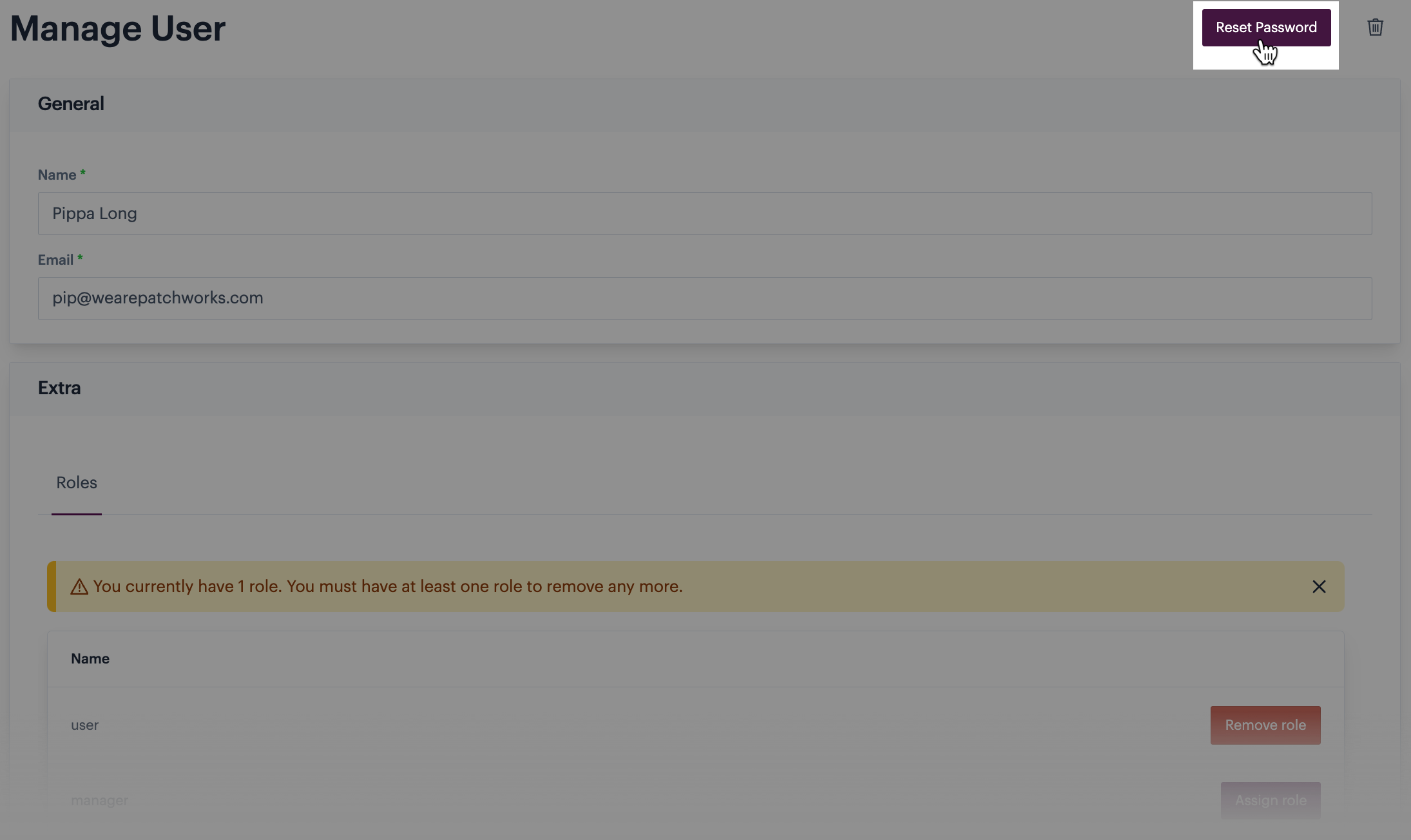
![](https://2440044887-files.gitbook.io/~/files/v0/b/gitbook-x-prod.appspot.com/o/spaces%2FLYNcUBVQwSkOMG6KjZfz%2Fuploads%2FYZ10vVrKNGnVBGw1CTht%2Fforgot%20password%20from%20login%20page.png?alt=media\&token=02e533db-3b37-491a-b29a-0f29d0c431e6)

</details>

## The steps

**Step 1**\
[Switch into the managed company](/product-documentation/company-management/multi-company-profiles/switching-in-and-out-of-a-linked-company) that you want to update and [view team members who manage that company](/product-documentation/users-roles-and-permissions/managing-team-members-and-users-for-multi-company-profiles/working-with-your-team-members/viewing-team-members-who-manage-a-linked-company).

<details>

<summary><img src="https://2440044887-files.gitbook.io/~/files/v0/b/gitbook-x-prod.appspot.com/o/spaces%2FLYNcUBVQwSkOMG6KjZfz%2Fuploads%2FfUVdhc1UgMWObOesLjkS%2Ficon%20eye.png?alt=media&amp;token=c8b6d3a9-b5a9-4cb0-8aeb-00bd39c00b60" alt="" data-size="line"> Have you switched correctly?</summary>

Always double-check the company name after a switch to ensure that the switch was made correctly:

![](https://2440044887-files.gitbook.io/~/files/v0/b/gitbook-x-prod.appspot.com/o/spaces%2FLYNcUBVQwSkOMG6KjZfz%2Fuploads%2FpW4Xm1Ry26idzNHpAFhO%2Fgrant%20access%201.png?alt=media\&token=a0398146-d7c8-4b07-a253-2c3167cfaebf)

</details>

**Step 2**\
Click the name of the user that requires a password reset:

<div align="left"><figure><img src="https://2440044887-files.gitbook.io/~/files/v0/b/gitbook-x-prod.appspot.com/o/spaces%2FLYNcUBVQwSkOMG6KjZfz%2Fuploads%2FxZkKmowon0jxOeKkxDen%2Freset%20password%20for%20team%20member%201.png?alt=media&amp;token=e30d3da6-2b49-4c20-9c54-5dbfe1d81906" alt=""><figcaption></figcaption></figure></div>

**Step 3**\
Click the password reset option at the top of the page:

<figure><img src="https://2440044887-files.gitbook.io/~/files/v0/b/gitbook-x-prod.appspot.com/o/spaces%2FLYNcUBVQwSkOMG6KjZfz%2Fuploads%2FSj9lDSQYB3n015BaIw7R%2Freset%20password%20for%20team%20member%202a.png?alt=media&amp;token=7f950d2d-2459-4399-90da-358b8b80ca1d" alt=""><figcaption></figcaption></figure>

**Step 4**\
This user will receive a Patchworks email containing instructions to reset their own password.


# Removing a team member account from your multi-company profile

## Introduction

If your user account is associated with a [manager or administrator role](/product-documentation/users-roles-and-permissions/roles-and-permissions-summary), you can remove other team member accounts from your company profile.

{% hint style="danger" %}
**When a team member is removed in this way, they can no longer log into the Patchworks dashboard**. If you want to allow a team member to continue accessing the Patchworks dashboard for multi-company profile but need to prevent them from managing other companies, you can simply [revoke access to those companies](/product-documentation/users-roles-and-permissions/managing-team-members-and-users-for-multi-company-profiles/working-with-your-team-members/granting-and-revoking-permission-for-an-existing-team-member-to-manage-a-linked-company). In this way, the team member retains their dashboard access.
{% endhint %}

## The steps

**Step 1**\
[Access team members for your own company profile](/product-documentation/users-roles-and-permissions/managing-team-members-and-users-for-multi-company-profiles/working-with-your-team-members/viewing-team-members-for-your-own-multi-company-profile).

**Step 2**\
Click the name of the user account that you want to remove:

<figure><img src="https://2440044887-files.gitbook.io/~/files/v0/b/gitbook-x-prod.appspot.com/o/spaces%2FLYNcUBVQwSkOMG6KjZfz%2Fuploads%2FYr2SFd67smQzOYueegJp%2Fassign%20team%20member%20role%201.png?alt=media&amp;token=0a245212-44eb-42a0-a082-289a84c1088b" alt=""><figcaption></figcaption></figure>

**Step 3**\
Click the 'delete' icon at the top of the page:

<figure><img src="https://2440044887-files.gitbook.io/~/files/v0/b/gitbook-x-prod.appspot.com/o/spaces%2FLYNcUBVQwSkOMG6KjZfz%2Fuploads%2Fmnnr1cL8YDUdnFsZzBeC%2Fremove%20team%20member%201.png?alt=media&amp;token=d3c043bd-44ed-48ec-a471-de43fd5ef49f" alt=""><figcaption></figcaption></figure>

**Step 4**\
When prompted, confirm this removal.


# Working with 'native' company users

If you are a multi-company profile user with [permission to manage another linked company](/product-documentation/users-roles-and-permissions/managing-team-members-and-users-for-multi-company-profiles/working-with-your-team-members/granting-and-revoking-permission-for-an-existing-team-member-to-manage-a-linked-company), you can view and manage user accounts that are directly associated with a company that you manage. These are sometimes referred to as 'native' company users. You can:

* [View native company users for a linked company](/product-documentation/users-roles-and-permissions/managing-team-members-and-users-for-multi-company-profiles/working-with-native-company-users/viewing-native-company-users-for-a-linked-company)
* [Create a new native user for a linked company](/product-documentation/users-roles-and-permissions/managing-team-members-and-users-for-multi-company-profiles/working-with-native-company-users/creating-a-new-native-user-for-a-linked-company)
* [Assign new user roles for an existing native company user](/product-documentation/users-roles-and-permissions/managing-team-members-and-users-for-multi-company-profiles/working-with-native-company-users/assigning-roles-for-an-existing-native-linked-company-user)
* [Trigger a password reset for an existing native company user](/product-documentation/users-roles-and-permissions/managing-team-members-and-users-for-multi-company-profiles/working-with-native-company-users/triggering-a-password-reset-for-an-existing-native-linked-company-user)
* [Remove a native company user from their company profile](/product-documentation/users-roles-and-permissions/managing-team-members-and-users-for-multi-company-profiles/working-with-native-company-users/removing-a-native-linked-company-user-from-their-company-profile)

{% hint style="info" %}
For more information about 'native' company users and agency/partner team members please see our [managed company users introduction](/product-documentation/users-roles-and-permissions/managing-team-members-and-users-for-multi-company-profiles).
{% endhint %}


# Viewing 'native' company users for a linked company

## Introduction

If you are a multi-company profile user with [permission to manage another linked company](/product-documentation/users-roles-and-permissions/managing-team-members-and-users-for-multi-company-profiles/working-with-your-team-members/granting-and-revoking-permission-for-an-existing-team-member-to-manage-a-linked-company), you can view all 'native' user accounts for that company - i.e. accounts for users at that company.

{% hint style="info" %}
For more information about the different types of user associated with managed companies please see our [managed company users introduction](/product-documentation/users-roles-and-permissions/managing-team-members-and-users-for-multi-company-profiles).
{% endhint %}

## The steps

**Step 1**\
Log into the Patchworks dashboard using your own Patchworks credentials.

**Step 2**\
[Switch into the managed company](/product-documentation/company-management/multi-company-profiles/switching-in-and-out-of-a-linked-company) that you want to review.

<details>

<summary><img src="https://2440044887-files.gitbook.io/~/files/v0/b/gitbook-x-prod.appspot.com/o/spaces%2FLYNcUBVQwSkOMG6KjZfz%2Fuploads%2FfUVdhc1UgMWObOesLjkS%2Ficon%20eye.png?alt=media&amp;token=c8b6d3a9-b5a9-4cb0-8aeb-00bd39c00b60" alt="" data-size="line"> Have you switched correctly?</summary>

Always double-check the company name after a switch to ensure that the switch was made correctly:

<img src="https://2440044887-files.gitbook.io/~/files/v0/b/gitbook-x-prod.appspot.com/o/spaces%2FLYNcUBVQwSkOMG6KjZfz%2Fuploads%2FY4J66i4KOrhGb4vpfaoF%2Fview%20native%20users%201.png?alt=media&amp;token=772fb767-ef2e-462c-9d67-2a75ce6f4fcb" alt="" data-size="original">

</details>

**Step 3**\
Click the arrow associated with the company name and select the **\[company] profile** option - for example:

<div align="left"><figure><img src="https://2440044887-files.gitbook.io/~/files/v0/b/gitbook-x-prod.appspot.com/o/spaces%2FLYNcUBVQwSkOMG6KjZfz%2Fuploads%2FY4J66i4KOrhGb4vpfaoF%2Fview%20native%20users%201.png?alt=media&amp;token=772fb767-ef2e-462c-9d67-2a75ce6f4fcb" alt="" width="375"><figcaption></figcaption></figure></div>

**Step 4**\
Move down to the **extra** section and select the **\[company] users** tab - here you will find all users who are directly associated with this company profile (and can log into the Patchworks dashboard with their own credentials):

<figure><img src="https://2440044887-files.gitbook.io/~/files/v0/b/gitbook-x-prod.appspot.com/o/spaces%2FLYNcUBVQwSkOMG6KjZfz%2Fuploads%2FvG5YJbVHMlV6WOm2TIPu%2Fview%20native%20users%202.png?alt=media&amp;token=953634ec-7502-4556-b897-288a46bea296" alt=""><figcaption></figcaption></figure>

From here you can click the name of a user to access their account profile and then update details, assign a different role, or trigger a password reset request.


# Creating a new 'native' user for a linked company

## Introduction

If you are a multi-company profile user with [permission to manage another linked company](/product-documentation/users-roles-and-permissions/managing-team-members-and-users-for-multi-company-profiles/working-with-your-team-members/granting-and-revoking-permission-for-an-existing-team-member-to-manage-a-linked-company), you can add a new 'native' user for that company.

{% hint style="info" %}
Native users can log into the Patchworks dashboard to work with their own company profile, using their own login credentials. For more information about the different types of user associated with managed companies please see our [managed company users introduction](/product-documentation/users-roles-and-permissions/managing-team-members-and-users-for-multi-company-profiles).
{% endhint %}

By default, new users are created with a `user` role. If you are a multi-company profile user with an `administrator` or `manager` role, you can change this if required - the following rules apply:

<table><thead><tr><th width="266">Your role</th><th>Allowed role changes</th></tr></thead><tbody><tr><td>Administrator</td><td><ul><li>Can assign roles up to and including <code>manager</code> level (e.g. change a <code>user</code> account to a <code>manager</code> account).</li><li>Can reduce other non-administrator accounts to a lesser role (e.g. change a <code>user</code> account to a <code>read-only</code> account).</li></ul></td></tr><tr><td>Manager</td><td><ul><li>Can assign roles up to and including <code>user</code> level (e.g. change a <code>read-only</code> account to a <code>user</code> account).</li><li>Can reduce other non-manager accounts to a lesser role (e.g. change a <code>user</code> account to a <code>read-only</code> account).</li></ul></td></tr></tbody></table>

{% hint style="info" %}
For more information please see our [Roles & permissions summary](/product-documentation/users-roles-and-permissions/roles-and-permissions-summary) page.
{% endhint %}

## The steps

**Step 1**\
[Access company users for the required linked company](/product-documentation/users-roles-and-permissions/managing-team-members-and-users-for-multi-company-profiles/working-with-native-company-users/viewing-native-company-users-for-a-linked-company).

**Step 2**\
Move down to the **extra** section and select the **\[company] users** tab - here you will find all 'native' user accounts associated with this company - i.e. users who are directly associated with this company profile and can log into the Patchworks dashboard with their own credentials:

<figure><img src="https://2440044887-files.gitbook.io/~/files/v0/b/gitbook-x-prod.appspot.com/o/spaces%2FLYNcUBVQwSkOMG6KjZfz%2Fuploads%2FvG5YJbVHMlV6WOm2TIPu%2Fview%20native%20users%202.png?alt=media&amp;token=953634ec-7502-4556-b897-288a46bea296" alt=""><figcaption></figcaption></figure>

**Step 3**\
Click the **create user** button:

<figure><img src="https://2440044887-files.gitbook.io/~/files/v0/b/gitbook-x-prod.appspot.com/o/spaces%2FLYNcUBVQwSkOMG6KjZfz%2Fuploads%2F6w8dijo15imDJrGpqlO9%2Fcreate%20native%20users%201.png?alt=media&amp;token=7679ad1e-2bba-428d-b293-0722cbc12fa9" alt=""><figcaption></figcaption></figure>

**Step 4**\
Enter the person's name and email address:

<figure><img src="https://2440044887-files.gitbook.io/~/files/v0/b/gitbook-x-prod.appspot.com/o/spaces%2FLYNcUBVQwSkOMG6KjZfz%2Fuploads%2FWa8NyNu51BQfCnC7TGgL%2Fadd%20team%20member%205.png?alt=media&amp;token=695ff0b3-0ebf-4d76-b485-6a8ae0d4a684" alt=""><figcaption></figcaption></figure>

{% hint style="info" %}
The email address provided here is used to log into the Patchworks dashboard.
{% endhint %}

**Step 5**\
Click the **save** button. The user account is saved and an email is sent to the given address, with a link for the user to set their password.

{% hint style="info" %}
A password must be used with the user's email address in order to log into the Patchworks dashboard.
{% endhint %}

**Step 6**\
The user **roles** tab is displayed and you'll see that the new account is created - by default, new accounts are created with a `user` role:

<figure><img src="https://2440044887-files.gitbook.io/~/files/v0/b/gitbook-x-prod.appspot.com/o/spaces%2FLYNcUBVQwSkOMG6KjZfz%2Fuploads%2FWoyC8J4UpAjufkiEUKFX%2Fcreate%20native%20users%202.png?alt=media&amp;token=a03d943d-075c-40d6-9448-116b542f283c" alt=""><figcaption></figcaption></figure>

If required, you can assign an alternative role by clicking the appropriate button.

**Step 7**\
Save changes. Once the user has set their password (via the link provided in an email triggered in step 5) they can access the Patchworks dashboard for their own company.


# Assigning roles for an existing 'native' linked company user

## Introduction

If you are a multi-company profile user with [permission to manage another linked company](/product-documentation/users-roles-and-permissions/managing-team-members-and-users-for-multi-company-profiles/working-with-your-team-members/granting-and-revoking-permission-for-an-existing-team-member-to-manage-a-linked-company), you can assign different user roles for existing 'native' user accounts associated with that company.

{% hint style="info" %}
When you [add a new company user account](/product-documentation/users-roles-and-permissions/managing-team-members-and-users-for-multi-company-profiles/working-with-native-company-users/creating-a-new-native-user-for-a-linked-company), assigning the required roles is part of the initial account creation process. Steps detailed on this page can be followed if you need to assign different roles for an existing team member.
{% endhint %}

If you are a multi-company profile user with an `administrator` or `manager` role, you can change the role associated with other lesser-role company users. The following rules apply:

<table><thead><tr><th width="266">Your role</th><th>Allowed role changes</th></tr></thead><tbody><tr><td>Administrator</td><td><ul><li>Can assign roles up to and including <code>manager</code> level (e.g. change a <code>user</code> account to a <code>manager</code> account).</li><li>Can reduce other non-administrator accounts to a lesser role (e.g. change a <code>user</code> account to a <code>read-only</code> account).</li></ul></td></tr><tr><td>Manager</td><td><ul><li>Can assign roles up to and including <code>user</code> level (e.g. change a <code>read-only</code> account to a <code>user</code> account).</li><li>Can reduce other non-manager accounts to a lesser role (e.g. change a <code>user</code> account to a <code>read-only</code> account).</li></ul></td></tr></tbody></table>

{% hint style="info" %}
For more information please see our [Roles & permissions summary](/product-documentation/users-roles-and-permissions/roles-and-permissions-summary) page.
{% endhint %}

## The steps

**Step 1**\
[Access company users for the required linked company](/product-documentation/users-roles-and-permissions/managing-team-members-and-users-for-multi-company-profiles/working-with-native-company-users/viewing-native-company-users-for-a-linked-company).

**Step 2**\
Move down to the **extra** section and select the **\[company] users** tab - here you will find all 'native' user accounts associated with this company - i.e. users who are directly associated with this company profile and can log into the Patchworks dashboard with their own credentials:

<div align="left"><figure><img src="https://2440044887-files.gitbook.io/~/files/v0/b/gitbook-x-prod.appspot.com/o/spaces%2FLYNcUBVQwSkOMG6KjZfz%2Fuploads%2FZ7tEUGykIPAGuyRsL9Gc%2Fassign%20role%20to%20native%20user%201.png?alt=media&amp;token=d54dffe4-ab5b-4e89-9f01-eab648c94dcc" alt=""><figcaption></figcaption></figure></div>

**Step 3**\
Click the name of the user account that you want to update:

<div align="left"><figure><img src="https://2440044887-files.gitbook.io/~/files/v0/b/gitbook-x-prod.appspot.com/o/spaces%2FLYNcUBVQwSkOMG6KjZfz%2Fuploads%2FrUiEw6fq8MYZzibNDM0V%2Fassign%20role%20to%20native%20user%202.png?alt=media&amp;token=7e6bdff1-748b-4403-a75f-bda202c7e903" alt="" width="375"><figcaption></figcaption></figure></div>

**Step 4**\
The user **roles** tab is displayed and you'll see which roles are currently assigned for this account:

<figure><img src="https://2440044887-files.gitbook.io/~/files/v0/b/gitbook-x-prod.appspot.com/o/spaces%2FLYNcUBVQwSkOMG6KjZfz%2Fuploads%2FWxqPYriCRn1yTGX454gX%2Fassign%20role%20to%20native%20user%203.png?alt=media&amp;token=a1d32bbb-1f9b-4af4-b548-aa34f2d29618" alt=""><figcaption></figcaption></figure>

**Step 5**\
Assign (and/or remove) roles as needed by clicking the appropriate **assign role** / **remove role** button.

{% hint style="info" %}
If you attempt to assign a role that is outside of your own permissions, a failure message is displayed and the change will not be made.
{% endhint %}

**Step 6**\
Save changes.


# Triggering a password reset for an existing 'native' linked company user

## Introduction

If you are a multi-company profile user with [permission to manage another linked company](/product-documentation/users-roles-and-permissions/managing-team-members-and-users-for-multi-company-profiles/working-with-your-team-members/granting-and-revoking-permission-for-an-existing-team-member-to-manage-a-linked-company), you can trigger a password reset email for users associated with a company that you manage.

When this is done, a reset email is sent to the email address for the user, containing a reset link. Password reset links are valid for 24 hours. After this, another password reset must be triggered so a new link is emailed.

<details>

<summary><img src="https://2440044887-files.gitbook.io/~/files/v0/b/gitbook-x-prod.appspot.com/o/spaces%2FLYNcUBVQwSkOMG6KjZfz%2Fuploads%2FPq80F8deQ3i4P3iazHRj%2Ficon%20decision.svg?alt=media&amp;token=61be5bf3-7235-45fe-af5f-726229df8dd6" alt="" data-size="line">Alternative approach</summary>

The company user can use the 'forgot password' option from the [Patchworks login page](https://app.wearepatchworks.com/login) to trigger their own password reset email:\
\
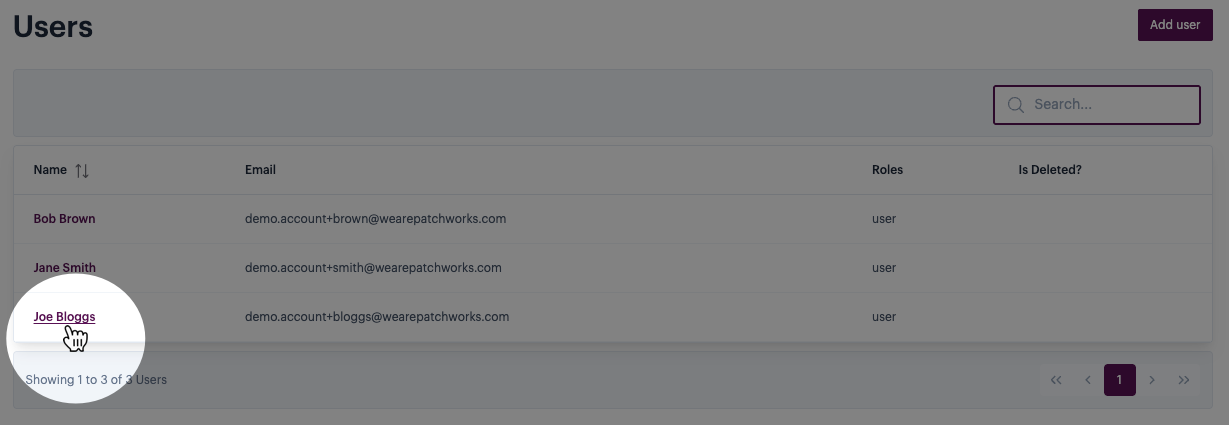
![](https://2440044887-files.gitbook.io/~/files/v0/b/gitbook-x-prod.appspot.com/o/spaces%2FLYNcUBVQwSkOMG6KjZfz%2Fuploads%2FYZ10vVrKNGnVBGw1CTht%2Fforgot%20password%20from%20login%20page.png?alt=media\&token=02e533db-3b37-491a-b29a-0f29d0c431e6)

</details>

## The steps

**Step 1**\
[Access company users for the required linked company](/product-documentation/users-roles-and-permissions/managing-team-members-and-users-for-multi-company-profiles/working-with-native-company-users/viewing-native-company-users-for-a-linked-company).

**Step 2**\
Move down to the **extra** section and select the **\[company] users** tab - here you will find all 'native' user accounts associated with this company - i.e. users who are directly associated with this company profile and can log into the Patchworks dashboard with their own credentials:

<div align="left"><figure><img src="https://2440044887-files.gitbook.io/~/files/v0/b/gitbook-x-prod.appspot.com/o/spaces%2FLYNcUBVQwSkOMG6KjZfz%2Fuploads%2FZ7tEUGykIPAGuyRsL9Gc%2Fassign%20role%20to%20native%20user%201.png?alt=media&amp;token=d54dffe4-ab5b-4e89-9f01-eab648c94dcc" alt=""><figcaption></figcaption></figure></div>

**Step 3**\
Click the name of the user that requires a password reset:

<div align="left"><figure><img src="https://2440044887-files.gitbook.io/~/files/v0/b/gitbook-x-prod.appspot.com/o/spaces%2FLYNcUBVQwSkOMG6KjZfz%2Fuploads%2FrUiEw6fq8MYZzibNDM0V%2Fassign%20role%20to%20native%20user%202.png?alt=media&amp;token=7e6bdff1-748b-4403-a75f-bda202c7e903" alt="" width="375"><figcaption></figcaption></figure></div>

**Step 4**\
Move down to the **extra** section and select the **\[company] users** tab - here you will find all users who are directly associated with this company profile (and can log into the Patchworks dashboard with their own credentials):

**Step 5**\
Click the name of the user account that you want to access:

**Step 6**\
Click the **reset password** button at the top of the page:

<figure><img src="https://2440044887-files.gitbook.io/~/files/v0/b/gitbook-x-prod.appspot.com/o/spaces%2FLYNcUBVQwSkOMG6KjZfz%2Fuploads%2FVur9CAWW4CjO78CT7uIo%2Ftrigger%20passsword%20reset%20for%20native%20user%201.png?alt=media&amp;token=d5bfb37c-3d7b-41c8-be9a-299f4a2824ad" alt=""><figcaption></figcaption></figure>

**Step 7**\
The user will receive an email from Patchworks which includes a link to change their password.


# Removing a 'native' linked company user from their company profile

## Introduction

If you are a multi-company profile user with [permission to manage another linked company](/product-documentation/users-roles-and-permissions/managing-team-members-and-users-for-multi-company-profiles/working-with-your-team-members/granting-and-revoking-permission-for-an-existing-team-member-to-manage-a-linked-company), you can remove a 'native' user from their company profile.

{% hint style="danger" %}
When a company user is removed in this way, they can no longer log into the Patchworks dashboard.
{% endhint %}

## The steps

**Step 1**\
[Access company users for the required linked company](/product-documentation/users-roles-and-permissions/managing-team-members-and-users-for-multi-company-profiles/working-with-native-company-users/viewing-native-company-users-for-a-linked-company).

**Step 2**\
Move down to the **extra** section and select the **\[company] users** tab - here you will find all 'native' user accounts associated with this company - i.e. users who are directly associated with this company profile and can log into the Patchworks dashboard with their own credentials:

<div align="left"><figure><img src="https://2440044887-files.gitbook.io/~/files/v0/b/gitbook-x-prod.appspot.com/o/spaces%2FLYNcUBVQwSkOMG6KjZfz%2Fuploads%2FZ7tEUGykIPAGuyRsL9Gc%2Fassign%20role%20to%20native%20user%201.png?alt=media&amp;token=d54dffe4-ab5b-4e89-9f01-eab648c94dcc" alt=""><figcaption></figcaption></figure></div>

**Step 3**\
Click the name of the user account that you want to remove:

<div align="left"><figure><img src="https://2440044887-files.gitbook.io/~/files/v0/b/gitbook-x-prod.appspot.com/o/spaces%2FLYNcUBVQwSkOMG6KjZfz%2Fuploads%2FrUiEw6fq8MYZzibNDM0V%2Fassign%20role%20to%20native%20user%202.png?alt=media&amp;token=7e6bdff1-748b-4403-a75f-bda202c7e903" alt="" width="375"><figcaption></figcaption></figure></div>

**Step 4**\
Click the 'delete' icon at the top of the page:

<div align="left"><figure><img src="https://2440044887-files.gitbook.io/~/files/v0/b/gitbook-x-prod.appspot.com/o/spaces%2FLYNcUBVQwSkOMG6KjZfz%2Fuploads%2FQhSu97oo6yhXVht8PeYH%2Fremove%20native%20user%201.png?alt=media&amp;token=b45e6268-c8fb-4c22-a82a-6e460090a26f" alt=""><figcaption></figcaption></figure></div>

...and then confirm this action:

<div align="left"><figure><img src="https://2440044887-files.gitbook.io/~/files/v0/b/gitbook-x-prod.appspot.com/o/spaces%2FLYNcUBVQwSkOMG6KjZfz%2Fuploads%2F1U9jxlQbFDImbJppnhF5%2Fremove%20native%20user%202.png?alt=media&amp;token=446cf132-2d42-4f44-84f9-800c3d5a5905" alt=""><figcaption></figcaption></figure></div>


# Role Manager

Build, configure, and assign fully custom user roles with granular permission control - giving enterprise teams precise authority over who can see and do what in Patchworks.

***

## Introduction

The role manager extends Patchworks' existing user permission system by allowing enterprise customers to define their own roles from scratch. Rather than being limited to predefined roles, administrators can combine view and edit permissions across different areas of the platform to create roles tailored to their team structure.

Custom roles can be assigned to individual users, removed from users, and for multi-company profiles - made available to sub-customers.

{% hint style="info" %}
The role manager is an **enterprise-tier feature**. It is accessible to users with administrator-level permissions on qualifying subscription plans.
{% endhint %}

### Accessing the role manager

The role manager is found in the Patchworks settings area.

Settings › Role manager

<figure><img src="https://2440044887-files.gitbook.io/~/files/v0/b/gitbook-x-prod.appspot.com/o/spaces%2FLYNcUBVQwSkOMG6KjZfz%2Fuploads%2FQPxZsEEw8UQsS1QKIwFt%2FScreenshot%202026-04-29%20at%2009.56.00.png?alt=media&amp;token=561b7453-9db2-440c-9103-675afa083fae" alt=""><figcaption></figcaption></figure>

### Creating a custom role

1. Navigate to **Settings › Role manager** and click **Create role**.

<figure><img src="https://2440044887-files.gitbook.io/~/files/v0/b/gitbook-x-prod.appspot.com/o/spaces%2FLYNcUBVQwSkOMG6KjZfz%2Fuploads%2FpmDLrd5O6Ik9YQMhOhgn%2FScreenshot%202026-04-29%20at%2009.57.31.png?alt=media&amp;token=ba5688a2-aefa-48c0-9b5c-04f1d1565a65" alt=""><figcaption></figcaption></figure>

2. Enter a **role name** and an optional **description** to help administrators identify the role's purpose.

<figure><img src="https://2440044887-files.gitbook.io/~/files/v0/b/gitbook-x-prod.appspot.com/o/spaces%2FLYNcUBVQwSkOMG6KjZfz%2Fuploads%2F002K0f5NEo9MXynanJy0%2FScreenshot%202026-04-29%20at%2009.57.52.png?alt=media&amp;token=31d9a008-3301-4d6d-bf77-121bdc0e5d06" alt=""><figcaption></figcaption></figure>

3. Use the permission toggles to assign a combination of **view** and **edit** permissions across platform areas - for example, audit log access, flow management, and shape manipulation.

<figure><img src="https://2440044887-files.gitbook.io/~/files/v0/b/gitbook-x-prod.appspot.com/o/spaces%2FLYNcUBVQwSkOMG6KjZfz%2Fuploads%2Fo3T2AWbaxzdwAfRIJwTl%2FScreenshot%202026-04-29%20at%2009.59.07.png?alt=media&amp;token=bbae4aba-89d5-45c3-a869-40725de0d3bd" alt=""><figcaption></figcaption></figure>

4. Save the role. It will now appear in the role list and be available for assignment.

<figure><img src="https://2440044887-files.gitbook.io/~/files/v0/b/gitbook-x-prod.appspot.com/o/spaces%2FLYNcUBVQwSkOMG6KjZfz%2Fuploads%2FKpPDwdeuUiB1o6M6QVPN%2FScreenshot%202026-04-29%20at%2010.00.38.png?alt=media&amp;token=a3709f27-3295-4389-9065-48a298f37505" alt=""><figcaption></figcaption></figure>

{% hint style="info" %}
Permissions are **derived** - some edit permissions implicitly require the corresponding view permission to be active. Review combined permissions carefully before assigning a role to users.
{% endhint %}

### Assigning a role to a user

1. Within the role manager, switch to users tab
2. Use the **Assign Role** control to selected users
3. The role is applied immediately - no save step is required.

<figure><img src="https://2440044887-files.gitbook.io/~/files/v0/b/gitbook-x-prod.appspot.com/o/spaces%2FLYNcUBVQwSkOMG6KjZfz%2Fuploads%2FPDrSRwIWmMedgMwlFmWA%2FScreenshot%202026-04-29%20at%2010.02.37.png?alt=media&amp;token=5f1b4232-8964-45f8-a512-62e68d87270d" alt=""><figcaption></figcaption></figure>

### Removing a role from a user

From the same role detail view, locate the user in the assigned users list and simply click **X** to remove.

### Sub-customer availability

For companies managing multi-company profiles, custom roles can optionally be made available to sub-customers. This allows a consistent permission structure to be propagated across your managed accounts.


# The Patchworks marketplace

## Introduction

The **Patchworks marketplace** is your one-stop shop for a range of pre-built resources that you can install to streamline your dashboard integrations:

<figure><img src="https://2440044887-files.gitbook.io/~/files/v0/b/gitbook-x-prod.appspot.com/o/spaces%2FLYNcUBVQwSkOMG6KjZfz%2Fuploads%2F4aeAnJwDnserSkPi43lc%2Fmarketplace%201.png?alt=media&amp;token=f97262a7-b8a6-43b2-8598-1fd2e23895c3" alt=""><figcaption></figcaption></figure>

Here you can browse and install:

* [Connectors](/product-documentation/marketplace/marketplace-connectors)
* [Process flows](/product-documentation/marketplace/marketplace-process-flows)
* [Custom scripts](/product-documentation/marketplace/marketplace-scripts)
* [Cross-reference lookups](/product-documentation/marketplace/marketplace-cross-reference-lookups)
* [Blueprints](/product-documentation/marketplace/marketplace-blueprints)

## Accessing the marketplace

To access the Patchworks marketplace, log into the [Patchworks dashboard](https://app.wearepatchworks.com/login) and select **marketplace** from the left-hand navigation menu:

<div align="left"><figure><img src="https://2440044887-files.gitbook.io/~/files/v0/b/gitbook-x-prod.appspot.com/o/spaces%2FLYNcUBVQwSkOMG6KjZfz%2Fuploads%2FlxK4tLsRD8D36SPvC9Ar%2Fmarketplace%201.png?alt=media&amp;token=5920625b-7a9b-4ba9-9e55-6de4356e26e4" alt="" width="190"><figcaption></figcaption></figure></div>

{% hint style="info" %}
If your user account is associated with appropriate permissions, you can also access your own [private marketplace](/product-documentation/marketplace/private-marketplaces).
{% endhint %}


# Marketplace blueprints

## Introduction

A Patchworks blueprint contains everything you need to perform a specific task - for example, to sync orders between *Shopify* and *Virtualstock Supplier*.

When you [install a blueprint](/product-documentation/blueprints/patchworks-blueprints/installing-a-patchworks-blueprint), all of its components (connectors, process flows, scripts, etc.) are installed and added to the relevant area of your Patchworks dashboard - connectors are added to your [connectors page](/product-documentation/process-flows/cross-reference-lookups/accessing-cross-reference-lookups), process flows are added to your [process flows list](/product-documentation/process-flows/accessing-your-process-flows), custom scripts are added to [your scripts list,](/product-documentation/developer-hub/custom-scripting/accessing-custom-scripts) etc.

From here you can complete the required setup (as documented for each blueprint) and get started!

{% hint style="info" %}
For more information please see [The anatomy of a blueprint](/product-documentation/blueprints/the-anatomy-of-a-blueprint).
{% endhint %}

## Browsing & purchasing blueprints

Blueprints can be purchased from the [Patchworks website](https://www.wearepatchworks.com/collections/blueprint#Landing). Having purchased a blueprint, it will be available to install from the **blueprints** tab in the marketplace:

<figure><img src="https://2440044887-files.gitbook.io/~/files/v0/b/gitbook-x-prod.appspot.com/o/spaces%2FLYNcUBVQwSkOMG6KjZfz%2Fuploads%2FcclARCfo8mz5lidZWQiq%2Fmarketplace%202.png?alt=media&amp;token=e4b14aa3-c068-4a45-998f-36d36ed5fe8b" alt=""><figcaption></figcaption></figure>

{% hint style="info" %}
Having purchased a blueprint from the [Patchworks websit](https://doc.wearepatchworks.com/product-documentation/release-information/core-release-notes/2024-08-29-release-notes-core)e, it becomes available in your dashboard marketplace within 24 hours.
{% endhint %}

Once a blueprint becomes available in your marketplace, you'll see it displayed as a tile which includes a visual summary of component parts - for example:

<div align="left"><figure><img src="https://2440044887-files.gitbook.io/~/files/v0/b/gitbook-x-prod.appspot.com/o/spaces%2FLYNcUBVQwSkOMG6KjZfz%2Fuploads%2FCAOHKwajYEPIclcp9v1r%2Fblueprint%20tile%202.png?alt=media&amp;token=439f21f9-4ec2-42f1-90f4-55ae11e6df4a" alt="" width="563"><figcaption></figcaption></figure></div>

Here you can see which connectors are included in the blueprint, the blueprint title and creator, and a summary of contents. Summary icons are:

<table><thead><tr><th width="150">Icon</th><th>Shows</th></tr></thead><tbody><tr><td><img src="https://2440044887-files.gitbook.io/~/files/v0/b/gitbook-x-prod.appspot.com/o/spaces%2FLYNcUBVQwSkOMG6KjZfz%2Fuploads%2FDI1Z0vfFddmg8rdDTsZE%2Fapp%20summary%20icon%20-%20connectors.png?alt=media&amp;token=14398ef2-c53c-41db-9454-4025340e54d3" alt="" data-size="line"></td><td>The number of included <a href="/product-documentation/connectors-and-instances/connectors-and-instances-introduction">connectors</a>.</td></tr><tr><td><img src="https://2440044887-files.gitbook.io/~/files/v0/b/gitbook-x-prod.appspot.com/o/spaces%2FLYNcUBVQwSkOMG6KjZfz%2Fuploads%2Fk0JLviEzQkdO4dzrCIGo%2Fapp%20summary%20icon%20-%20prcess%20flows.png?alt=media&amp;token=b1e831ec-afee-4abe-a660-682703c599e6" alt="" data-size="line"></td><td>The number of included <a href="/product-documentation/process-flows/about-process-flows">process flows</a>.</td></tr><tr><td><img src="https://2440044887-files.gitbook.io/~/files/v0/b/gitbook-x-prod.appspot.com/o/spaces%2FLYNcUBVQwSkOMG6KjZfz%2Fuploads%2FBdtWqJWaxnby3rTY52fd%2Fapp%20summary%20icon%20-%20cross%20refs.png?alt=media&amp;token=4ecc566a-9f8b-45a3-98fd-3830cf55e65c" alt="" data-size="line"></td><td>The number of included <a href="/product-documentation/process-flows/cross-reference-lookups">cross-reference lookup tables</a>.</td></tr><tr><td><img src="https://2440044887-files.gitbook.io/~/files/v0/b/gitbook-x-prod.appspot.com/o/spaces%2FLYNcUBVQwSkOMG6KjZfz%2Fuploads%2FbPR6AVk33HW8UMnRYZvu%2Fapp%20summary%20icon%20-%20scripts.png?alt=media&amp;token=6af2e991-e995-4f74-bb87-61b066ee8362" alt="" data-size="line"></td><td>The number of included <a href="/product-documentation/developer-hub/custom-scripting">custom scripts</a>.</td></tr></tbody></table>

## Blueprint contents

For a detailed view of what's included in a blueprint, click anywhere on the tile. This displays full details for the blueprint - from here, you can view all components and if required, you can choose to [install the blueprint](/product-documentation/blueprints/patchworks-blueprints/installing-a-patchworks-blueprint).

{% hint style="info" %}
For more information, please see [The anatomy of a blueprint](/product-documentation/blueprints/the-anatomy-of-a-blueprint).
{% endhint %}

## Related information

For all information about working with blueprints, please see our [blueprints](/product-documentation/blueprints/blueprints-introduction) section.


# Submitting a blueprint to the public marketplace

If you would like to create an app and submit it for review to be added to the public app marketplace, we have outlined the following submission guide to ensure a high standard.

## Overview

This document outlines the approval process for developers submitting blueprints for inclusion in the Patchworks marketplace. The Patchworks marketplace is a platform where users can discover, install, and use various pre-built blueprints to accelerate the onboarding process.

### Submission requirements

You must ensure that your blueprint meets the following requirements.

<table><thead><tr><th width="226">Requirement</th><th>Summary</th></tr></thead><tbody><tr><td><strong>Compliance</strong></td><td>The blueprint must comply with all relevant laws, regulations, and policies, including those related to data privacy, security, and intellectual property rights.</td></tr><tr><td><strong>Functionality</strong></td><td>The blueprint must provide clear and useful functionality that adds value for users. It should be well-designed, intuitive to use, and free from significant bugs or issues.</td></tr><tr><td><strong>Quality</strong></td><td>The blueprint must meet quality standards for performance, reliability, and user experience. It should not degrade the performance or stability of the Patchworks platform.</td></tr><tr><td><strong>Security</strong></td><td>The blueprint must implement appropriate security measures to protect user data and prevent unauthorised access or misuse. It should follow best practices for secure coding and data handling.</td></tr><tr><td><strong>Marketplace compatibility</strong></td><td>The blueprint should be compatible with the Patchworks platform and any relevant operating systems or devices. It should not rely on unsupported features or dependencies.</td></tr><tr><td><strong>Connector compatibility</strong></td><td>The blueprint should use existing connectors found in the Patchworks marketplace. Any modifications to existing connectors in order to support the blueprint must be submitted separately prior to the blueprint review process.</td></tr><tr><td><strong>Documentation</strong></td><td>You should provide clear and comprehensive documentation for your blueprint, including installation instructions, usage guidelines, and troubleshooting tips if any are required.<br><br>Documentation can be provided as http links in multiple sections of the connector builder.<br><br>Alternatively documentation can be submitted along with your blueprint. We will host this documentation on our public documentation platform.</td></tr></tbody></table>

## Submission Process

The submission process for public blueprints consists of the following steps:

* [Step 1: Declaration of intent](#step-1-declaration-of-intent)
* [Step 2: Pre-submission review](#step-2-pre-submission-review)
* [Step 3: Blueprint submission](#step-3-app-submission)
* [Step 4: Review meeting](#step-4-review-meeting)

### Step 1: Declaration of intent

Before the development of the blueprint commences, you are encouraged to submit in writing (to your partner manager) the following details on any blueprint(s) you intend to create.

<table><thead><tr><th width="232">Item</th><th>Summary</th></tr></thead><tbody><tr><td><strong>Developer name</strong></td><td>The name and email address of your company or developer.</td></tr><tr><td><strong>Patchworks company profile</strong></td><td>The Patchworks dashboard company profile name under which you will create the new blueprint(s).</td></tr><tr><td><strong>Blueprint name</strong></td><td>The name of the blueprint to be displayed in the Patchworks marketplace.</td></tr><tr><td><strong>Expected completion date</strong></td><td>If known, provide the expected completion date for development.</td></tr><tr><td><strong>Connectors</strong></td><td>Specify the name of any connectors to be included in the new blueprint(s). If these connectors do not exist or require modifications, you must provide details about the required modifications.</td></tr><tr><td><strong>Process flows</strong></td><td>Provide information about any process flows that you intend to build utilising the specified connectors. This information should include the purpose of the process flow and any custom scripts that will be built.</td></tr></tbody></table>

### **Step 2: Pre-submission review**

Before submitting a blueprint for approval, you are encouraged to conduct a thorough review to ensure that your blueprint meets all requirements outlined above.

This includes testing for functionality, performance, and security.

### **Step 3: Blueprint submission**

Once the blueprint is ready, you can submit it via your account manager. The submission should include the following:

* Documentation and user guides
* Screenshots or demo videos
* Contact information for the developer or support team

### Step 4: Review meeting

Once the blueprint and associated information are submitted, the Patchworks team will schedule a review meeting with the developers. During this meeting, you should be prepared to:

* Go over the changes required for connectors, if any.
* Review the proposed process flows and confirm their functionality.
* Demonstrate working flows by showing data transmission between source and destination systems.
* Review any scripts or custom components used in the blueprint.

## Post-approval responsibilities

After a blueprint is approved and listed in the Patchworks marketplace, you have certain responsibilities to maintain the app's quality and compliance.

<table><thead><tr><th width="253">Responsibility</th><th>Summary</th></tr></thead><tbody><tr><td><strong>Updates &#x26; maintenance</strong></td><td>You should regularly update and maintain you blueprint(s) to ensure it remains compatible with the Patchworks platform and any relevant changes or updates.</td></tr><tr><td><strong>Support</strong></td><td>You must provide adequate support to users, including addressing enquiries, issues, and bug reports in a timely manner.</td></tr><tr><td><strong>Compliance</strong></td><td>You should continue to comply with all relevant laws, regulations, and policies, and promptly address any compliance issues that arise.</td></tr></tbody></table>

## Conclusion

The approval process outlined above is designed to ensure that public blueprints included in the Patchworks marketplace meet our high standards for quality, functionality, and security. By following this process and meeting our submission requirements, you can contribute to a vibrant ecosystem of third-party blueprints that enhance the user experience on the Patchworks platform.

For further information or assistance with the blueprint submission process, please refer to the Patchworks support team.


# Marketplace connectors

## Introduction

The **connectors** page allows you to browse, [install](/product-documentation/connectors-and-instances/working-with-connectors/installing-a-connector) and [update](/product-documentation/connectors-and-instances/working-with-connectors/updating-a-connector) all prebuilt connectors - these are 'standard' connectors that Patchworks builds and maintains.

When you install a connector, it is added to [your connectors list](/product-documentation/connectors-and-instances/working-with-connectors/accessing-your-connectors) - from here you can [add instances](/product-documentation/connectors-and-instances/working-with-instances/adding-an-instance) (authenticated with your credentials for that system) and then start working with these as [process flow connections](/product-documentation/process-flows/building-process-flows/process-flow-shapes/standard-shapes/connector-shape).

{% hint style="info" %}
If you need to connect a system which does not exist in the marketplace and you have an understanding of APIs and data structures, you can build your own connector with our [connector builder](/product-documentation/developer-hub/connector-builder) (perhaps starting from a [Postman import](/product-documentation/developer-hub/openapi-and-postman-importer) if a Postman collection is available).
{% endhint %}

## Browsing connectors

Having selected the **connectors** option from the marketplace, you can browse and [install](/product-documentation/connectors-and-instances/working-with-connectors/installing-a-connector) prebuilt connectors:

<div align="left"><figure><img src="https://2440044887-files.gitbook.io/~/files/v0/b/gitbook-x-prod.appspot.com/o/spaces%2FLYNcUBVQwSkOMG6KjZfz%2Fuploads%2F1oID7QHP2qPWsgnq4LZ0%2Fmarketplace%20-%20connectors.png?alt=media&amp;token=180b4a81-9f5b-4e08-ac62-337f6cfd2303" alt=""><figcaption></figcaption></figure></div>

Connectors are displayed as tiles over a series of pages, which you can step through using page numbers at the bottom of the marketplace. Each connector includes general details and an [install](/product-documentation/connectors-and-instances/working-with-connectors/installing-a-connector) option:

<div align="left"><figure><img src="https://2440044887-files.gitbook.io/~/files/v0/b/gitbook-x-prod.appspot.com/o/spaces%2FLYNcUBVQwSkOMG6KjZfz%2Fuploads%2Fb5sAFIcnUiwMCrIlMh7l%2Fconnectors%20tile%202.png?alt=media&amp;token=4bad4cb3-2f6d-48f3-97be-a258dc16f16a" alt="" width="375"><figcaption></figcaption></figure></div>

## Related information

For all information about working with connectors and instances, please see our [Connectors & instances](/product-documentation/connectors-and-instances/connectors-and-instances-introduction) section.


# Submitting a connector for the public marketplace

## Overview

This document outlines the approval process for developers submitting public connectors for inclusion in the \[Public Marketplace]. The \[Public Marketplace] is a platform where users can discover, install, and use a range of pre-built connectors to accelerate the onboarding process.\
\
For in-depth guides on how to build a connector, please see our [connector builder](/product-documentation/developer-hub/connector-builder) section. For a demonstration video of our connector builder, watch our CEO Jim Herbert build a connector in under 5 minutes:

{% embed url="<https://www.youtube.com/watch?v=tV7hmrta6HE>" %}

### Submission Requirements

If you are a developer seeking to submit a public connector for inclusion in the \[Public Marketplace], you must ensure that their connector meets the following requirements.

<table><thead><tr><th width="226">Requirement</th><th>Summary</th></tr></thead><tbody><tr><td><strong>Compliance</strong></td><td>The connector must comply with all relevant laws, regulations, and policies, including those related to data privacy, security, and intellectual property rights.</td></tr><tr><td><strong>Functionality</strong></td><td>The connector must provide clear and useful functionality that adds value for users. It should be well-designed, intuitive to use, and free from significant bugs or issues.</td></tr><tr><td><strong>Quality</strong></td><td>The connector must meet quality standards for performance, reliability, and user experience. It should not degrade the performance or stability of the [Public Marketplace] platform.</td></tr><tr><td><strong>Security</strong></td><td>The connector must implement appropriate security measures to protect user data and prevent unauthorised access or misuse. It should follow best practices for secure coding and data handling.</td></tr><tr><td><strong>Marketplace compatibility</strong></td><td>The connector should be compatible with the [Public Marketplace] platform and any relevant operating systems or devices. It should not rely on unsupported features or dependencies.</td></tr><tr><td><strong>Documentation (recommended)</strong></td><td>Developers should provide clear and comprehensive documentation for their connector, including installation instructions, usage guidelines, and troubleshooting tips if any are required.</td></tr></tbody></table>

## Submission Process

The submission process for public connectors consists of the following steps:

* [Step 1: Declaration of intent](#step-1-declaration-of-intent)
* [Step 2: Pre-submission review](#step-2-pre-submission-review)
* [Step 3: Connector submission](#step-3-app-submission)
* [Step 4: Review meeting](#step-4-review-meeting)

### Step 1: Declaration of intent

Before the development of the connector commences, you are encouraged to submit in writing (to your partner manager) the following details on any connector(s) you intend to create.

<table><thead><tr><th width="232">Item</th><th>Summary</th></tr></thead><tbody><tr><td>Developer name</td><td>The name and email address of your company or developer.</td></tr><tr><td>Patchworks company profile</td><td>The Patchworks dashboard company profile name under which you will create the new connector(s).</td></tr><tr><td>Connector name</td><td>The name of the connector to be displayed in the [Public Marketplace].</td></tr><tr><td>Expected completion date</td><td>If known, provide the expected completion date for development.</td></tr></tbody></table>

### **Step 2: Pre-submission review**

Before submitting a connector for approval, you are encouraged to conduct a thorough review of your connector to ensure it meets all requirements outlined above.

This includes testing the connector for functionality, performance, and security.

### **Step 3: C**onnector **submission**

Once the connector is ready, you can submit it via your account manager. The submission should include the following:

* Documentation and user guides (if required)
* Screenshots or demo videos (if applicable)
* Contact information for the developer or support team

### Step 4: Review meeting

Once the connector and associated information are submitted, the \[Public Marketplace] team will schedule a review meeting with the developers. During this meeting, you should be prepared to:

* Demonstrate working flows by showing data transmission between source and destination endpoints.
* Review any scripts or custom components used in the connector authentication & endpoints.

## Post-approval responsibilities

After a connector is approved and listed in the \[Public Marketplace], you have certain responsibilities to maintain the connector's quality and compliance.

<table><thead><tr><th width="253">Responsibility</th><th>Summary</th></tr></thead><tbody><tr><td>Updates &#x26; maintenance</td><td>You should regularly update and maintain you connector(s) to ensure it remains compatible with the [Public Marketplace] platform and any relevant changes or updates.</td></tr><tr><td>Support</td><td>You must provide adequate support to users, including addressing enquiries, issues, and bug reports in a timely manner.</td></tr><tr><td>Compliance</td><td>You should continue to comply with all relevant laws, regulations, and policies, and promptly address any compliance issues that arise.</td></tr></tbody></table>

## Conclusion

The approval process outlined above is designed to ensure that public connectors included in the \[Public Marketplace] meet our high standards for quality, functionality, and security. By following this process and meeting our submission requirements, you can contribute to a vibrant ecosystem of third-party apps that enhance the user experience on the Patchworks platform.

For further information or assistance with the connector submission process, please refer to the \[Public Marketplace] developer documentation or contact the \[Public Marketplace] support team.


# Marketplace process flows

## Introduction

The **process flows** section of the marketplace allows you to browse and [install](/product-documentation/connectors-and-instances/working-with-connectors/installing-a-connector) a range of prebuilt [process flows](/product-documentation/process-flows/about-process-flows):

<div align="left"><figure><img src="https://2440044887-files.gitbook.io/~/files/v0/b/gitbook-x-prod.appspot.com/o/spaces%2FLYNcUBVQwSkOMG6KjZfz%2Fuploads%2FMGUnOk3ZvyltSMs9hUHS%2Fmarketplace%20-%20flows.png?alt=media&amp;token=23dd03f2-905b-4b07-841c-5b22fd80a80b" alt=""><figcaption></figcaption></figure></div>

A prebuilt process flow includes all resources that are needed, including:

| Resource                                                                                                                                       | Notes                                                                                                                                                                                                                                                                                                                                                                       |
| ---------------------------------------------------------------------------------------------------------------------------------------------- | --------------------------------------------------------------------------------------------------------------------------------------------------------------------------------------------------------------------------------------------------------------------------------------------------------------------------------------------------------------------------- |
| [Connectors](/product-documentation/connectors-and-instances/connectors-and-instances-introduction)                                            | <p>All connectors used in the process flow are installed without instances.</p><p>If you install an process flow which includes a connector that you have already installed from the <a href="broken://pages/gO9cKXIn2PKE6IPQWXi3">connector marketplace</a>, a fresh copy of that connector is added alongside the existing one. You can then decide which one to use.</p> |
| [Custom scripts](/product-documentation/developer-hub/custom-scripting)                                                                        | All scripts defined in [script shapes](/product-documentation/process-flows/building-process-flows/process-flow-shapes/advanced-shapes/script-shape) are installed and deployed, ready for use.                                                                                                                                                                             |
| [Cross-reference lookups](/product-documentation/process-flows/cross-reference-lookups)                                                        | All cross-reference lookups defined as [map shape field transformations](/product-documentation/process-flows/building-process-flows/process-flow-shapes/standard-shapes/map-shape) are installed and ready for use.                                                                                                                                                        |
| [De-dupe data pools](/product-documentation/process-flows/building-process-flows/process-flow-shapes/advanced-shapes/de-dupe-shape#data-pools) | Any data pools defined in [de-dupe shapes](/product-documentation/process-flows/building-process-flows/process-flow-shapes/advanced-shapes/de-dupe-shape) are added. These are 'clean' data pools (i.e. with no associated data), ready for use.                                                                                                                            |
| [Caches and cache keys](/product-documentation/process-flows/building-process-flows/process-flow-shapes/advanced-shapes/cache)                 | Any caches and cache keys defined in [add to cache shapes](/product-documentation/process-flows/building-process-flows/process-flow-shapes/advanced-shapes/cache/add-to-cache-shape) are added. These are 'clean' caches (i.e. with no associated data), ready for use.                                                                                                     |

## Browsing process flows

Having selected the **process flows** option from the marketplace, you can browse and [install](/product-documentation/process-flows/prebuilt-process-flows/installing-a-prebuilt-process-flow) prebuilt process flows.

Process flows are displayed as tiles over a series of pages, which you can step through using page numbers at the bottom of the marketplace. Each process flow includes a visual summary of its component parts:

<div align="left"><figure><img src="https://2440044887-files.gitbook.io/~/files/v0/b/gitbook-x-prod.appspot.com/o/spaces%2FLYNcUBVQwSkOMG6KjZfz%2Fuploads%2FRziWcv5Y847pBrcQECg0%2Fprocess%20flow%20tile%202.png?alt=media&amp;token=b9cbe513-20de-4c49-81ff-a35100efdea4" alt=""><figcaption></figcaption></figure></div>

Here, the following details are shown for the process flow:

| Resource                                                                                                                                                                                                                                                                 | Notes                                                                                                                                                                                                                                                                                                                                                                                                                                                                                                                                                                                                                                                                 |
| ------------------------------------------------------------------------------------------------------------------------------------------------------------------------------------------------------------------------------------------------------------------------ | --------------------------------------------------------------------------------------------------------------------------------------------------------------------------------------------------------------------------------------------------------------------------------------------------------------------------------------------------------------------------------------------------------------------------------------------------------------------------------------------------------------------------------------------------------------------------------------------------------------------------------------------------------------------- |
| Name & description                                                                                                                                                                                                                                                       | The process flow name and description.                                                                                                                                                                                                                                                                                                                                                                                                                                                                                                                                                                                                                                |
| Date added to marketplace                                                                                                                                                                                                                                                | The date that the process flow was uploaded to the marketplace.                                                                                                                                                                                                                                                                                                                                                                                                                                                                                                                                                                                                       |
| Included connectors                                                                                                                                                                                                                                                      | Logos for connectors included in the process flow - i.e. connectors to be installed if you choose to install this process flow.                                                                                                                                                                                                                                                                                                                                                                                                                                                                                                                                       |
| Created                                                                                                                                                                                                                                                                  | The name of the company that created this process flow.                                                                                                                                                                                                                                                                                                                                                                                                                                                                                                                                                                                                               |
| <img src="https://2440044887-files.gitbook.io/~/files/v0/b/gitbook-x-prod.appspot.com/o/spaces%2FLYNcUBVQwSkOMG6KjZfz%2Fuploads%2FmXUvMaTrt7n5pdJaOe94%2Fconnectors%20icon.png?alt=media&amp;token=2cc9fd48-095c-4407-a17d-bb8683aa7881" alt="" data-size="line">        | The number of [connectors](/product-documentation/connectors-and-instances/connectors-and-instances-introduction) included in this process flow - i.e. connectors to be installed if you choose to install this process flow.                                                                                                                                                                                                                                                                                                                                                                                                                                         |
| <img src="https://2440044887-files.gitbook.io/~/files/v0/b/gitbook-x-prod.appspot.com/o/spaces%2FLYNcUBVQwSkOMG6KjZfz%2Fuploads%2FaLnbWfsHlnnAmGVPtv8T%2Fscripts%20icon.png?alt=media&amp;token=6d828398-fd23-4629-9c94-3fffa3fab776" alt="" data-size="line">           | The number of [custom scripts](/product-documentation/process-flows/building-process-flows/process-flow-shapes/advanced-shapes/script-shape) included in this process flow - i.e. scripts to be installed if you choose to install this process flow.                                                                                                                                                                                                                                                                                                                                                                                                                 |
| <img src="https://2440044887-files.gitbook.io/~/files/v0/b/gitbook-x-prod.appspot.com/o/spaces%2FLYNcUBVQwSkOMG6KjZfz%2Fuploads%2FIkCK5BPbUPoYgVg6ZuV7%2Fsteps%20icon.png?alt=media&amp;token=e3dc540b-91be-4a27-8fc6-95e1d00ca1d8" alt="" data-size="line">             | The number of steps in the process flow - i.e. the number of [shapes](/product-documentation/process-flows/building-process-flows/process-flow-shapes) after the initial [trigger](/product-documentation/process-flows/building-process-flows/process-flow-shapes/standard-shapes/trigger-shape).                                                                                                                                                                                                                                                                                                                                                                    |
| <img src="https://2440044887-files.gitbook.io/~/files/v0/b/gitbook-x-prod.appspot.com/o/spaces%2FLYNcUBVQwSkOMG6KjZfz%2Fuploads%2F2uwiNPTAb3TXd43ZZv9W%2Fcross%20ref%20lookups.png?alt=media&amp;token=f5c6e82f-f390-434e-97d4-ad598165a569" alt="" data-size="line">    | The number of [cross-reference lookup tables](/product-documentation/process-flows/cross-reference-lookups) included in this process flow - i.e. cross-reference lookups to be installed if you choose to install this process flow.                                                                                                                                                                                                                                                                                                                                                                                                                                  |
| <img src="https://2440044887-files.gitbook.io/~/files/v0/b/gitbook-x-prod.appspot.com/o/spaces%2FLYNcUBVQwSkOMG6KjZfz%2Fuploads%2FR89dNOGXVWSdw7P71eWS%2Fadvanced%20shapes%20icon.png?alt=media&amp;token=84b40e0e-831e-4430-9608-23b35f10a9d6" alt="" data-size="line"> | Indicates whether or not the process flow includes advanced shapes. Advanced shapes are: [script](/product-documentation/process-flows/building-process-flows/process-flow-shapes/advanced-shapes/script-shape), [add to cache](/product-documentation/process-flows/building-process-flows/process-flow-shapes/advanced-shapes/cache/add-to-cache-shape), [load from cache](/product-documentation/process-flows/building-process-flows/process-flow-shapes/advanced-shapes/cache/load-from-cache-shape). Read and write access to advanced shapes is determined by your [Patchworks subscription](/product-documentation/getting-started/subscription-tier-limits). |

## Viewing a process flow

To see a read-only view of a process flow before it's installed, click the **view** button:

<div align="left"><figure><img src="https://2440044887-files.gitbook.io/~/files/v0/b/gitbook-x-prod.appspot.com/o/spaces%2FLYNcUBVQwSkOMG6KjZfz%2Fuploads%2FRaEk08CbkKPoPknB4nFD%2Fview%20process%20flow.png?alt=media&amp;token=a8d18755-6456-41dc-8186-68d8f081a637" alt=""><figcaption></figcaption></figure></div>

Here you can see the process flow, with a breakdown of its components:

<div align="left"><figure><img src="https://2440044887-files.gitbook.io/~/files/v0/b/gitbook-x-prod.appspot.com/o/spaces%2FLYNcUBVQwSkOMG6KjZfz%2Fuploads%2F7TWkdyuwCbZCdzukHL37%2Fview%20process%20flow%202.png?alt=media&amp;token=62d446e9-1e36-4d19-bf30-d0a408e9ba0d" alt=""><figcaption></figcaption></figure></div>

## Installing a process flow

To install a process flow, click the **install** button:

<div align="left"><figure><img src="https://2440044887-files.gitbook.io/~/files/v0/b/gitbook-x-prod.appspot.com/o/spaces%2FLYNcUBVQwSkOMG6KjZfz%2Fuploads%2F1lVeOnCKrkV1fC8QwU73%2Finstall%20process%20flow%202.png?alt=media&amp;token=f56ba004-ec83-43c5-99d7-c7f788119921" alt=""><figcaption></figcaption></figure></div>

The process flow is queued for installation and can be found in your own [process flows list ](/product-documentation/process-flows/accessing-your-process-flows)soon after.

{% hint style="info" %}
Depending on the process flow and your existing setup, you may need to add instances for newly installed connectors and confirm endpoint details for connection shapes. For more information please see [Installing a prebuilt process flow](/product-documentation/process-flows/prebuilt-process-flows/installing-a-prebuilt-process-flow).
{% endhint %}

## Related information

For all information about working with process flows (including how to build your own), please see our [Process flows](/product-documentation/process-flows/about-process-flows) section.


# Marketplace scripts

## Introduction

The **scripts** page includes a range of prebuilt custom scripts. These scripts perform a range of functions that you may find useful when building process flows.

Having [installed a custom script ](/product-documentation/developer-hub/custom-scripting/accessing-custom-scripts#installing-a-custom-script)it can be used in your process flows immediately, via the [script shape](/product-documentation/process-flows/building-process-flows/process-flow-shapes/advanced-shapes/script-shape).

## Browsing scripts

Having selected the **scripts** option from the marketplace, you can browse and [install](/product-documentation/connectors-and-instances/working-with-connectors/installing-a-connector) prebuilt scripts:

<figure><img src="https://2440044887-files.gitbook.io/~/files/v0/b/gitbook-x-prod.appspot.com/o/spaces%2FLYNcUBVQwSkOMG6KjZfz%2Fuploads%2FSaHAq5vm1P6X0ay9TfaQ%2Fmarketplace%20-%20scripts.png?alt=media&amp;token=e45fd3e0-26be-4991-a53d-bdf420b256a7" alt=""><figcaption></figcaption></figure>

Scripts are displayed over a series of pages, which you can step through using page numbers at the bottom of the marketplace. Each item is displayed with a name, description and an [install](/product-documentation/developer-hub/custom-scripting/accessing-custom-scripts#installing-a-custom-script) option.

## Related information

For all information about working with custom scripts, please see our [Custom scripting](/product-documentation/developer-hub/custom-scripting) section.


# Marketplace cross-reference lookups

## Introduction

The **cross-reference lookups** page includes a range of prebuilt cross-reference lookup tables. These perform a range of conversions which you can apply via a [map field transformation](/product-documentation/process-flows/building-process-flows/process-flow-shapes/standard-shapes/map-shape/working-with-field-transformations/available-transform-functions).

## Browsing cross-reference lookups

Having selected the **cross-reference lookups** option from the marketplace, you can browse and install cross-reference lookup tables:

<figure><img src="https://2440044887-files.gitbook.io/~/files/v0/b/gitbook-x-prod.appspot.com/o/spaces%2FLYNcUBVQwSkOMG6KjZfz%2Fuploads%2FNAu4APsqKQ0Sta7JORKh%2Fmarketplace%20-%20cross%20refs.png?alt=media&amp;token=c0b87298-0ccf-4d2f-a8d1-960167d4b0be" alt=""><figcaption></figcaption></figure>

Tables are displayed over a series of pages, which you can step through using page numbers at the bottom of the marketplace. Each item is displayed with a name, description and an [install](/product-documentation/process-flows/cross-reference-lookups/installing-cross-reference-lookups) option.

## Related information

For all information about working with cross-reference lookups, please see our [Cross-reference lookups](/product-documentation/process-flows/cross-reference-lookups) section.


# The notification centre

## Introduction

When you install blueprints or process flows from the marketplace, the installation 'job' is added to a queue for completion. When the job is completed, a notification is added to your notification centre. The number of unread notifications is shown on the [notification centre icon](#accessing-your-notifications) - from here you can [view messages](#accessing-your-notifications), [navigate to associated resources](#accessing-resources-from-notifications) (where applicable), or [clear notifications](#clearing-notifications).

## Accessing your notifications

The notifications icon is always available from the information bar at the top of the Patchworks dashboard, showing the number of unread notifications. Click this icon to view all pending notifications:

<div align="left"><figure><img src="https://2440044887-files.gitbook.io/~/files/v0/b/gitbook-x-prod.appspot.com/o/spaces%2FLYNcUBVQwSkOMG6KjZfz%2Fuploads%2F6FR6nq70SiDxBK7aYSVg%2Fnotifications%201.png?alt=media&amp;token=e51b5bda-6de0-40c6-bd3b-30fb048ea249" alt="" width="563"><figcaption></figcaption></figure></div>

## Accessing resources from notifications

Some notifications are clickable and can be used to navigate directly to the installed resource. For example, clicking the link for a process flow navigates to that process flow in edit mode, so you can complete any [post-installation setup steps](/product-documentation/blueprints/patchworks-blueprints/installing-a-patchworks-blueprint#post-installation-steps-for-an-app) required:

<div align="left"><figure><img src="https://2440044887-files.gitbook.io/~/files/v0/b/gitbook-x-prod.appspot.com/o/spaces%2FLYNcUBVQwSkOMG6KjZfz%2Fuploads%2FOKQzr4OxgvumLXrbnd7t%2Fnotifications%20journey%202.png?alt=media&amp;token=710225ff-84ce-450c-b2dc-cdbfe9befa68" alt="" width="563"><figcaption></figcaption></figure></div>

{% hint style="info" %}
When you select a notification and navigate to the resource, that notification is cleared automatically.
{% endhint %}

## Clearing notifications

To clear all notifications in the list, use the 'trash' icon at the very top - for example:

<div align="left"><figure><img src="https://2440044887-files.gitbook.io/~/files/v0/b/gitbook-x-prod.appspot.com/o/spaces%2FLYNcUBVQwSkOMG6KjZfz%2Fuploads%2FTLJEIoFAEva7bBwko8G9%2Fclear%20all%20notifications.png?alt=media&amp;token=1a1bd8dd-5ed0-4efe-a59f-3d8a7fe468cf" alt="" width="315"><figcaption></figcaption></figure></div>

To clear a single notification, use the 'delete' icon associated with that entry - for example:

<div align="left"><figure><img src="https://2440044887-files.gitbook.io/~/files/v0/b/gitbook-x-prod.appspot.com/o/spaces%2FLYNcUBVQwSkOMG6KjZfz%2Fuploads%2FWHhVa8tDvQwC3Rm4nN83%2Fclear%20individual%20notifications.png?alt=media&amp;token=62e08293-bd02-4c6f-ba89-6bdc159b91bc" alt="" width="315"><figcaption></figcaption></figure></div>


# Private marketplaces

## Introduction

If you manage [multiple company profiles](/product-documentation/company-management/multi-company-profiles), it can be useful to share resources between them. With appropriate user [roles & permissions](/product-documentation/users-roles-and-permissions/roles-and-permissions-summary), you can access a private marketplace for your company profile.

Any [blueprints](/product-documentation/blueprints/working-with-private-blueprints/building-a-private-blueprint), [connectors](/product-documentation/marketplace/private-marketplaces/uploading-private-marketplace-resources/uploading-custom-connectors-to-your-private-marketplace), [process flows](/product-documentation/marketplace/private-marketplaces/uploading-private-marketplace-resources/uploading-process-flows-to-your-private-marketplace), [scripts](/product-documentation/marketplace/private-marketplaces/uploading-private-marketplace-resources/uploading-scripts-to-your-private-marketplace) or [cross-reference lookups](/product-documentation/marketplace/private-marketplaces/uploading-private-marketplace-resources/uploading-cross-reference-lookups-to-your-private-marketplace) that you build can be uploaded to your private marketplace to be viewed/installed by:

* Users associated with your own company profile
* Users associated with any [linked companies](/product-documentation/company-management/multi-company-profiles) that you manage

## Need to know

* To upload resources to your private marketplace, your user account must be associated with an `administrator` role.
* To install resources from your private marketplace, user accounts must be associated with a `manager` role or above.
* You can [bundle resources into a blueprint](/product-documentation/blueprints/working-with-private-blueprints/building-a-private-blueprint) and publish this to your private marketplace. A blueprint can include any number of process flows, with all associated connectors, scripts, cross-reference lookups, caches and data pools.
* You can [upload individual custom connectors](/product-documentation/marketplace/private-marketplaces/uploading-private-marketplace-resources/uploading-custom-connectors-to-your-private-marketplace), [process flows](/product-documentation/marketplace/private-marketplaces/uploading-private-marketplace-resources/uploading-process-flows-to-your-private-marketplace), [scripts](/product-documentation/marketplace/private-marketplaces/uploading-private-marketplace-resources/uploading-scripts-to-your-private-marketplace), and [cross-reference lookups](/product-documentation/marketplace/private-marketplaces/uploading-private-marketplace-resources/uploading-cross-reference-lookups-to-your-private-marketplace) to your private marketplace.
* To upload a process flow, it must be deployed.
* To upload a script, it must be saved and deployed.

## Resource visibility for linked companies

If you are a parent company administrator managing multiple linked profiles, you might upload resources to your own private marketplace and/or the private marketplace for any child company.

With this in mind, it's important to understand how resource visibility works in a parent/child company context. This is shown in the table below:

<table><thead><tr><th width="234">Resource uploaded to...</th><th>Resource available in...<select multiple><option value="tbW5yJAHhA36" label="parent company private marketplace" color="blue"></option><option value="aidJgyMhsR44" label="child company private marketplaces" color="blue"></option><option value="B2orxPBalsU3" label="sibling-child company private marketplaces" color="blue"></option><option value="7xdLz3c4pzXi" label="own child company private marketplace" color="blue"></option></select></th></tr></thead><tbody><tr><td>Parent marketplace</td><td><span data-option="tbW5yJAHhA36">parent company private marketplace, </span><span data-option="aidJgyMhsR44">child company private marketplaces</span></td></tr><tr><td>Child marketplace</td><td><span data-option="7xdLz3c4pzXi">own child company private marketplace, </span><span data-option="tbW5yJAHhA36">parent company private marketplace, </span><span data-option="B2orxPBalsU3">sibling-child company private marketplaces</span></td></tr></tbody></table>


# Accessing your private marketplace

## Introduction

Your private marketplace can be accessed via the main Patchworks marketplace - it's simply a case of toggling between 'public' and 'private'.

## The steps

{% stepper %}
{% step %}
**Log in & switch to your own company profile**

Log into the dashboard and (if you're managing multiple company profiles) ensure that you've [switched to your own profile](/product-documentation/company-management/multi-company-profiles/switching-in-and-out-of-a-linked-company).
{% endstep %}

{% step %}
**Access the marketplace**

Select `marketplace` from the left-hand navigation menu:

<div align="left"><figure><img src="https://2440044887-files.gitbook.io/~/files/v0/b/gitbook-x-prod.appspot.com/o/spaces%2FLYNcUBVQwSkOMG6KjZfz%2Fuploads%2FyPgQjwxEFZ0TtBrdrxq4%2Fmarketplace%20option%20from%20menu.png?alt=media&amp;token=1df43228-59c1-404a-960b-8ea54c955096" alt="" width="229"><figcaption></figcaption></figure></div>
{% endstep %}

{% step %}
**Choose the resource type and your private marketplace**

Select a tab to view: [blueprints](/product-documentation/marketplace/marketplace-blueprints), [connectors](/product-documentation/marketplace/marketplace-connectors), [process flows](/product-documentation/marketplace/marketplace-process-flows), [scr](/product-documentation/marketplace/marketplace-scripts)[ipts](/product-documentation/marketplace/marketplace-scripts), or [cross-reference lookups](/product-documentation/marketplace/marketplace-cross-reference-lookups) and click the `private` tab. For example:

<div align="left"><figure><img src="https://2440044887-files.gitbook.io/~/files/v0/b/gitbook-x-prod.appspot.com/o/spaces%2FLYNcUBVQwSkOMG6KjZfz%2Fuploads%2FZhHv5zIVmmRQ4bpvAbwP%2Fpv%20marketplace%201.png?alt=media&amp;token=e02e5941-050b-4c6b-97f2-d3bbaed20494" alt=""><figcaption></figcaption></figure></div>

Any resources that have been uploaded by users associated with your company profile or (for linked companies) your parent company profile, are displayed.
{% endstep %}
{% endstepper %}


# Uploading private marketplace resources

## Introduction

Having built resources that you want to share, they can be uploaded to your private marketplace. You can upload a package of resources as a blueprint, or individual components (connectors, process flows, scripts, and cross-reference lookups.

## Pages in this section

* [Uploading a new connector](/product-documentation/marketplace/private-marketplaces/uploading-private-marketplace-resources/uploading-custom-connectors-to-your-private-marketplace)
* [Uploading a new process flow](/product-documentation/marketplace/private-marketplaces/uploading-private-marketplace-resources/uploading-process-flows-to-your-private-marketplace)
* [Uploading a new script](/product-documentation/marketplace/private-marketplaces/uploading-private-marketplace-resources/uploading-scripts-to-your-private-marketplace)
* [Uploading a new cross-reference lookup](/product-documentation/marketplace/private-marketplaces/uploading-private-marketplace-resources/uploading-cross-reference-lookups-to-your-private-marketplace)
* [Uploading blueprints](/product-documentation/marketplace/private-marketplaces/uploading-private-marketplace-resources/uploading-blueprints-to-your-private-marketplace)


# Uploading blueprints to your private marketplace

## Introduction

If you manage multiple company profiles, it's likely that you will need to share process flows and associated resources between them.

You can do this by creating your own blueprint, which can then be installed in any child companies that you manage. For more information, please refer to [Working with private blueprints](/product-documentation/blueprints/working-with-private-blueprints).

{% hint style="info" %}
If you'd like to make your blueprint available in the [Patchworks public marketplace](https://www.wearepatchworks.com/collections/blueprint), you should [submit it for approval.](/product-documentation/marketplace/marketplace-blueprints/submitting-a-blueprint-to-the-public-marketplace)
{% endhint %}


# Uploading custom connectors to your private marketplace

## Introduction

Having built a custom connector (or edited a Patchworks connector to work in a different way), you can upload it to the **connectors** section of your private marketplace. This guide walks through the steps needed to achieve this.

{% hint style="warning" %}
You only need to upload a custom connector to your private marketplace if you want to make it available for your users (and your linked company users) to download as a standalone resource. If you just want to include the connector in a process flow or a blueprint, you don't need to upload it separately - please see [Uploading process flows to your private marketplace](/product-documentation/marketplace/private-marketplaces/uploading-private-marketplace-resources/uploading-process-flows-to-your-private-marketplace) or [Uploading blueprints to your private marketplace](broken://pages/c4FMb0mwHVG91oFWvYcD).
{% endhint %}

## The steps

**Step 1**\
Login to the Patchworks dashboard and ensure you're switched to the correct company profile.

{% hint style="info" %}
Any resources you upload to the private marketplace for your own 'parent' company will be available to your 'child' companies (via their private marketplaces). Similarly, any resources uploaded to the private marketplace for a 'child' company will be available to the 'parent' company AND all child-sibling companies. For more information please see [About private marketplace access](/product-documentation/marketplace/private-marketplaces#about-private-marketplace-access).
{% endhint %}

**Step 2**\
From the left-hand navigation menu, select **process flows&#x20;**<mark style="color:red;">**|**</mark> **connectors** options - all of your installed/custom connectors are listed.

**Step 3**\
Find the connector that you want to upload - it should be displayed with the name of your company profile (rather than Patchworks) and an **upload** option:

<figure><img src="https://2440044887-files.gitbook.io/~/files/v0/b/gitbook-x-prod.appspot.com/o/spaces%2FLYNcUBVQwSkOMG6KjZfz%2Fuploads%2FISKICmDJQwIuNJImmic9%2Fupload%20connector%201.png?alt=media&amp;token=45196c4a-8e14-4c9b-a2f3-37fb8072094c" alt=""><figcaption></figcaption></figure>

**Step 4**\
Click the **upload** option.

{% hint style="info" %}
If you don't see an **upload** option, it's likely that your user account does not have the required permissions. Please [contact Patchworks support](/product-documentation/raising-a-support-ticket) if this is the case.
{% endhint %}

**Step 5**\
The upload is queued for processing and will be completed as soon as possible. Check your notification centre for confirmation if you miss the popup message when this is done:

{% hint style="info" %}
Check your [notification centre](/product-documentation/marketplace/the-notification-centre) for confirmation if you miss the popup message when this is done.
{% endhint %}


# Uploading process flows to your private marketplace

## Introduction

Having [built](/product-documentation/process-flows/building-process-flows), [enabled](/product-documentation/process-flows/managing-process-flows/enabling-and-disabling-a-process-flow/enabling-and-disabling-a-process-flow-without-virtual-enviroments), and [deployed](/product-documentation/process-flows/building-process-flows/process-flow-versioning#deploying-a-draft-or-inactive-version) a process flow, you can upload it to the **process flows** section of your private marketplace. This guide walks through the steps needed to achieve this.

{% hint style="warning" %}
You only need to upload a process flow to your private marketplace if you want to make it available for your users (and your linked company users) to download as a standalone resource. If you just want to include the process flow in a blueprint, you don't need to upload it separately - please see [Uploading blueprints to your private marketplace](broken://pages/c4FMb0mwHVG91oFWvYcD).
{% endhint %}

## Need to know

When you upload a process flow, any configured connectors, scripts, cross-reference lookups, caches and de-dupe pools will be included.

## Preparation

Ensure that the process flow you want to upload is [enabled](/product-documentation/process-flows/managing-process-flows/enabling-and-disabling-a-process-flow/enabling-and-disabling-a-process-flow-without-virtual-enviroments) and [deployed](/product-documentation/process-flows/building-process-flows/process-flow-versioning#deploying-a-draft-or-inactive-version).

## The steps

**Step 1**\
Login to the Patchworks dashboard and ensure you're switched to the correct company profile.

{% hint style="info" %}
Any resources you upload to the private marketplace for your own 'parent' company will be available to your 'child' companies (via their private marketplaces). Similarly, any resources uploaded to the private marketplace for a 'child' company will be available to the 'parent' company AND all child-sibling companies. For more information please see [About private marketplace access](/product-documentation/marketplace/private-marketplaces#about-private-marketplace-access).
{% endhint %}

**Step 2**\
From the left-hand navigation menu, select **process flows&#x20;**<mark style="color:red;">**|**</mark> **process flows** options - all of your process flows are listed.

**Step 3**\
Click the name of the process flow that you want to upload - the process flow [canvas](/product-documentation/process-flows/building-process-flows/the-process-flow-canvas) is displayed.

**Step 4**\
Click the **settings** option from the actions bar:

<figure><img src="https://2440044887-files.gitbook.io/~/files/v0/b/gitbook-x-prod.appspot.com/o/spaces%2FLYNcUBVQwSkOMG6KjZfz%2Fuploads%2FVRrv0vMgdmknHhrVewqx%2Fupload%20process%20flow%201.png?alt=media&amp;token=e5042d06-d0cf-42b9-a680-0831012d937c" alt=""><figcaption></figcaption></figure>

Move down to the **versions** panel and ensure that the deployed version is displayed - check that this is the version that you want to upload.

{% hint style="info" %}
If you don't want to use the version that's currently deployed, you should edit the draft and deploy this.
{% endhint %}

**Step 5**\
Click the ellipses associated with the deployed version and select the **upload to marketplace** option:

<figure><img src="https://2440044887-files.gitbook.io/~/files/v0/b/gitbook-x-prod.appspot.com/o/spaces%2FLYNcUBVQwSkOMG6KjZfz%2Fuploads%2FrSWIF5rmXosYC3cj7eJ9%2Fupload%20process%20flow%202.png?alt=media&amp;token=42963627-86de-46a7-8e1f-5eb7fe880c7f" alt=""><figcaption></figcaption></figure>

{% hint style="info" %}
You'll only see this option for a **deployed** process flow. If you are checking a deployed version and this option isn't shown, it's likely that your user account does not have the required permissions. Please [contact Patchworks support](/product-documentation/raising-a-support-ticket) if this is the case.
{% endhint %}

**Step 6**\
Click the **upload** button to upload this process flow to your private marketplace. The upload is queued for processing and will be completed as soon as possible.

{% hint style="info" %}
Check your [notification centre](/product-documentation/marketplace/the-notification-centre) for confirmation if you miss the popup message when this is done.
{% endhint %}


# Uploading scripts to your private marketplace

## Introduction

Having [saved and deployed a custom script](/product-documentation/developer-hub/custom-scripting/creating-and-testing-custom-scripts), you can upload it to the **scripts** section of your private marketplace. This guide walks through the steps needed to achieve this.

{% hint style="warning" %}
You only need to upload a script to your private marketplace if you want to make it available for your users (and your linked company users) to download as a standalone resource.

If you just want to include the script in a process flow or an app, you don't need to upload it separately - please see [Uploading process flows to your private marketplace](/product-documentation/marketplace/private-marketplaces/uploading-private-marketplace-resources/uploading-process-flows-to-your-private-marketplace) or [Uploading apps to your private marketplace](broken://pages/c4FMb0mwHVG91oFWvYcD).
{% endhint %}

## Preparation

Ensure that the script that you want to upload is [saved and deployed.](/product-documentation/developer-hub/custom-scripting/creating-and-testing-custom-scripts)

## The steps

**Step 1**\
Login to the Patchworks dashboard and ensure you're switched to the correct company profile.

{% hint style="info" %}
Any resources you upload to the private marketplace for your own 'parent' company will be available to your 'child' companies (via their private marketplaces). Similarly, any resources uploaded to the private marketplace for a 'child' company will be available to the 'parent' company AND all child-sibling companies. For more information please see [About private marketplace access](/product-documentation/marketplace/private-marketplaces#about-private-marketplace-access).
{% endhint %}

**Step 2**\
From the left-hand navigation menu, select **process flows&#x20;**<mark style="color:red;">**|**</mark> **scripts** options - all of your custom scripts are listed.

**Step 3**\
Find the script that you want to upload - it should have a **deployed** status:

<div align="left"><figure><img src="https://2440044887-files.gitbook.io/~/files/v0/b/gitbook-x-prod.appspot.com/o/spaces%2FLYNcUBVQwSkOMG6KjZfz%2Fuploads%2F4nRrBD5RJeVeptWdAzGy%2Fupload%20script%201.png?alt=media&amp;token=d61bec50-3369-4135-ad61-c3c2dcedd78a" alt=""><figcaption></figcaption></figure></div>

**Step 4**\
Click the name of the script to access script details, then click the **upload** button:

<figure><img src="https://2440044887-files.gitbook.io/~/files/v0/b/gitbook-x-prod.appspot.com/o/spaces%2FLYNcUBVQwSkOMG6KjZfz%2Fuploads%2Ffx7sdzlbB9mR4AKfqEqQ%2Fupload%20script%202.png?alt=media&amp;token=329e8116-a1cf-42e8-bde0-938692fe56a4" alt=""><figcaption></figcaption></figure>

{% hint style="info" %}
You'll only see this option for a **deployed** script. If you are checking a deployed version and this option isn't shown, it's likely that your user account does not have the required permissions. Please [contact Patchworks support](/product-documentation/raising-a-support-ticket) if this is the case.
{% endhint %}

**Step 5**\
The upload is queued for processing and will be completed as soon as possible.

{% hint style="info" %}
Check your [notification centre](/product-documentation/marketplace/the-notification-centre) for confirmation if you miss the popup message when this is done.
{% endhint %}


# Uploading cross-reference lookups to your private marketplace

## Introduction

Having created and saved a cross-reference lookup, you can upload it to the **cross-reference lookups** section of your private marketplace. This guide walks through the steps needed to achieve this.

{% hint style="warning" %}
You only need to upload a cross-reference lookup to your private marketplace if you want to make it available for your users (and your linked company users) to download as a standalone resource.

If you just want to include the cross-reference lookup in a process flow or an app, you don't need to upload it separately - please see [Uploading process flows to your private marketplace](/product-documentation/marketplace/private-marketplaces/uploading-private-marketplace-resources/uploading-process-flows-to-your-private-marketplace) or [Uploading apps to your private marketplace](broken://pages/c4FMb0mwHVG91oFWvYcD).
{% endhint %}

## The steps

**Step 1**\
Login to the Patchworks dashboard and ensure you're switched to the correct company profile.

{% hint style="info" %}
Any resources you upload to the private marketplace for your own 'parent' company will be available to your 'child' companies (via their private marketplaces). Similarly, any resources uploaded to the private marketplace for a 'child' company will be available to the 'parent' company AND all child-sibling companies. For more information please see [About private marketplace access](/product-documentation/marketplace/private-marketplaces#about-private-marketplace-access).
{% endhint %}

**Step 2**\
From the left-hand navigation menu, select the **cross-reference lookups** option - all of your cross-reference lookups are listed.

**Step 3**\
Click the name of the lookup that you want to upload, to access details, then click the **upload** button:

<div align="left"><figure><img src="https://2440044887-files.gitbook.io/~/files/v0/b/gitbook-x-prod.appspot.com/o/spaces%2FLYNcUBVQwSkOMG6KjZfz%2Fuploads%2F3faFLeSjMJgC5nuHuZzJ%2Fupload%20cross%20ref%20lookup%201.png?alt=media&amp;token=41820b87-19f2-4c73-9787-d986539499f1" alt=""><figcaption></figcaption></figure></div>

{% hint style="info" %}
If you don't see an **upload** option, it's likely that your user account does not have the required permissions. Please [contact Patchworks support](/product-documentation/raising-a-support-ticket) if this is the case.
{% endhint %}

**Step 4**\
The upload is queued for processing and will be completed as soon as possible.

{% hint style="info" %}
Check your [notification centre](/product-documentation/marketplace/the-notification-centre) for confirmation if you miss the popup message when this is done.
{% endhint %}


# Blueprints introduction

## Introduction

### Patchworks blueprints

A Patchworks blueprint contains everything you need to perform a specific task - for example, to sync orders between *Shopify* and *Virtualstock Supplier*.

You can browse and purchase blueprints from the [Patchworks website](https://doc.wearepatchworks.com/product-documentation/release-information/core-release-notes/2024-08-29-release-notes-core). Having purchased a blueprint, it is added to your company profile and becomes available in the [blueprints section of the Patchworks marketplace](/product-documentation/marketplace/marketplace-blueprints).

{% hint style="info" %}
Having purchased a blueprint from the Patchworks website, it becomes available in your dashboard marketplace within 24 hours.
{% endhint %}

For more information, please refer to [Patchworks blueprints](/product-documentation/blueprints/patchworks-blueprints).

### Private blueprints

A private blueprint blueprint is a blueprint that you build and publish to your [private marketplace](/product-documentation/marketplace/private-marketplaces). The most typical use case for a private blueprint is if you manage [multiple company profiles](/product-documentation/company-management/multi-company-profiles) and need to share a collection of process flows between them.

For more information, please refer to [Working with private blueprints](/product-documentation/blueprints/working-with-private-blueprints).


# The anatomy of a blueprint

## Introduction

A blueprint can include any number and combination of the following components:

| Resource                                                                                                                                       | Notes                                                                                                                                                                                                                                                                                                                                                                                                                                                                                                                                           |
| ---------------------------------------------------------------------------------------------------------------------------------------------- | ----------------------------------------------------------------------------------------------------------------------------------------------------------------------------------------------------------------------------------------------------------------------------------------------------------------------------------------------------------------------------------------------------------------------------------------------------------------------------------------------------------------------------------------------- |
| [Process flows](/product-documentation/process-flows/about-process-flows)                                                                      | A blueprint will always include at least one process flow.                                                                                                                                                                                                                                                                                                                                                                                                                                                                                      |
| [Connectors](/product-documentation/connectors-and-instances/connectors-and-instances-introduction)                                            | <p>All connectors used in process flows are installed. Prior to installation, you can choose to <a href="#adding-connector-instances-prior-to-installation">add required connector instances</a> - or you can just install the connectors and add instances later.<br><br>If the blueprint includes a connector that you have already installed from the <a href="broken://pages/gO9cKXIn2PKE6IPQWXi3">connector marketplace</a>, a fresh copy of that connector is added alongside the existing one. You can then decide which one to use.</p> |
| [Custom scripts](/product-documentation/marketplace/marketplace-scripts)                                                                       | All scripts defined in process flow [script shapes](/product-documentation/process-flows/building-process-flows/process-flow-shapes/advanced-shapes/script-shape) and/or [map shape field transformations](/product-documentation/process-flows/building-process-flows/process-flow-shapes/standard-shapes/map-shape) are installed and deployed, ready for use.                                                                                                                                                                                |
| [Cross-reference lookups](/product-documentation/process-flows/cross-reference-lookups)                                                        | All cross-reference lookups defined as process flow [map shape field transformations](/product-documentation/process-flows/building-process-flows/process-flow-shapes/standard-shapes/map-shape) are installed and ready for use.                                                                                                                                                                                                                                                                                                               |
| [De-dupe data pools](/product-documentation/process-flows/building-process-flows/process-flow-shapes/advanced-shapes/de-dupe-shape#data-pools) | Any data pools defined in process flow [de-dupe shapes](/product-documentation/process-flows/building-process-flows/process-flow-shapes/advanced-shapes/de-dupe-shape) are added. These are 'clean' data pools (i.e. with no associated data), ready for use.                                                                                                                                                                                                                                                                                   |
| [Caches and cache keys](/product-documentation/process-flows/building-process-flows/process-flow-shapes/advanced-shapes/cache)                 | Any caches and cache keys defined in process flow [add to cache shapes](/product-documentation/process-flows/building-process-flows/process-flow-shapes/advanced-shapes/cache/add-to-cache-shape) are added. These are 'clean' caches (i.e. with no associated data), ready for use.                                                                                                                                                                                                                                                            |

## Viewing the contents of a blueprint

Each blueprint in your marketplace is displayed with a visual summary of what's included - for example:

<div align="left"><figure><img src="https://2440044887-files.gitbook.io/~/files/v0/b/gitbook-x-prod.appspot.com/o/spaces%2FLYNcUBVQwSkOMG6KjZfz%2Fuploads%2FCAOHKwajYEPIclcp9v1r%2Fblueprint%20tile%202.png?alt=media&amp;token=439f21f9-4ec2-42f1-90f4-55ae11e6df4a" alt="" width="563"><figcaption></figcaption></figure></div>

{% hint style="info" %}
For more information about this summary please see [The Patchworks marketplace](/product-documentation/marketplace/marketplace-blueprints).
{% endhint %}

If you click on a blueprint tile, you can see a detailed breakdown of what's included:

<div align="left"><figure><img src="https://2440044887-files.gitbook.io/~/files/v0/b/gitbook-x-prod.appspot.com/o/spaces%2FLYNcUBVQwSkOMG6KjZfz%2Fuploads%2F33OQ2IwyNyHaFnsb2Gd5%2Fanatomy%20of%20a%20blueprint%201.png?alt=media&amp;token=aa22ec4f-44c3-479c-b3e6-e552bde3788d" alt=""><figcaption></figcaption></figure></div>

From here you can:

* [Add authentication credentials for connector instances (recommended)](#adding-connector-instances-prior-to-installation)
* [Install the blueprint in full (recommended)](/product-documentation/blueprints/patchworks-blueprints/installing-a-patchworks-blueprint)
* [Choose to exclude particular process flows](#excluding-process-flows-from-an-app-installation)

## Adding authentication credentials for connector instances

Any connectors included with the blueprint are installed as part of the install process. To use these connectors in process flows, you must add an [instance](/product-documentation/connectors-and-instances/connectors-and-instances-introduction) of each - this is where you provide your authentication credentials for the associated third-party system.

If you have your credentials to hand, add them now using the **add instances** options provided - for example:

<div align="left"><figure><img src="https://2440044887-files.gitbook.io/~/files/v0/b/gitbook-x-prod.appspot.com/o/spaces%2FLYNcUBVQwSkOMG6KjZfz%2Fuploads%2F1GCZqcsftEuLKocton1A%2Fadd%20instance%200.png?alt=media&amp;token=ff28d154-c276-4027-916e-6a017286ae73" alt=""><figcaption></figcaption></figure></div>

You are prompted to choose an authentication method and then enter your credentials - for example:

<figure><img src="https://2440044887-files.gitbook.io/~/files/v0/b/gitbook-x-prod.appspot.com/o/spaces%2FLYNcUBVQwSkOMG6KjZfz%2Fuploads%2FFpKCkezoYjMs741zBanA%2Fadd%20instance%201.png?alt=media&amp;token=5e0735b7-5e97-4792-b3e7-40c58eaa2ff2" alt=""><figcaption></figcaption></figure>

When you save instance details and then [install the blueprint](/product-documentation/blueprints/patchworks-blueprints/installing-a-patchworks-blueprint), these instances are created as part of the installation. As a result, all connector shapes in process flows will be configured with these instances automatically.

{% hint style="info" %}
It's not mandatory to add your instances as part of the blueprint installation. You can install the blueprint and [add instances afterwards via your manage connectors page](/product-documentation/connectors-and-instances/working-with-instances/adding-an-instance). If you do this, you must apply these instances to process flow connector shapes manually.
{% endhint %}

{% hint style="warning" %}
You cannot add instances that require **OAuth 2 (Client Credentials)** authentication, via the blueprint install process. If a blueprint includes connectors that require OAuth 2 (Client Credentials) authentication then you should install the blueprint and [add instances afterwards via your manage connectors page](/product-documentation/connectors-and-instances/working-with-instances/adding-an-instance). If you do this, you must apply these instances to process flow connector shapes manually.
{% endhint %}

## Excluding process flows from a blueprint installation

If a blueprint includes a process flow that you're sure you don't need, you can prevent it from being installed here - clicking the **install** button toggles to **don't install**:

<div align="left"><figure><img src="https://2440044887-files.gitbook.io/~/files/v0/b/gitbook-x-prod.appspot.com/o/spaces%2FLYNcUBVQwSkOMG6KjZfz%2Fuploads%2FsegLraUhSqtq7G58f37h%2Fexclude%20process%20flow.png?alt=media&amp;token=39c8dc6d-55a9-4ff4-b872-af4eb88f472d" alt="" width="375"><figcaption></figcaption></figure></div>

{% hint style="danger" %}
Typically, process flows are key to the successful implementation of blueprints. We recommend installing all included process flows unless you have a specific reason not to do so.
{% endhint %}


# Working with private blueprints

## Introduction

The most typical use case for a private blueprint is if you manage multiple company profiles and need to share a collection of process flows between them.

Having built and tested the required process flows in the 'parent' company, you can add them to a blueprint. When a process flow is added to a blueprint, all associated resources are included - i.e. [connectors](/product-documentation/connectors-and-instances/connectors-and-instances-introduction), [scripts](/product-documentation/developer-hub/custom-scripting), [caches](/product-documentation/process-flows/building-process-flows/process-flow-shapes/advanced-shapes/cache/cache-maintenance), [cross-reference lookups](/product-documentation/process-flows/cross-reference-lookups), and [data pools](/product-documentation/process-flows/building-process-flows/process-flow-shapes/advanced-shapes/de-dupe-shape/working-with-data-pools).

Having [built and published](/product-documentation/blueprints/working-with-private-blueprints/building-a-private-blueprint) a blueprint, it is added to your [private marketplace](/product-documentation/marketplace/private-marketplaces), where it can be [installed](/product-documentation/blueprints/working-with-private-blueprints/installing-a-private-blueprint) by any 'child' companies.

If you need to [update an existing blueprint](/product-documentation/blueprints/working-with-private-blueprints/updating-a-private-blueprint), you can make the required changes and publish a new version. Depending how you need to work, this update can be [accepted by each child company individually](/product-documentation/blueprints/working-with-private-blueprints/rolling-out-blueprint-updates/accepting-a-blueprint-update-manually), or you can [force a bulk update to selected child companies](/product-documentation/blueprints/working-with-private-blueprints/rolling-out-blueprint-updates/bulk-blueprint-updates-force).

## More information

* [Building a private blueprint](/product-documentation/blueprints/working-with-private-blueprints/building-a-private-blueprint)
* [Installing a private blueprint](/product-documentation/blueprints/working-with-private-blueprints/installing-a-private-blueprint)
* [Updating an existing blueprint](/product-documentation/blueprints/working-with-private-blueprints/updating-a-private-blueprint)
* [Changing the active version of a blueprint](/product-documentation/blueprints/working-with-private-blueprints/changing-the-active-version-for-a-private-blueprint)
* [Rolling out blueprint updates](/product-documentation/blueprints/working-with-private-blueprints/rolling-out-blueprint-updates)


# About blueprint versions

## Introduction

Versioning is important at different stages in the lifecycle of a private blueprint. This page summarises key details to keep in mind as you build and manage your blueprints in the Patchworks marketplace.

## Version 1

When a new blueprint is built, a `draft` version is created as soon as general details (name, labels, etc.) are saved. If you exit from the manifest without publishing, you'll find this draft in the unpublished blueprints section of your private marketplace. For example:

<figure><img src="https://2440044887-files.gitbook.io/~/files/v0/b/gitbook-x-prod.appspot.com/o/spaces%2FLYNcUBVQwSkOMG6KjZfz%2Fuploads%2FqR6VD0HemEIDXngZOvTR%2Funpublished%20blueprints.png?alt=media&amp;token=1ddeca26-bec9-4f9e-852c-68f6a4bf4225" alt=""><figcaption></figcaption></figure>

{% hint style="info" %}
In a `draft` state, component counts on blueprint tiles will always be 0.
{% endhint %}

When you publish this version, it becomes `version 1`. By default, this becomes the [active](#the-active-version) version. For more information, please refer to [Building a private blueprint](/product-documentation/blueprints/working-with-private-blueprints/building-a-private-blueprint).

## The active version

The `active` version of a blueprint is the version to be used whenever someone chooses to [install this blueprint from your private marketplace](/product-documentation/blueprints/working-with-private-blueprints/installing-a-private-blueprint). When a blueprint is created, the initial version becomes `active` by default. For example:

<div align="left"><figure><img src="https://2440044887-files.gitbook.io/~/files/v0/b/gitbook-x-prod.appspot.com/o/spaces%2FLYNcUBVQwSkOMG6KjZfz%2Fuploads%2FNPx6jgZGBzS2FbPgplsm%2Fpublished%20blueprint%202.png?alt=media&amp;token=3c6fec7d-3523-4f21-bc16-33e9c2ba1cb6" alt="" width="295"><figcaption></figcaption></figure></div>

When [multiple versions](#version-2-onwards) are available, you can [choose which version is active](/product-documentation/blueprints/working-with-private-blueprints/changing-the-active-version-for-a-private-blueprint). Only one version can be active at any time.

## Version 2 onwards

To update an existing blueprint, you start by `opening a new draft`. Having made your updates and published this draft, a new version is created with an incremented version number.

## Is there a limit on the number of versions that can be published?

Yes. The maximum number of versions for any blueprint is 10. If you reach this limit and attempt to publish another version, you are prompted to confirm that the oldest version can be removed. For example:

![](https://2440044887-files.gitbook.io/~/files/v0/b/gitbook-x-prod.appspot.com/o/spaces%2FLYNcUBVQwSkOMG6KjZfz%2Fuploads%2F6yai8yMLdAbIxl4vgF27%2Fmax%2010%20versions%20-%20delete%20confirmation.png?alt=media\&token=abcdfa69-49c4-44dd-876b-8e2d82fbb843)

If you would prefer to remove a different version to make way for the one, select `cancel` and then [delete the required version](/product-documentation/blueprints/working-with-private-blueprints/deleting-a-blueprint-version) before trying the `publish` operation again.

## What if the oldest version is also the active version?

If the oldest version is also the `active` version, it can't be deleted automatically. In this case, you'll see an error message when attempting to publish a new version - for example:

![](https://2440044887-files.gitbook.io/~/files/v0/b/gitbook-x-prod.appspot.com/o/spaces%2FLYNcUBVQwSkOMG6KjZfz%2Fuploads%2FWGkkMvY0zoi7RgsGbbWe%2Fmax%2010%20versions%20-%20oldest%20is%20active%20message.png?alt=media\&token=07cd2f25-d803-4b93-b5e7-9f72410088a5)

You will need to [change the active version](/product-documentation/blueprints/working-with-private-blueprints/changing-the-active-version-for-a-private-blueprint) before trying the `publish` operation again.

## Are version numbers affected by deleting blueprint versions?

No. When a blueprint version is deleted, the associated version number is never reused, and any remaining version numbers are unchanged.


---

[Next Page](https://doc.wearepatchworks.com/product-documentation/llms-full.txt/1)