> For the complete documentation index, see [llms.txt](https://doc.wearepatchworks.com/product-documentation/llms.txt). Markdown versions of documentation pages are available by appending `.md` to page URLs; this page is available as [Markdown](https://doc.wearepatchworks.com/product-documentation/users-roles-and-permissions/deleting-a-user-account.md).
# Deleting a user account
## Introduction
If you are a user with an [administrator or manager role](/product-documentation/users-roles-and-permissions/roles-and-permissions-summary.md), you can choose to remove another user account from your company profile.
When a user is removed, their account becomes inactive, and they can no longer log in to the dashboard. If required, a deleted user account can be [restored](/product-documentation/users-roles-and-permissions/restoring-a-deleted-user-account.md).
## The steps
{% stepper %}
{% step %}
**Access** **the required user**
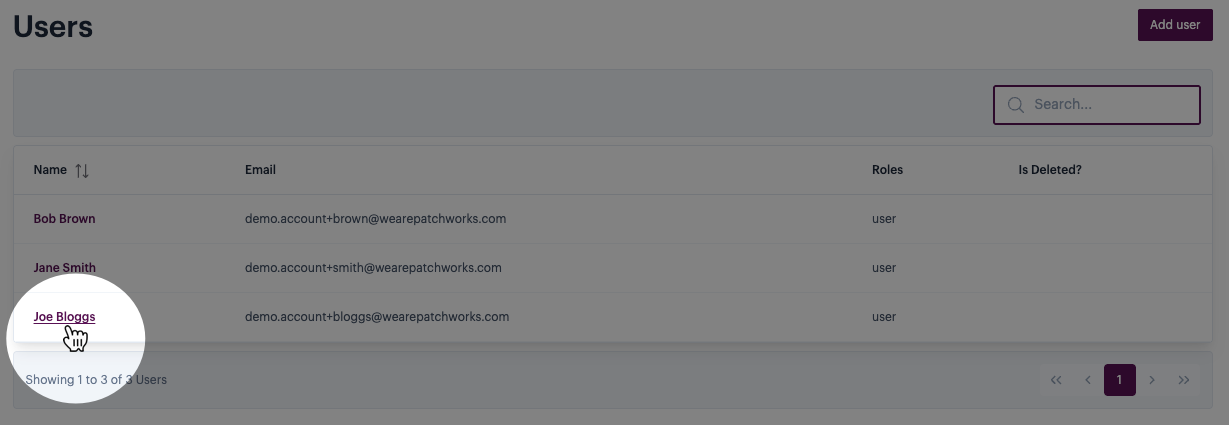
[Access the user list for your company profile](/product-documentation/users-roles-and-permissions/viewing-all-users-for-your-company-profile.md), then click the name of the user you want to remove. For example:
{% endstep %}
{% step %}
**Delete the user**
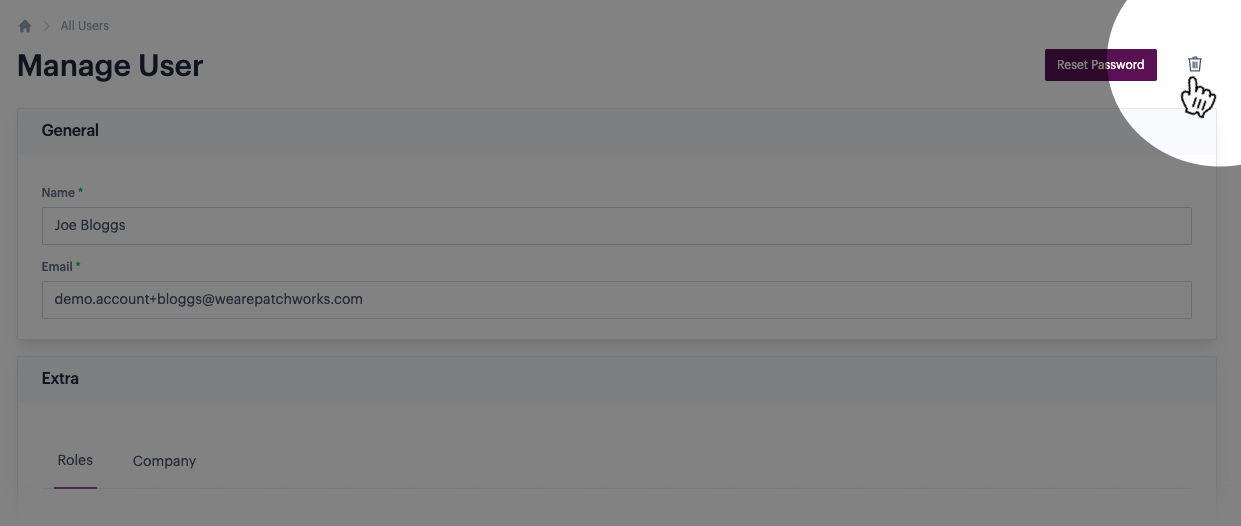
Click the delete icon (trash) at the top of the user profile page. For example:
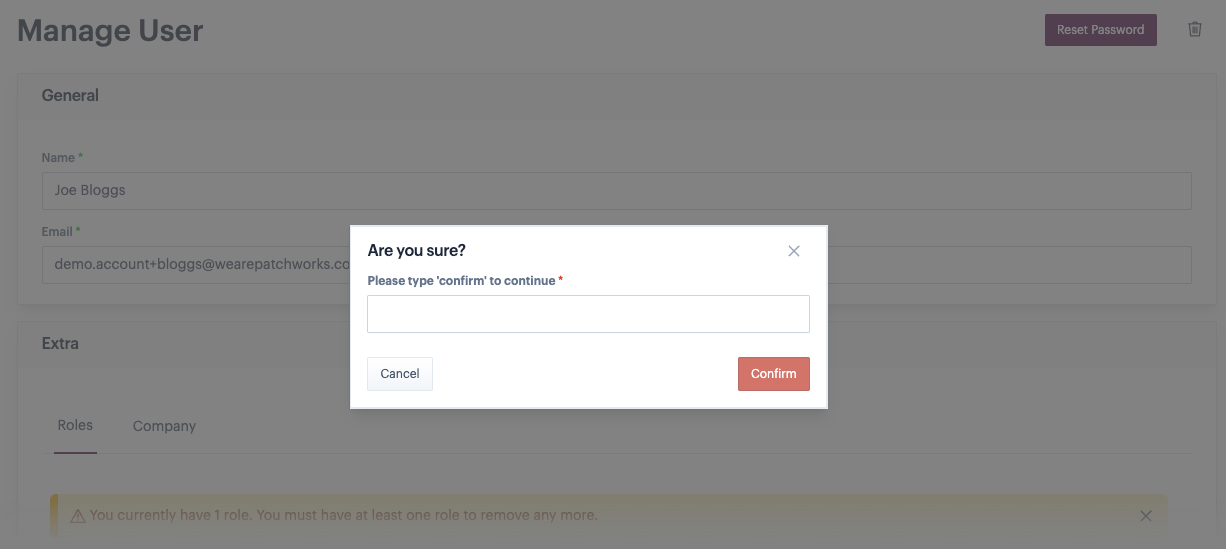
When prompted, confirm that you want to proceed. For example:
{% endstep %}
{% step %}
**Delete the user**
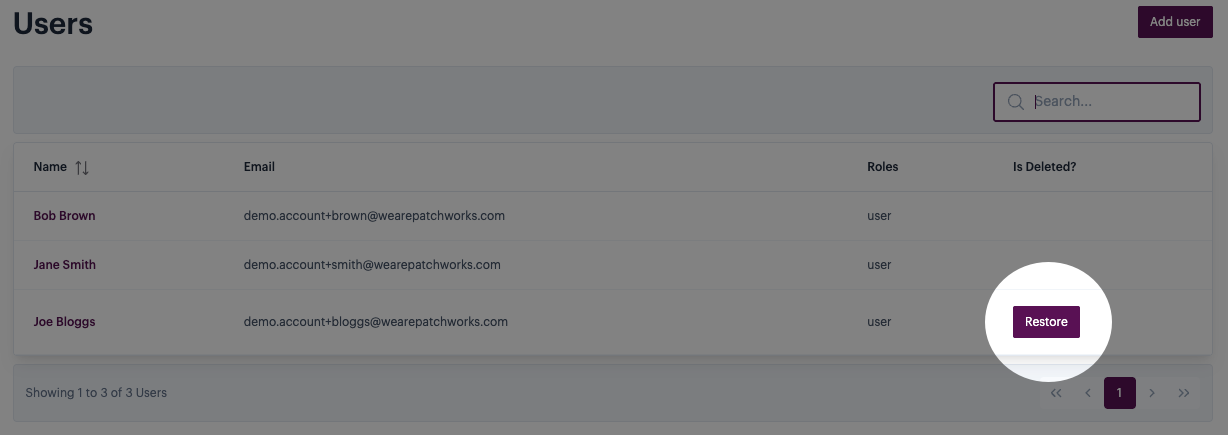
The user is removed, and you're returned to the user list. Here, you'll see that this user is associated with a `restore` option, so this account can be [reactivated](/product-documentation/users-roles-and-permissions/restoring-a-deleted-user-account.md) if needed. For example:
{% endstep %}
{% endstepper %}