> For the complete documentation index, see [llms.txt](https://doc.wearepatchworks.com/product-documentation/llms.txt). Markdown versions of documentation pages are available by appending `.md` to page URLs; this page is available as [Markdown](https://doc.wearepatchworks.com/product-documentation/getting-started/patchworks-quickstart-guide.md).
# Patchworks quickstart guide
## Introduction
There are two possible paths for new clients to get up and running with Patchworks:
* Custom integrations, with help from the Patchworks team
* Self-serve integrations, via the Patchworks dashboard
If yours is a **custom integration**, you're in safe hands! Our teams will work with you to gather requirements and implement a tailor-made solution to meet your exact needs. However, with the launch of the new Patchworks dashboard, **self-serve onboarding** is now possible.
In this guide, we summarise the key steps required to get up and running, with links to relevant articles to help you complete each one.
## Where to start?
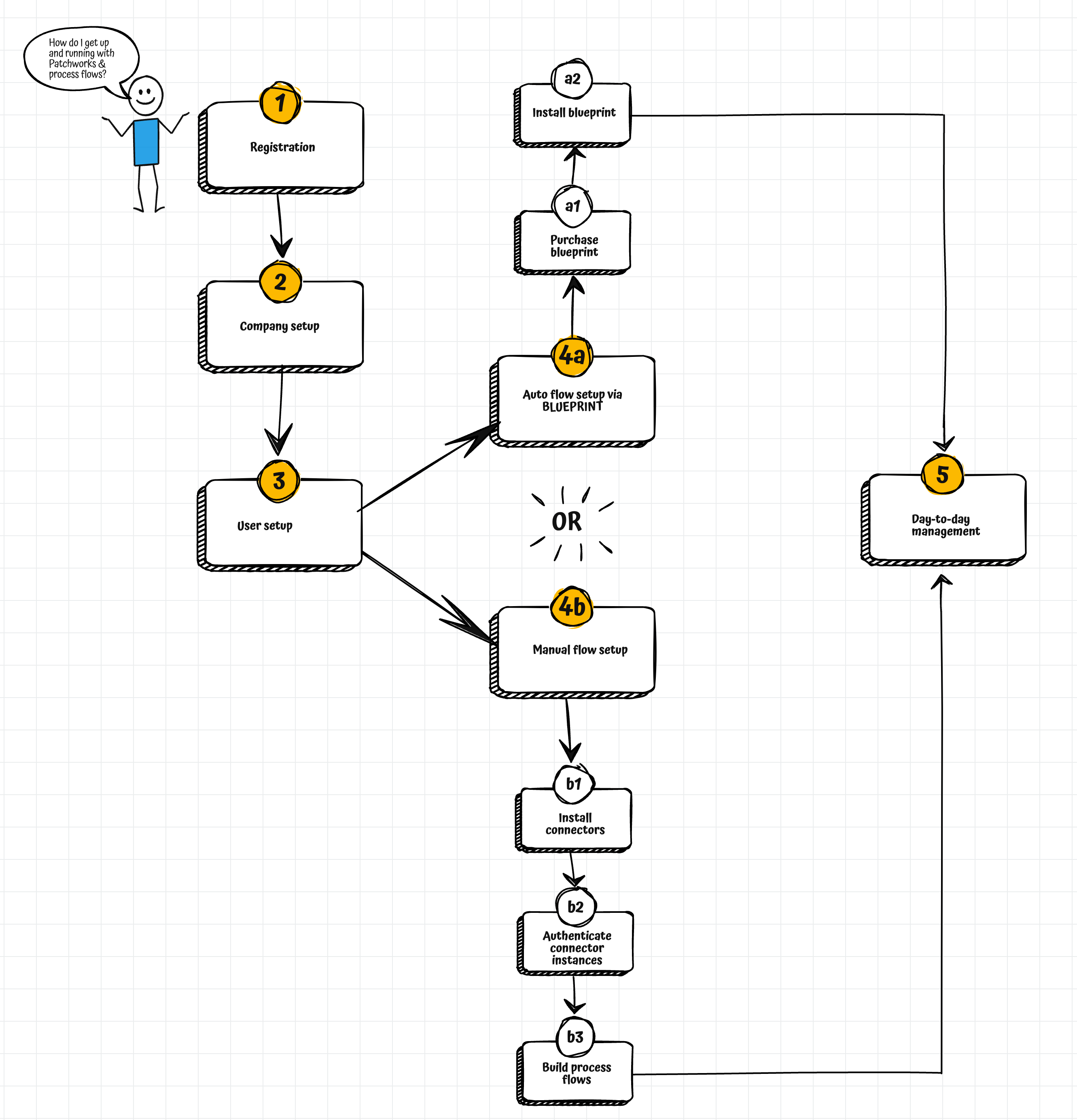
Key steps from initial registration through to putting process flows live are summarised in the illustration below:
## Step 1: Registration
To register your company for a Patchworks account so you can access the Patchworks dashboard, use our registration link below:
{% embed url="" %}
You can register with a **Google sign-in**, or with a **username and password**. For details, please see: [Registering for a Patchworks account](/product-documentation/registration/registering-for-a-patchworks-account.md).
{% hint style="info" %}
If you are a **Patchworks partner** managing multiple company profiles, the [partner features bolt-on](/product-documentation/getting-started/subscription-tier-limits.md#core-subscription-tier-bolt-ons) should be enabled for your account. With this in place, you can [create a company profile for each of your managed companies](/product-documentation/company-management/multi-company-profiles/adding-and-linking-a-new-company.md).
{% endhint %}
## Step 2: Company setup
If your company is standalone and you don't need to manage other (linked) companies, you won't need to complete any further company setup.
If your company DOES need to manage other companies in Patchworks and the [partner features bolt-on](/product-documentation/getting-started/subscription-tier-limits.md#core-subscription-tier-bolt-ons) is enabled for your account, you can [create those company profiles from yours](/product-documentation/company-management/multi-company-profiles/adding-and-linking-a-new-company.md).
## Step 3: User setup
Having registered for a Patchworks account, a user account is created with the credentials you provided. By default, this is an **admin** account.
As an **admin** user, you can choose to create additional user accounts so other members of your team can access the Patchworks dashboard. When you create a user account, you can choose whether that person will have **admin** privileges (so they can create and manage process flows in Patchworks), or simple **user** permissions, (so they largely have view-only access). For details, please see [Adding a company user](/product-documentation/users-roles-and-permissions/creating-a-new-user-account-for-your-company-profile.md).
{% hint style="info" %}
To learn more about Patchworks roles and permissions, please see: [About passwords, roles & permissions](broken://pages/sNrlmpgLbYhnny02igKi). If you are adding/updating users for a managed company profile, please see [Managing team members & users for multi-company profile](/product-documentation/users-roles-and-permissions/managing-team-members-and-users-for-multi-company-profiles.md)s.
{% endhint %}
## Step 4: Flow setup
With your Patchworks company profile in place and users created, you're ready to start creating process flows. There are two approaches for this - [auto setup via blueprints](#auto-setup-via-blueprints), or [manual setup](#manual-setup).
### Auto setup via blueprints
A [blueprint](/product-documentation/blueprints/blueprints-introduction.md) includes everything you need to sync data between two systems - i.e. [connectors](/product-documentation/connectors-and-instances/connectors-and-instances-introduction.md#connectors), [connector instances](/product-documentation/connectors-and-instances/connectors-and-instances-introduction.md#instances), [process flows](/product-documentation/process-flows/building-process-flows.md), [scripts](/product-documentation/developer-hub/custom-scripting.md), [cross-reference lookups](/product-documentation/marketplace/marketplace-cross-reference-lookups.md).\
\
Having purchased and installed a blueprint from the [Patchworks store](https://www.wearepatchworks.com/collections/blueprint#Landing) (following installation instructions provided) - process flows are then ready to test and subsequently put live.
### Manual setup
Here, you add/install/build all required resources - i.e. [connectors](/product-documentation/connectors-and-instances/connectors-and-instances-introduction.md#connectors), [connector instances](/product-documentation/connectors-and-instances/connectors-and-instances-introduction.md#instances), [process flows](/product-documentation/process-flows/building-process-flows.md), [scripts](/product-documentation/developer-hub/custom-scripting.md), [cross-reference lookups](/product-documentation/marketplace/marketplace-cross-reference-lookups.md), and any other resources needed to perform given tasks.\
\
Note that the Patchworks marketplace includes a library of connectors, process flows, scripts and cross-reference lookups that you can install and use as-is, or edit to meet specific requirements. If we don't have a prebuilt [connector](/product-documentation/connectors-and-instances/connectors-and-instances-introduction.md) for an application you need to sync and you have some technical expertise in-house, you can use the [Patchworks connector builder](/product-documentation/developer-hub/connector-builder.md) to build your own.
## Step 5: Day-to-day-management
Once a **process flow** is activated, it runs automatically as per any defined [trigger shape](/product-documentation/process-flows/building-process-flows/process-flow-shapes/standard-shapes/trigger-shape.md) settings. if required, you can also choose to [run a process flow manually](/product-documentation/process-flows/managing-process-flows/initialising-a-process-flow-manually.md), with instant feedback and real-time logging.
As a process flow runs, you can see real-time progress from the [canvas](#process-flow-canvas), with detailed logs generated throughout the run. [Run logs](/product-documentation/process-flows/error-reporting-and-exception-handling/real-time-run-logs.md) can also be viewed retrospectively, so you always have full oversight of what's happened with your data.