> For the complete documentation index, see [llms.txt](https://doc.wearepatchworks.com/product-documentation/llms.txt). Markdown versions of documentation pages are available by appending `.md` to page URLs; this page is available as [Markdown](https://doc.wearepatchworks.com/product-documentation/developer-hub/patchworks-mcp/patchworks-product-documentation-mcp-server/integrating-the-patchworks-product-documentation-mcp-server-with-gemini.md).
# Integrating the Patchworks product documentation MCP server with Gemini
## Introduction
You can integrate the Patchworks documentation MCP server with [Gemini CLI](https://geminicli.com/docs/get-started/) and [Gemini Code Assist](https://codeassist.google/). Both these tools use the same settings file, so adding an MCP server via the CLI will also update your Code Assist integration.
{% hint style="info" %}
The Gemini web app ([gemini.google.com](https://gemini.google.com/)) does not support custom MCP servers - for now, MCP is primarily a developer-centric tool.
{% endhint %}
## Need to know
* The steps detailed below assume that [Gemini CLI is installed](https://geminicli.com/docs/get-started/installation/) and operational on your machine.
* The URL for the Patchworks product documentation MCP server is: `https://doc.wearepatchworks.com/product-documentation/~gitbook/mcp`
## The steps
{% hint style="info" %}
The steps detailed below are for the macOS terminal. You should adapt as needed for your own operating system or environment.
{% endhint %}
{% stepper %}
{% step %}
**Open the Gemini settings file**
You need to open the `/.gemini/settings.json` file. How you do this depends on your environment and preferred tool for editing - some common commands from a macOS terminal window are below:
{% code title="Shell" %}
```bash
nano ~/.gemini/settings.json
```
{% endcode %}
{% code title="VS Code" %}
```bash
code ~/.gemini/settings.json
```
{% endcode %}
{% code title="TextEdit" %}
```bash
open -e ~/.gemini/settings.json
```
{% endcode %}
{% hint style="info" %}
Your path to `/.gemini/settings.json` may vary.
{% endhint %}
{% endstep %}
{% step %}
**Add MCP server details**
Look for an `"mcpServers"` section and add the details below:
For example:
{% code overflow="wrap" %}
```json
{
"mcpServers": {
"PatchworksDocs": {
"url": "https://doc.wearepatchworks.com/product-documentation/~gitbook/mcp",
"type": "http"
}
}
}
```
{% endcode %}
{% hint style="info" %}
If a `settings.json` file does not exist in `/.gemini`, you should create one and paste in the example snippet above.
{% endhint %}
{% endstep %}
{% step %}
**Save and exit**
Save and close the `settings.json` file.
{% endstep %}
{% step %}
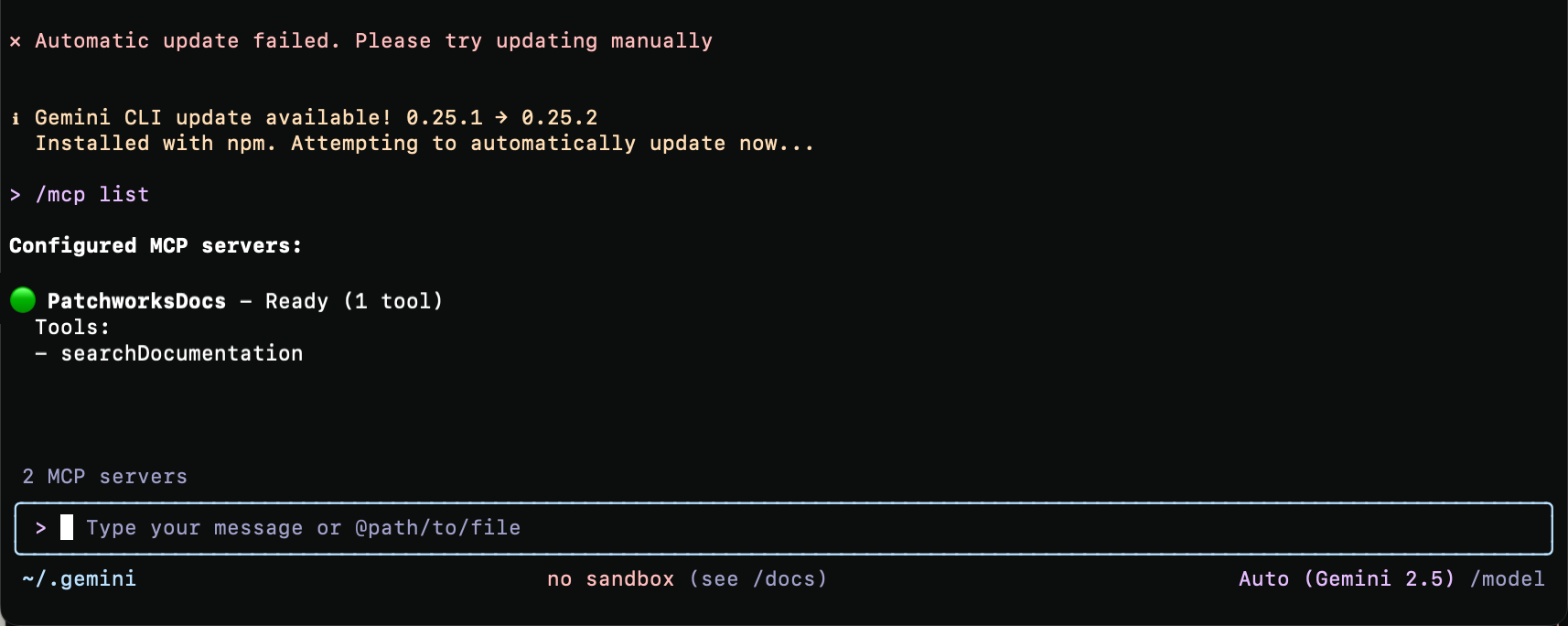
**Check the new MCP server in Gemini CLI**
Launch Gemini CLI (if it's already open, restart to pick up the latest `settings.json` file), then enter the following command:
```
/mcp list
```
This returns a list of MCP servers, and should include the one just added. For example: