> For the complete documentation index, see [llms.txt](https://doc.wearepatchworks.com/product-documentation/llms.txt). Markdown versions of documentation pages are available by appending `.md` to page URLs; this page is available as [Markdown](https://doc.wearepatchworks.com/product-documentation/developer-hub/patchworks-mcp/patchworks-mcp-hosted/working-with-your-hosted-patchworks-mcp-server-deployment/browsing-inspecting-and-testing-tools-for-a-deployed-mcp-server.md).

# Browsing, inspecting & testing tools for a deployed MCP server

## Introduction

Having deployed a remote MCP server, you can browse, inspect and run deployed tools from your `MCP servers` page - think of it like a control panel for trying out each tool before switching to your AI assistant.

## Need to know

* You can browse and run tools for a `deployed` MCP server (not for a `draft`).
* Running tools for your `deployed` MCP server here will produce the same results as running in a connected AI assistant (retrieving your the API key and running through same endpoints)- if it works here, it will work there.\
  \
  (grabbing the API key and running through same endpoints) so if a test works, it will work in the client
* Running tools here decrements your current Patchworks MCP allowance.
* Running tools here has no impact on the AI allowance associated with connected AI assistants.

## The steps

{% stepper %}
{% step %}
**Access your MCP server deployments**

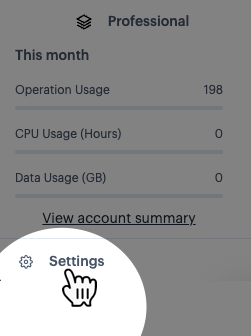
Select the `settings` option (at the bottom of the navigation menu):

<div align="left"><figure><img src="/files/2CflJsyeX7pwhkBMYz1t" alt=""><figcaption></figcaption></figure></div>

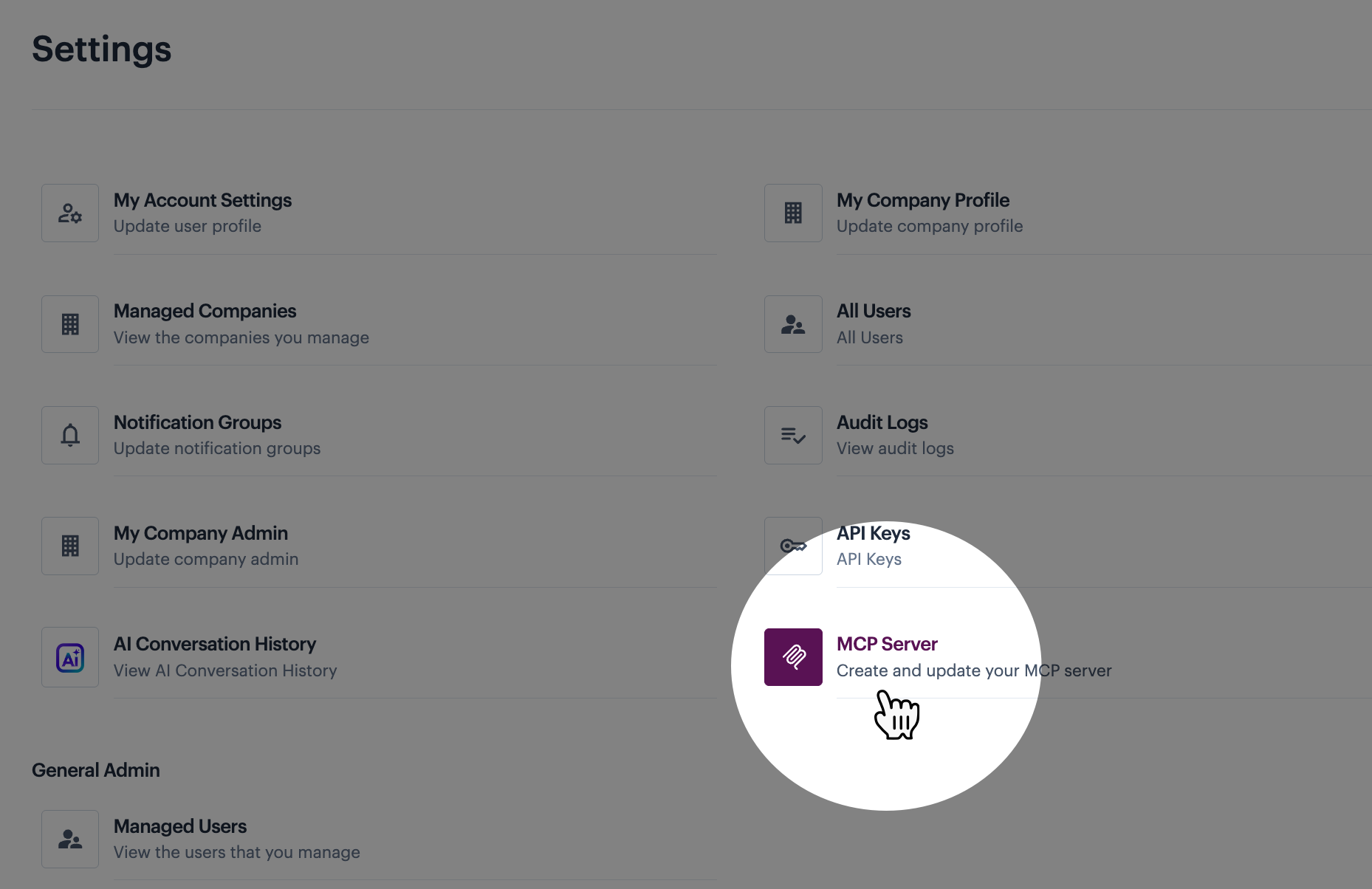
Then select the `MCP servers` option:

<figure><img src="/files/ex9d8TO1FbjQzcLvwHxx" alt=""><figcaption></figcaption></figure>
{% endstep %}

{% step %}
**Access options for your server deployment**

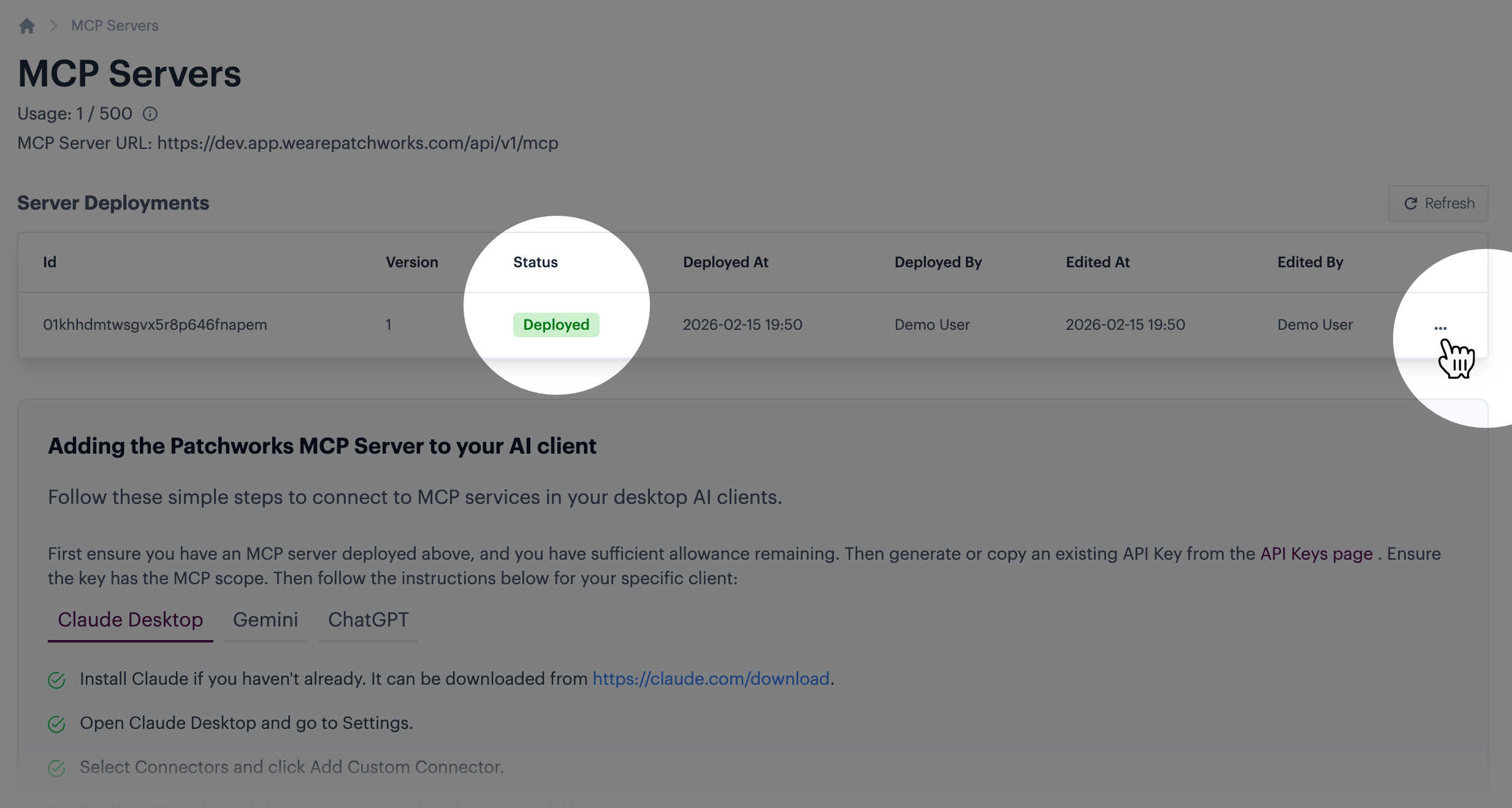
Look for the deployed server and click the associated ellipsis icon. For example:

<div align="left"><figure><img src="/files/MFxSi9a96VHSTdg2js8I" alt=""><figcaption></figcaption></figure></div>
{% endstep %}

{% step %}
**Choose to view deployment details**

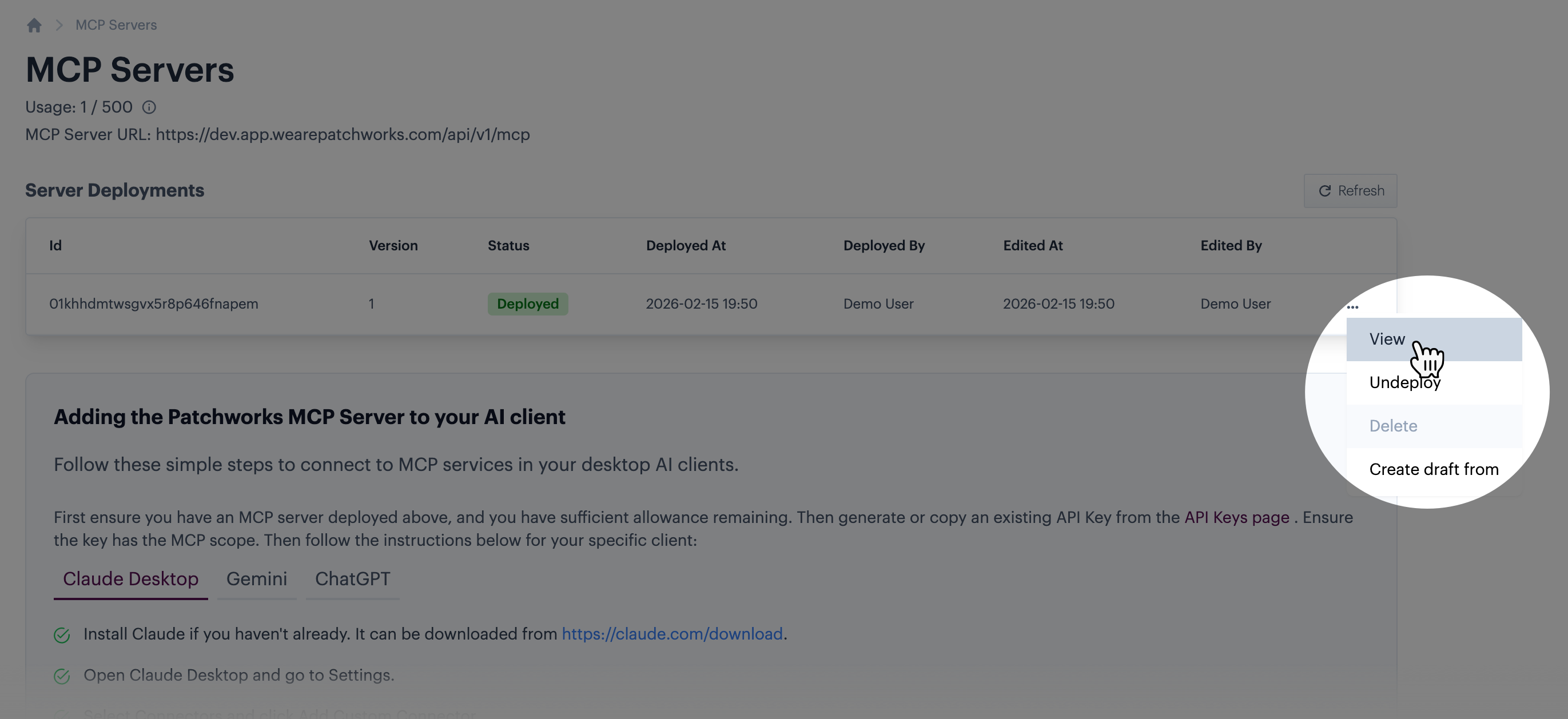
Select the `view` option:

<div align="left"><figure><img src="/files/jWyRDftNbx7zU4XH6K59" alt=""><figcaption></figcaption></figure></div>

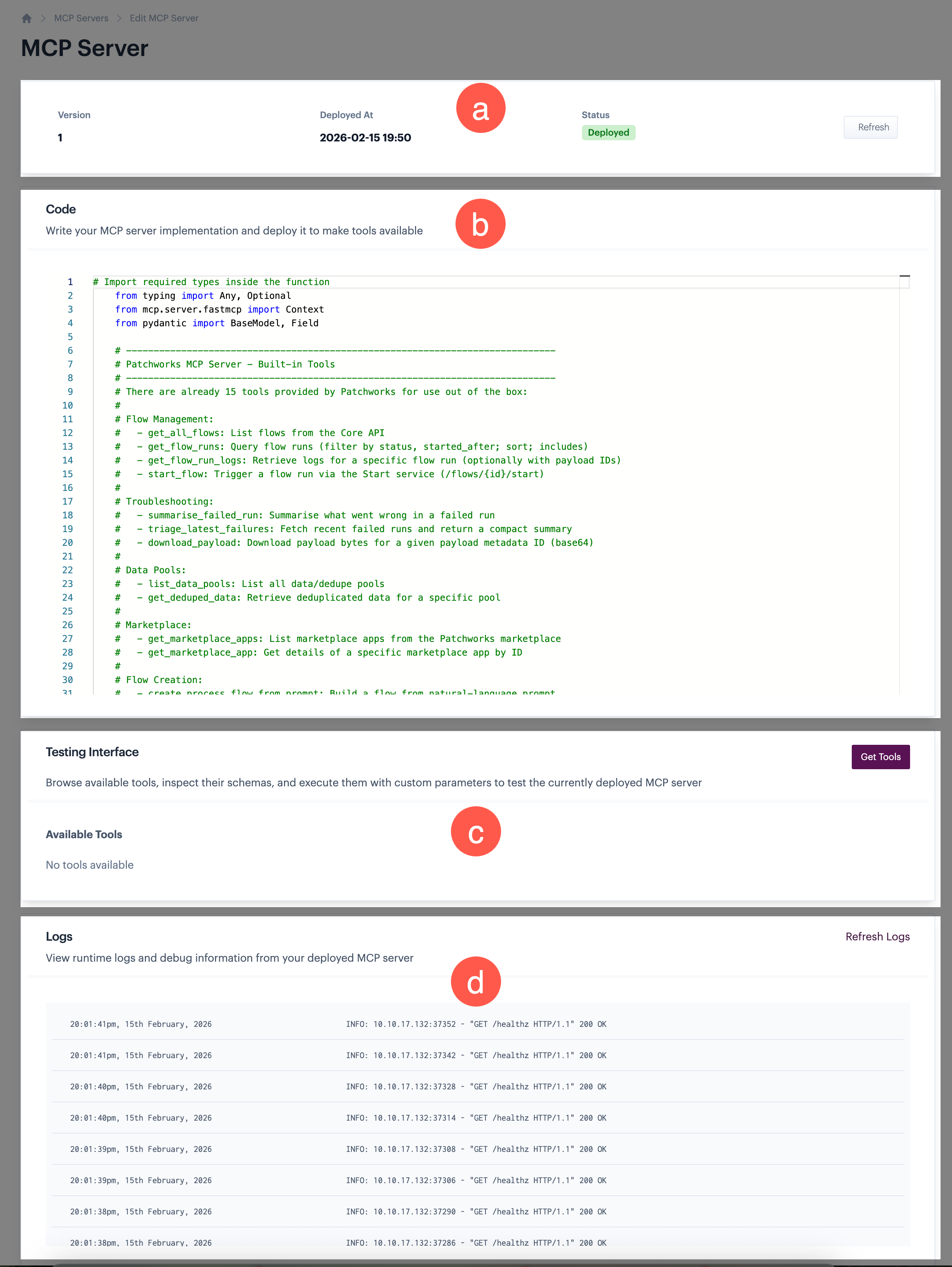
Details for this deployment are shown:

<figure><img src="/files/iSP4GKGJOl28VlmZCdCm" alt=""><figcaption></figcaption></figure>

Information is available in four panels:

<table><thead><tr><th width="98.73046875">Marker</th><th>Summary</th></tr></thead><tbody><tr><td>a</td><td>Basic details for the selected server deployment.</td></tr><tr><td>b</td><td>The <code>code</code> panel shows the existing code for this server deployment. This is read-only, so you can't make changes here. If you want to update these tools, you need to do so from a draft - for details, please refer to <a href="/pages/BHIMFLMKA2QjVMWcXvZd">Customising tools for your hosted MCP server</a>.</td></tr><tr><td>c</td><td>The testing panel is used to list and test all tools associated with this deployment. See next steps for more on this.</td></tr><tr><td>d</td><td>The logs panel shows events for this MCP server.</td></tr></tbody></table>
{% endstep %}

{% step %}
**Retrieve current tools**

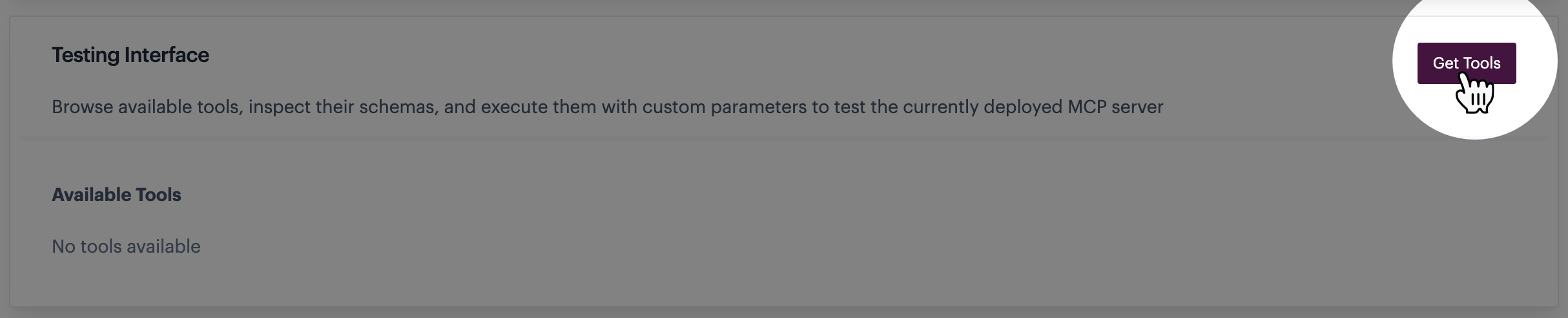
Click the `get tools` button:

<figure><img src="/files/Z2bKgeaw9PgvDDOTBrLQ" alt=""><figcaption></figcaption></figure>

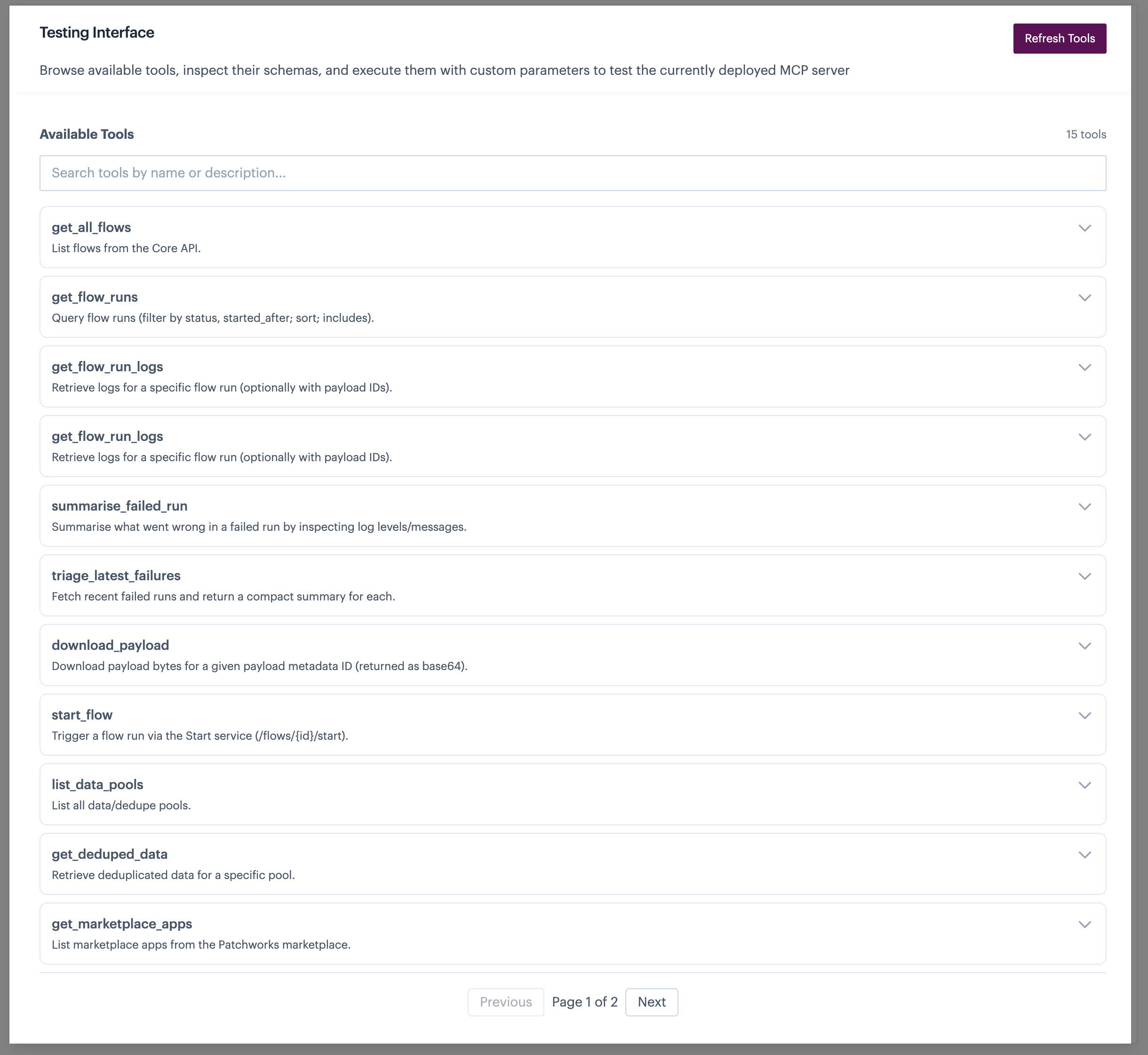
All existing tools are displayed. For example:

<figure><img src="/files/UPwaQxRJ1Ti9rz41uJtA" alt=""><figcaption></figcaption></figure>
{% endstep %}

{% step %}
**Show details for the required tool**

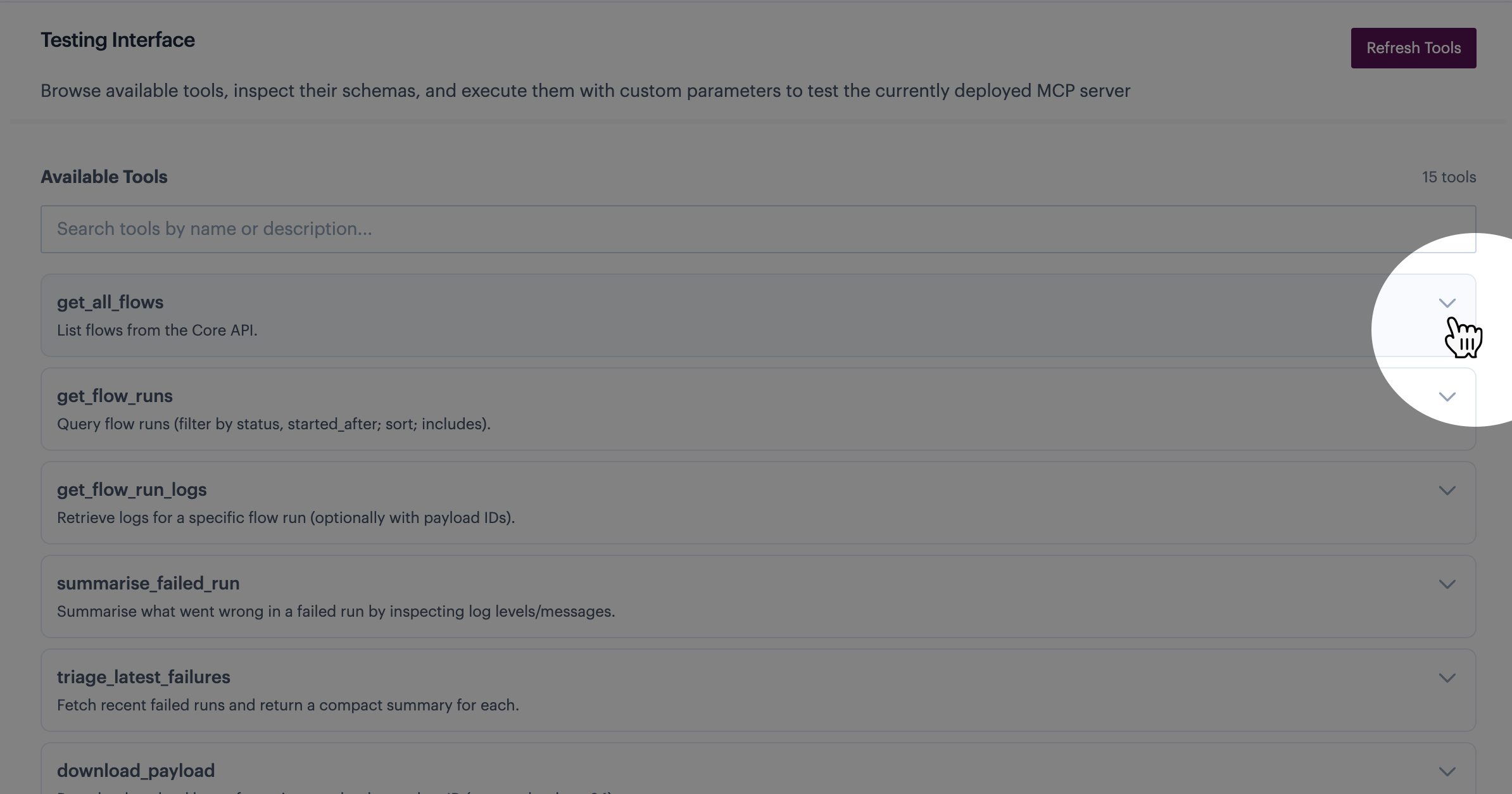
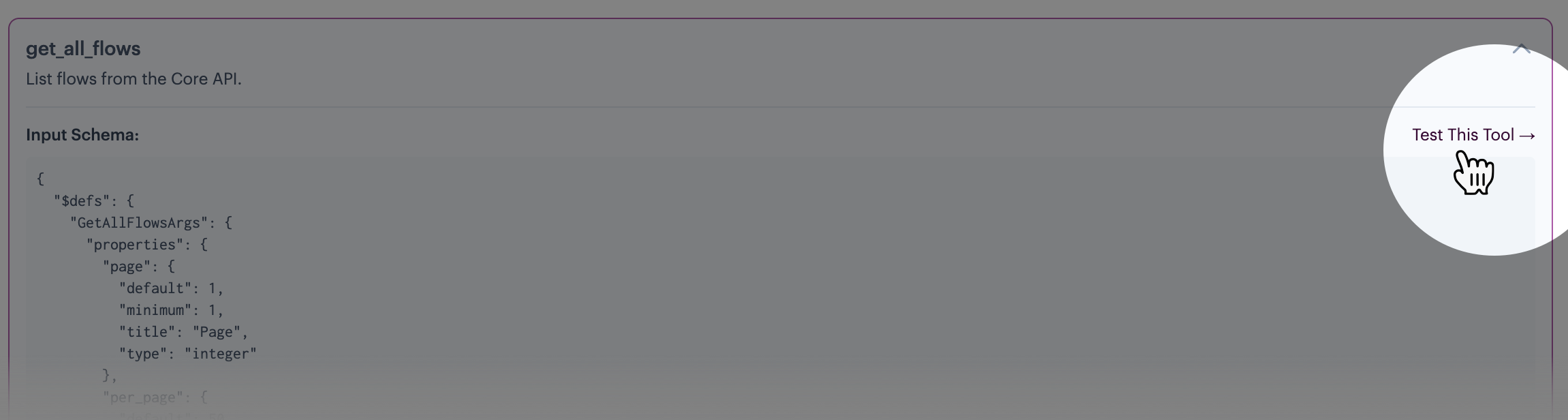
Click the arrow associated with the tool you want to inspect and/or run. For example:

<figure><img src="/files/NpyMNKGXytFR4F7XRznW" alt=""><figcaption></figcaption></figure>

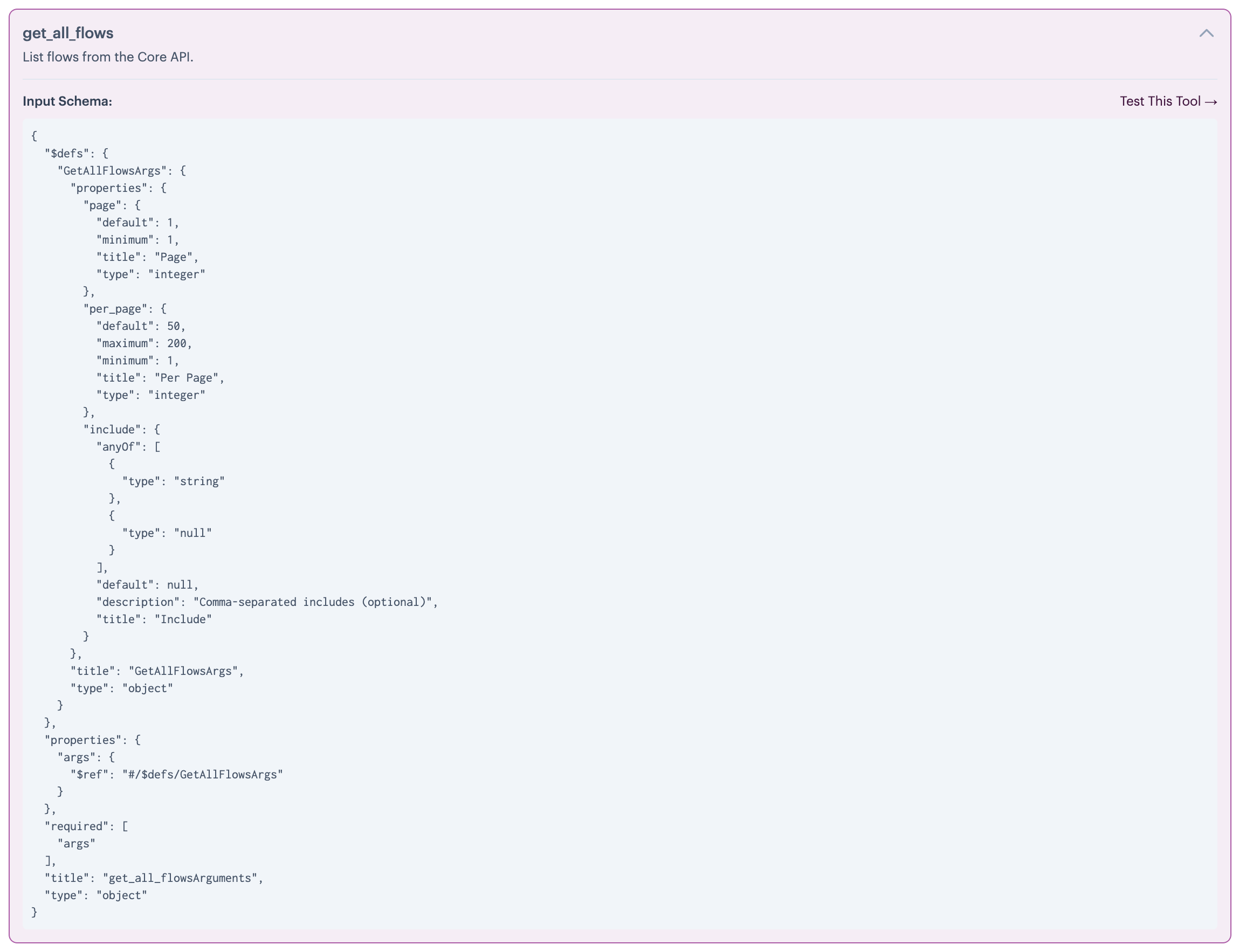
The tool schema is displayed. For example:

<figure><img src="/files/ufIR1RAWfdFom3jjAvun" alt=""><figcaption></figcaption></figure>
{% endstep %}

{% step %}
**Run the tool**

Click the `test this tool` option (at the top of the schema). For example:

<figure><img src="/files/gScv8LuPSfH7NbWftgNv" alt=""><figcaption></figcaption></figure>

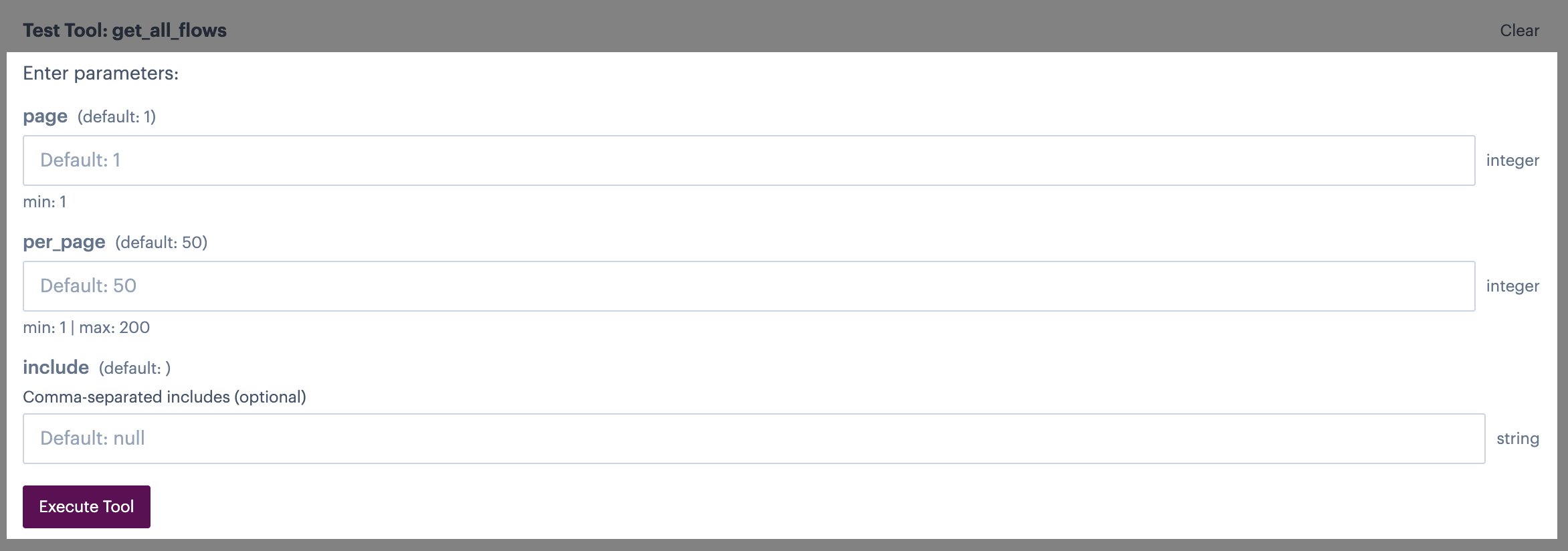
Any parameters associated with the tool are displayed - you can update these as needed:

<figure><img src="/files/9JwgPhLWyDoQwkOpU9va" alt=""><figcaption></figcaption></figure>

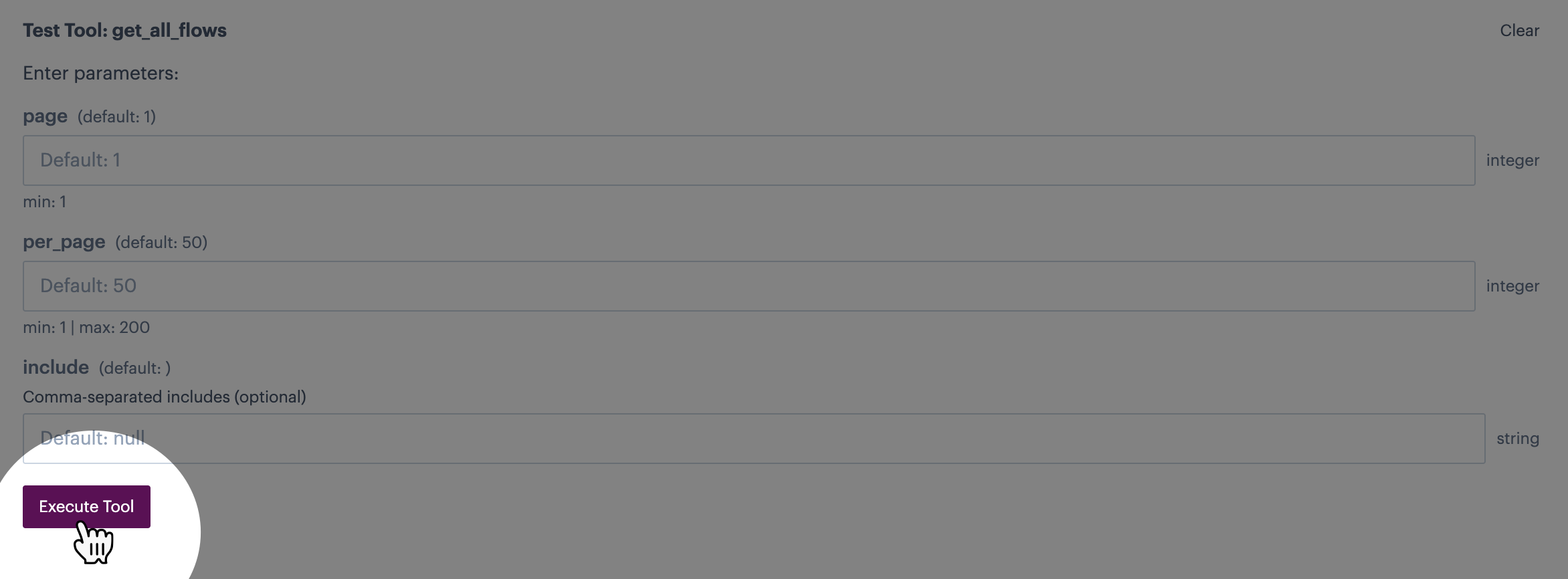
Click the `execute tool` button:

<figure><img src="/files/ee0eOAJWZdyokxFRFRm1" alt=""><figcaption></figcaption></figure>
{% endstep %}

{% step %}
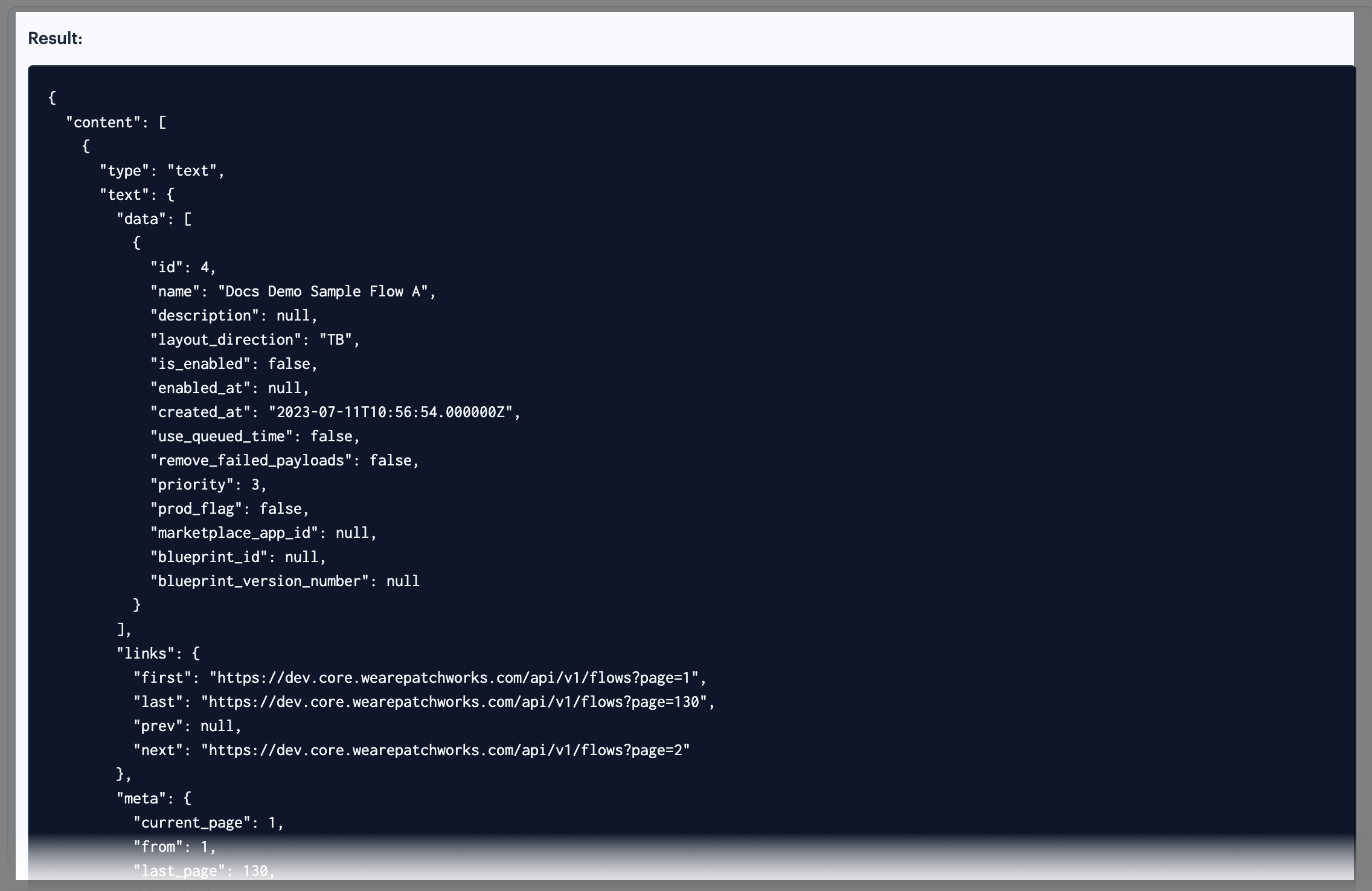
**Review results**

Check the results panel for the request output. For example:

<figure><img src="/files/nmxZjZkhGc2nk330so2a" alt=""><figcaption></figcaption></figure>
{% endstep %}
{% endstepper %}