> For the complete documentation index, see [llms.txt](https://doc.wearepatchworks.com/product-documentation/llms.txt). Markdown versions of documentation pages are available by appending `.md` to page URLs; this page is available as [Markdown](https://doc.wearepatchworks.com/product-documentation/developer-hub/patchworks-mcp/patchworks-mcp-hosted/working-with-your-hosted-patchworks-mcp-server-deployment/customising-tools-for-your-hosted-patchworks-mcp-server.md).
# Customising tools for your hosted Patchworks MCP server
## Introduction
The hosted Patchworks MCP server includes a set of [default tools](/product-documentation/developer-hub/patchworks-mcp/patchworks-mcp-hosted/default-tools-for-the-hosted-patchworks-mcp-server.md) that are ready to use. You can't edit these, but you can add your own.
To do this, you create a `draft` server deployment and then write Python directly in the editor. When the `draft` is [deployed](/product-documentation/developer-hub/patchworks-mcp/patchworks-mcp-hosted/working-with-your-hosted-patchworks-mcp-server-deployment/deploying-updated-mcp-tools-for-an-existing-draft.md), your custom tools become available alongside the default set.
{% hint style="info" %}
You need a working knowledge of Python, Pydantic, the [FastMCP](https://gofastmcp.com/getting-started/welcome) framework, and the [Patchworks API](https://postman.wearepatchworks.com/) to add MCP tools.
{% endhint %}
## Need to know
* Tools can only be added or updated in a `draft` server deployment. You can create a `draft` from an existing `deployed` server or from an `inactive` (i.e. previously `deployed`) version.
* Any new tools must follow a [defined pattern](#tool-pattern).
* Code for built-in tools is not exposed - you cannot edit or remove default tools.
## Default template
When you create a new MCP server, a default template is provided:
{% code lineNumbers="true" expandable="true" %}
```python
# Import required types inside the function
from typing import Any, Optional, Dict
from mcp.server.fastmcp import Context
from pydantic import BaseModel, Field
import os, logging
from urllib.parse import quote
import requests
# Set up logging
log = logging.getLogger("patchworks-client")
log.setLevel(logging.INFO)
log.info("Logging setup complete")
# ------------------------------------------------------------------------------
# Patchworks MCP Server - Built-in Tools
# ------------------------------------------------------------------------------
# There are already 15 tools provided by Patchworks for use out of the box:
#
# Flow Management:
# - get_all_flows: List flows from the Core API
# - get_flow_runs: Query flow runs (filter by status, started_after; sort; includes)
# - get_flow_run_logs: Retrieve logs for a specific flow run (optionally with payload IDs)
# - start_flow: Trigger a flow run via the Start service (/flows/{id}/start)
#
# Troubleshooting:
# - summarise_failed_run: Summarise what went wrong in a failed run
# - triage_latest_failures: Fetch recent failed runs and return a compact summary
# - download_payload: Download payload bytes for a given payload metadata ID (base64)
#
# Data Pools:
# - list_data_pools: List all data/dedupe pools
# - get_deduped_data: Retrieve deduplicated data for a specific pool
#
# Marketplace:
# - get_marketplace_apps: List marketplace apps from the Patchworks marketplace
# - get_marketplace_app: Get details of a specific marketplace app by ID
#
# Flow Creation:
# - create_process_flow_from_prompt: Build a flow from natural-language prompt
# - create_process_flow_from_json: Import a flow with the exact JSON body provided
#
# Utility:
# - example_get_all_flows: Example demonstrating tool definition patterns
# - list_tools: List all available tools in this MCP server
# ------------------------------------------------------------------------------
# ------------------------------------------------------------------------------
# Add Your Custom Tools Below
# ------------------------------------------------------------------------------
# Available in the environment:
# - patchworks_client as pw (for defined Patchworks API calls shown above)
# - get_token_from_context(ctx) (for authentication)
# - @mcp.tool() decorator
# - Context, FastMCP from mcp.server.fastmcp
# - BaseModel, Field from pydantic
# Pattern for adding a new tool:
#
# Define your argument model
# --------------------------------------
# class MyCustomToolArgs(BaseModel):
# param1: str = Field(..., description="Description of param1")
#
#
# Define the tool
# --------------------------------------
# @mcp.tool()
# def my_custom_tool(args: MyCustomToolArgs, ctx: Optional[Context] = None):
# """Description of what your tool does."""
# token = get_token_from_context(ctx)
# result = pw.some_api_method(args.param1, token=token)
# return result
#
#
# Register the tool with the MCP client
# --------------------------------------
# mcp._custom_tools_registry.append({
# "name": "my_custom_tool",
# "description": "Description of what your tool does.",
# "category": "custom"
# })
def _core_get(path: str, token: str, params: Optional[Dict[str, Any]] = None) -> Any:
"""
Minimal Core API GET helper for custom tools.
Assumes CORE_BASE_URL is available in env or already defined in this file.
"""
CORE_API = os.getenv("PATCHWORKS_CORE_API", "").rstrip("/")
url = f"{CORE_API}{path}"
headers = {
"Authorization": f"{token}",
"Accept": "application/json",
"Content-Type": "application/json"
}
r = requests.get(url, headers=headers, params=params, timeout=30)
# Raise a helpful error (FastMCP will surface this)
try:
r.raise_for_status()
except requests.HTTPError as e:
# include response body if present (often has useful error JSON)
raise RuntimeError(f"Core API GET {url} failed: {r.status_code} {r.text} {headers.Authorization}") from e
# Return JSON if possible, else raw text
content_type = (r.headers.get("Content-Type") or "").lower()
if "application/json" in content_type:
return r.json()
return r.text
# ------------------------------------------------------------------------------
# Example tool - Get all Caches
# ------------------------------------------------------------------------------
class ListCachesArgs(BaseModel):
page: int = Field(1, ge=1, description="Page number to retrieve")
per_page: int = Field(50, ge=1, le=200, description="Number of items per page")
include: Optional[str] = Field(None, description="Comma-separated includes (optional)")
@mcp.tool()
def list_caches(args: ListCachesArgs, ctx: Optional[Context] = None) -> Any:
"""List caches from the Core API."""
token = get_token_from_context(ctx)
params: Dict[str, Any] = {"page": args.page, "per_page": args.per_page}
if args.include:
params["include"] = args.include
return _core_get("/caches", token=token, params=params)
mcp._custom_tools_registry.append({
"name": "list_caches",
"description": "List caches from the Core API.",
"category": "caches"
})
```
{% endcode %}
We break this file down in the following sections:
* [Import libraries](#import-libraries)
* [Set up logging](#set-up-logging)
* [Built-in tools reference](#built-in-tools-reference)
* [Environment](#environment)
* [Tool pattern](#tool-pattern)
* [Core helper](#core-helper)
* [Example tool](#example-tool)
* [Where do I add the next tool?](#where-do-i-add-the-next-tool)
### Import libraries
Loads required libraries, including type hints, Pydantic for argument validation, the MCP context, HTTP requests, and logging utilities.
{% code title="Lines 1-7 from main example" lineNumbers="true" %}
```python
# Import required types inside the function
from typing import Any, Optional, Dict
from mcp.server.fastmcp import Context
from pydantic import BaseModel, Field
import os, logging
from urllib.parse import quote
import requests
```
{% endcode %}
### Set up logging
Configures a logger so tools can output diagnostic messages during execution.
{% code title="Lines 9-12 from main example" lineNumbers="true" expandable="true" %}
```python
# Set up logging
log = logging.getLogger("patchworks-client")
log.setLevel(logging.INFO)
log.info("Logging setup complete")
```
{% endcode %}
### Built-in tools reference
A commented list of the built-in tools. This is just reference information, so you can see what's already available.
{% code title="Lines 13-44 from main example" lineNumbers="true" expandable="true" %}
```python
# ------------------------------------------------------------------------------
# Patchworks MCP Server - Built-in Tools
# ------------------------------------------------------------------------------
# There are already 15 tools provided by Patchworks for use out of the box:
#
# Flow Management:
# - get_all_flows: List flows from the Core API
# - get_flow_runs: Query flow runs (filter by status, started_after; sort; includes)
# - get_flow_run_logs: Retrieve logs for a specific flow run (optionally with payload IDs)
# - start_flow: Trigger a flow run via the Start service (/flows/{id}/start)
#
# Troubleshooting:
# - summarise_failed_run: Summarise what went wrong in a failed run
# - triage_latest_failures: Fetch recent failed runs and return a compact summary
# - download_payload: Download payload bytes for a given payload metadata ID (base64)
#
# Data Pools:
# - list_data_pools: List all data/dedupe pools
# - get_deduped_data: Retrieve deduplicated data for a specific pool
#
# Marketplace:
# - get_marketplace_apps: List marketplace apps from the Patchworks marketplace
# - get_marketplace_app: Get details of a specific marketplace app by ID
#
# Flow Creation:
# - create_process_flow_from_prompt: Build a flow from a natural-language prompt
# - create_process_flow_from_json: Import a flow with the exact JSON body provided
#
# Utility:
# - example_get_all_flows: Example demonstrating tool definition patterns
# - list_tools: List all available tools in this MCP server
# ------------------------------------------------------------------------------
```
{% endcode %}
### Environment
{% code title="Lines 51-56 from main example" lineNumbers="true" %}
```python
# Available in the environment:
# - patchworks_client as pw (for defined Patchworks API calls shown above)
# - get_token_from_context(ctx) (for authentication)
# - @mcp.tool() decorator
# - Context, FastMCP from mcp.server.fastmcp
# - BaseModel, Field from pydantic
```
{% endcode %}
A commented summary explaining what's available in the environment (`pw`, `get_token_from_context`, decorators, etc.).
### Tool pattern
A commented template showing the required three-part pattern for adding a tool: argument model, tool definition, and registry:
{% code title="Lines 58-82 from main example" lineNumbers="true" %}
```python
# Pattern for adding a new tool:
#
# Define your argument model
# --------------------------------------
# class MyCustomToolArgs(BaseModel):
# param1: str = Field(..., description="Description of param1")
#
#
# Define the tool
# --------------------------------------
# @mcp.tool()
# def my_custom_tool(args: MyCustomToolArgs, ctx: Optional[Context] = None):
# """Description of what your tool does."""
# token = get_token_from_context(ctx)
# result = pw.some_api_method(args.param1, token=token)
# return result
#
#
# Register the tool with the MCP client
# --------------------------------------
# mcp._custom_tools_registry.append({
# "name": "my_custom_tool",
# "description": "Description of what your tool does.",
# "category": "custom"
# })
```
{% endcode %}
Use this pattern for any tools that you want to add.
### Core helper
A reusable function that handles making authenticated requests to the Patchworks Core API. It reads the API base URL from the environment, attaches auth headers, makes the request, handles errors, and returns the JSON response. This helper is used by every tool.
{% code title="Lines 83-109 from main example" lineNumbers="true" %}
```python
def _core_get(path: str, token: str, params: Optional[Dict[str, Any]] = None) -> Any:
"""
Minimal Core API GET helper for custom tools.
Assumes CORE_BASE_URL is available in env or already defined in this file.
"""
CORE_API = os.getenv("PATCHWORKS_CORE_API", "").rstrip("/")
url = f"{CORE_API}{path}"
headers = {
"Authorization": f"{token}",
"Accept": "application/json",
"Content-Type": "application/json"
}
r = requests.get(url, headers=headers, params=params, timeout=30)
# Raise a helpful error (FastMCP will surface this)
try:
r.raise_for_status()
except requests.HTTPError as e:
# include response body if present (often has useful error JSON)
raise RuntimeError(f"Core API GET {url} failed: {r.status_code} {r.text} {headers.Authorization}") from e
# Return JSON if possible, else raw text
content_type = (r.headers.get("Content-Type") or "").lower()
if "application/json" in content_type:
return r.json()
return r.text
```
{% endcode %}
### Example tool (get all caches)
A working example (get all caches) showing the [three-part pattern](#tool-pattern) in practice.
{% code title="Lines 112-136 from main example" lineNumbers="true" %}
```python
# ------------------------------------------------------------------------------
# Example tool - Get all Caches
# ------------------------------------------------------------------------------
class ListCachesArgs(BaseModel):
page: int = Field(1, ge=1, description="Page number to retrieve")
per_page: int = Field(50, ge=1, le=200, description="Number of items per page")
include: Optional[str] = Field(None, description="Comma-separated includes (optional)")
@mcp.tool()
def list_caches(args: ListCachesArgs, ctx: Optional[Context] = None) -> Any:
"""List caches from the Core API."""
token = get_token_from_context(ctx)
params: Dict[str, Any] = {"page": args.page, "per_page": args.per_page}
if args.include:
params["include"] = args.include
return _core_get("/caches", token=token, params=params)
mcp._custom_tools_registry.append({
"name": "list_caches",
"description": "List caches from the Core API.",
"category": "caches"
})
```
{% endcode %}
### Where do I add the next tool?
To extend the default specification, add your next tool right after the last. See line 138 onwards in the full example below, where we've added a tool to get connectors:
    # Import required types inside the function
    from typing import Any, Optional, Dict
    from mcp.server.fastmcp import Context
    from pydantic import BaseModel, Field
    import os, logging
    from urllib.parse import quote
    import requests

    # Set up logging
    log = logging.getLogger("patchworks-client")
    log.setLevel(logging.INFO)
    log.info("Logging setup complete")
    # ------------------------------------------------------------------------------
    # Patchworks MCP Server - Built-in Tools
    # ------------------------------------------------------------------------------
    # There are already 15 tools provided by Patchworks for use out of the box:
    #
    # Flow Management:
    #   - get_all_flows: List flows from the Core API
    #   - get_flow_runs: Query flow runs (filter by status, started_after; sort; includes)
    #   - get_flow_run_logs: Retrieve logs for a specific flow run (optionally with payload IDs)
    #   - start_flow: Trigger a flow run via the Start service (/flows/{id}/start)
    #
    # Troubleshooting:
    #   - summarise_failed_run: Summarise what went wrong in a failed run
    #   - triage_latest_failures: Fetch recent failed runs and return a compact summary
    #   - download_payload: Download payload bytes for a given payload metadata ID (base64)
    #
    # Data Pools:
    #   - list_data_pools: List all data/dedupe pools
    #   - get_deduped_data: Retrieve deduplicated data for a specific pool
    #
    # Marketplace:
    #   - get_marketplace_apps: List marketplace apps from the Patchworks marketplace
    #   - get_marketplace_app: Get details of a specific marketplace app by ID
    #
    # Flow Creation:
    #   - create_process_flow_from_prompt: Build a flow from natural-language prompt
    #   - create_process_flow_from_json: Import a flow with the exact JSON body provided
    #
    # Utility:
    #   - example_get_all_flows: Example demonstrating tool definition patterns
    #   - list_tools: List all available tools in this MCP server
    # ------------------------------------------------------------------------------


    # ------------------------------------------------------------------------------
    # Add Your Custom Tools Below
    # ------------------------------------------------------------------------------

    # Available in the environment:
    # - patchworks_client as pw (for defined Patchworks API calls shown above)
    # - get_token_from_context(ctx) (for authentication)
    # - @mcp.tool() decorator
    # - Context, FastMCP from mcp.server.fastmcp
    # - BaseModel, Field from pydantic

    # Pattern for adding a new tool:
    #
    # Define your argument model
    # --------------------------------------
    # class MyCustomToolArgs(BaseModel):
    #     param1: str = Field(..., description="Description of param1")
    #
    #
    # Define the tool
    # --------------------------------------
    # @mcp.tool()
    # def my_custom_tool(args: MyCustomToolArgs, ctx: Optional[Context] = None):
    #     """Description of what your tool does."""
    #     token = get_token_from_context(ctx)
    #     result = pw.some_api_method(args.param1, token=token)
    #     return result
    #
    #
    # Register the tool with the MCP client
    # --------------------------------------
    # mcp._custom_tools_registry.append({
    #     "name": "my_custom_tool",
    #     "description": "Description of what your tool does.",
    #     "category": "custom"
    # })
    def _core_get(path: str, token: str, params: Optional[Dict[str, Any]] = None) -> Any:
        """
        Minimal Core API GET helper for custom tools.
        Assumes CORE_BASE_URL is available in env or already defined in this file.
        """
        CORE_API = os.getenv("PATCHWORKS_CORE_API", "").rstrip("/")
        url = f"{CORE_API}{path}"

        headers = {
            "Authorization": f"{token}",
            "Accept": "application/json",
            "Content-Type": "application/json"
        }
        r = requests.get(url, headers=headers, params=params, timeout=30)

        # Raise a helpful error (FastMCP will surface this)
        try:
            r.raise_for_status()
        except requests.HTTPError as e:
            # include response body if present (often has useful error JSON)
            raise RuntimeError(f"Core API GET {url} failed: {r.status_code} {r.text} {headers.Authorization}") from e

        # Return JSON if possible, else raw text
        content_type = (r.headers.get("Content-Type") or "").lower()
        if "application/json" in content_type:
            return r.json()
        return r.text


    # ------------------------------------------------------------------------------
    # Example tool - Get all Caches
    # ------------------------------------------------------------------------------
    class ListCachesArgs(BaseModel):
        page: int = Field(1, ge=1, description="Page number to retrieve")
        per_page: int = Field(50, ge=1, le=200, description="Number of items per page")
        include: Optional[str] = Field(None, description="Comma-separated includes (optional)")


    @mcp.tool()
    def list_caches(args: ListCachesArgs, ctx: Optional[Context] = None) -> Any:
        """List caches from the Core API."""

        token = get_token_from_context(ctx)
        params: Dict[str, Any] = {"page": args.page, "per_page": args.per_page}
        if args.include:
            params["include"] = args.include
        return _core_get("/caches", token=token, params=params)


    mcp._custom_tools_registry.append({
        "name": "list_caches",
        "description": "List caches from the Core API.",
        "category": "caches"
    })

    # ------------------------------------------------------------------------------
    # Example tool - Get all Connectors with Instances
    # ------------------------------------------------------------------------------
    class ListConnectorsArgs(BaseModel):
        page: int = Field(1, ge=1, description="Page number to retrieve")
        per_page: int = Field(50, ge=1, le=200, description="Number of items per page")
        include: Optional[str] = Field("instances", description="Comma-separated includes (default: instances)")


    @mcp.tool()
    def list_connectors(args: ListConnectorsArgs, ctx: Optional[Context] = None) -> Any:
        """List all connectors and their associated instances from the Core API."""

        token = get_token_from_context(ctx)
        params: Dict[str, Any] = {"page": args.page, "per_page": args.per_page}
        if args.include:
            params["include"] = args.include
        return _core_get("/connectors", token=token, params=params)


    mcp._custom_tools_registry.append({
        "name": "list_connectors",
        "description": "List all connectors and their associated instances from the Core API.",
        "category": "connectors"
    })
### Editing an MCP server draft deployment
As noted previously, to add your own tools to the Patchworks MCP server, you must work with a `draft` deployment.
{% stepper %}
{% step %}
**Access your MCP server deployments**
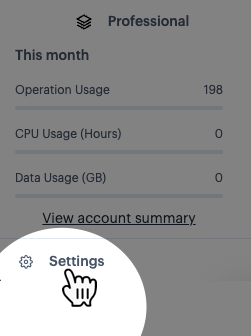
Select the `settings` option (at the bottom of the navigation menu):
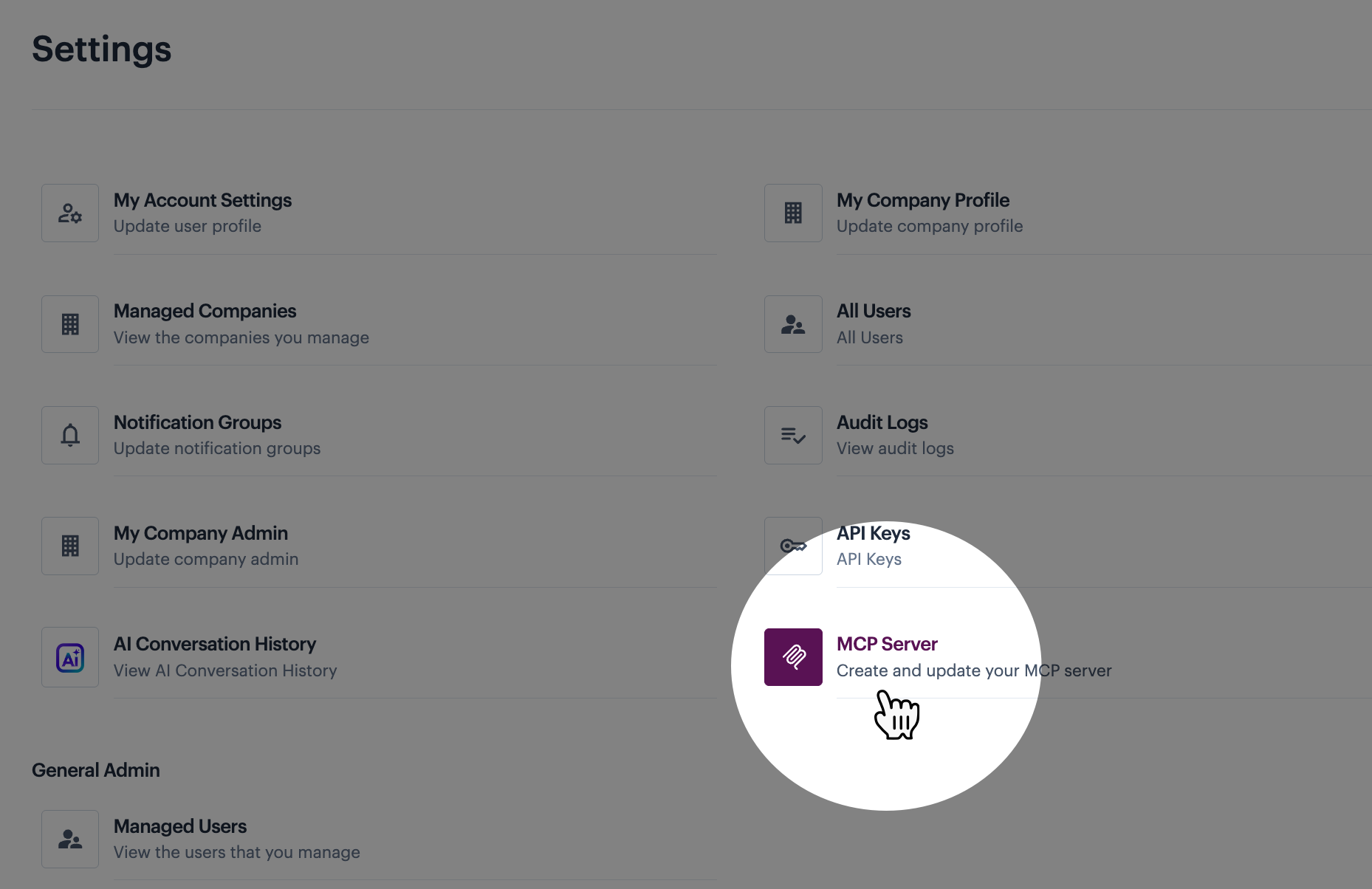
Then select the `MCP servers` option:
{% endstep %}
{% step %}
**Create a draft deployment (if not already present)**
If your server deployments list already includes a draft entry, you can skip this step. Otherwise, you can create a draft using ONE of the methods below:
If a `deployed` or `inactive` entry IS present:
Create a draft from it
This creates a new `draft` entry, leaving any existing `deployed` version in place (so your AI assistant(s) can continue to access the hosted Patchworks MCP server while you make changes).
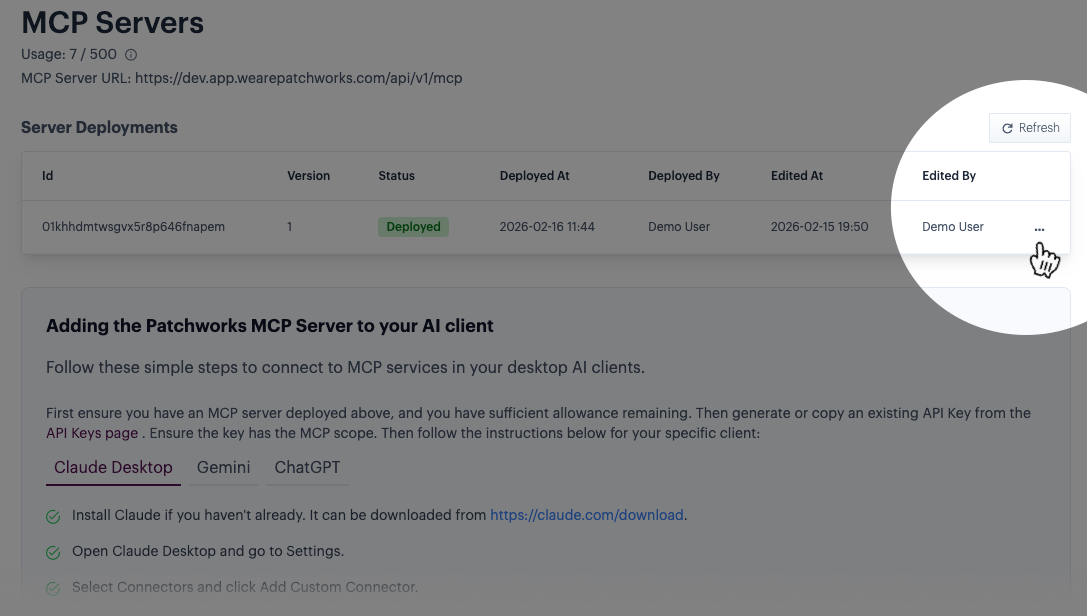
Click the ellipsis icon for the required entry:
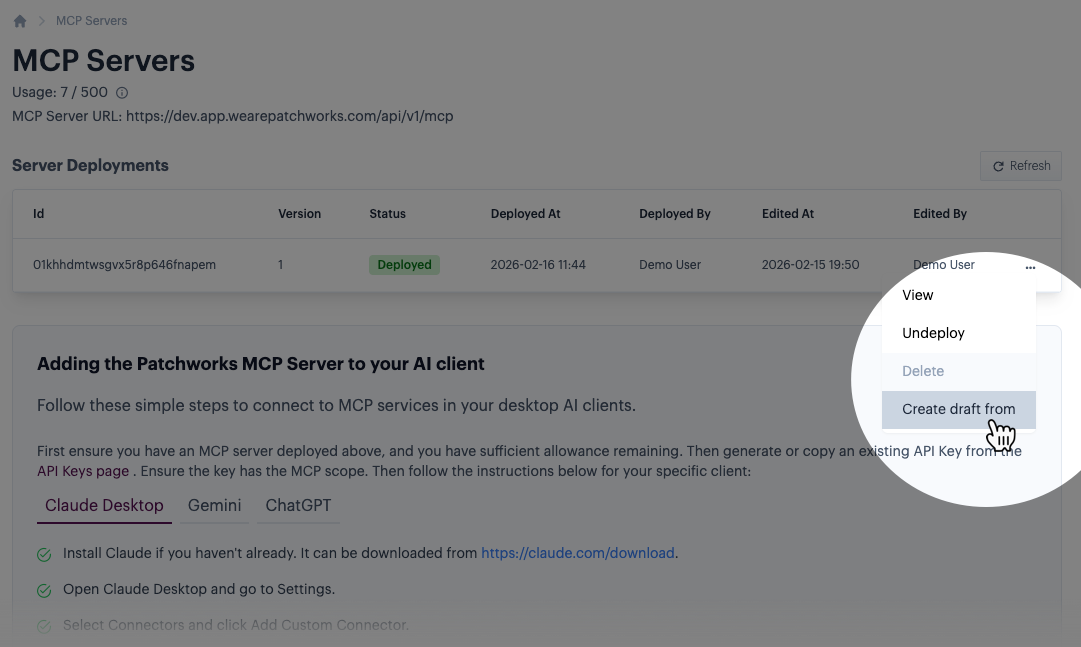
Then select the `create draft from` option:
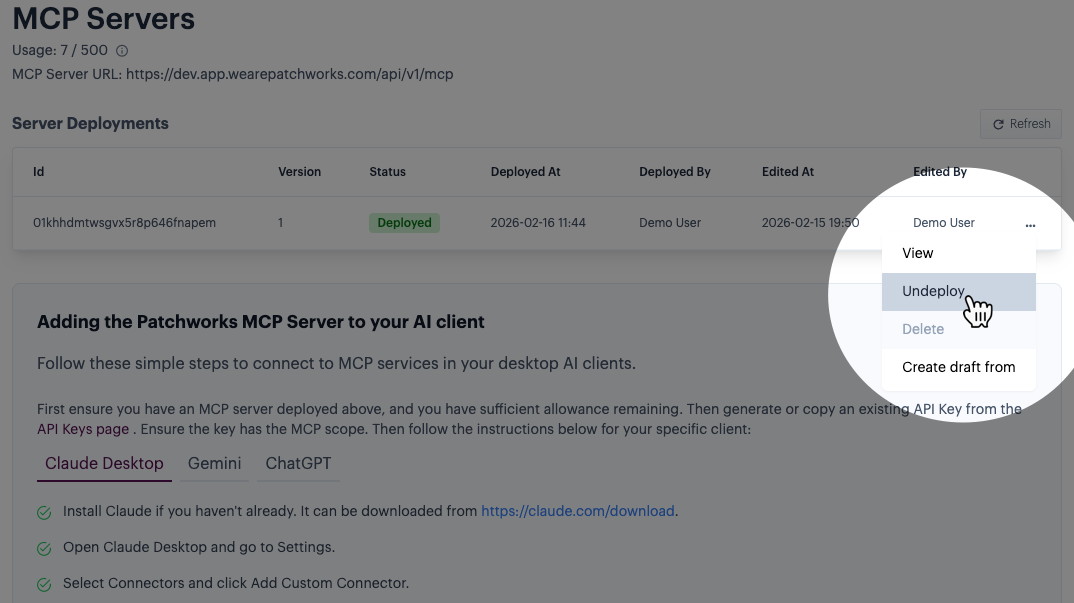
Undeploy the current deployment
If a `deployed` entry is present, you can *undeploy* it. This changes the version from `deployed` to `draft`, ready for editing. However, it's important to note that your AI assistant(s) cannot access the hosted Patchworks MCP server when it is undeployed.
Click the ellipsis icon for the required entry:
Then select the `undeploy` option:
If a `deployed` or `inactive` entry IS NOT present:
Create a new server deployment, then undeploy it
Follow [instructions to deploy a hosted Patchworks MCP server for the first time](/product-documentation/developer-hub/patchworks-mcp/patchworks-mcp-hosted/installation-and-setup-patchworks-mcp-hosted/deploying-a-hosted-patchworks-mcp-server-for-the-first-time.md), then immediately undeploy it (see above) to change the `deployed` status to `draft`).
If a `deployed` entry IS present, but you want to start again from scratch:
Create a new server deployment, then undeploy it
1. Follow [instructions to undeploy the `deployed` version](/product-documentation/developer-hub/patchworks-mcp/patchworks-mcp-hosted/working-with-your-hosted-patchworks-mcp-server-deployment/undeploying-your-patchworks-mcp-server.md), setting it back to `draft`.
2. Follow [instructions to delete the draft entry](/product-documentation/developer-hub/patchworks-mcp/patchworks-mcp-hosted/working-with-your-hosted-patchworks-mcp-server-deployment/deleting-your-patchworks-mcp-server-deployment.md).
3. Follow [instructions to deploy a hosted Patchworks MCP server for the first time](/product-documentation/developer-hub/patchworks-mcp/patchworks-mcp-hosted/installation-and-setup-patchworks-mcp-hosted/deploying-a-hosted-patchworks-mcp-server-for-the-first-time.md), then immediately undeploy it to change the `deployed` status to `draft`).
{% endstep %}
{% step %}
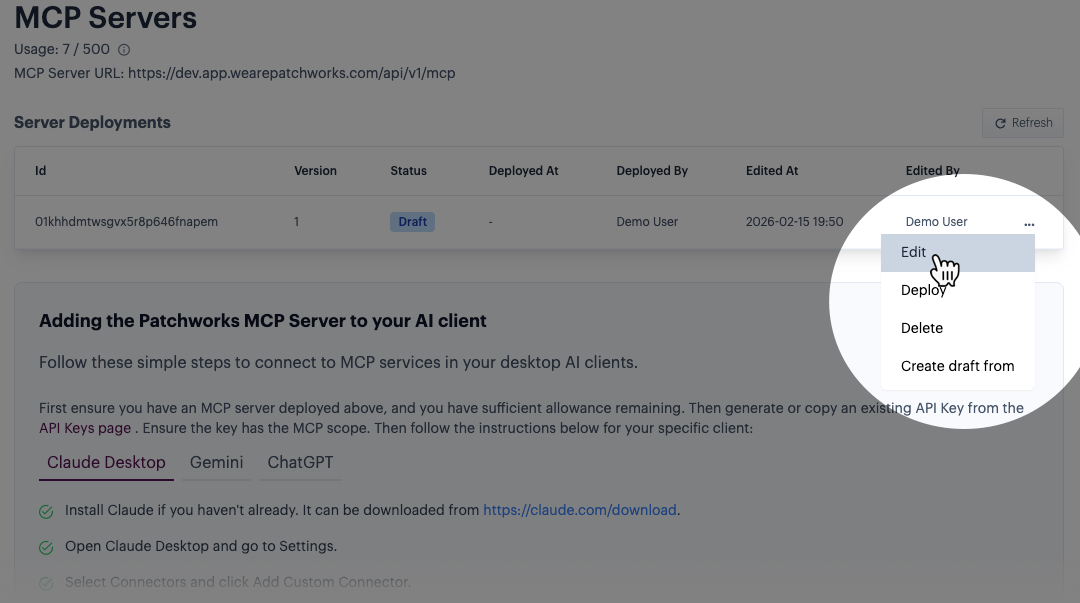
**Edit the draft entry**
Click the ellipsis icon for the draft `entry`, then select the `edit` option. For example:
{% endstep %}
{% step %}
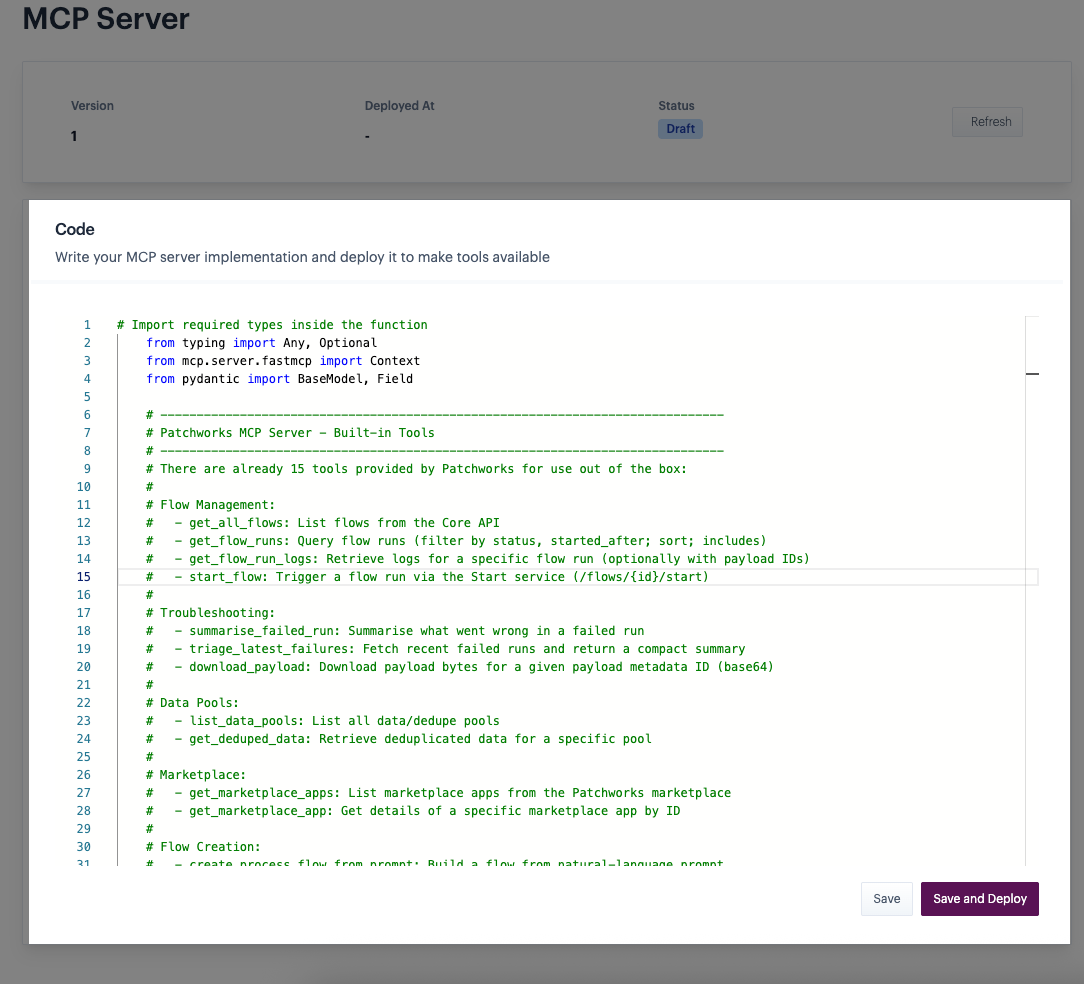
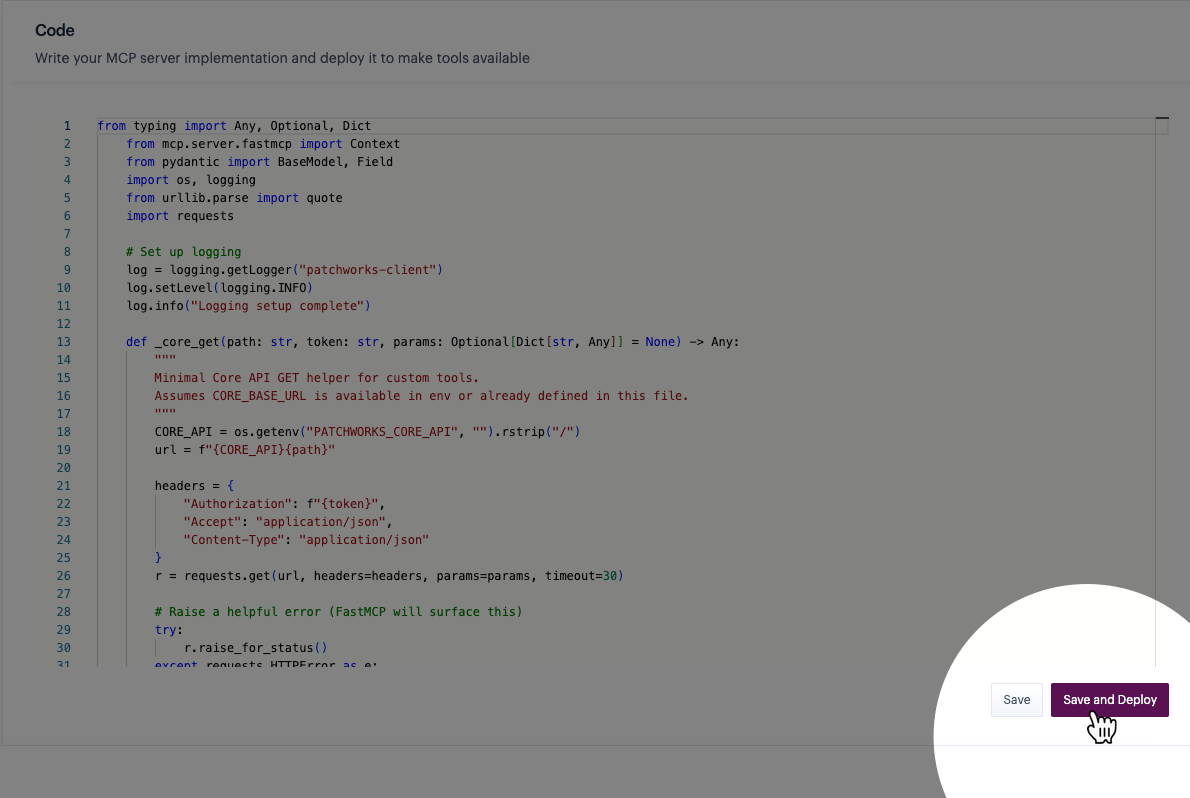
**Make required updates**
Use the code editor to add/adjust tools:
{% endstep %}
{% step %}
**Save or save & deploy the draft**
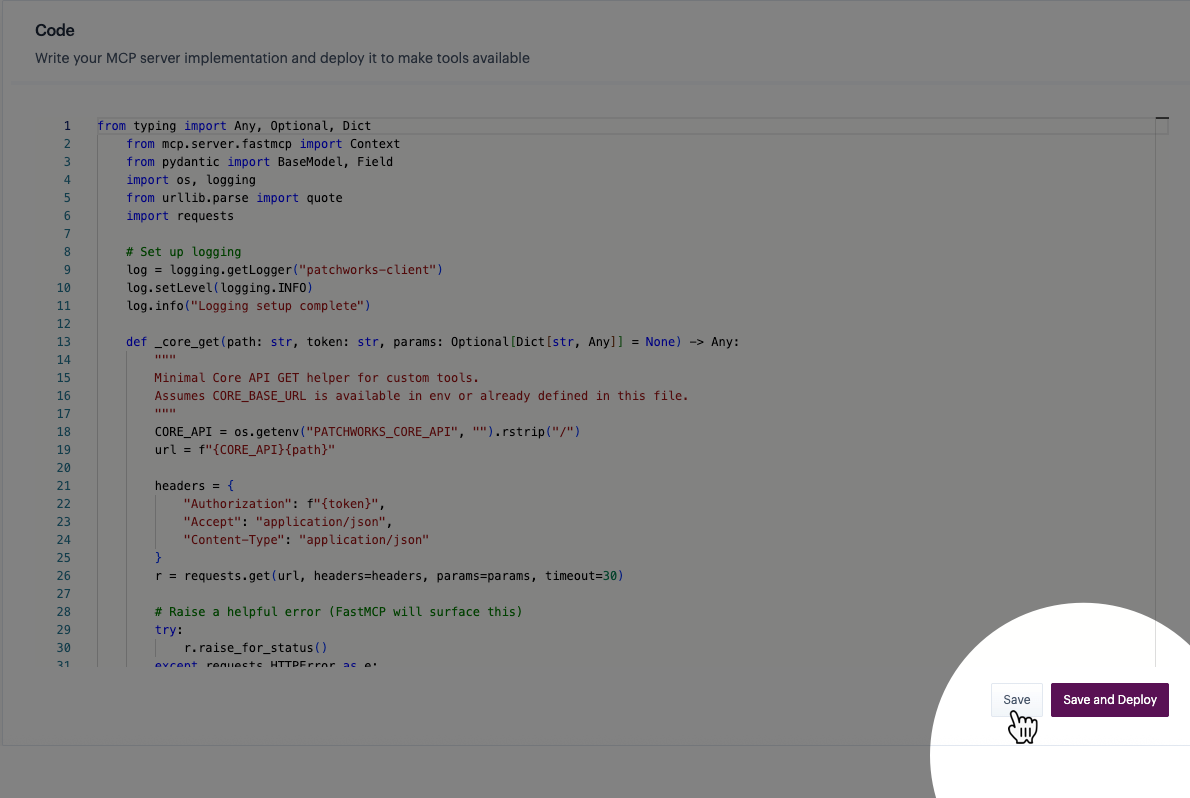
If you want to save your changes but not deploy them yet, click the `save` button:
Your changes are saved and the `draft` status does not change.
{% hint style="info" %}
Keep in mind that you can't [test your changes](/product-documentation/developer-hub/patchworks-mcp/patchworks-mcp-hosted/working-with-your-hosted-patchworks-mcp-server-deployment/browsing-inspecting-and-testing-tools-for-a-deployed-mcp-server.md) until the `draft` is deployed.
{% endhint %}
If you're ready to deploy the `draft` version, click the `save and deploy` button:
The `draft` status changes to `deployed`. If there was already a `deployed` version, this becomes `inactive`.
{% hint style="info" %}
Once your changes are deployed, you can [test the updated tools via the MCP servers page](/product-documentation/developer-hub/patchworks-mcp/patchworks-mcp-hosted/working-with-your-hosted-patchworks-mcp-server-deployment/browsing-inspecting-and-testing-tools-for-a-deployed-mcp-server.md) and/or your AI assistant.
{% endhint %}
{% hint style="info" %}
Deploying an updated `draft` does not affect existing connections with AI assistants - these will pick up the new/changed tools when requests are made.
{% endhint %}
{% endstep %}
{% endstepper %}