 Click to view process flow snapshot
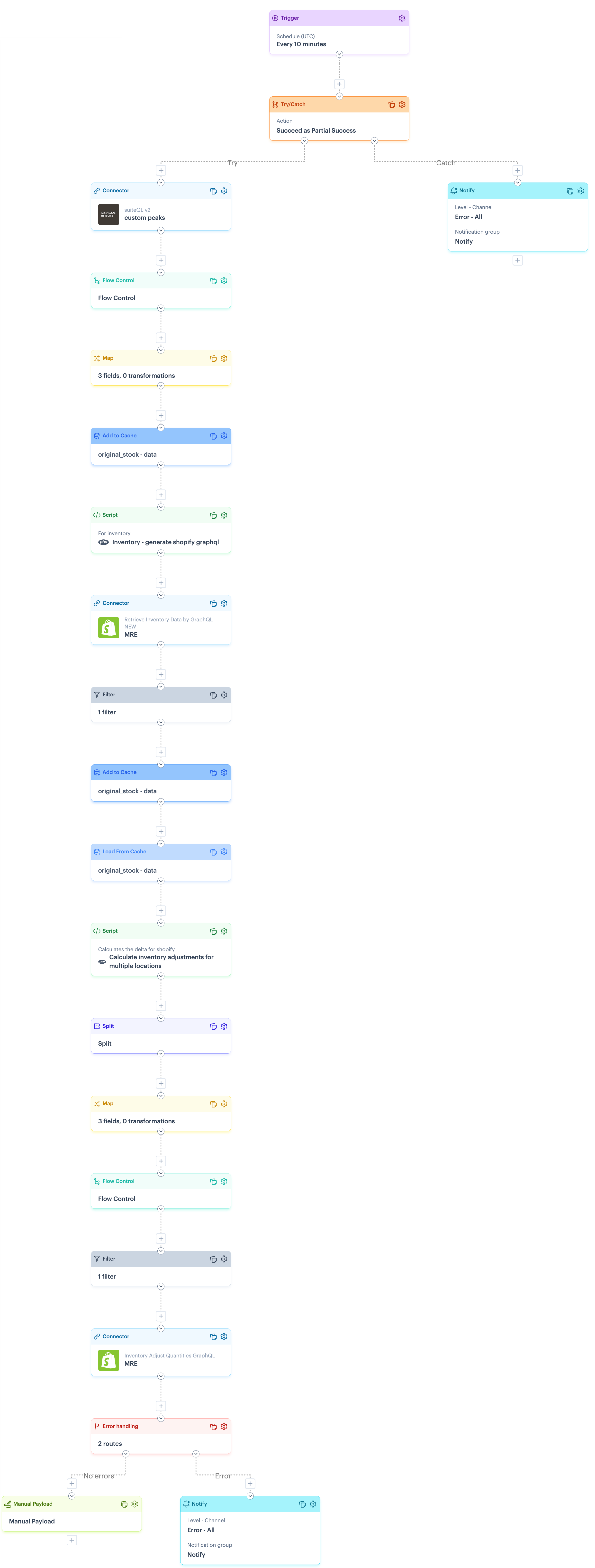 Click to view process flow snapshot
| Limitation | Summary |
|---|---|
| Shopify GraphQL error handling | There is a known limitation with error handling for Shopify GraphQL. Please refer to the Error handling for Shopify GraphQL section for more information and a suggested approach that you may wish to adopt in your flows. |
| Flow variable | Summary | Default value |
|---|---|---|
datenow | Set the relative time period to start looking for updated inventory items in NetSuite. Update the default value as required. | +0 minutes |
datefrom | Set the relative time period to look back for updated inventory items in NetSuite. Update the default value as required. | -10 minutes |
| Shape | Notes |
|---|---|
| Trigger | The default setting is to run every 10 minutes (recommended) but you can change the schedule if required. Keep in mind that the NetSuite connector includes a query that retrieves items updated within a given lookback period (based on flow variables). You should ensure that the trigger schedule aligns with your lookback period. |
| Notify | This flow is designed in a try/catch structure, so notifications are generated if any part of the flow fails. To achieve this, the catch route includes a notify shape, which must be configured for your own notification preferences.Alert level: Defaults to error but can be changed if neededChannel: Defaults to email + log but can be changed if neededEmail Limit: Defaults to 5 but can be changed if neededNotification Group: Replace the notify placeholder which your required notification group.Message: If required, you can change the placeholder message.For more information, please refer to our Notify shape and Notification groups pages. |
| Connector (NetSuite) | If you did not add or select a NetSuite instance during the blueprint installation process, the following settings must be configured:Source instance : Set to your required NetSuite instance.Source endpoint : Set to POST suiteQLQuery : Leave as it defaults. This variable references your datenow and datefrom flow variables to determine the lookback period for updated items. Make sure these flow variables are set as required. |
| Connector (Shopify) | If you did not add or select a Shopify instance during the blueprint installation process, the following settings must be configured:Source instance : Set to your required Shopify instance.Source endpoint : Set to POST Retrieve inventory data by graphql |
| Split | The level to split value must be updated with the name of your NetSuite warehouse location (exactly as it appears in NetSuite). |
| Connector (Shopify) | If you did not add or select a Shopify instance during the blueprint installation process, the following settings must be configured:
|
| Error handling route | This flow includes a route shape named error handling, with routes designed to provide additional error handling. You can update the notify shape as required.Note that this route shape relates to the Shopify GraphQL limitation noted above. This same route shape can be applied wherever you feel appropriate in process flows. |
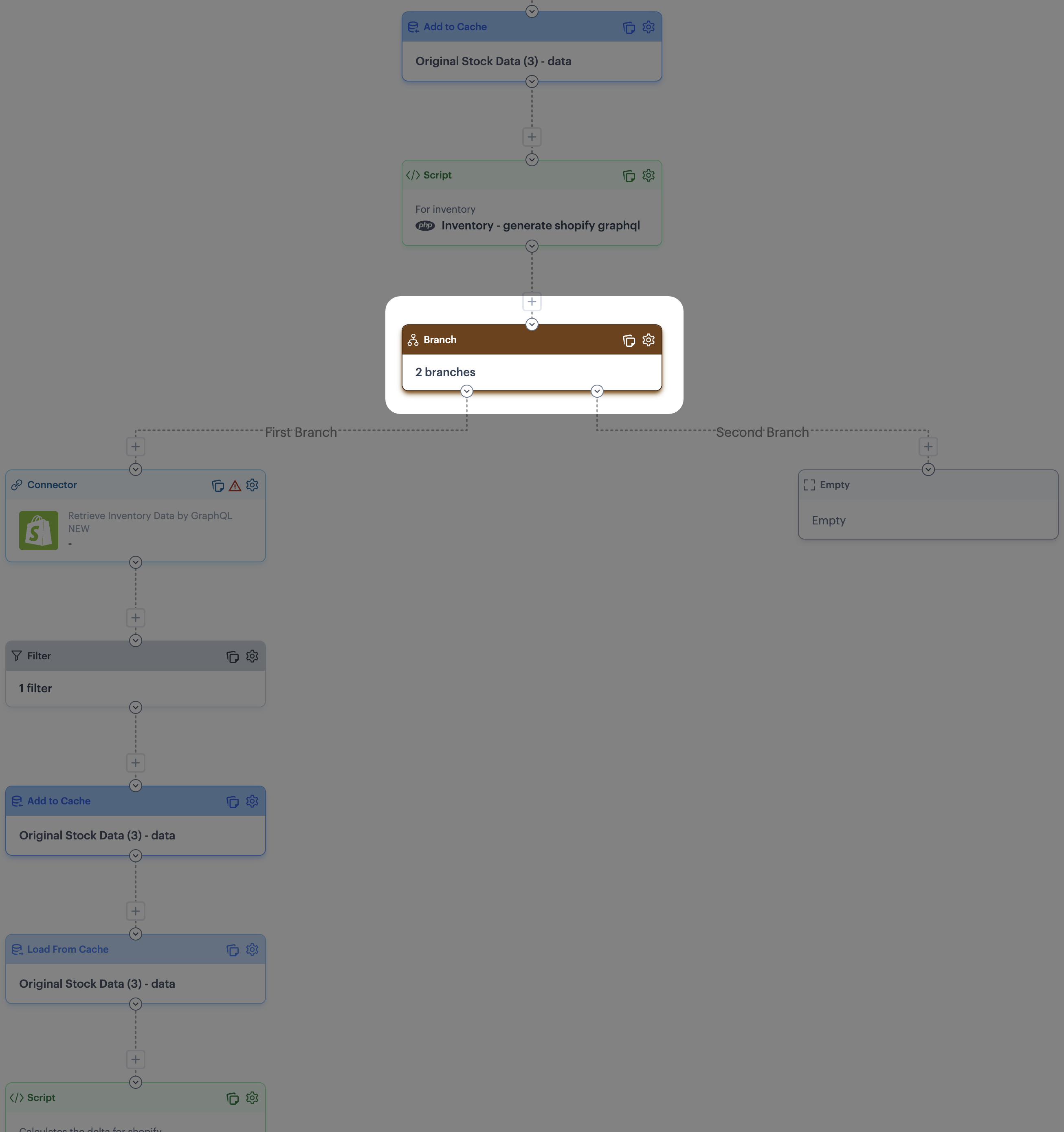 All subsequent shapes are moved to the first branch and a second branch is added. If required, add more branches.
{% endstep %}
{% step %}
**Replicate first branch shapes in new branches**
Add all shapes found in the first branch to each new branch, with the same configuration.
{% endstep %}
{% step %}
**Update split shapes**
On every branch (including the first one), edit the split shape. Here, change the `level to split` field to the name of a warehouse location (exactly as it appears in NetSuite). For example:

This location name is passed into the subsequent script, so the remaining flow processes for this location
{% endstep %}
{% endstepper %}
## Reference
Reference information for this process flow is documented in the following sections:
* [Scripts used in this process flow](#scripts-in-this-process-flow)
* [Cross-reference lookups used in this process flow](#cross-reference-lookups-in-this-process-flow)
### Scripts in this process flow
All subsequent shapes are moved to the first branch and a second branch is added. If required, add more branches.
{% endstep %}
{% step %}
**Replicate first branch shapes in new branches**
Add all shapes found in the first branch to each new branch, with the same configuration.
{% endstep %}
{% step %}
**Update split shapes**
On every branch (including the first one), edit the split shape. Here, change the `level to split` field to the name of a warehouse location (exactly as it appears in NetSuite). For example:

This location name is passed into the subsequent script, so the remaining flow processes for this location
{% endstep %}
{% endstepper %}
## Reference
Reference information for this process flow is documented in the following sections:
* [Scripts used in this process flow](#scripts-in-this-process-flow)
* [Cross-reference lookups used in this process flow](#cross-reference-lookups-in-this-process-flow)
### Scripts in this process flow
| Script | Summary |
|---|---|
| Inventory - generate shopify graphql | Query string to search SKUs in Shopify. |
| Calculate inventory adjustments for multiple locations | Calculate inventory adjustments for multiple locations - checks the inventory between both systems to create a delta value for shopify. |