# Bulk blueprint updates (force)

## Introduction

If you manage blueprint installations on behalf of your child companies, you can use the [installs page](https://doc.wearepatchworks.com/product-documentation/blueprints/working-with-private-blueprints/rolling-out-blueprint-updates/viewing-current-blueprint-installations) to roll out an update (forcibly) to company profiles that you manage (including your own). In one, bulk operation, you can perform the following updates (forcibly) for selected installations:

| Action                                              | Typical use case                                                                                                                                                                                                                                                                                                                                   |
| --------------------------------------------------- | -------------------------------------------------------------------------------------------------------------------------------------------------------------------------------------------------------------------------------------------------------------------------------------------------------------------------------------------------- |
| Promote a specific version                          | Particularly useful for testing an [update](https://doc.wearepatchworks.com/product-documentation/blueprints/working-with-private-blueprints/updating-a-private-blueprint) in a a single company profile, before making it [active](https://doc.wearepatchworks.com/product-documentation/blueprints/about-blueprint-versions#the-active-version). |
| Promote the `active` version                        | Particularly useful when you've finished testing an update, have [set it to be active](https://doc.wearepatchworks.com/product-documentation/blueprints/working-with-private-blueprints/changing-the-active-version-for-a-private-blueprint), and now you're ready to roll it out for existing installations.                                      |
| Demote an existing installation to an older version | Particularly useful if you have promoted the current active version and experiencing issues - you can roll back to the last sound point whilst working to resolve the issue.                                                                                                                                                                       |

{% hint style="info" %}
An alternative approach is to allow child companies to [accept/apply updates manually](https://doc.wearepatchworks.com/product-documentation/blueprints/working-with-private-blueprints/rolling-out-blueprint-updates/accepting-a-blueprint-update-manually), at a time that's convenient for them.
{% endhint %}

## Need to know

* A blueprint installation must exist before it can be updated. Please refer to [Installing a private blueprint ](https://doc.wearepatchworks.com/product-documentation/blueprints/working-with-private-blueprints/installing-a-private-blueprint)for guidance on installing a blueprint for the first time.
* Updates can only be applied for blueprints built and publised on or after 5th November 2025.
* Any connector instances that you configured [when the blueprint was first installed](https://doc.wearepatchworks.com/product-documentation/blueprints/working-with-private-blueprints/installing-a-private-blueprint) will persist following any update.&#x20;
* When you promote or demote another version of a blueprint to existing installations, you can choose what should happen with associated process flows after the update is installed.&#x20;
* During the update process, existing process flows associated with the blueprint are 'un-deployed' and at the end, only flows included in the update package are redeployed. So, if an existing process flow has been removed from the blueprint version being applied, it remains in place but is not redeployed.
* When a bulk update completes, an email notification is generated and sent to the email address associated with the user who triggered the update, confirming successes and/or failures.

## The steps

{% stepper %}
{% step %}
**Access the installs page for the required blueprint**

For detailed instructions, please refer to [Accessing the installs page](https://doc.wearepatchworks.com/product-documentation/blueprints/working-with-private-blueprints/viewing-current-blueprint-installations#accessing-the-installs-page).
{% endstep %}

{% step %}
**Select installations to update**

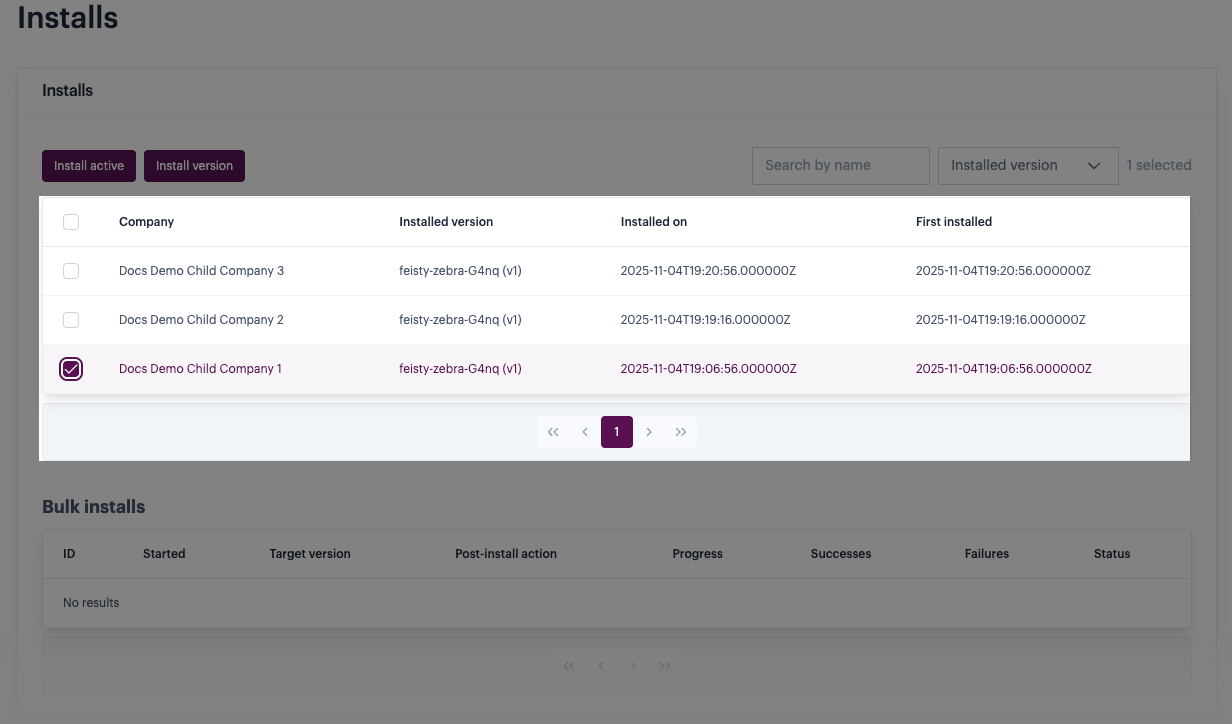
In the upper `installs` panel, select any existing installations to be updated. For example:

<figure><img src="https://2440044887-files.gitbook.io/~/files/v0/b/gitbook-x-prod.appspot.com/o/spaces%2FLYNcUBVQwSkOMG6KjZfz%2Fuploads%2FJ5pd1onzXKwjxeTmuebI%2Fpromote%201.png?alt=media&#x26;token=d9b0161e-b60b-409c-b438-320a4aab430f" alt=""><figcaption></figcaption></figure>
{% endstep %}

{% step %}
**Choose which type of update to apply**

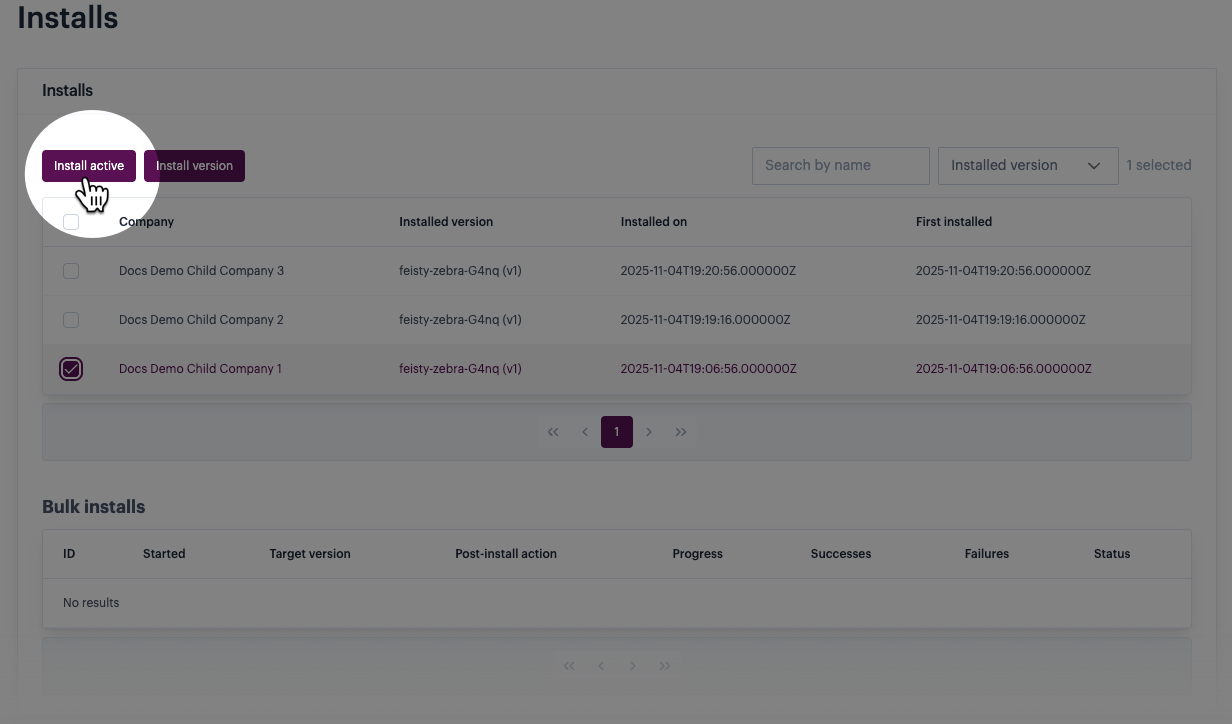
If you want to apply the current `active` version, click the `install active` button:

<figure><img src="https://2440044887-files.gitbook.io/~/files/v0/b/gitbook-x-prod.appspot.com/o/spaces%2FLYNcUBVQwSkOMG6KjZfz%2Fuploads%2F8h5MIjXpG2UNIrrrDXMg%2Fpromote%202a.png?alt=media&#x26;token=39983346-6436-46a6-bf5d-baab990a6ab1" alt=""><figcaption></figcaption></figure>

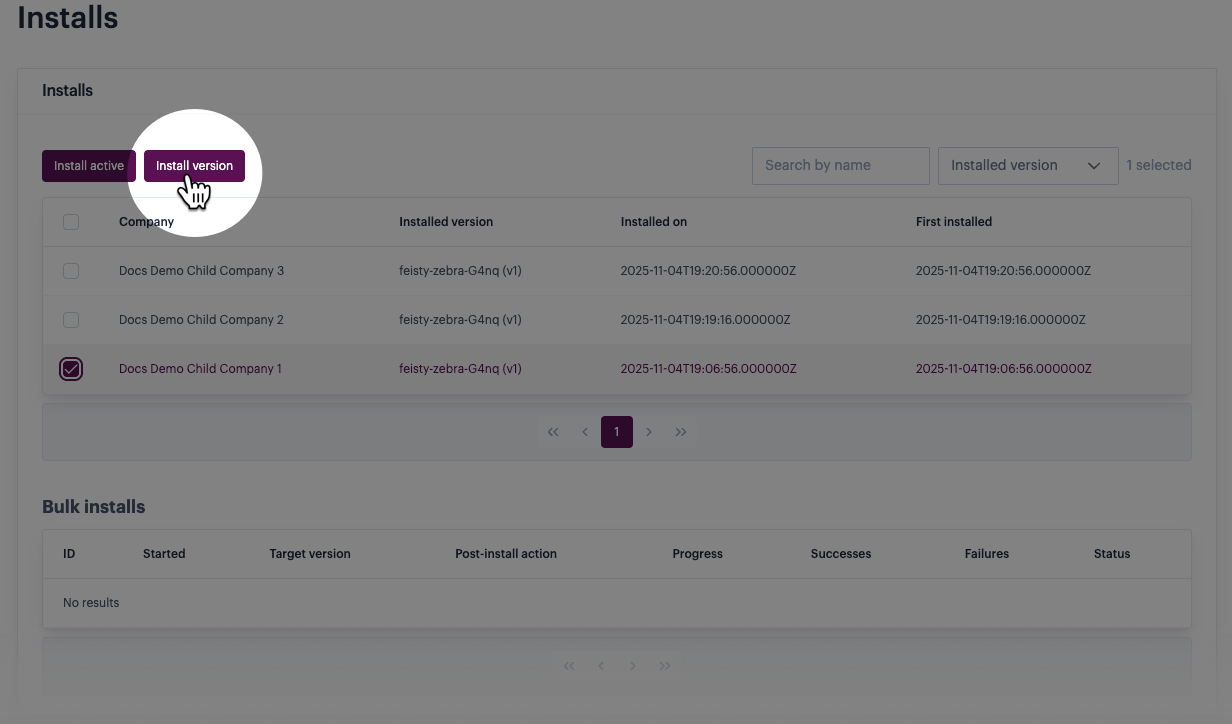
If you want to apply a specific version (for example, if you want to demote an installation to an older version, or if you are testing a later published version before it becomes `active`), click the `install active` button:

<figure><img src="https://2440044887-files.gitbook.io/~/files/v0/b/gitbook-x-prod.appspot.com/o/spaces%2FLYNcUBVQwSkOMG6KjZfz%2Fuploads%2FfjOQtFiwnAfw1EeI8VsL%2Fpromote%202b.png?alt=media&#x26;token=8954f46e-ddfc-4dee-8193-eeb1b0de5b55" alt=""><figcaption></figcaption></figure>
{% endstep %}

{% step %}
**Set update options**

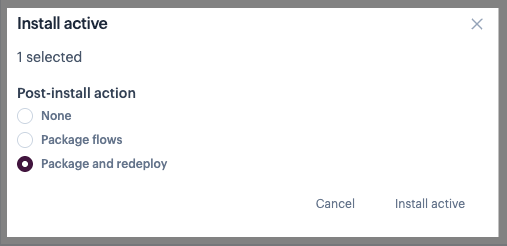
If you clicked  `install active` in the previous step, you're prompted to choose what happens with associated process flows after the update is applied:

<div align="left"><figure><img src="https://2440044887-files.gitbook.io/~/files/v0/b/gitbook-x-prod.appspot.com/o/spaces%2FLYNcUBVQwSkOMG6KjZfz%2Fuploads%2FWc344ttDoUnIvnu0Gr4r%2Fpromote%203a.png?alt=media&#x26;token=3daa56e5-7695-4fdd-bc69-24a2207474ec" alt=""><figcaption></figcaption></figure></div>

These options are summarised below:

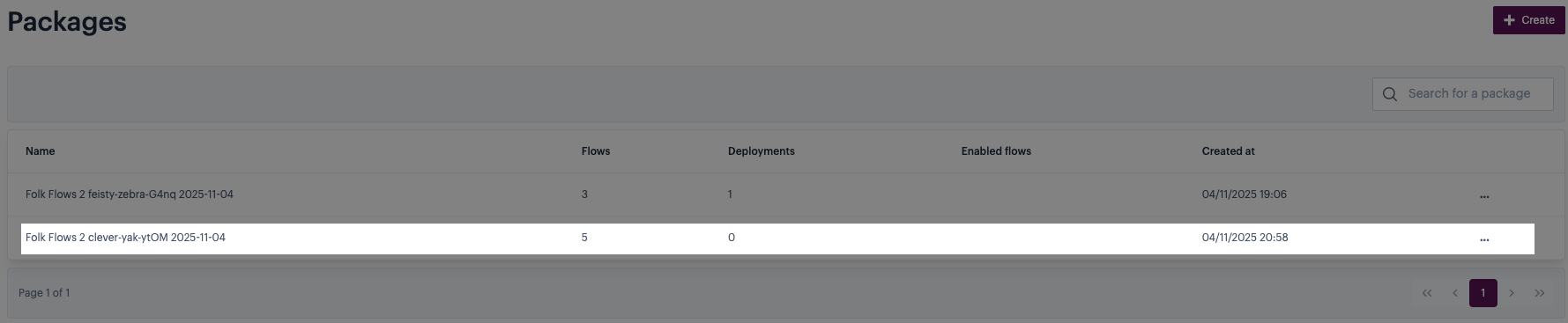
<table><thead><tr><th width="197.1796875">Field</th><th>Summary</th></tr></thead><tbody><tr><td>None</td><td><p>Process flows are installed from the blueprint but not deployed. Any existing <code>deployed</code> versions are unaffected. <br><br>For existing flows, the blueprint version becomes the latest <code>draft</code> version. </p><p></p><p>Any new flows are installed but disabled and un-deployed. </p><p></p><p>Any existing flows that have been removed from the blueprint are disabled and un-deployed.</p></td></tr><tr><td>Package flows</td><td><p>Creates a <a href="../../../virtual-environments/virtual-environment-packages">package</a> containing all process flows in the updated blueprint. The package name is set to the blueprint name, followed by the version and creation date. For example:<br><br><img src="https://2440044887-files.gitbook.io/~/files/v0/b/gitbook-x-prod.appspot.com/o/spaces%2FLYNcUBVQwSkOMG6KjZfz%2Fuploads%2FYvKBiixNuWtXiODG2c7y%2Fpackage%20name.png?alt=media&#x26;token=a7cf85cc-28c8-44b9-8286-6c2f778682ba" alt=""><br><br>When convenient, you should deploy this package to all required virtual environments. </p><p></p><p>During the update process, existing process flows associated with the blueprint are 'un-deployed' and at the end, only flows included in the update package are redeployed. So, if an existing process flow has been removed from the blueprint version being applied, it remains in place but is not redeployed.  </p></td></tr><tr><td>Package and redeploy</td><td>Creates a <a href="../../../virtual-environments/virtual-environment-packages">package</a> containing all process flows in the updated blueprint, then deploys this package to all <a href="../../../virtual-environments/about-virtual-environments">virtual environments</a> where a previous version exists (for the selected company profiles). <br><br>During the update process, existing process flows associated with the blueprint are 'un-deployed' and at the end, only flows included in the update package are redeployed. So, if an existing process flow has been removed from the blueprint version being applied, it remains in place but is not redeployed.  </td></tr></tbody></table>

If you clicked  `install version` in the previous step, you're prompted to choose what happens with associated process flows after the update is applied - these options are exactly the same as those in the above table:

<div align="left"><figure><img src="https://2440044887-files.gitbook.io/~/files/v0/b/gitbook-x-prod.appspot.com/o/spaces%2FLYNcUBVQwSkOMG6KjZfz%2Fuploads%2F4gm1eNTEgsAzmjBX8cPu%2Fpromote%203b1.png?alt=media&#x26;token=08862507-8774-4101-b565-bb5a561cec37" alt=""><figcaption></figcaption></figure></div>

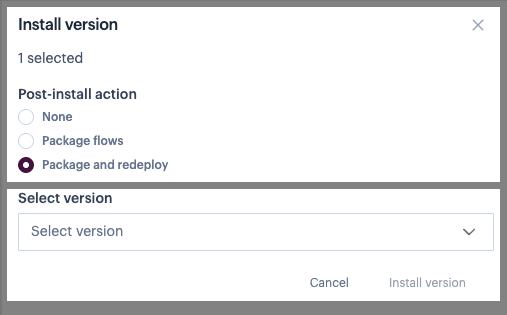
However for this update type, you must also choose which `version` to deploy. For example:

<div align="left"><figure><img src="https://2440044887-files.gitbook.io/~/files/v0/b/gitbook-x-prod.appspot.com/o/spaces%2FLYNcUBVQwSkOMG6KjZfz%2Fuploads%2FfuKCzN4KebUmnGMaUssJ%2Fpromote%203b2.png?alt=media&#x26;token=3669ac89-d2bc-4c92-a972-66f1351029d4" alt=""><figcaption></figcaption></figure></div>
{% endstep %}

{% step %}
**Confirm the update**

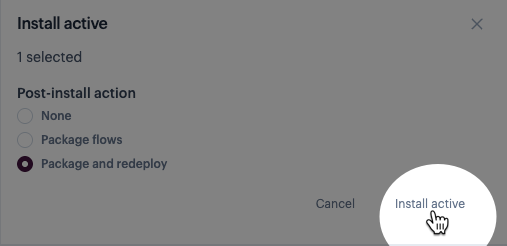
Having made your selections, click `install active` / `install version` at the bottom of the options modal, to start the update. For example:

<div align="left"><figure><img src="https://2440044887-files.gitbook.io/~/files/v0/b/gitbook-x-prod.appspot.com/o/spaces%2FLYNcUBVQwSkOMG6KjZfz%2Fuploads%2FmcjCHGBslb73giXCjlZy%2Fpromote%204.png?alt=media&#x26;token=2f9a4fb3-a5b9-450a-9fe2-f7e624f740a6" alt=""><figcaption></figcaption></figure></div>

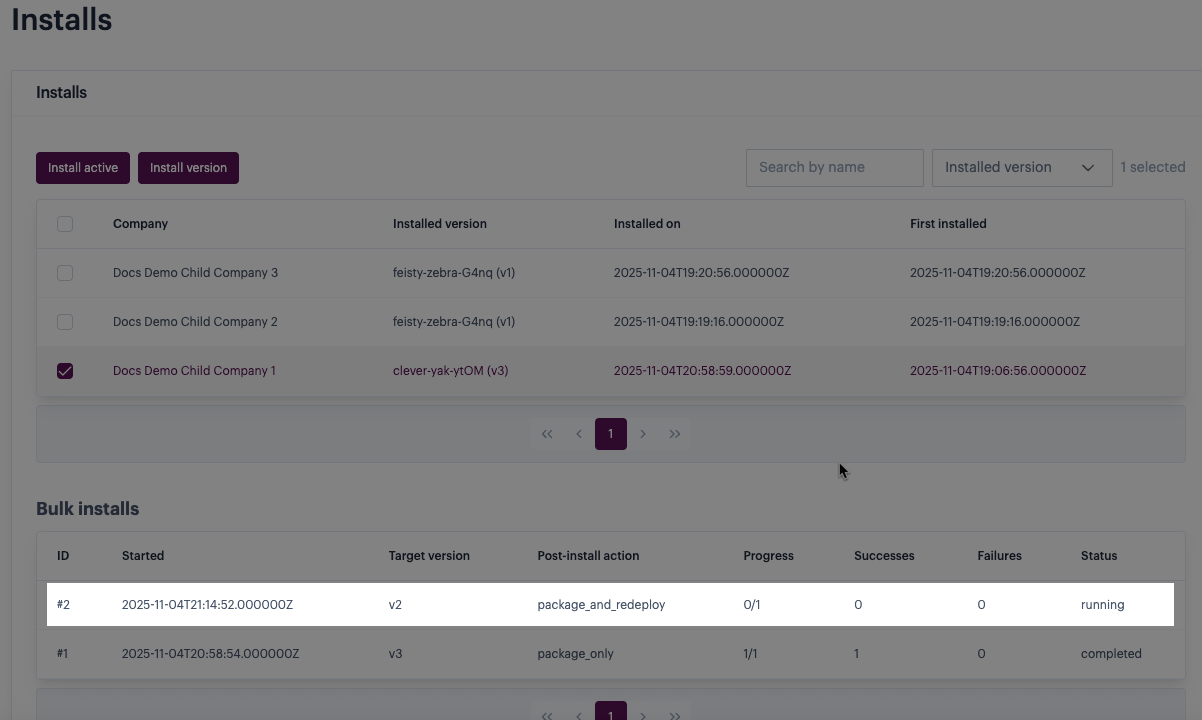
The update starts, with progress displayed in the lower [bulk installs](https://doc.wearepatchworks.com/product-documentation/blueprints/working-with-private-blueprints/rolling-out-blueprint-updates/..#the-bulk-installs-panel) panel. For example:

<figure><img src="https://2440044887-files.gitbook.io/~/files/v0/b/gitbook-x-prod.appspot.com/o/spaces%2FLYNcUBVQwSkOMG6KjZfz%2Fuploads%2FN9LOS4Taa9lDAtjLaWm3%2Fpromote%205.png?alt=media&#x26;token=8f985143-116d-461a-9e6d-8e5f4a840bf7" alt=""><figcaption></figcaption></figure>

When the update completes, an email notification is sent to the email address associated with the user account that triggered this update.

{% hint style="info" %}
You can check the status for each selected installation during or after the bulk update run. To do this, access the [installs](https://doc.wearepatchworks.com/product-documentation/blueprints/working-with-private-blueprints/rolling-out-blueprint-updates/viewing-current-blueprint-installations) page and use `view` actions.
{% endhint %}
{% endstep %}

{% step %}
**Complete post-update actions**

The action required after completing an update depends on which post-install action you selected in step 4. Guidelines are below:

<table><thead><tr><th width="197.99609375" valign="top">Post-install action</th><th valign="top">Status after update</th><th valign="top">Action required</th></tr></thead><tbody><tr><td valign="top"><code>none</code></td><td valign="top">The previous <code>draft</code> version of any existing process flows associated with this blueprint becomes <code>inactive</code>. <br><br>The blueprint version becomes the latest <code>draft</code> version.<br><br>Any existing <code>deployed</code> versions are unaffected.</td><td valign="top">Deploy the latest <code>draft</code> version manually, via <a href="../../../process-flows/building-process-flows/process-flow-settings">process flow settings</a>. <br><br>For more information, please refer to <a href="../../../process-flows/managing-process-flows/flow-deployment/deploying-a-process-flow-with-virtual-environments">Deploying a process flow</a>.</td></tr><tr><td valign="top"><code>package flows</code></td><td valign="top">The updated set of process flows associated with the blueprint are added to a new package. <br><br>Any existing <code>deployed</code> versions are unaffected.</td><td valign="top"><a href="../../../virtual-environments/virtual-environment-packages/accessing-packages">Access the new package</a> and then <a href="../../../virtual-environments/virtual-environment-packages/managing-packages/deploying-a-package">deploy it to all required environments</a>. </td></tr><tr><td valign="top"><code>package and redeploy</code></td><td valign="top">Any existing <code>deployed</code> versions are un-deployed.<br><br>The updated set of process flows associated with the blueprint are added to a new package.<br><br>The new package is deployed to all selected company profiles, and all applicable virtual environments for those companies. The latest set of process flows is enabled and deployed.    </td><td valign="top">Review process flows in your selected companies to ensure the update has been applied correctly.</td></tr></tbody></table>
{% endstep %}
{% endstepper %}