# Pad transform function

## Introduction

The **pad** transform function is used to pad an existing string of characters to a given length, using a given character. You can apply padding to the left (i.e. immediately before the existing string), to the right (i.e. immediately after the existing string), or both (immediately before and after, as equally as possible).

## Example

The payload item below contains a string that's 8 characters long:

```json
{"ref":"12345678"}
```

If we apply padding to a length of `20` using a `*` character to the `right`, the result would be:&#x20;

```json
{"ref":"12345678************"}
```

Here, we have an extra 12 \* characters to the right, giving a string length of 20. However, if we apply the `*` character to `both`, the result would be:&#x20;

```json
{"ref":"******12345678******"}
```

Now the padding is applied with 6 characters to the left of the original string and 6 characters to the right.

## Adding a round date transform

**Step 1**\
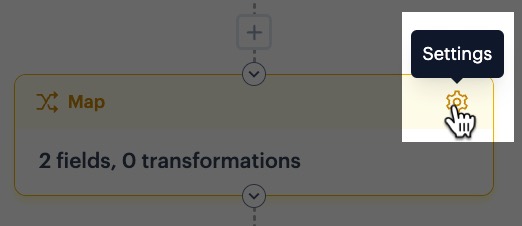
In your process flow, access settings for your map shape:

<div align="left"><figure><img src="https://2440044887-files.gitbook.io/~/files/v0/b/gitbook-x-prod.appspot.com/o/spaces%2FLYNcUBVQwSkOMG6KjZfz%2Fuploads%2FWVyqnULF7g5M3Pd7G8aN%2Fcustom%20string%201.jpg?alt=media&#x26;token=ff64e072-de9d-409d-b428-5d8ccfc9fdad" alt="" width="261"><figcaption></figcaption></figure></div>

**Step 2**\
Select the **add transform** button for the required mapping rule - for example:

<div align="left"><figure><img src="https://2440044887-files.gitbook.io/~/files/v0/b/gitbook-x-prod.appspot.com/o/spaces%2FLYNcUBVQwSkOMG6KjZfz%2Fuploads%2FxOOae75HpSijTH2Ou8AJ%2Fmap%20transform%203.jpg?alt=media&#x26;token=9f624f78-9604-47d4-b599-86d75760b7ce" alt="" width="563"><figcaption></figcaption></figure></div>

**Step 3**\
Click the **add transform** button:

<div align="left"><figure><img src="https://2440044887-files.gitbook.io/~/files/v0/b/gitbook-x-prod.appspot.com/o/spaces%2FLYNcUBVQwSkOMG6KjZfz%2Fuploads%2F3Ua8TKaE4TZFejZDXzLl%2Fmap%20transform%204.jpg?alt=media&#x26;token=9ad403ed-d029-4c81-ab5c-ee9839b6316d" alt="" width="563"><figcaption></figcaption></figure></div>

**Step 4**\
Click in the **name** field to access a list of all available transform functions, then select **pad** from the **string** section:

<div align="left"><figure><img src="https://2440044887-files.gitbook.io/~/files/v0/b/gitbook-x-prod.appspot.com/o/spaces%2FLYNcUBVQwSkOMG6KjZfz%2Fuploads%2FhOwtegAmwDVu6BhbkNHZ%2Fpad%20transform%201.png?alt=media&#x26;token=1577b2a0-dc43-4e61-99f9-db9d85e1c31a" alt="" width="563"><figcaption></figcaption></figure></div>

**Step 5**\
Click in the `direction` field and select where you would like padding to be applied:

<div align="left"><figure><img src="https://2440044887-files.gitbook.io/~/files/v0/b/gitbook-x-prod.appspot.com/o/spaces%2FLYNcUBVQwSkOMG6KjZfz%2Fuploads%2FNMXZRoymCMcqJBvh8cXN%2Fpad%20transform%202%20-%20direction.png?alt=media&#x26;token=43ed7b3d-d3a0-4393-8818-2da9c47bc5a1" alt="" width="563"><figcaption></figcaption></figure></div>

You can apply padding to the `left` (i.e. immediately before the existing string), to the `right` (i.e. immediately after the existing string), or `both` (immediately before and after, as equally as possible).

**Step 6**\
In the `length` field, specify the number of characters that you'd like the final (i.e. transformed) string to be - for example:

<div align="left"><figure><img src="https://2440044887-files.gitbook.io/~/files/v0/b/gitbook-x-prod.appspot.com/o/spaces%2FLYNcUBVQwSkOMG6KjZfz%2Fuploads%2F6JaalJEXbNrBJlJEd4w7%2Fpad%20transform%203%20-%20length.png?alt=media&#x26;token=1a930cac-f806-4133-a5df-10455968111b" alt=""><figcaption></figcaption></figure></div>

**Step 7**\
In the `pad character` field, specify the character that you'd like to use for padding - for example:

<figure><img src="https://2440044887-files.gitbook.io/~/files/v0/b/gitbook-x-prod.appspot.com/o/spaces%2FLYNcUBVQwSkOMG6KjZfz%2Fuploads%2FsPEbg83DYAMy3tSja5QJ%2Fpad%20transform%204%20-%20character.png?alt=media&#x26;token=9a84c5dc-cf77-4235-8c9a-83ab4ecadb78" alt=""><figcaption></figcaption></figure>

{% hint style="info" %}
If you want padding to be applied with spaces, press the space bar once in this field.&#x20;
{% endhint %}

**Step 8**\
Click the **add field** button:

<figure><img src="https://2440044887-files.gitbook.io/~/files/v0/b/gitbook-x-prod.appspot.com/o/spaces%2FLYNcUBVQwSkOMG6KjZfz%2Fuploads%2F21YRabqZHGCs85LeXyeI%2Fpad%20transform%205.png?alt=media&#x26;token=0a3c79b6-b456-4689-b543-de8025638a84" alt=""><figcaption></figcaption></figure>

**Step 6**\
Click in **source fields** and select the source field to be used for this transform:

<div align="left"><figure><img src="https://2440044887-files.gitbook.io/~/files/v0/b/gitbook-x-prod.appspot.com/o/spaces%2FLYNcUBVQwSkOMG6KjZfz%2Fuploads%2FFP0E86hWby5k34ZDta2B%2Fpad%20transform%206.png?alt=media&#x26;token=befd2404-f0bd-40ce-ae51-c09011509f5a" alt=""><figcaption></figcaption></figure></div>

**Step 7**\
Accept your changes (twice).

**Step 8**\
Save the transform.&#x20;